
1. Safety Information
Please read all safety instructions carefully before installing and operating the AUTO-VOX Solar5 Wireless Backup Camera. Failure to follow these instructions may result in product damage, property damage, or personal injury.
- Installation: Ensure the camera and monitor are securely mounted to prevent detachment during vehicle operation. Do not obstruct the driver's view or interfere with vehicle controls.
- Power Source: Use only the provided power cable and connect to a compatible 12V vehicle power outlet.
- Water Resistance: The camera is designed for outdoor use and is waterproof. However, avoid submerging the camera in water or exposing it to high-pressure water jets.
- Temperature: Operate and store the device within the specified temperature range to prevent damage.
- Cleaning: Use a soft, damp cloth for cleaning. Avoid abrasive cleaners or solvents.
- Disclaimer: This device is an aid for safe driving and parking. It does not replace the driver's responsibility to operate the vehicle safely and observe surroundings.
2. Package Contents
Verify that all items are present in your package:
- AUTO-VOX Solar5 Wireless Backup Camera (with integrated solar panel)
- 7.2-inch Wireless Monitor
- Car Charger (for monitor power)
- Mounting Bracket for Monitor
- Magnetic Mounting Plate for Camera (for non-magnetic surfaces)
- Screws and Tools for Installation
- User Manual

Image: AUTO-VOX Solar5 Wireless Backup Camera and Monitor with accessories.
3. Product Overview
3.1. Camera Components
- Camera Lens: Captures the rear view.
- Solar Panel: Charges the internal battery.
- Antenna: For wireless signal transmission.
- Power Button/Indicator: Turns the camera on/off and shows status.
- Magnetic Base: Allows for easy attachment to metal surfaces.
3.2. Monitor Components
- Display Screen: Shows the camera feed.
- Antennas: For wireless signal reception.
- Control Buttons: For menu navigation and settings adjustment.
- Power Input: Connects to the car charger.
- Mounting Slot: For attaching the monitor to its bracket.
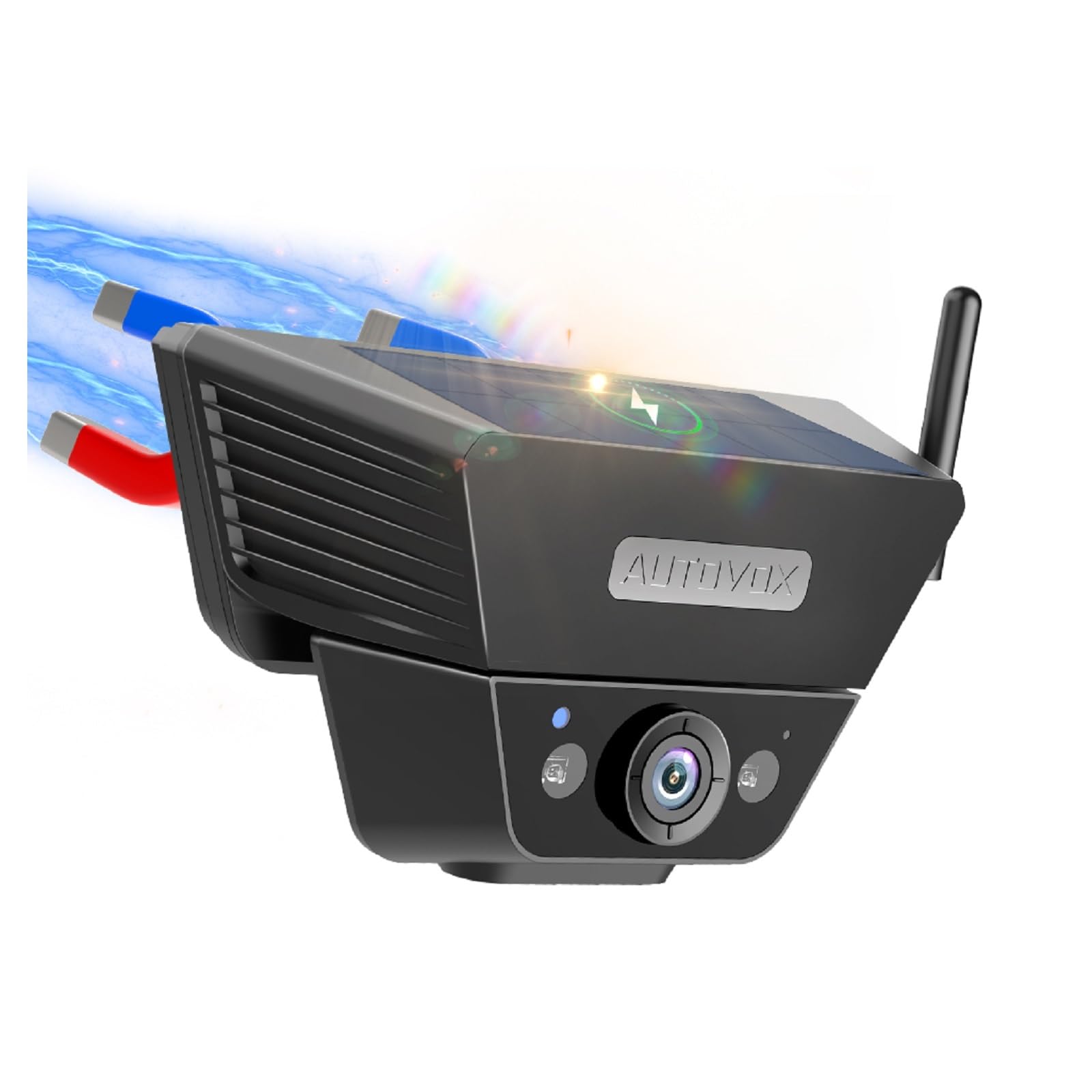
Image: The AUTO-VOX Solar5 wireless backup camera and its monitor, showcasing their design and key features.
4. Installation
4.1. Camera Installation
The Solar5 camera features a strong magnetic base for easy attachment to metal surfaces on your vehicle, such as the license plate area or the rear of a trailer. If your desired mounting location is not magnetic, use the provided magnetic mounting plate and screws to create a secure attachment point.
- Choose Location: Select a suitable location at the rear of your vehicle that provides a clear view and does not obstruct the license plate or other essential components.
- Magnetic Mount: If the surface is metal, simply place the camera onto it. The strong magnet will hold it in place.
- Non-Magnetic Mount (Optional): If the surface is not magnetic, attach the magnetic mounting plate using the provided screws. Then, attach the camera to this plate.
- Adjust Angle: Adjust the camera's angle to achieve the desired viewing perspective.
- Power On Camera: Press and hold the power button on the camera for 3 seconds until the green indicator light illuminates.
Video: This video demonstrates the simple installation process of the AUTO-VOX Solar5 wireless backup camera, including magnetic attachment and angle adjustment.

Image: A blue car with the AUTO-VOX Solar5 camera mounted, illustrating its discreet and secure placement.
4.2. Monitor Installation
The monitor can be easily mounted on your dashboard using the provided bracket.
- Attach Bracket: Secure the mounting bracket to the back of the monitor.
- Choose Location: Select a flat, stable surface on your dashboard that does not obstruct your view of the road.
- Secure Monitor: Peel off the protective film from the adhesive base of the bracket and firmly press it onto the dashboard. Lock the monitor into position.
- Connect Power: Insert the car charger into your vehicle's 12V power outlet (cigarette lighter socket) and connect the other end to the monitor's power input.
- Power On Monitor: The monitor should automatically power on when the vehicle's ignition is turned on. If not, press the power button on the monitor.
Video: This video demonstrates the setup of the AUTO-VOX Solar5 monitor, including mounting on the dashboard and connecting to the car's power supply.
5. Operating Instructions
5.1. Power On/Off
- Camera: Press and hold the power button for 3 seconds to turn on or off. The green light indicates it's on.
- Monitor: The monitor typically powers on automatically with the vehicle's ignition. Press the power button briefly to turn the screen on/off manually.
5.2. Viewing the Camera Feed
- Once both the camera and monitor are powered on, the monitor will automatically display the live feed from the backup camera.
- When the vehicle is put into reverse gear, the monitor will prioritize the camera view.
5.3. Monitor Settings
Use the buttons on the monitor to navigate the menu and adjust settings such as brightness, contrast, and parking guidelines.
- Menu Button: Access the main settings menu.
- Up/Down Buttons: Navigate through menu options or adjust values.
- OK/Select Button: Confirm selections.
- Parking Guidelines: Enable or disable parking lines, and adjust their position or width if supported by the model.
6. Maintenance
- Camera Lens: Regularly clean the camera lens with a soft, lint-free cloth to ensure a clear image. Avoid scratching the lens.
- Solar Panel: Keep the solar panel clean and free from dirt, dust, or snow to maximize charging efficiency.
- Monitor Screen: Clean the monitor screen with a soft, dry cloth. Do not use harsh chemicals.
- Battery Charging: While the camera is solar-powered, occasional direct charging via USB may be necessary during prolonged periods of low sunlight or heavy use.
- Secure Mounting: Periodically check that both the camera and monitor are securely mounted and that all cables are properly connected.
7. Troubleshooting
| Problem | Possible Cause | Solution |
|---|---|---|
| No image on monitor | Camera or monitor not powered on; poor wireless connection; damaged cable. | Ensure both camera and monitor are powered on. Check all cable connections. Re-pair the camera and monitor if necessary (refer to pairing instructions in full manual). Move closer if range is an issue. |
| Image is blurry or distorted | Dirty camera lens; condensation; interference. | Clean the camera lens. Allow time for condensation to clear. Check for sources of electromagnetic interference. |
| Camera battery drains quickly | Insufficient sunlight for solar charging; frequent use in low-light conditions. | Ensure solar panel is clean and exposed to direct sunlight. Charge the camera directly via USB if needed. |
| Monitor not turning on automatically | Car charger not receiving power; faulty connection. | Check the vehicle's 12V power outlet. Ensure the car charger is fully inserted and functional. |
8. Specifications
- Model: Solar5
- Brand: AUTO-VOX
- Connectivity: Wireless
- Camera Features: Solar power, strong magnetic mount, night vision, waterproof
- Monitor Size: 7.2 inches (display)
- Power Input: 12V (for monitor)
- Battery: Rechargeable (for camera)
- Field of View: 180 degrees
- Usage Environment: Outdoor
- Included Components: Backup camera cam7
9. Warranty and Support
The AUTO-VOX Solar5 Wireless Backup Camera comes with an 18-month warranty from the date of purchase. This warranty covers manufacturing defects and malfunctions under normal use.
For technical support, warranty claims, or any questions regarding your product, please contact AUTO-VOX customer service:
- Website: www.auto-vox.com
- Email: Refer to your product packaging or the official AUTO-VOX website for the most current support email address.
Please have your purchase receipt and product model number (Solar5) ready when contacting support.

Image: An illustration representing customer support, encouraging users to reach out for assistance.