
Introduction
Welcome to the KINMRIS M27 Retro Video Gaming Console. This manual provides essential information for setting up, operating, and maintaining your device. Please read it thoroughly to ensure optimal performance and longevity of your console.
What's in the Box
- M27 Retro Gaming Console
- Data Cable (USB-C)
- Instruction Manual

Image: The KINMRIS M27 Retro Gaming Console displayed with its included accessories: a MicroSD card, two types of USB cables, and the product box.
Product Overview
The KINMRIS M27 is a portable handheld gaming console designed for retro gaming enthusiasts. It features a 7-inch IPS screen, dual 3D joysticks, and supports multiple emulators.
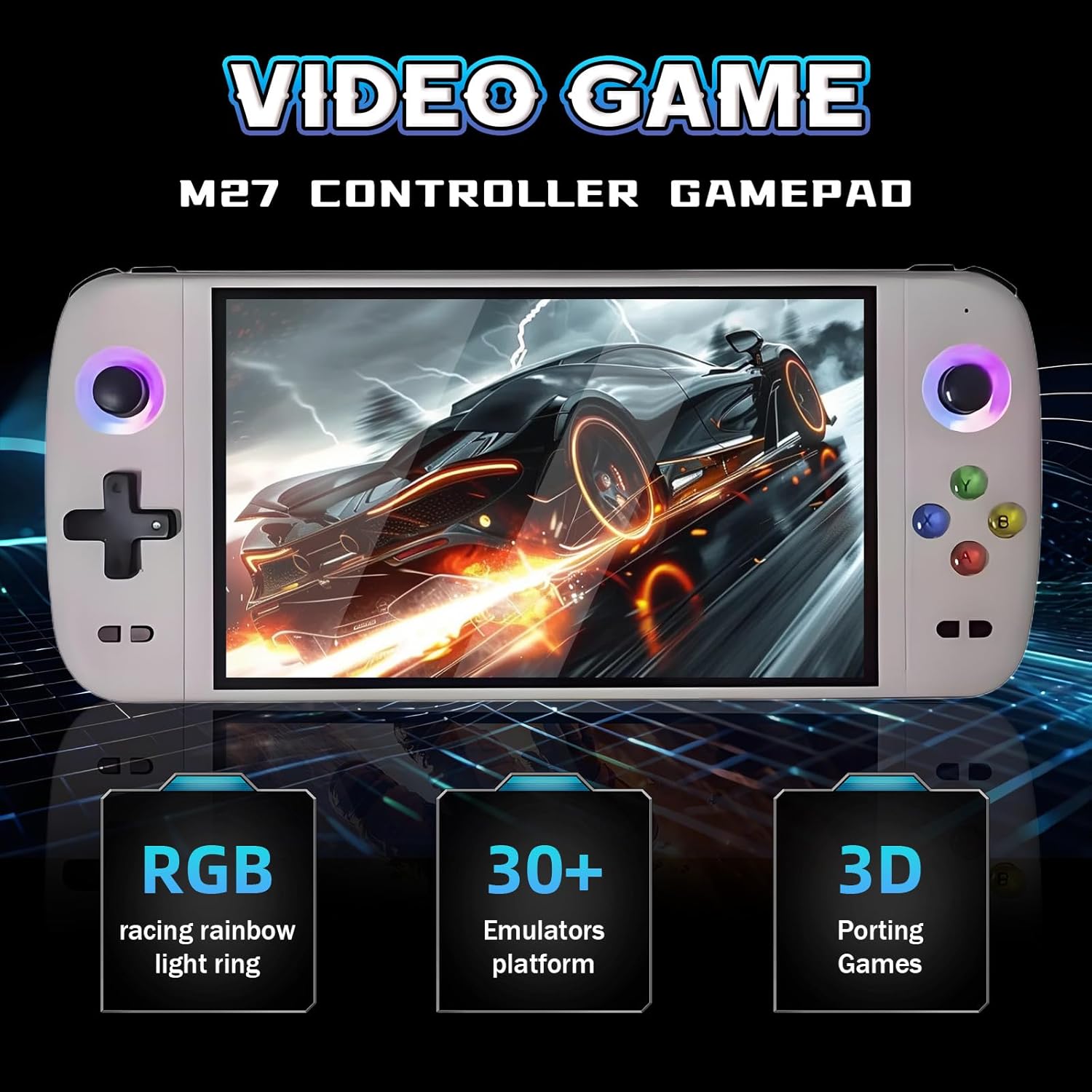
Image: Front view of the KINMRIS M27 console, highlighting its 7-inch screen and control layout, including joysticks and buttons.

Image: Diagram illustrating the various buttons and ports on the M27 console, including directional keys, 3D joysticks, function keys, charging interface, TF card slot, and AUX sound line interface.
Setup
1. Charging the Console
Before first use, fully charge the console. Connect the provided USB-C data cable to the console's charging port and the other end to a 5V/2A power adapter (not included).
The console has a built-in 3000mAh battery. A full charge typically takes approximately two hours and provides up to 8 hours of gameplay.

Image: An illustration of the console's 3000mAh battery capacity and charging specifications (5V 2A input).
2. Inserting the TF Card
The console comes with a pre-installed TF (MicroSD) card containing over 50,000 retro games and 30+ emulators. To insert or remove the TF card, ensure the console is powered off. Locate the TF card slot on the device and gently push the card in until it clicks. To remove, push again to release.
Important: Do not attempt to modify the system or device firmware to ensure system stability and security.
Operating Instructions
1. Power On/Off
To power on, press and hold the power button (usually labeled "ON/OFF") until the screen illuminates. To power off, press and hold the power button again until the shutdown options appear, then select "Power Off" or continue holding until the device shuts down.
2. Navigation
Use the directional keys (D-pad) or the left 3D joystick to navigate through menus and game lists. The A, B, X, Y buttons are used for selection, confirmation, and in-game actions. The "Start" and "Select" buttons perform various functions depending on the game or menu context.
3. Playing Games
From the main menu, select an emulator or game category. Browse the list of available games and select one to launch. Follow on-screen prompts or game-specific instructions for gameplay.
4. Saving and Loading Game Progress
Most emulators support in-game saving and loading, as well as "save states" which allow you to save your progress at any point. Refer to the emulator's specific menu (often accessed by a combination of function keys) for these options.
5. Connecting to a TV
The M27 console supports connection to an external display, such as a TV, for an enhanced gaming experience. Use an appropriate HD cable (not included) to connect the console's HD output port to your TV's input port. Switch your TV's input source to the corresponding HD channel.

Image: The M27 console connected to a 4K Ultra HD television, demonstrating multi-player gameplay with two external controllers.
System Features
- Operating System: EmuELEC system, supporting over 30 languages.
- Display: 7-inch IPS screen with 600*1024 resolution.
- Emulators: Supports 30+ emulators with over 50,000 pre-installed retro games (256G version).
- Storage: Internal storage with support for TF card expansion from 8GB to 128GB.
- Battery: 3000mAh high-capacity battery for extended gameplay.
- Audio: Integrated 8 ohm 1 watt speakers for immersive sound.
- Controls: High-precision 3D dual joysticks and ergonomic design.
- RGB Lighting: 16 million color RGB racing rainbow light ring, responsive to sound.

Image: The M27 console showcasing its 16 million color RGB racing rainbow light rings around the joysticks.

Image: An image emphasizing the console's 7-inch HD color screen with 600x1024 pixel resolution.
Maintenance
- Cleaning: Use a soft, dry cloth to clean the console's screen and body. Avoid liquid cleaners or abrasive materials.
- Storage: Store the console in a cool, dry place away from direct sunlight and extreme temperatures.
- Battery Care: To prolong battery life, avoid fully discharging the battery frequently. Charge it regularly, even if not in use for extended periods.
- Avoid Drops: Protect the device from drops and impacts, which can damage internal components or the screen.
Troubleshooting
- Console does not power on:
- Ensure the battery is charged. Connect the console to a power source and try again. If the issue persists, contact customer support.
- Games are not loading or running slowly:
- Check if the TF card is properly inserted. Ensure the game file is compatible with the emulator. Some larger games may require more processing power and might experience occasional slowdowns depending on the emulator.
- Screen is unresponsive or flickering:
- Try restarting the console. If the problem continues, it may indicate a hardware issue. Contact customer support.
- No sound:
- Check the volume settings on the console. Ensure no headphones are connected if you intend to use the built-in speakers. If using external speakers or headphones, ensure they are properly connected and functional.
Specifications
| Feature | Detail |
|---|---|
| Model | M27 |
| Display | 7-inch IPS, 600*1024 Resolution |
| Operating System | EmuELEC |
| Emulators | 30+ supported |
| Pre-installed Games | 50,000+ (256G version) |
| Battery Capacity | 3000mAh |
| Charging Input | 5V/2A (Type-C) |
| Dimensions | 9.65 x 4.21 x 0.87 inches |
| Manufacturer | KINMRIS |
Warranty & Support
For warranty information and technical support, please refer to the official KINMRIS website or contact your retailer. Keep your purchase receipt for warranty claims.
You can visit the KINMRIS Store for more information: KINMRIS Official Store