1. Introduction
This manual provides detailed instructions for the safe and efficient use of your VBESTLIFE Portable WiFi Hotspot Device. This device is designed to provide high-speed internet access on the go by utilizing a 4G or 5G SIM card. Please read this manual thoroughly before operating the device and retain it for future reference.
2. Package Contents
Please check the package contents upon unboxing. If any items are missing or damaged, contact customer support.
- 1 x Portable WiFi Hotspot Device
- 1 x USB Supply Cord (USB-C)
- 1 x User Manual
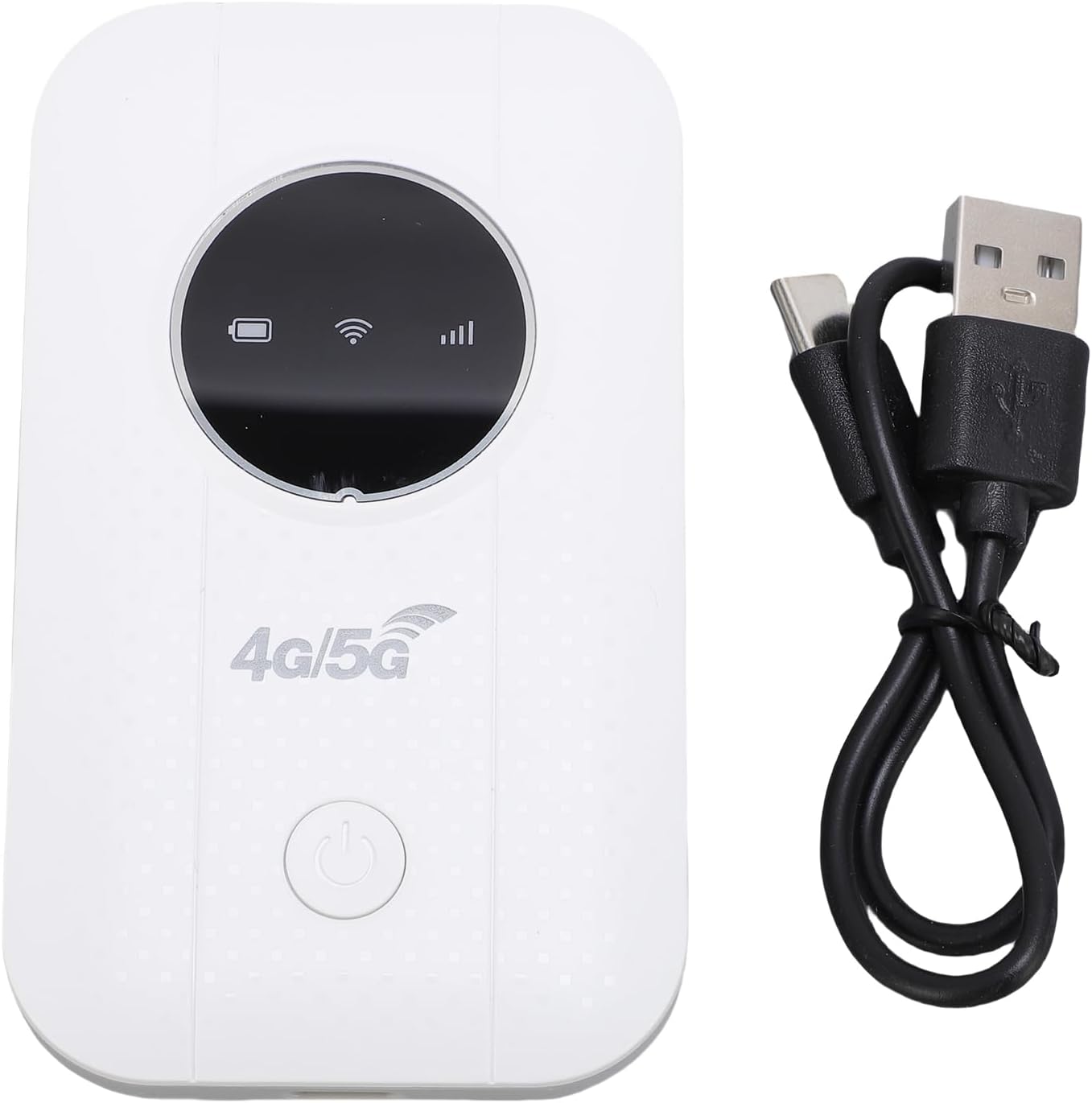
Image: The portable WiFi hotspot device shown alongside its USB-C charging cable.
3. Product Overview
The VBESTLIFE Portable WiFi Hotspot is a compact and versatile device designed for mobile internet access. It supports LTE CAT4 standard, offering speeds up to 300Mbps, and can connect up to 10 devices simultaneously.
Key Features:
- Portable Design: Compact and lightweight for easy travel.
- High-Speed Connectivity: Supports 4G/5G LTE Cat4 for up to 300Mbps internet access.
- Multi-Device Support: Connects up to 10 devices (smartphones, tablets, laptops).
- Long Battery Life: Built-in 3650mAh battery provides over 10 hours of continuous use.
- Plug and Play: Simple setup by inserting a SIM card and connecting to power.
- Network Frequency Bands: Supports B1, B3, B5, B40.
- Security: Supports WPA/WPA2 encryption.

Image: Front view of the portable WiFi hotspot device, highlighting its compact design and indicator lights.

Image: Illustration demonstrating the ability of the hotspot to connect up to 10 devices simultaneously, including monitors, desktop PCs, laptops, and phones.

Image: Examples of where the portable WiFi hotspot can be used, such as business offices, gaming, binge-watching, travel, outdoor access, and live streaming.
4. Setup Guide
Follow these steps to set up your VBESTLIFE Portable WiFi Hotspot Device.
4.1. Inserting the SIM Card
- Ensure the device is powered off.
- Carefully remove the back cover of the device.
- Locate the SIM card slot.
- Insert your 4G or 5G SIM card into the slot with the gold contacts facing down and the notched corner aligned correctly. Ensure it clicks into place.
- Replace the back cover.

Image: The back of the WiFi hotspot device with the cover removed, revealing the battery compartment and the SIM card slot.
4.2. Charging the Device
- Connect the provided USB supply cord to the USB-C port on the device.
- Connect the other end of the USB cable to a compatible USB power source (e.g., computer USB port, portable power bank, car USB charger, or a wall adapter).
- The device will begin charging. The battery indicator lights will show the charging status.

Image: A close-up view of the USB-C charging port located on the side of the portable WiFi hotspot device.
5. Operating Instructions
5.1. Powering On/Off
- To Power On: Press and hold the power button (usually indicated by a circle with a vertical line) for a few seconds until the indicator lights illuminate.
- To Power Off: Press and hold the power button again for a few seconds until the indicator lights turn off.
5.2. Connecting Devices to the Hotspot
- Ensure the hotspot is powered on and has a working SIM card with an active data plan.
- On your device (smartphone, tablet, laptop), go to your Wi-Fi settings.
- Search for available Wi-Fi networks. The hotspot's network name (SSID) will typically be printed on a label inside the battery compartment or on the device itself.
- Select the hotspot's SSID from the list.
- Enter the Wi-Fi password (usually printed alongside the SSID) when prompted.
- Once connected, your device should have internet access.
5.3. Indicator Lights
The device features indicator lights to show its status:
- Signal Indicator: Shows the strength of the 4G/5G network signal.
- Wi-Fi Indicator: Indicates if Wi-Fi is active and broadcasting.
- Battery Indicator: Displays the current battery level.

Image: An illustration depicting the WiFi signal emanating from the portable hotspot, covering an indoor area.
6. Maintenance
- Cleaning: Use a soft, dry cloth to clean the device. Avoid using liquid cleaners or solvents.
- Battery Care: To prolong battery life, avoid fully discharging the battery frequently. Charge the device regularly.
- Heat Dissipation: If the device is used for extended periods, especially when charging or under heavy load, ensure it is placed in a well-ventilated area to allow for proper heat dissipation.
- Storage: Store the device in a cool, dry place away from direct sunlight and extreme temperatures.

Image: An illustration showing the hotspot device next to a battery icon indicating 50% charge, emphasizing its long battery life.
7. Troubleshooting
| Problem | Possible Cause | Solution |
|---|---|---|
| No internet connection |
|
|
| Slow internet speed |
|
|
| Device not powering on |
|
|
8. Specifications
| Feature | Detail |
|---|---|
| Model Number | VBESTLIFEh5fk8ig9x6 |
| Network Frequency | LTE: B1/B3/B5/B40; WCDMA: B1/B3 |
| Wireless Standard | 802.11 b/g/n (Wireless Network Transfer Frequency: Up to 300Mbps) |
| SIM Card Slot | 1 x SIM Card (not included) |
| Battery Type | Built-in 3650mAh Li Battery |
| Connectivity Technology | Wireless (Ethernet mentioned in product data, but device is primarily wireless hotspot) |
| Compatible Devices | Smartphones, Tablets, Laptops |
| Max Connected Users | Up to 10 |
| Item Weight | 4.4 ounces (approx. 125g) |
| Package Dimensions | 4.33 x 2.76 x 1.18 inches (approx. 11 x 7 x 3 cm) |
9. Warranty and Support
For warranty information and technical support, please refer to the warranty card included with your product or visit the official VBESTLIFE website. If you encounter any issues not covered in this manual, please contact VBESTLIFE customer service for assistance.
VBESTLIFE Official Store: Visit the VBESTLIFE Store on Amazon


