
Ruwaqart 068WU-02A
Ruwaqart 5K 72MP UHD Digital Camera Instruction Manual
Model: 068WU-02A
Brand: Ruwaqart
Introduction
Thank you for choosing the Ruwaqart 5K 72MP UHD Digital Camera. This compact and versatile camera is designed to capture high-quality photos and videos with ease. This manual provides essential information for setting up, operating, maintaining, and troubleshooting your camera to ensure optimal performance.
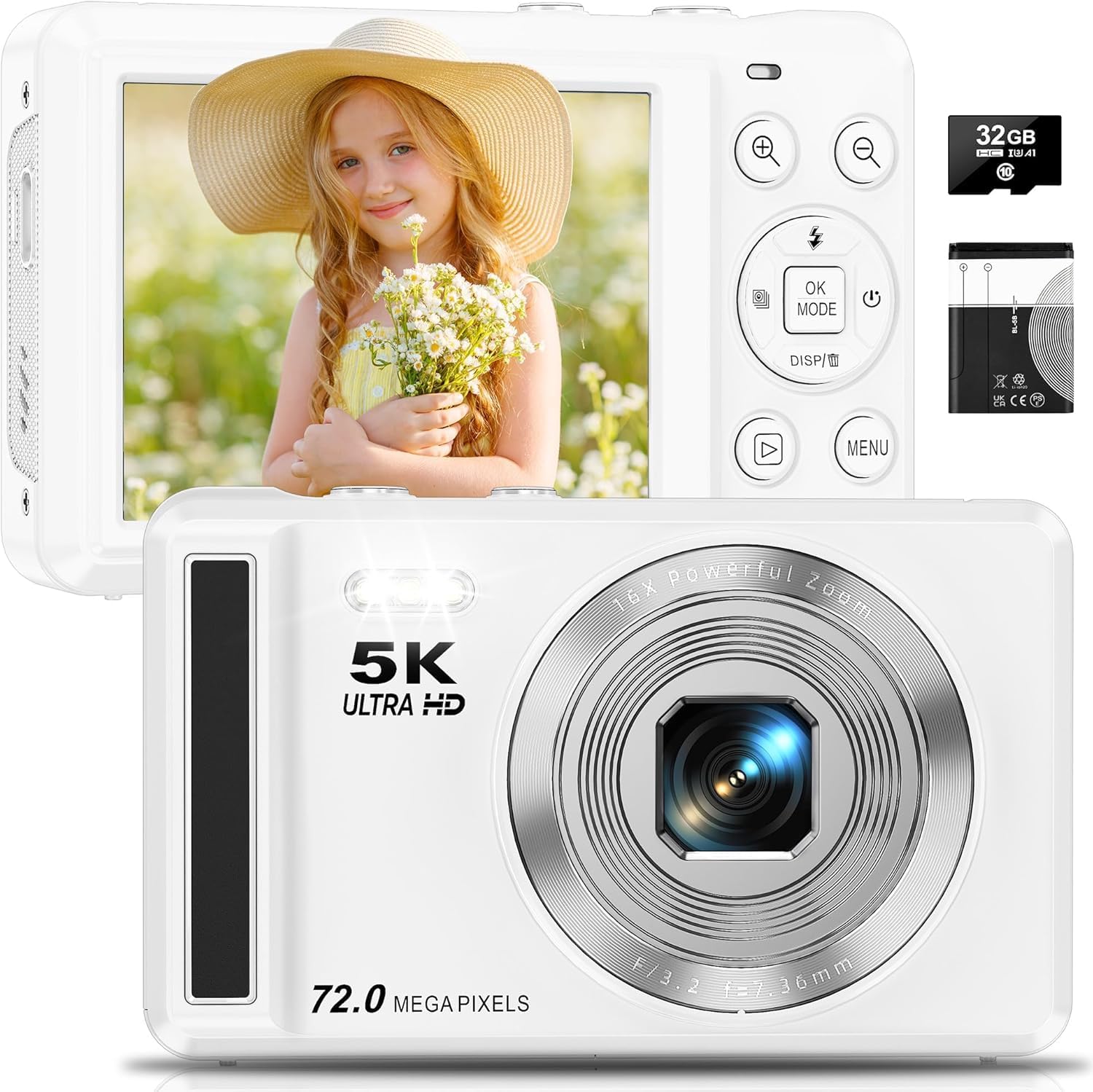
Figure 1: Ruwaqart 5K 72MP UHD Digital Camera Overview
Setup
1. Unpacking and Contents
Before first use, please check the package contents:
- Ruwaqart 5K 72MP UHD Digital Camera
- 1 x Rechargeable Battery
- Type-C USB Cable
- 32GB Micro SD Card (installed)
- Lanyard
- Protective Bag
- User Manual

Figure 2: Included Accessories
2. Battery and Micro SD Card Installation
Follow these steps to install the battery and Micro SD card:
- Open the battery compartment cover located on the bottom of the camera.
- Insert the rechargeable battery into the compartment, ensuring the correct orientation. The battery cannot be charged if inserted incorrectly.
- Insert the 32GB Micro SD card into the designated slot until it clicks into place.
- Close the battery compartment cover securely.

Figure 3: Battery and Micro SD Card Installation Guide
3. Charging the Battery
Connect the camera to a power source using the provided Type-C USB cable. The charging indicator light will illuminate during charging and turn off when fully charged.
Operating the Camera
1. Button Introduction
Familiarize yourself with the camera's controls:

Figure 4: Camera Button Layout
2. Power On/Off
Press and hold the Power button to turn the camera on or off.
3. Taking Photos
- Autofocus: Half-press the Photo button to activate autofocus. A green box will appear on the screen when focus is achieved.
- Capture: Fully press the Photo button to take a picture.

Figure 5: Autofocus in Action
4. Recording Videos
- Press the Mode button (OK button) to switch to video recording mode.
- Press the Photo button to start recording. Press again to stop.
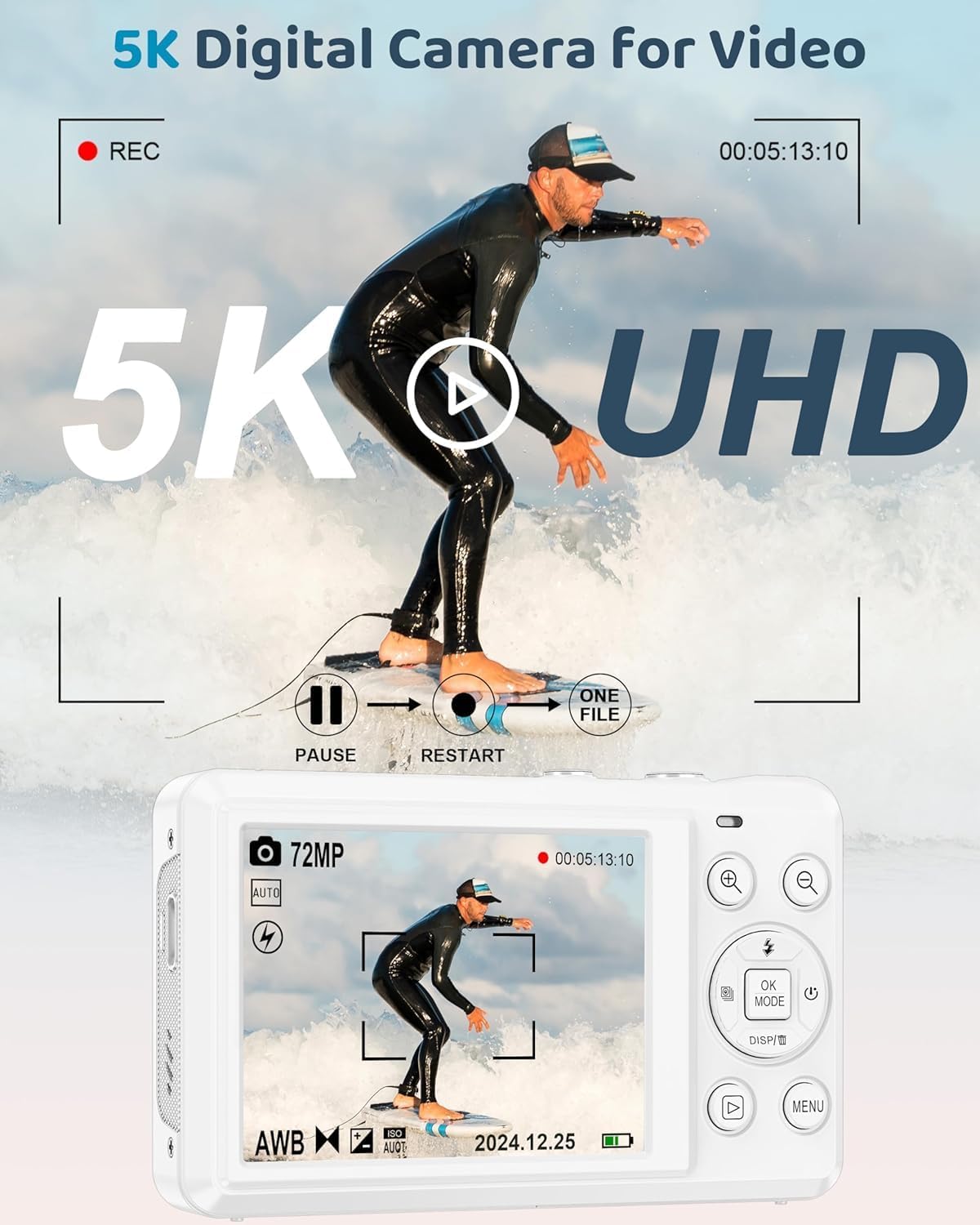
Figure 6: 5K UHD Video Recording
5. Zoom Function
Use the Digital Zoom In and Digital Zoom Out buttons to adjust the 16X digital zoom.

Figure 7: 16X Digital Zoom Capability
6. Built-in Flash
Press the Up button (fill light shortcut) to activate the built-in flash for low-light conditions.

Figure 8: Built-in Flash for Low Light
7. Special Features
The camera includes various features to enhance your photography and videography:
- Smile Capture: Automatically detects and captures smiles.
- Self-Timer: Set a delay before taking a photo.
- Continuous Shooting: Take multiple photos in quick succession.
- Creative Filters: Apply various effects to your photos.
- Time-Lapse: Capture a series of images over time to create a time-lapse video.
- Slow Motion: Record videos in slow motion.

Figure 9: Creative Features

Figure 10: Continuous Shooting
8. Webcam Functionality
The camera can be used as a webcam for video calls, online learning, or live streaming. Connect the camera to your computer using the USB cable and select the webcam option from the camera's menu or your computer's settings.

Figure 11: Webcam and Fast Transfer
Maintenance
1. Cleaning the Camera
- Use a soft, dry cloth to clean the camera body.
- For the lens, use a specialized lens cleaning cloth and solution. Avoid touching the lens directly with your fingers.
- Do not use harsh chemicals or abrasive materials.
2. Battery Care
- Store the battery in a cool, dry place when not in use.
- Avoid exposing the battery to extreme temperatures.
- If the camera will not be used for an extended period, remove the battery.
3. Storage
When not in use, store the camera in its protective bag to prevent dust and scratches.
Troubleshooting
| Problem | Possible Cause | Solution |
|---|---|---|
| Camera does not power on | Low battery or incorrectly installed battery | Charge the battery fully. Ensure the battery is inserted with the correct orientation. |
| Cannot take photos/videos | SD card full or not inserted correctly | Check SD card insertion. Delete unnecessary files or replace with a new SD card. |
| Images are blurry | Autofocus not engaged, camera shake, or dirty lens | Half-press the shutter button to ensure autofocus. Hold the camera steady. Clean the lens. |
| Flash not working | Flash disabled or low battery | Ensure flash is enabled in settings. Charge the battery. |
| Camera freezes | Software glitch | Remove and reinsert the battery to reset the camera. |
Specifications
| Feature | Detail |
|---|---|
| Model Name | 068WU-02A |
| Effective Still Resolution | 72 MP |
| Video Resolution | 5K UHD |
| Digital Zoom | 16x |
| Screen Size | 2.8 inches |
| Display Type | IPS |
| Photo Sensor Technology | CMOS |
| Supported File Format | JPEG |
| Connectivity Technology | USB (Type-C) |
| Item Weight | 0.22 Kilograms (approx. 0.48 lbs) |
| Battery Type | Lithium Ion (1200mAh) |
| UPC | 782068087369 |
Warranty Information
The Ruwaqart 5K 72MP UHD Digital Camera comes with a 1-year manufacturer's warranty from the date of purchase. This warranty covers defects in materials and workmanship under normal use. It does not cover damage caused by misuse, accidents, unauthorized modifications, or normal wear and tear.
For warranty claims or service, please retain your proof of purchase and contact customer support.
Customer Support
If you encounter any issues or have questions regarding your Ruwaqart 5K 72MP UHD Digital Camera that are not addressed in this manual, please contact our customer support team. Refer to the contact information provided with your product packaging or visit the official Ruwaqart website for assistance.
When contacting support, please have your camera model number (068WU-02A) and purchase details ready.
Ask a question about this manual
Ask about setup, troubleshooting, compatibility, parts, safety, or missing instructions. Manuals+ will review the question and use this page’s manual context to help answer it.