
1. Introduction
This manual provides detailed instructions for the setup, operation, and maintenance of your Signum Group Vi365 1080P WiFi HD Smart Indoor Security Camera. Please read this manual thoroughly before using the product to ensure correct usage and optimal performance. Keep this manual for future reference.
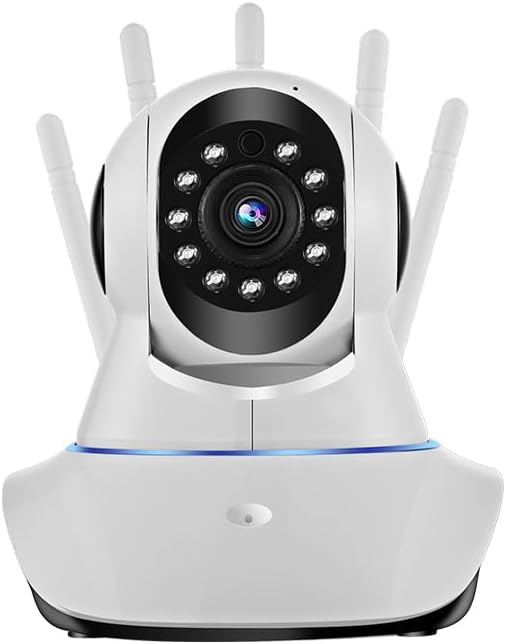
Image 1.1: Front view of the Signum Group Vi365 Smart Indoor Security Camera. The camera features a white body with a black lens module, surrounded by multiple antennas for enhanced connectivity.
2. Product Overview
2.1 Package Contents
Upon unboxing, please verify that all the following components are included:
- Vi365 Smart Indoor Security Camera
- Charging Cable
- Power Adapter
- Mounting Screws
- Stand
- Instruction Manual (this document)
2.2 Key Features
- High Definition Video: 1080P resolution for clear image capture.
- Wide-Angle View: 85-degree lens angle for broad coverage.
- Pan/Tilt Functionality: Horizontal rotation of 355 degrees and vertical rotation of 65 degrees for comprehensive area monitoring.
- Infrared Night Vision: Up to 10 meters (33 feet) night vision distance for monitoring in low-light conditions.
- Two-Way Audio: Built-in microphone and speaker for real-time communication.
- Motion Detection: Alerts for detected movement within the camera's field of view.
- Multiple Storage Options: Supports local MicroSD card storage (up to 128GB) and mobile phone storage.
- 2.4GHz WiFi Connectivity: Secure wireless connection with WPA and WPA2 encryption.
- AP Hotspot Mode: Allows local viewing and playback without an internet connection.
- Multiple Installation Modes: Desktop, wall mount, or hoisting (ceiling mount).
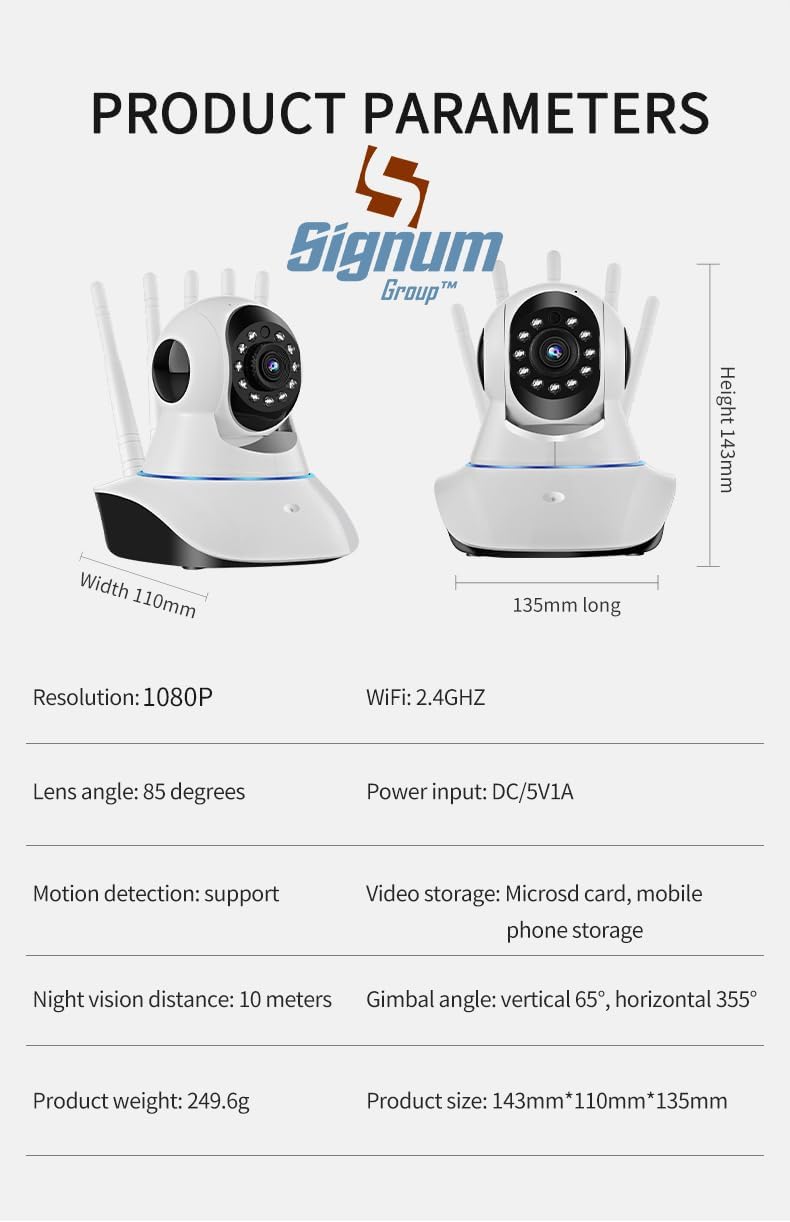
Image 2.1: Diagram illustrating the product dimensions and key technical parameters of the Vi365 camera, including resolution, WiFi frequency, lens angle, power input, motion detection support, video storage options, night vision distance, and gimbal angles.
3. Setup Instructions
3.1 Powering On the Camera
- Connect the provided charging cable to the camera's power input port.
- Plug the power adapter into a standard electrical outlet.
- The camera will power on, and an indicator light will typically illuminate or flash, indicating it is ready for setup.
3.2 Installation Methods
The Vi365 camera offers flexible installation options:
- Desktop Placement: Simply place the camera on a flat, stable surface.
- Wall Mounted: Use the included mounting screws and stand to secure the camera to a wall.
- Hoisting (Ceiling Mount): Attach the camera to the ceiling using the provided mounting accessories. Ensure the image orientation is adjusted in the app if mounted upside down.
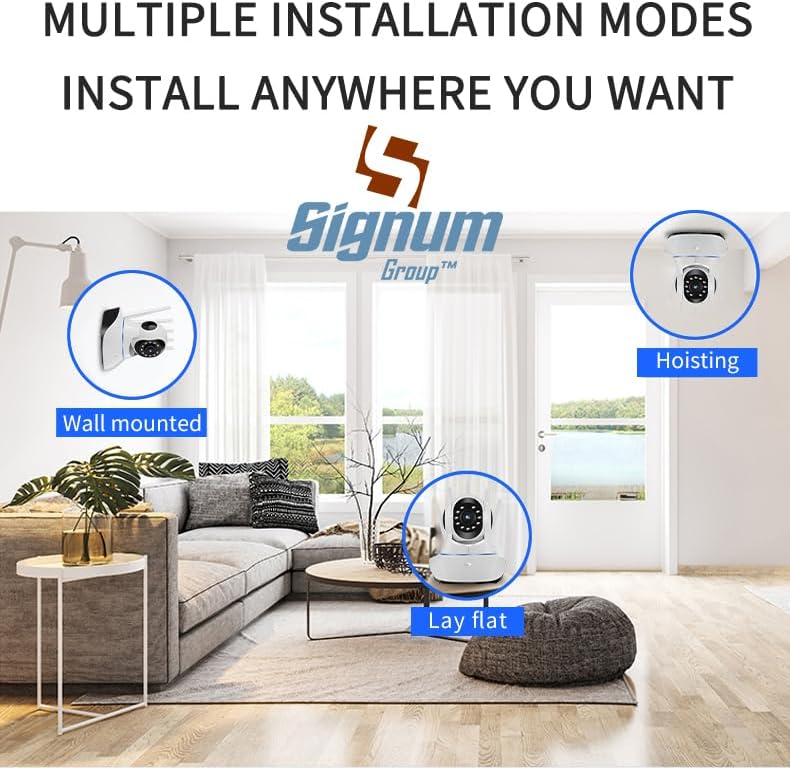
Image 3.1: Illustration showing the three available installation methods for the Vi365 camera: wall-mounted, hoisting (ceiling mount), and lay flat (desktop placement) within a living room setting.
3.3 App Download and Account Creation
- Download the designated "SmartApp" from your mobile device's app store (iOS App Store or Google Play Store).
- Open the app and follow the on-screen instructions to create a new user account or log in if you already have one.
3.4 Connecting to Wi-Fi
- Ensure your mobile device is connected to a 2.4GHz Wi-Fi network. The camera does not support 5GHz Wi-Fi.
- In the SmartApp, select "Add Device" or a similar option.
- Follow the in-app instructions to pair the camera. This typically involves scanning a QR code displayed on your phone with the camera, or entering your Wi-Fi credentials into the app for the camera to connect.
- Once connected, the camera's indicator light will change, and you will receive a confirmation in the app.
4. Operating Instructions
4.1 Live View and Pan/Tilt Control
After successful setup, open the SmartApp and select your camera to access the live video feed. You can control the camera's pan (horizontal) and tilt (vertical) movements directly from the app interface to adjust the viewing angle.

Image 4.1: Screenshot of the SmartApp interface demonstrating the controls for rotating the camera lens horizontally up to 355 degrees and vertically up to 65 degrees, providing a wide panoramic view.
4.2 Two-Way Audio Communication
The camera supports two-way voice intercom, allowing you to communicate with individuals near the camera. Tap the microphone icon in the app to speak, and the sound will be transmitted through the camera's speaker. You will also hear audio from the camera's microphone through your phone.
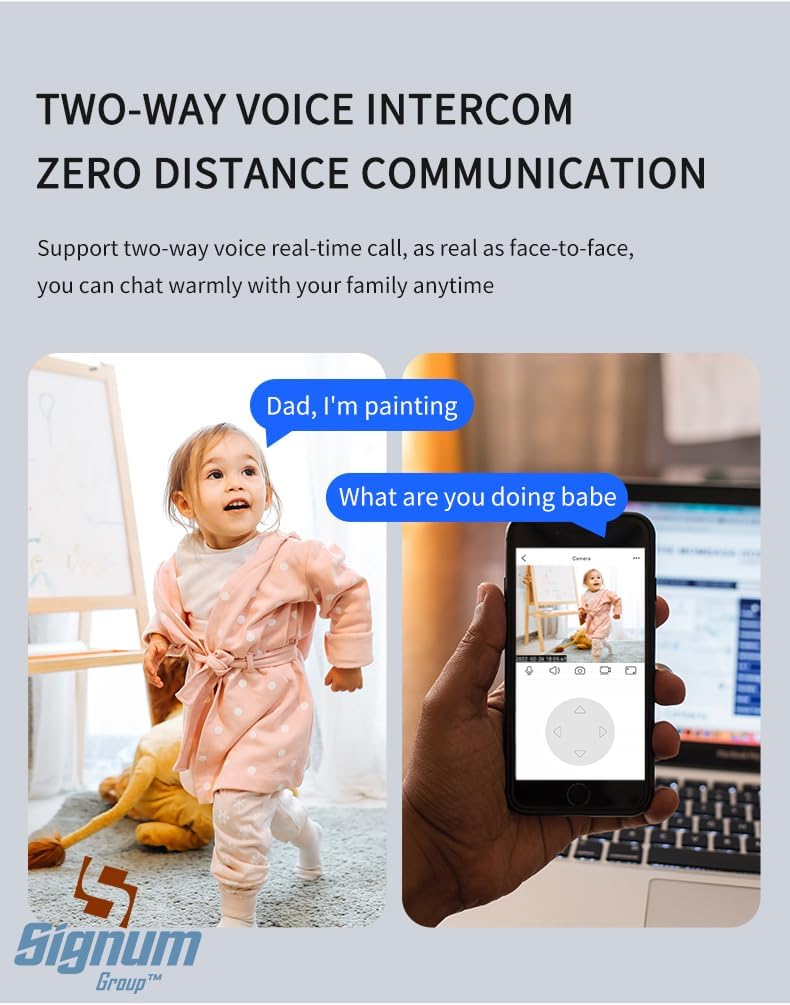
Image 4.2: Depiction of the two-way voice intercom feature, showing a child speaking and a parent responding via the camera's app, enabling real-time communication.
4.3 Motion Detection and Alerts
Enable motion detection in the SmartApp settings. When motion is detected, the camera will record a short video clip and send a notification to your mobile device. You can adjust sensitivity levels to minimize false alerts.
4.4 Night Vision
The Vi365 camera is equipped with infrared LEDs for enhanced night vision, automatically activating in low-light conditions. This provides clear black and white video up to 10 meters (33 feet) in complete darkness.
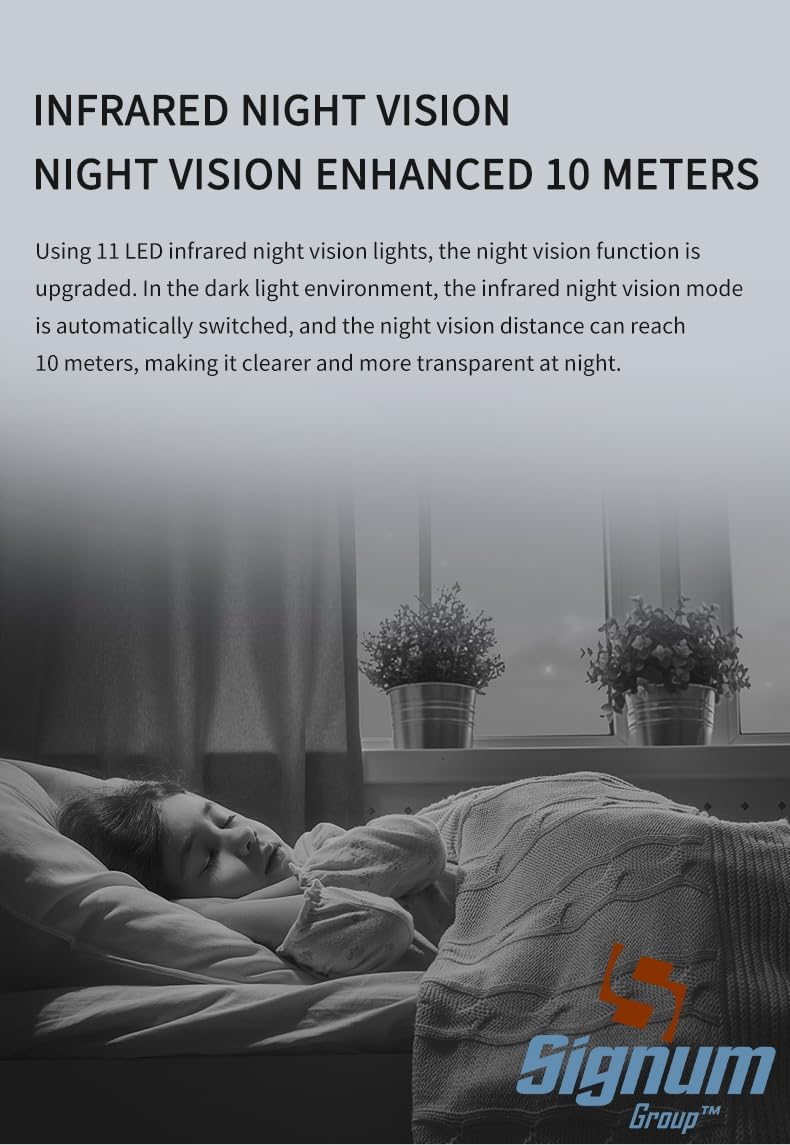
Image 4.3: Visual representation of the camera's infrared night vision capability, showing a clear view of a sleeping child in a dark room, highlighting the 10-meter effective range.
4.5 Video Storage and Playback
The camera supports two primary storage methods:
- MicroSD Card Storage: Insert a MicroSD card (up to 128GB, not included) into the camera's designated slot for continuous or event-based recording.
- Mobile Phone Storage: Record video clips directly to your mobile device through the app.
Recorded footage can be accessed and played back anytime through the SmartApp.

Image 4.4: Diagram illustrating the two available video storage methods: local MicroSD card storage (up to 128GB) and mobile phone storage for viewing replays.
4.6 AP Hotspot Mode
In situations where there is no internet connection, the camera can generate its own AP hotspot. You can connect your mobile device directly to this hotspot to view the live feed and playback recorded videos locally.

Image 4.5: Visual showing the camera emitting a Wi-Fi signal, indicating its built-in AP hotspot feature that allows local viewing and remote playback even without an external internet connection.
4.7 Sharing Access
The SmartApp allows you to share camera access with multiple users, such as family members or friends. This enables multi-device remote viewing and collaborative monitoring.

Image 4.6: Collage illustrating the feature to share camera access with multiple individuals, allowing family and friends to view the camera feed remotely on their devices.
5. Maintenance
- Cleaning: Gently wipe the camera lens and body with a soft, dry cloth. Avoid using harsh chemicals or abrasive materials.
- Firmware Updates: Regularly check the SmartApp for available firmware updates. Keeping the firmware updated ensures optimal performance and security.
- Placement: Ensure the camera is placed in a stable environment, away from direct sunlight, extreme temperatures, and moisture.
6. Troubleshooting
- Camera not connecting to Wi-Fi:
- Ensure your Wi-Fi network is 2.4GHz. The camera does not support 5GHz.
- Verify the Wi-Fi password is entered correctly in the app.
- Move the camera closer to the Wi-Fi router to improve signal strength.
- Restart the camera and your router.
- No video feed:
- Check if the camera is powered on and connected to Wi-Fi.
- Ensure your mobile device has a stable internet connection.
- Restart the SmartApp.
- Motion detection alerts are too frequent/infrequent:
- Adjust the motion detection sensitivity settings in the SmartApp.
- Define specific detection zones to ignore irrelevant areas.
- Two-way audio not working:
- Check microphone and speaker permissions for the SmartApp on your phone.
- Ensure the volume on your phone and within the app is turned up.
7. Technical Specifications
| Feature | Specification |
|---|---|
| Model Name | Vi365 Smart Indoor PTZ Camera |
| Resolution | 1080P (1920x1080) HD |
| Lens Angle | 85 Degrees |
| Gimbal Angle (Horizontal) | 355 Degrees |
| Gimbal Angle (Vertical) | 65 Degrees |
| Night Vision Distance | 10 meters (Black and White) |
| Connectivity | 2.4GHz Wi-Fi (WPA/WPA2 Encryption) |
| Power Input | DC/5V1A |
| Video Storage | MicroSD card (up to 128GB), Mobile Phone Storage |
| Installation Modes | Hoisting, Wall mount, Desktop |
| Dimensions (L x W x H) | 8 x 8 x 8 inches (Product) |
| Operating System Compatibility | Android, iOS (via SmartApp) |
8. Warranty and Support
For warranty information and technical support, please refer to the official Signum Group website or contact their customer service directly. Specific warranty terms may vary by region and retailer. Please retain your proof of purchase for warranty claims.