
1. Introduction
Welcome to the user manual for your new HP OMEN 16L TG03 Gaming Desktop. This powerful system is designed for high-performance gaming and demanding applications, featuring an Intel Core Ultra 7 265F processor, NVIDIA GeForce RTX 5060 graphics, 16GB DDR5 RAM, and a 1TB PCIe NVMe M.2 Solid State Drive. This manual provides essential information for setting up, operating, maintaining, and troubleshooting your desktop to ensure optimal performance and longevity.
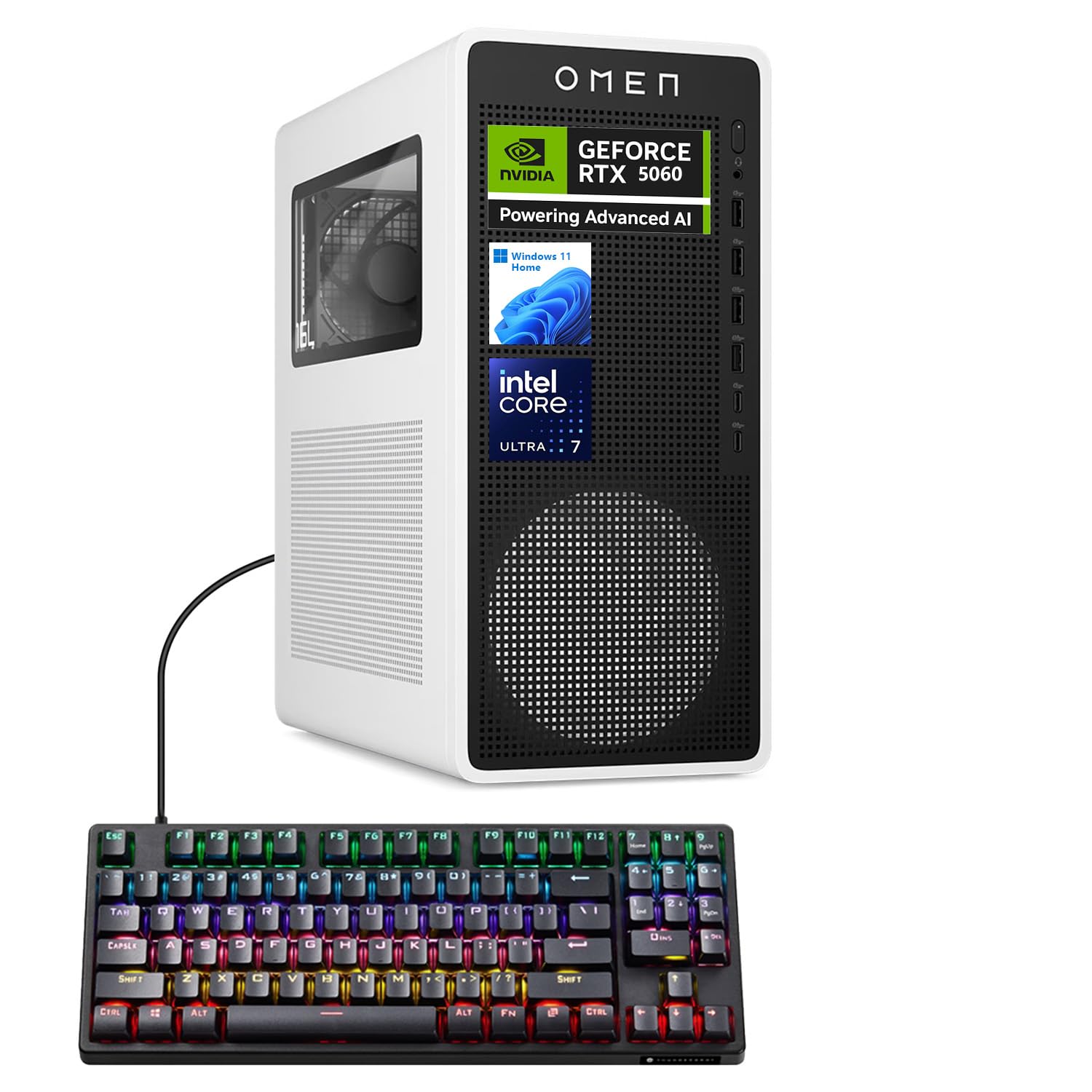
2. What's in the Box
Upon unpacking your HP OMEN 16L TG03 Gaming Desktop, please ensure all the following items are present:
- HP Omen 16L Gaming Tower Desktop
- Thunderobot KG3089R Gaming Keyboard (bundled item)
- Power Cable
- Documentation (Quick Start Guide, Warranty Information)
Note: Additional accessories such as a monitor, mouse, and speakers are sold separately unless specified in your purchase bundle.
3. Setup Guide
Follow these steps to set up your HP OMEN 16L TG03 Gaming Desktop:
- Unpack the Desktop: Carefully remove the desktop tower and all accessories from their packaging.
- Connect Peripherals:
- Connect your monitor(s) to the graphics card ports (HDMI, DisplayPort) on the rear of the desktop.
- Connect the Thunderobot KG3089R Gaming Keyboard and your mouse to the available USB ports.
- Connect any other peripherals such as speakers, headphones, or external drives.
- Connect Power: Plug the power cable into the desktop's power input and then into a grounded electrical outlet.
- Power On: Press the power button on the front of the desktop.
- Initial Windows Setup: Follow the on-screen instructions to complete the Windows 11 Home operating system setup, including language, region, network connection, and user account creation.

Port Overview:
- Front: Headphone/MIC combo jack, 4 x Superspeed USB Type-A (5Gbps), 2 x Superspeed USB Type-C (10Gbps)
- Rear: 3 x Headphone/MIC combo jack, HDMI Out, 4 x USB Type-A 2.0, 1 x RJ-45 (Ethernet), Power input
4. Operating Instructions
Your HP OMEN 16L TG03 Gaming Desktop comes pre-installed with Windows 11 Home, offering a user-friendly interface and enhanced performance features.
4.1 Basic Operation
- Power On/Off: Press the power button to turn on. To shut down, click the Start button, then Power > Shut down.
- Internet Connectivity: Connect via Ethernet (RJ-45 port) or Wi-Fi 6 (802.11ax) for wireless internet access.
- Audio: Connect headphones or speakers to the audio jacks.
4.2 Gaming Features
The OMEN 16L TG03 is optimized for gaming with its powerful hardware and dedicated software.

- OMEN Gaming Hub: Utilize the pre-installed OMEN Gaming Hub for performance optimization, system monitoring, and customizing RGB lighting effects. This hub provides advanced controls to fine-tune your gaming experience.
- NVIDIA GeForce RTX 5060: Experience hyperrealistic graphics and high frame rates with the NVIDIA GeForce RTX 5060. Leverage features like NVIDIA DLSS 4 for enhanced performance and AI-powered creativity.
- AI-Ready Workstation: The Intel Core Ultra 7 265F processor and NVIDIA RTX 5060 make this desktop suitable for AI-driven tasks, including gaming and content creation.
4.3 Thunderobot KG3089R Keyboard Shortcuts
The bundled Thunderobot KG3089R Gaming Keyboard offers several shortcut key combinations for enhanced control:

- FN + F9: Switch lighting effects.
- FN + Win: Lock the Windows key to prevent accidental presses during gaming.
5. Maintenance
Regular maintenance helps ensure the longevity and optimal performance of your desktop.
- Keep it Clean: Regularly clean the exterior of the desktop with a soft, dry cloth. Use compressed air to clear dust from vents and fans to prevent overheating.
- Software Updates: Keep your Windows operating system, drivers (especially graphics drivers), and OMEN Gaming Hub software updated to the latest versions for security and performance improvements.
- Antivirus Protection: Install and regularly update antivirus software to protect against malware and viruses.
- Data Backup: Periodically back up important data to an external drive or cloud storage to prevent data loss.
- Proper Ventilation: Ensure the desktop is placed in a well-ventilated area, away from direct sunlight and heat sources, to allow for proper airflow.
6. Troubleshooting
If you encounter issues with your HP OMEN 16L TG03 Gaming Desktop, refer to the following common troubleshooting steps:
| Problem | Possible Cause | Solution |
|---|---|---|
| Desktop does not power on | Power cable disconnected, power outlet issue | Check power cable connections to the desktop and wall outlet. Test the outlet with another device. |
| No display on monitor | Monitor cable loose, incorrect input selected on monitor | Ensure monitor cables are securely connected to both the desktop's graphics card and the monitor. Select the correct input source on your monitor. |
| System is slow or unresponsive | Too many applications running, outdated drivers, overheating | Close unnecessary applications. Update graphics and system drivers. Ensure proper ventilation and clean dust from vents. |
| Games crashing or freezing | Outdated graphics drivers, overheating, software conflicts | Update NVIDIA graphics drivers. Monitor system temperatures. Ensure OMEN Gaming Hub is optimized. |
| Keyboard not responding | USB connection issue, driver problem | Try connecting the keyboard to a different USB port. Restart the desktop. Check for keyboard driver updates in Device Manager. |
For more complex issues, please refer to the HP support website or contact customer service.
7. Specifications
Detailed technical specifications for the HP OMEN 16L TG03 Gaming Desktop (Model: HSC-F007MT):
| Feature | Detail |
|---|---|
| Model Number | HSC-F007MT |
| Processor | Intel Core Ultra 7 265F (20 Cores, 20 Threads, 30MB L3 Cache, 1.80GHz base, up to 5.30GHz max turbo) |
| Graphics Card | NVIDIA GeForce RTX 5060 (8GB GDDR7 Dedicated) |
| RAM | 16GB DDR5 (4800 MHz) |
| Storage | 1TB PCIe NVMe M.2 Solid State Drive |
| Operating System | Windows 11 Home |
| Wireless Connectivity | Wi-Fi 6 (802.11ax) & Bluetooth |
| Front Ports | 1x Headphone/MIC combo jack, 4x Superspeed USB Type-A (5Gbps), 2x Superspeed USB Type-C (10Gbps) |
| Rear Ports | 3x Headphone/MIC combo jack, 1x HDMI, 3x DisplayPort, 4x USB Type-A 2.0, 1x RJ-45 (Ethernet) |
| Dimensions (LxWxH) | 13.26 x 12.12 x 6.1 inches |
| Item Weight | 49.8 pounds |
| Color | Black |
| Power Source | AC |
8. Warranty and Support
Your HP OMEN 16L TG03 Gaming Desktop comes with a standard manufacturer's warranty. For specific warranty terms and conditions, please refer to the documentation included in your product packaging or visit the official HP support website.
For Technical Support:
- Visit the official HP Support Website for drivers, manuals, and troubleshooting guides.
- Contact HP Customer Service for direct assistance.
Optional Protection Plans:
Extended protection plans may be available for purchase to cover your device beyond the standard warranty period. Examples include:
- 3-Year Protection Plan
- Complete Protect (monthly plan covering eligible purchases)
Please check with your retailer or HP for details on available protection plans.


