
Introduction
This manual provides instructions for the DuneVoyager SE1 Wireless Gaming Mouse. Please read this manual thoroughly before using the product to ensure proper operation and to maximize its performance and lifespan.
The DuneVoyager SE1 is a versatile gaming mouse featuring triple-mode connectivity (Bluetooth, 2.4GHz Wireless, USB-C Wired), an ultra-lightweight design, high DPI sensor, and customizable buttons, designed for various computing environments.
Package Contents
Verify that all items are present in the package:
- SE1 Mouse x1
- Anti-slip grip tape x1
- RGB Charging Dock x1
- Braided USB Cable x1
- User Manual x1 (This document)

Image: The DuneVoyager SE1 Wireless Gaming Mouse shown with its RGB charging dock and braided USB cable. The mouse is white with black graphic accents.
Setup
1. Charging the Mouse
Before initial use, it is recommended to fully charge the mouse. Connect the braided USB cable to the RGB Charging Dock and then to a USB power source (e.g., computer USB port, USB wall adapter). Place the SE1 mouse onto the magnetic charging dock. The RGB lighting on the dock will indicate charging status.

Image: The DuneVoyager SE1 mouse magnetically attached to its RGB charging dock. The image highlights the ease of charging by simply placing the mouse on the dock.
2. Connecting the Mouse
The SE1 mouse supports three connection modes: 2.4GHz Wireless, Bluetooth, and USB-C Wired.
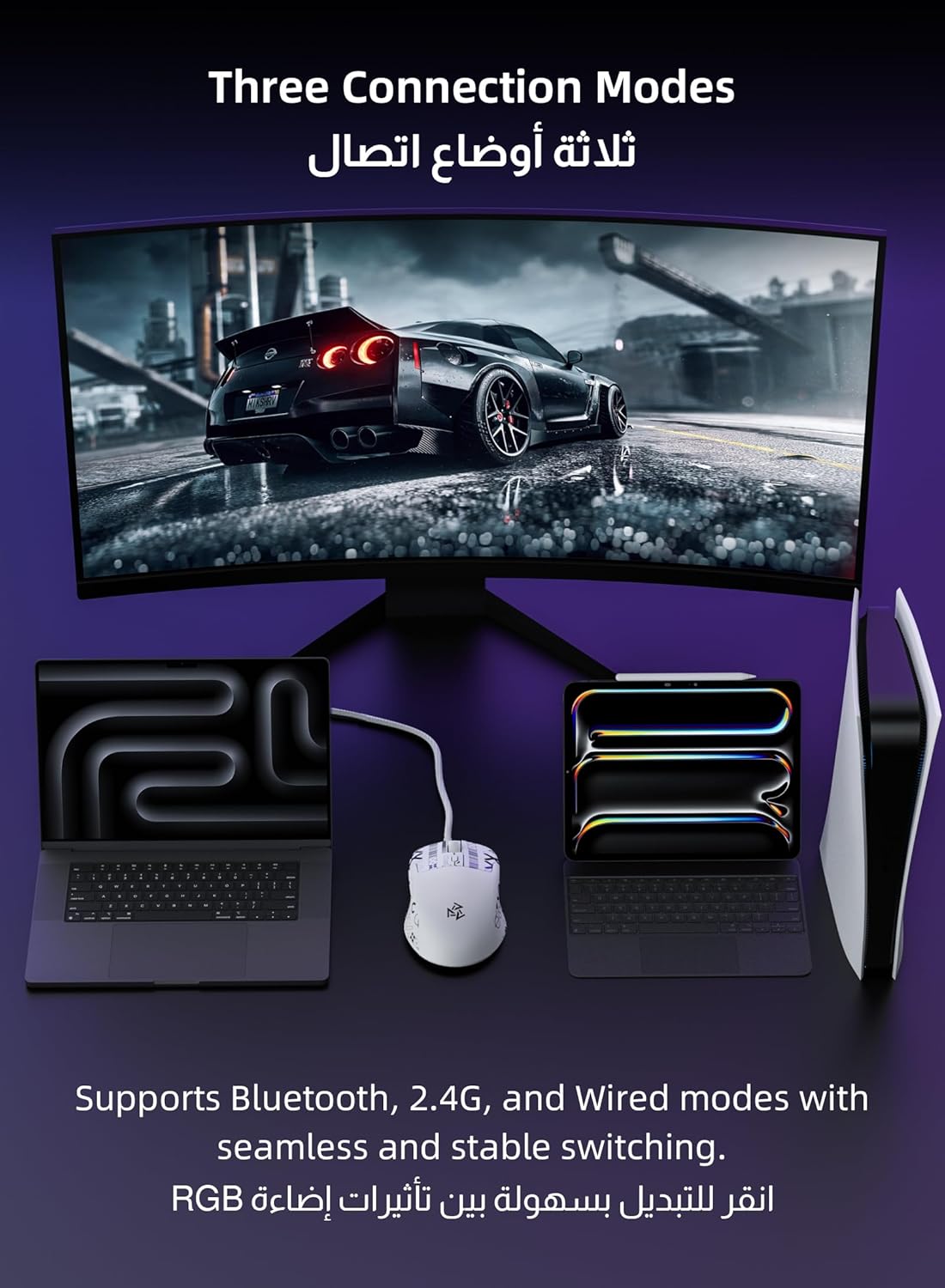
Image: The DuneVoyager SE1 mouse connected to a laptop via USB-C cable, and two other devices (laptop and console) illustrating wireless connectivity options. This image demonstrates the mouse's versatility across different platforms.
2.1. 2.4GHz Wireless Mode
- Locate the USB 2.4GHz receiver, typically stored in a compartment on the underside of the mouse or within the charging dock.
- Plug the USB receiver into an available USB port on your computer.
- Turn on the mouse using the switch on the bottom. Select the "2.4G" mode.
- The mouse should connect automatically.
2.2. Bluetooth Mode
- Turn on the mouse using the switch on the bottom. Select the "BT" mode.
- Press and hold the Bluetooth pairing button (refer to the diagram in the Operation section for button location) until the indicator light flashes, indicating pairing mode.
- On your device (PC, Mac, Smartphone, Tablet), go to Bluetooth settings and search for "DuneVoyager SE1" or similar.
- Select the mouse to pair.
2.3. USB-C Wired Mode
- Connect the braided USB-C cable directly from the mouse to an available USB port on your computer.
- The mouse will function immediately in wired mode and will also charge simultaneously.
3. Software Installation (Optional)
For full customization of DPI settings, macros, polling rate, and programmable buttons, download the official DuneVoyager SE1 software from the manufacturer's website. The software is compatible with Windows operating systems.

Image: Screenshots of the DuneVoyager SE1 mouse's customization software interface, showing options for button assignment and performance settings. This illustrates the depth of customization available through the software.
Operation
Button Functions
The SE1 mouse features 6 programmable buttons. Their default functions are as follows:

Image: A top-down view of the DuneVoyager SE1 mouse with its six programmable buttons clearly numbered. This diagram helps users identify each button for customization.
- Left Click: Primary action.
- Right Click: Secondary action/context menu.
- Scroll Wheel Click: Middle click.
- DPI Cycle Button: Cycles through preset DPI levels.
- Forward Button: Navigates forward in web browsers/folders.
- Backward Button: Navigates backward in web browsers/folders.
All buttons can be customized using the official software.
DPI Adjustment
Press the DPI Cycle Button (Button 4) to switch between preset DPI levels. The indicator light color will change to reflect the current DPI setting:
- 800 DPI (Blue)
- 1200 DPI (Green)
- 2400 DPI (Yellow)
- 3200 DPI (Cyan)
- 4800 DPI (Purple)
- 7200 DPI (White)
Further DPI customization up to 12800 DPI is available via the PC software.
Polling Rate Adjustment
The polling rate can be adjusted via the PC software to 125 Hz, 250 Hz, 500 Hz, or 1000 Hz. A higher polling rate provides more responsive tracking.
RGB Lighting Control
The RGB lighting on the mouse and charging dock can be customized through the official software. You can also cycle through preset RGB effects by clicking a dedicated button on the charging dock (refer to the image below).
Image: The DuneVoyager SE1 mouse on its charging dock, with an arrow pointing to the button on the dock used to switch RGB lighting effects. This demonstrates how to manually adjust the lighting.
Maintenance
Cleaning
- Disconnect the mouse from all power sources before cleaning.
- Use a soft, dry cloth to wipe the surface of the mouse and charging dock.
- For stubborn dirt, lightly dampen the cloth with water or a mild cleaning solution. Avoid harsh chemicals.
- Do not allow liquids to enter the mouse or charging dock.
Battery Care
- Avoid fully discharging the mouse battery frequently.
- Store the mouse in a cool, dry place when not in use for extended periods.
- If the mouse will not be used for a long time, charge it to approximately 50% before storage.
Anti-slip Grip Tape Application
The included anti-slip grip tape can be applied to the sides of the mouse for enhanced grip and comfort. Ensure the mouse surface is clean and dry before applying the tape. Carefully align and press the tape firmly onto the desired areas.
Troubleshooting
Mouse Not Responding
- Check Battery: Ensure the mouse is charged. Connect it to the charging dock or via USB-C cable.
- Check Connection Mode: Verify the switch on the bottom of the mouse is set to the correct mode (2.4G, BT, or Wired).
- 2.4GHz Wireless: Ensure the USB receiver is securely plugged into a working USB port. Try a different USB port.
- Bluetooth: Re-pair the mouse with your device. Ensure Bluetooth is enabled on your device.
- Wired Mode: Ensure the USB-C cable is securely connected to both the mouse and the computer. Try a different USB port or cable.
- Restart: Restart your computer or device.
Lag or Disconnections in Wireless Mode
- Interference: Move the mouse closer to the receiver (2.4GHz) or device (Bluetooth). Avoid placing the receiver near other wireless devices or large metal objects.
- Battery Level: Low battery can affect wireless performance. Charge the mouse.
- Polling Rate: While higher polling rates offer better responsiveness, they can sometimes be more susceptible to interference. Try lowering the polling rate via the software if issues persist.
Buttons Not Functioning Correctly
- Software Conflict: If you have custom button assignments, ensure the DuneVoyager software is running correctly or try resetting to default settings.
- Physical Obstruction: Check for any debris or obstruction around the buttons.
DPI Not Changing
- Ensure you are pressing the correct DPI cycle button.
- If using custom DPI settings, verify they are correctly configured in the software.
Specifications
| Feature | Detail |
|---|---|
| Brand | DuneVoyager |
| Model | DV-SE1 |
| Connectivity | 2.4GHz Wireless, Bluetooth, USB-C Wired |
| Sensor Model | M300 + S205 (Flagship S205 Gaming Sensor) |
| DPI Range | 800-7200 (Adjustable via button), up to 12800 (via PC software) |
| Polling Rate | 125 / 250 / 500 / 1000 Hz |
| Buttons | 6 Programmable Buttons |
| Switch Lifespan | 20 million clicks |
| Battery | 300mAh |
| Wireless Range | 10 meters |
| Weight | 66g |
| Dimensions | 121 × 67 × 38 mm |
| Compatible Devices | PC, Mac, Smartphone, Tablet, Xbox, PS4/5 |
| Operating System | Android, Windows, iOS, macOS |
| Material | Plastic |
| Special Features | RGB Charging Dock, Anti-slip grip tape included |

Image: An internal view of the DuneVoyager SE1 mouse highlighting the S205 gaming sensor and its capabilities, including 12800 DPI, 1000Hz polling rate, and 25G acceleration.

Image: A cutaway view of the DuneVoyager SE1 mouse showing the durable micro switch, emphasizing its 20 million click lifespan for stable and responsive performance.

Image: A hand holding the DuneVoyager SE1 mouse, illustrating its ergonomic and ultra-lightweight 66g design. The image also shows the anti-slip grip tape applied to the mouse.
Warranty & Support
DuneVoyager products are designed for reliability and performance. For warranty information, please refer to the warranty card included in your product packaging or visit the official DuneVoyager website.
For technical support, troubleshooting assistance, or to download the latest software and drivers, please visit the DuneVoyager support page or contact customer service through the details provided on their official website.
Online Resources:
- Official DuneVoyager Store: Visit Store
- Product Page: View Product