
1. Introduction
Welcome to the Keenplus C4 Plus Android 13 HiFi MP3 Player. This manual provides essential information for setting up, operating, maintaining, and troubleshooting your device. Please read it thoroughly to ensure optimal performance and longevity of your player.
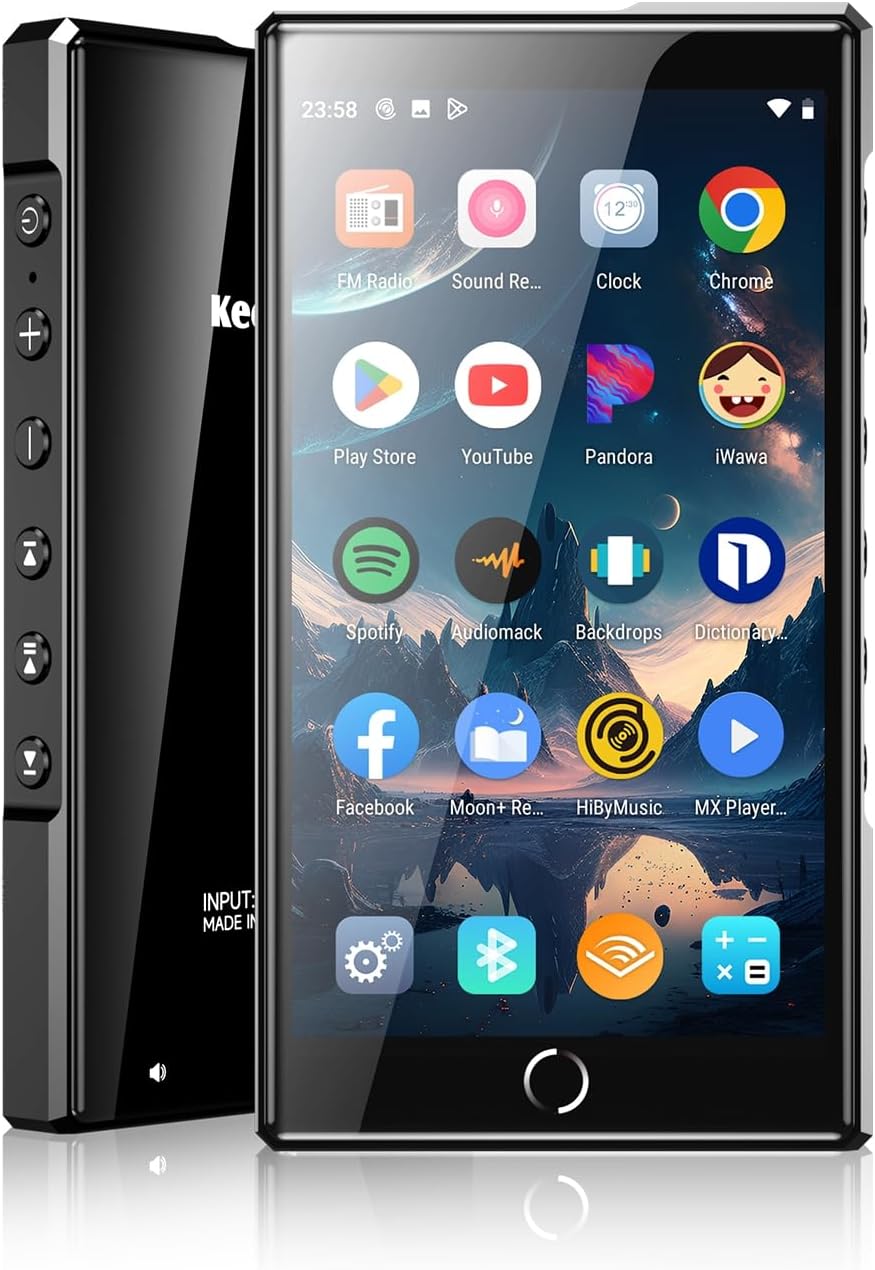
Image 1.1: Keenplus C4 Plus MP3 Player front and side view.
The Keenplus C4 Plus MP3 Player features a 4.3-inch FHD touchscreen, Hi-Fi audio capabilities, and runs on Android 13, offering a versatile portable entertainment experience.
2. What's in the Box
Upon opening your Keenplus C4 Plus package, please verify that all the following items are included:
- Keenplus C4 Plus MP3 Player x 1
- USB-C Cable x 1
- 128GB SD Card x 1
- Wired Headphones x 1
- User Manual x 1

Image 2.1: Contents of the Keenplus C4 Plus package.
This image illustrates the MP3 player, USB-C charging cable, wired headphones, a 128GB SD card, and the user manual, which are all included in the product packaging.
3. Product Overview
3.1 Physical Features
The Keenplus C4 Plus features a sleek design with intuitive physical buttons for easy control.

Image 3.1: Detailed view of the player's ports and buttons.
This image highlights the metal headphone jack, the TF (Micro SD) card slot for expandable storage, and the convenient physical operational buttons located on the side of the device.
3.2 Key Specifications
- Display: 4.3-inch FHD Touchscreen (720*1280px resolution)
- Operating System: Android 13
- Processor: Octa-Core High Performance CPU (MTK6762)
- RAM: 3GB
- Internal Storage: 16GB
- Expandable Storage: Up to 1TB via Micro SD card (128GB card included)
- Connectivity: Bluetooth 5.0, Dual Band Wi-Fi (2.4G/5G), USB-C, 3.5mm Audio Jack
- Battery: 2500mAh (Up to 60 hours music, 10 hours video playback)
- Audio Formats: FLAC, APE, WAV, MP3, etc.
- Video Formats: MP4, MOV, MKV, etc. (supports 720p & 1080p playback)
- Dimensions: 62x116x10.5mm
- Weight: 9.6 ounces
4. Setup Guide
4.1 Initial Power On and Language Settings
To power on your device, press and hold the power button located on the side. If the system interface is not in your preferred language after an update or initial setup, follow these steps to change it:
- Open the device's Settings app.
- Scroll to the bottom and tap on System.
- Select Languages & input.
- Tap on Languages.
- You will see a list of languages. Find your desired language (e.g., English (United States)) and drag it to the top of the list to set it as the primary language.
Video 4.1: Language Settings Operation.
This video demonstrates how to navigate through the settings menu to change the system language on your Keenplus C4 Plus MP3 Player, specifically showing how to move your preferred language to the top of the list.
4.2 Connecting to Wi-Fi
To access online content, streaming services, and app updates, connect your device to a Wi-Fi network:
- Go to Settings.
- Tap on Network & internet.
- Toggle Wi-Fi to ON.
- Select your desired Wi-Fi network from the list.
- Enter the password if prompted and tap Connect.

Image 4.2: Dual Band Wi-Fi connectivity.
The device supports both 2.4GHz and 5GHz Wi-Fi bands for stable and fast internet access.
4.3 Transferring Files (Mac)
To transfer files between your Keenplus C4 Plus and a Mac computer, you will need to install a file transfer application on your Mac. Follow these steps:
- On your Mac, open the Apple App Store.
- Search for and install "MacDroid - Manager for Android" (or a similar MTP file transfer application).
- Launch the MacDroid application.
- Connect your Keenplus C4 Plus to your Mac using the provided USB-C cable.
- On the MacDroid application, choose the connection type (e.g., MTP).
- Once connected and mounted, you can open the device's folder in Finder to transfer files.
Video 4.2: Connecting music player to a Mac.
This video demonstrates the process of connecting the Keenplus C4 Plus MP3 Player to a Mac computer using the MacDroid application for file transfer, including selecting the connection mode and accessing device storage.
4.4 Installing and Updating Apps
As a certified Android 13 device with Google Play, you can download and update your favorite applications directly:
- Ensure your device is connected to Wi-Fi.
- Open the Google Play Store app.
- Search for the app you wish to install (e.g., Spotify, YouTube Music).
- Tap Install to download and install the app.
- For updates, go to your profile icon in the Play Store, then Manage apps & device, and select Updates available.
Video 4.3: C4 MP3 Player with Bluetooth and WiFi.
This video provides an overview of the C4 MP3 Player's features, including its Android interface and the ability to download and manage applications from the Google Play Store, as well as demonstrating Bluetooth and Wi-Fi functionalities.
5. Operating Instructions
5.1 Basic Navigation
The device operates like a standard Android smartphone. Use touch gestures (tap, swipe, pinch) to navigate the interface. The physical buttons on the side provide quick access to common functions:
- Power Button: Press and hold to power on/off or restart. Short press to turn screen on/off.
- Volume Up/Down: Adjust audio volume.
- Previous/Next Track: Skip between songs.
- Play/Pause: Control media playback.

Image 5.1: Music playlist creation and browsing.
This image shows the music interface, demonstrating how users can search for music, create custom playlists, and navigate through their library by swiping.
5.2 Music Playback
Utilize the pre-installed music player or download your preferred streaming apps from the Google Play Store. The device supports Hi-Fi lossless audio formats (FLAC, APE, WAV) for high-quality sound.

Image 5.2: Hi-Fi music player equalizer settings.
The image displays the device's equalizer interface, allowing users to customize audio output. It also lists key audio specifications such as frequency response and signal-to-noise ratio.
5.3 Video Playback
The 4.3-inch FHD screen supports smooth playback of 720p and 1080p videos. Use the pre-installed video player or download alternatives from the Play Store.

Image 5.3: High-definition video playback on the 4.3-inch screen.
This image demonstrates the clarity and quality of video playback on the device's 4.3-inch 1080P HD IPS screen.
5.4 Bluetooth Connectivity
Connect your player wirelessly to Bluetooth headphones, speakers, or other compatible devices using Bluetooth 5.0.
- Go to Settings.
- Tap on Connected devices.
- Ensure Bluetooth is toggled ON.
- Tap Pair new device and select your Bluetooth accessory from the list.

Image 5.4: Two-Way Bluetooth 5.0 connectivity.
This graphic illustrates the device's two-way Bluetooth 5.0 capability, enabling seamless connection to Bluetooth headphones, speakers, and car audio systems for both transmission and reception.
5.5 Parental Controls
The device supports parental control features to manage usage and content access:
- Set screen time limits.
- Allow or block specific applications.
- Block or allow websites on the Chrome browser.
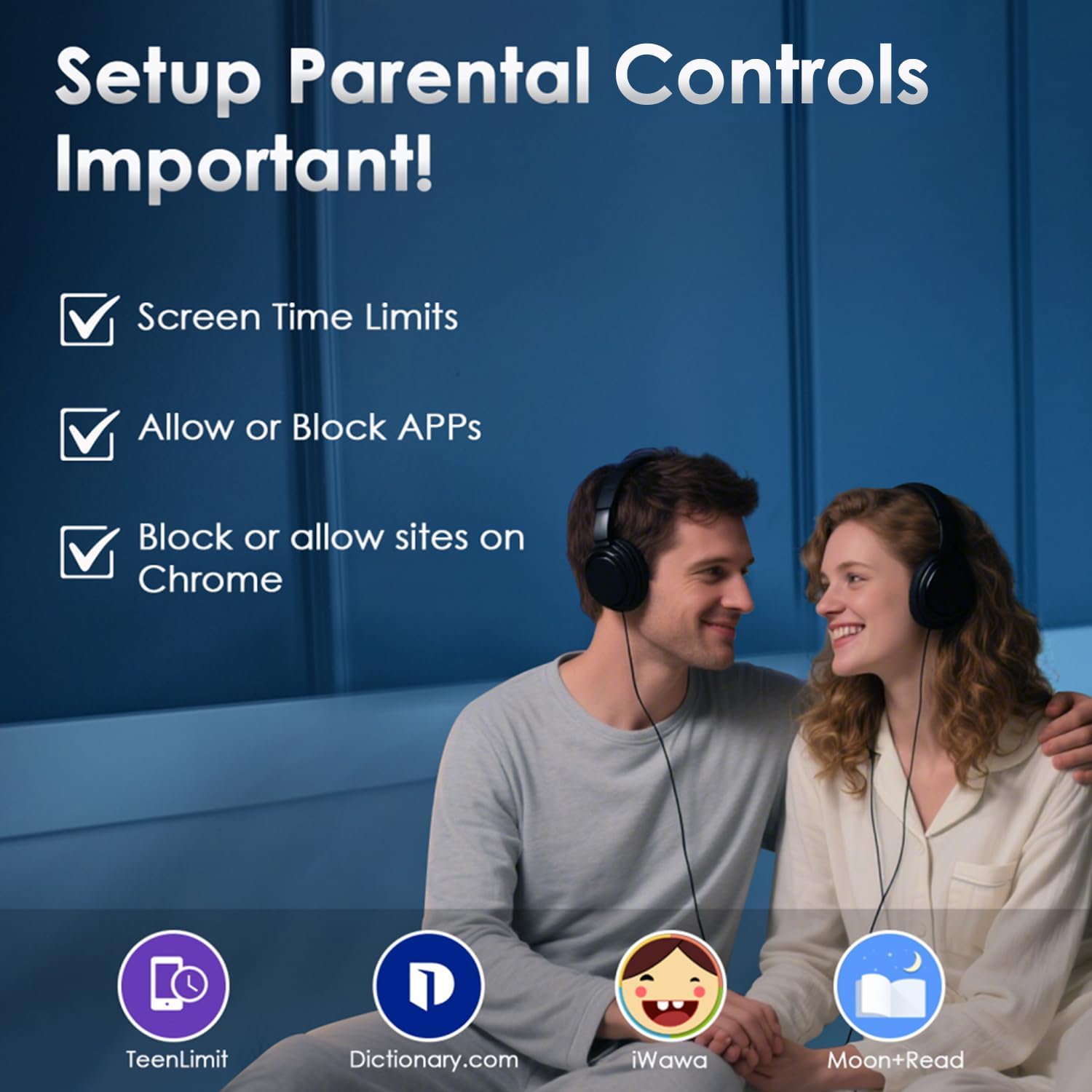
Image 5.5: Parental Control features.
This image highlights the parental control options available on the device, including setting screen time limits, managing app access, and controlling website browsing.
6. Maintenance
6.1 Battery Care
- Avoid fully discharging the battery frequently.
- Charge the device using the provided USB-C cable and a compatible power adapter.
- Do not expose the device to extreme temperatures, as this can degrade battery life.

Image 6.1: Built-in 2500mAh Battery features.
This image highlights the device's 2500mAh battery, offering up to 60 hours of music playback or 10 hours of video playback, with a full charge achieved in approximately 3 hours via the Type-C port.
6.2 Cleaning
- Use a soft, lint-free cloth to clean the screen and body of the device.
- Avoid using harsh chemicals or abrasive materials.
6.3 Software Updates
Regularly check for system updates to ensure your device has the latest features and security patches. Go to Settings > System > System updates.
7. Troubleshooting
If you encounter issues with your Keenplus C4 Plus, refer to the following common solutions:
| Problem | Solution |
|---|---|
| Device is unresponsive/locked | Perform a force restart by holding the power button for 10-15 seconds. If the device remains locked, contact customer support for assistance. |
| SD card not recognized | Ensure the SD card is properly inserted. Try reformatting the SD card (this will erase all data). Test with another SD card if available. |
| Poor battery life | Reduce screen brightness, close unused apps, disable Wi-Fi/Bluetooth when not in use. Ensure background app refresh is limited. |
| Cannot connect to Wi-Fi | Ensure Wi-Fi is enabled and you are within range of a known network. Verify the password. Try restarting the device and your Wi-Fi router. |
| Apps crashing or freezing | Clear the app's cache (Settings > Apps > [App Name] > Storage & cache > Clear cache). Update the app to the latest version. If the problem persists, uninstall and reinstall the app. |
8. Specifications
- Item Model Number: RAM-3G-144G
- Package Dimensions: 6.34 x 5.24 x 0.94 inches
- Item Weight: 9.6 ounces
- Manufacturer: KeenPlus
- Batteries: 1 A batteries required (included)
- Special Features: Video Playback, Voice Recorder, Touch Screen, Equalizer, FM Radio
- Connectivity Technology: Bluetooth, Wi-Fi
- Memory Storage Capacity: 144 GB (16GB internal + 128GB SD card)
- Color: Black
- Screen Size: 4.3 Inches
- Compatible Devices: Laptop, Car Audio System, Personal Computer, Earphone, Headphone, Speaker
- Media Type: Micro SD, Micro SDHC, Micro SDXC, SD Card, SDHC
9. Warranty and Support
KeenPlus products are designed for reliability and performance. For warranty information, please refer to the warranty card included in your product packaging or visit the official KeenPlus website. If you require technical assistance or have questions not covered in this manual, please contact KeenPlus customer support.
Professional support is available should your device become locked and unusable. Our customer service team is equipped to help unlock it and provide expert assistance whenever needed.
Contact Information: Please refer to the contact details provided on the KeenPlus official website or your product's packaging for the most up-to-date support channels.