
1. Introduction
This manual provides comprehensive instructions for the setup, operation, and maintenance of your KOORUI G2721E 27-inch QHD 320Hz Gaming Monitor. Please read this manual thoroughly before using the product to ensure proper functionality and to prevent damage.

Image 1.1: Front view of the KOORUI G2721E 27-inch QHD 320Hz Gaming Monitor.
2. Package Contents
Verify that all items listed below are present in your product packaging:
- 27-inch Monitor
- Power Adapter
- Display Cable
- User Manual
3. Setup Instructions
3.1 Monitor Stand Assembly
The monitor includes an ergonomic stand designed for adjustability. Follow the instructions provided in the quick start guide (included in the package) for detailed assembly steps. The stand supports height adjustment, swivel, tilt, and pivot functionality.

Image 3.1: Illustration of the monitor's adjustable stand features, including height adjustment (100 mm), rotation (-90° to 90°), and tilt adjustment (-5° to 20°).
3.2 VESA Mounting
The monitor is VESA mountable (75x75mm) for alternative mounting solutions. Ensure the VESA mount (sold separately) is compatible with the monitor's weight and size. Refer to the VESA mount's instructions for installation.
3.3 Connectivity
Connect your devices to the monitor using the available ports:
- HDMI: Connect to devices supporting HDMI output.
- DisplayPort (DP): Connect to devices supporting DisplayPort output for optimal performance.
- Audio Out: Connect external speakers or headphones.
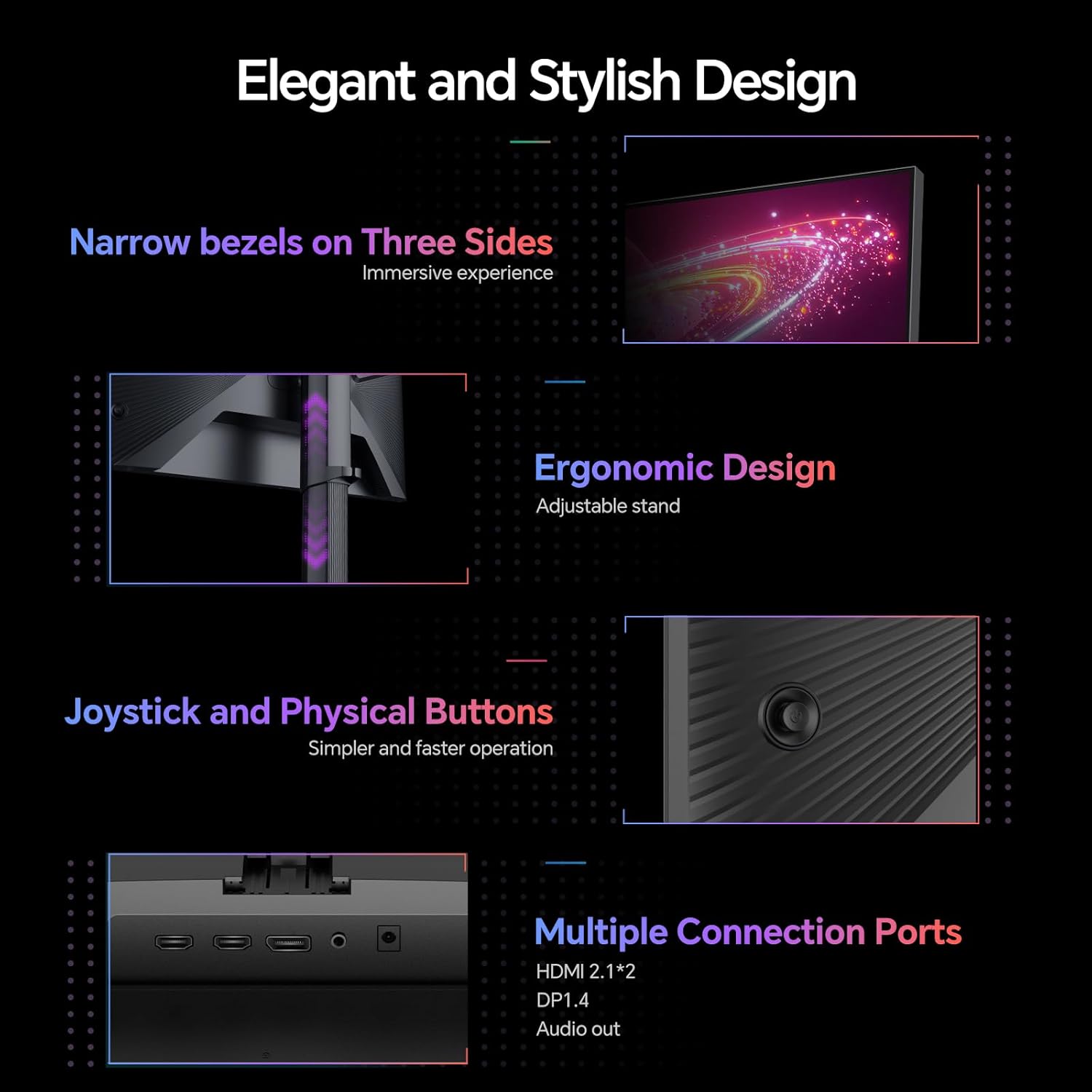
Image 3.2: Detailed view of the monitor's multiple connection ports, including HDMI, DisplayPort, and Audio Out.
3.4 Power Connection
Connect the provided power adapter to the monitor's power input and then to a power outlet.
4. Operating Instructions
4.1 On-Screen Display (OSD) Controls
The monitor features a joystick and physical buttons for navigating the On-Screen Display (OSD) menu. Use these controls to adjust various monitor settings such as brightness, contrast, color modes, input selection, and advanced features.
4.2 Key Features
- 320Hz Refresh Rate: Provides ultra-smooth visuals, reducing motion blur in fast-paced content.

Image 4.1: Visual comparison demonstrating the difference between 75Hz and 320Hz refresh rates, highlighting smoother motion at higher refresh rates.
- QHD (2560x1440) & Fast IPS Display: Delivers clear images and vibrant colors with wide viewing angles.
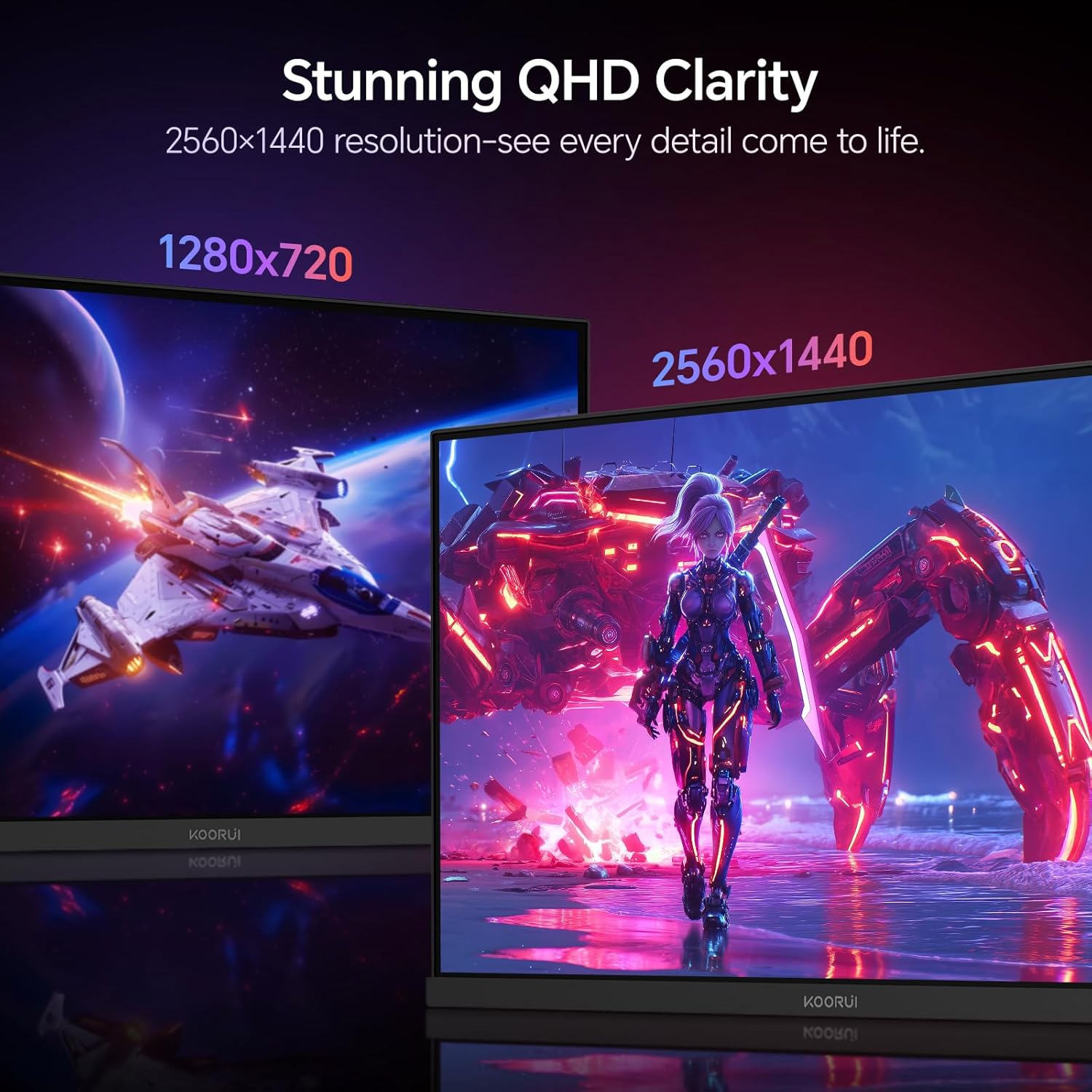
Image 4.2: Visual comparison illustrating the clarity difference between 1280x720 and 2560x1440 (QHD) resolutions.
- 98% DCI-P3 & HDR400: Offers a wide color gamut for accurate color reproduction and enhanced dynamic range with HDR content.

Image 4.3: Visual comparison showing the difference in color vibrancy and contrast between HDR400 and SDR350 modes.
- Adaptive Sync: Synchronizes the monitor's refresh rate with the graphics card's frame rate to eliminate screen tearing and stuttering.

Image 4.4: Visual comparison demonstrating the effect of Adaptive Sync, showing reduced screen tearing when enabled.
- PIP (Picture-in-Picture) / PBP (Picture-by-Picture) Mode: Allows displaying content from multiple input sources simultaneously.
- PBP Function: Two input images are displayed side-by-side.
- PIP Function: One input image is displayed as a sub-screen within the main display, adjustable to four positions (top, bottom, left, or right).
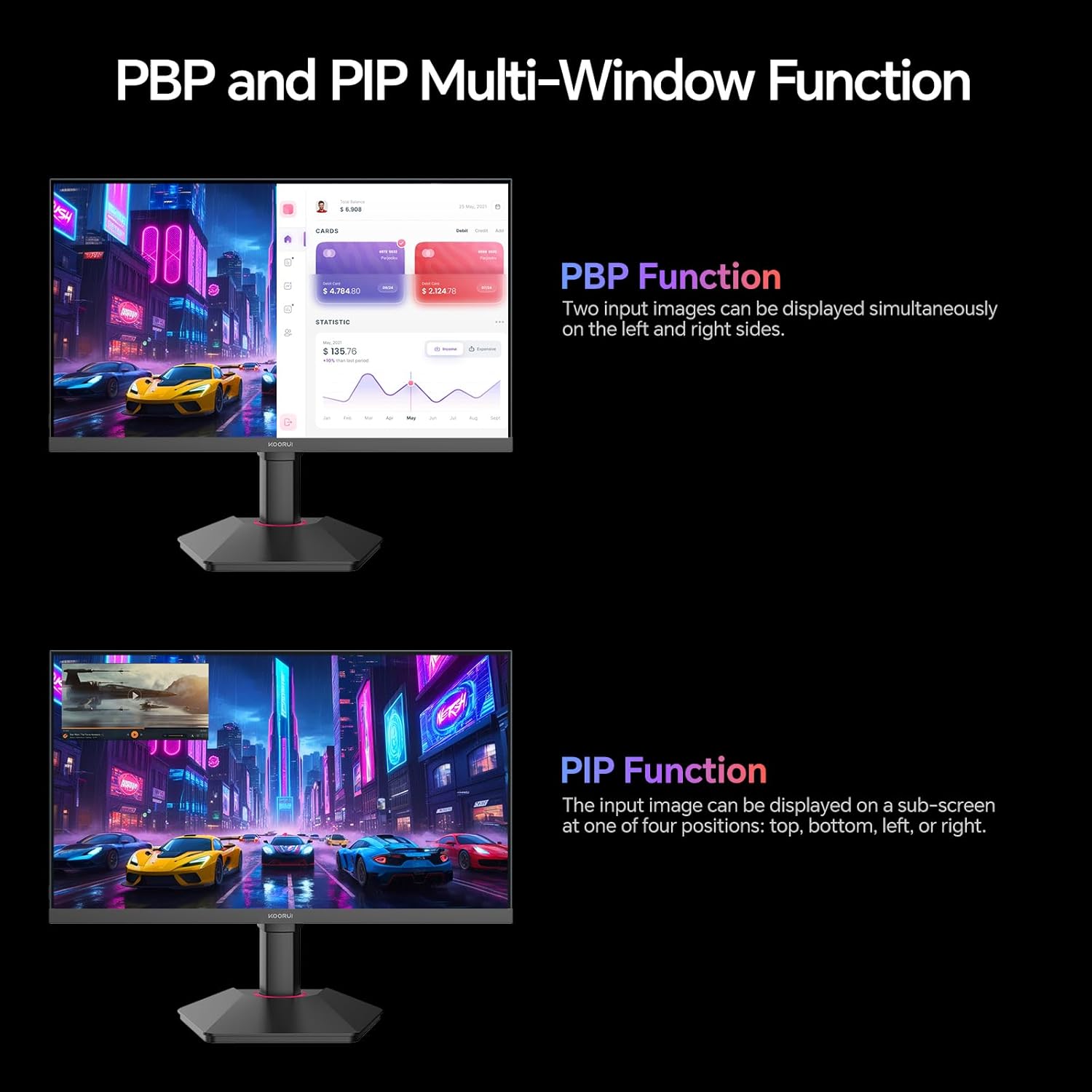
Image 4.5: Illustration of Picture-by-Picture (PBP) and Picture-in-Picture (PIP) modes, showing how multiple video inputs can be displayed simultaneously.
- DIC Motion Blur Elimination: Enhances clarity by reducing motion blur for a smoother visual experience.

Image 4.6: Visual comparison demonstrating the effect of DIC Motion Blur Elimination, showing a clearer image when enabled.
- 178° Wide Viewing Angles: Ensures consistent image quality and color from various viewing positions.

Image 4.7: Illustration of the monitor's 178-degree wide viewing angles, demonstrating consistent image quality from various perspectives.
4.3 Product Overview Video
Video 4.1: An official product video from KOORUI showcasing the G2721E monitor's features, including its 320Hz refresh rate, Fast IPS panel, HDR400 support, and ergonomic stand.
5. Maintenance
5.1 Cleaning the Monitor
To clean the monitor screen, gently wipe it with a soft, lint-free cloth. For stubborn marks, lightly dampen the cloth with water or a mild, non-abrasive screen cleaner. Avoid using alcohol, ammonia, or abrasive cleaners, as these can damage the screen surface. Always unplug the monitor before cleaning.
5.2 General Care
Keep the monitor in a well-ventilated area. Avoid exposing it to direct sunlight, excessive heat, or moisture. Do not block the ventilation openings on the monitor casing. Handle the monitor with care to prevent physical damage.
6. Troubleshooting
If you encounter issues with your monitor, refer to the following common troubleshooting steps:
| Problem | Possible Cause | Solution |
|---|---|---|
| No Power | Power cable not connected; Power outlet issue. | Ensure power cable is securely connected to the monitor and a working power outlet. Check the power adapter. |
| No Signal | Input cable not connected; Incorrect input source selected. | Verify that the HDMI or DisplayPort cable is securely connected to both the monitor and the source device. Use the OSD menu to select the correct input source. |
| Flickering or Distorted Image | Cable issue; Graphics card driver issue; Incorrect resolution/refresh rate. | Try a different cable. Update your graphics card drivers. Ensure the display resolution and refresh rate are set correctly in your operating system settings. |
| Picture-in-Picture (PIP) / Picture-by-Picture (PBP) not working | Incorrect settings in OSD; Insufficient input signals. | Access the OSD menu and ensure PIP/PBP modes are correctly configured and that both input sources are active and sending a signal. |
If the problem persists after attempting these solutions, please contact customer support.
7. Specifications
Detailed technical specifications for the KOORUI G2721E monitor:
- Model Number: G2721E
- Screen Size: 27 Inches
- Panel Type: Fast IPS
- Resolution: QHD (2560 x 1440 Pixels)
- Aspect Ratio: 16:9
- Refresh Rate: 320Hz
- Response Time: 1ms (MPRT)
- Color Gamut: 98% DCI-P3
- HDR Support: HDR400
- Brightness: 350 Candela per Square Meter
- Connectivity: HDMI 2.0, DisplayPort 1.4, Audio Out
- VESA Compatibility: 75x75mm
- Product Dimensions: 21.34 x 9.02 x 16.85 inches
- Item Weight: 14.74 pounds

Image 7.1: Dimensional diagram of the KOORUI G2721E monitor, showing measurements in inches and millimeters.
8. Warranty and Support
8.1 Product Warranty
KOORUI provides a 3-year limited warranty for this product. This warranty covers manufacturing defects under normal use. Please retain your proof of purchase for warranty claims. Specific terms and conditions may apply.
8.2 Extended Protection Plans
Optional extended protection plans are available for purchase separately:
- 3-Year Protection Plan
- 4-Year Protection Plan
- Complete Protect Plan (covers eligible past and future purchases)
For details on coverage and pricing, please refer to the respective plan documentation or contact your retailer.
8.3 Technical Support
For technical assistance or inquiries regarding your KOORUI G2721E monitor, please refer to the contact information provided in your product packaging or visit the official KOORUI support website. Technical customer support is available.


