
1. Setup and First Use
This section guides you through the initial setup of your Gezoon D1523 laptop.
1.1 Unboxing and Initial Charge
- Carefully remove the laptop and all accessories from the packaging.
- Connect the power adapter to the laptop's DC-in port and then to a power outlet. Allow the laptop to charge for at least 30 minutes before first use, or until the battery indicator shows sufficient charge.
- Note: The included power charging cord is relatively short. An extension cord may be necessary depending on your setup.
1.2 Powering On and Windows 11 Pro Setup
- Press the power button located on the keyboard to turn on the laptop.
- Follow the on-screen instructions to complete the Windows 11 Pro initial setup. This includes selecting your region, language, and creating a user account.
- During setup, you may be prompted to connect to a Wi-Fi network. Select your network and enter the password.
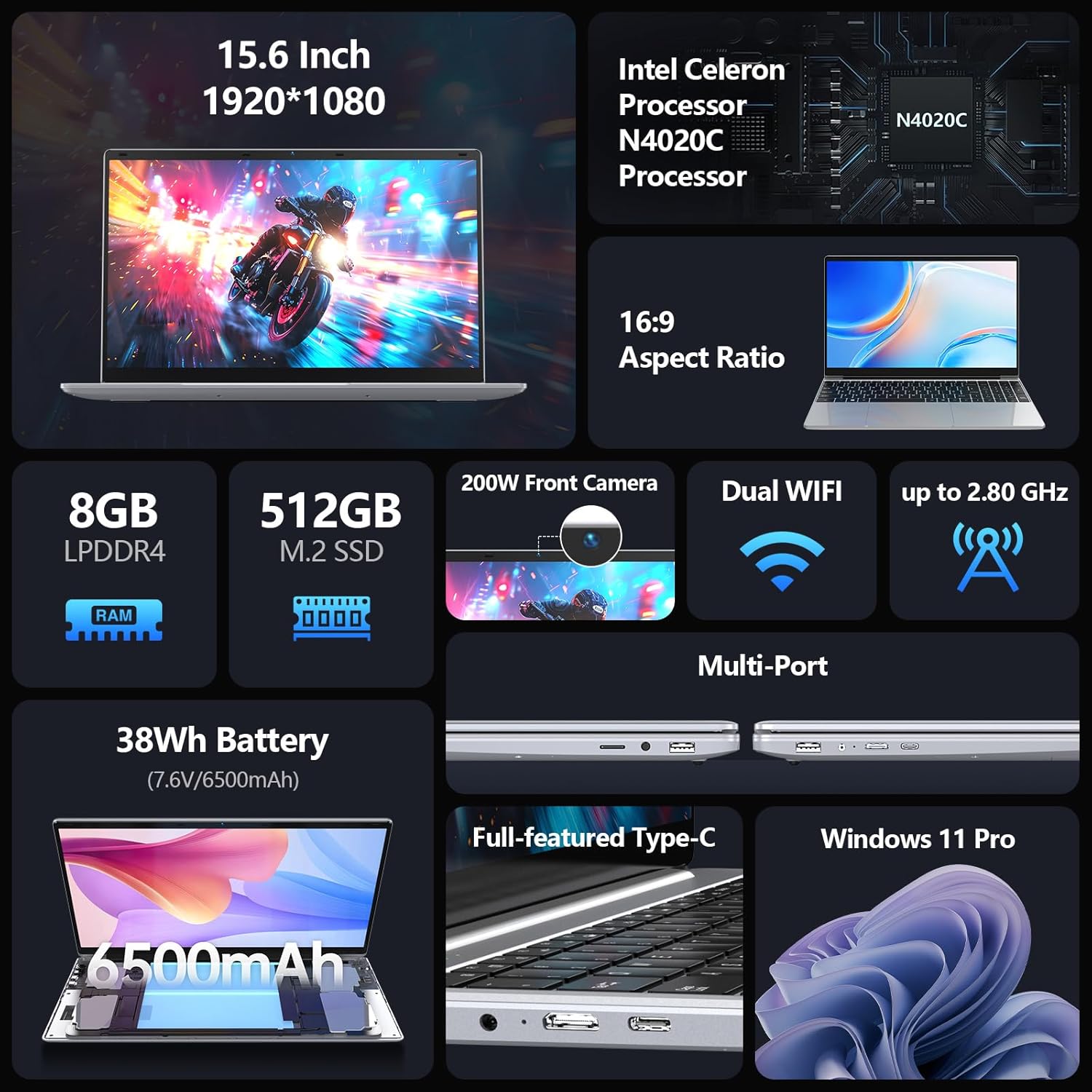
Figure 1: Gezoon D1523 Laptop Overview. This image shows the laptop from an elevated angle, highlighting its slim design and the 15.6-inch display.
2. Operating Your Laptop
Understand the key features and how to operate your Gezoon D1523 laptop effectively.
2.1 Keyboard and Touchpad
- Full-Size Keyboard: The laptop features an ergonomic, full-size QWERTY keyboard designed for comfortable typing.
- Touchpad: The integrated touchpad supports multi-touch gestures for navigation. Refer to Windows settings for customizing touchpad sensitivity and gestures.

Figure 2: Keyboard and Touchpad. This image highlights the full-size keyboard layout and the responsive touchpad for precise control.
2.2 Display
- The 15.6-inch Full HD (1920x1080) display offers clear and vibrant visuals. Adjust brightness and display settings through Windows.
- The laptop supports a 180° expansion angle, allowing for flexible viewing positions.
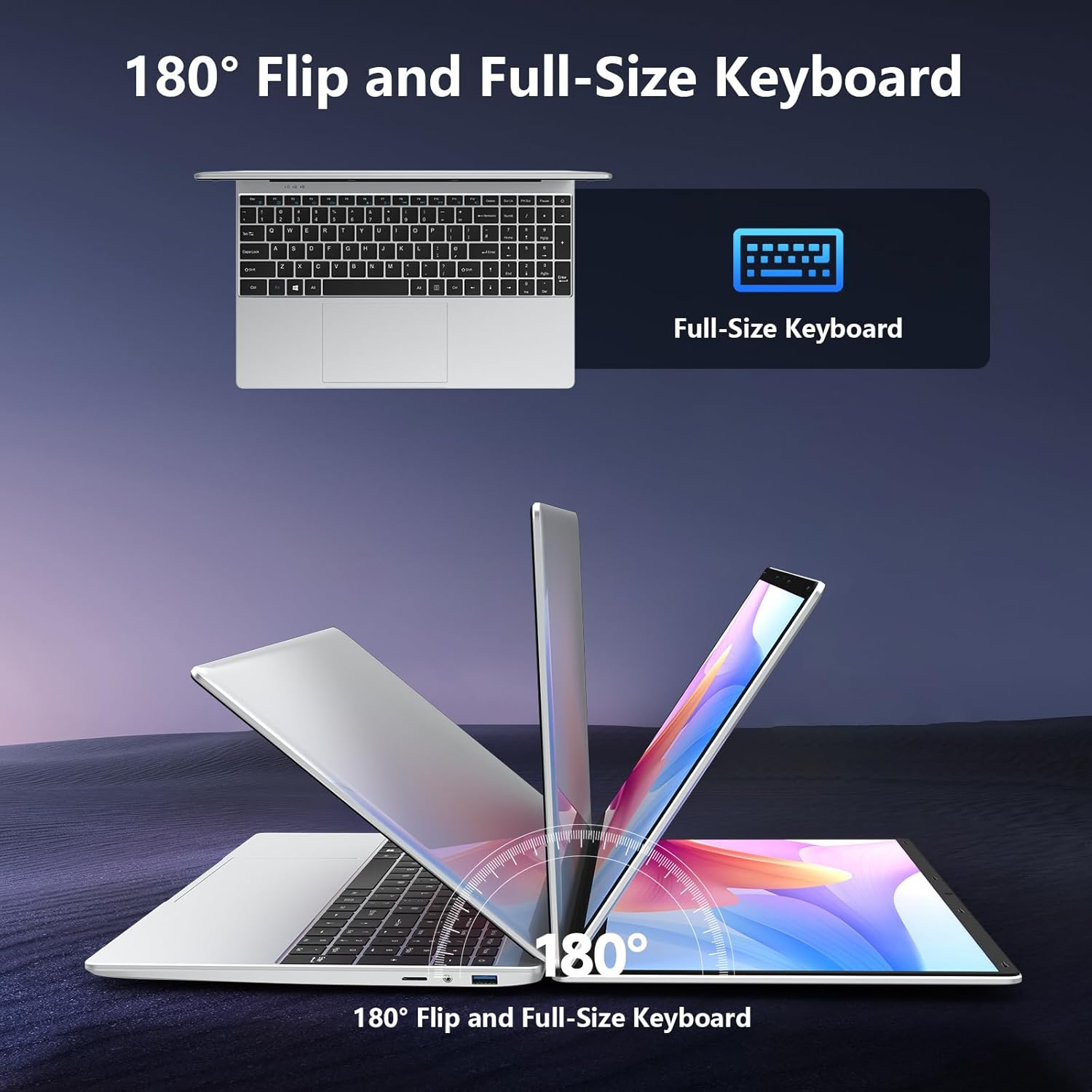
Figure 3: 180° Display Flexibility. This image demonstrates the laptop's ability to open flat, providing versatile viewing options.
2.3 Ports and Connectivity
Your laptop is equipped with various ports for connecting external devices and networks.
- USB-A 3.0: Two ports for high-speed data transfer with compatible USB devices.
- Full-Featured Type-C: One port for data, video output, and power delivery (check compatibility with external chargers).
- Mini HDMI: Connect to external displays or projectors.
- TF Card Slot: Supports memory cards up to 128GB for expanded storage.
- 3.5mm Audio Jack: For headphones or external speakers.
- Wi-Fi 5 (802.11ac): For wireless internet connection. Supports 2.4 GHz and 5.8 GHz bands.
- Bluetooth 4.2: For connecting wireless peripherals like mice, keyboards, and headphones.
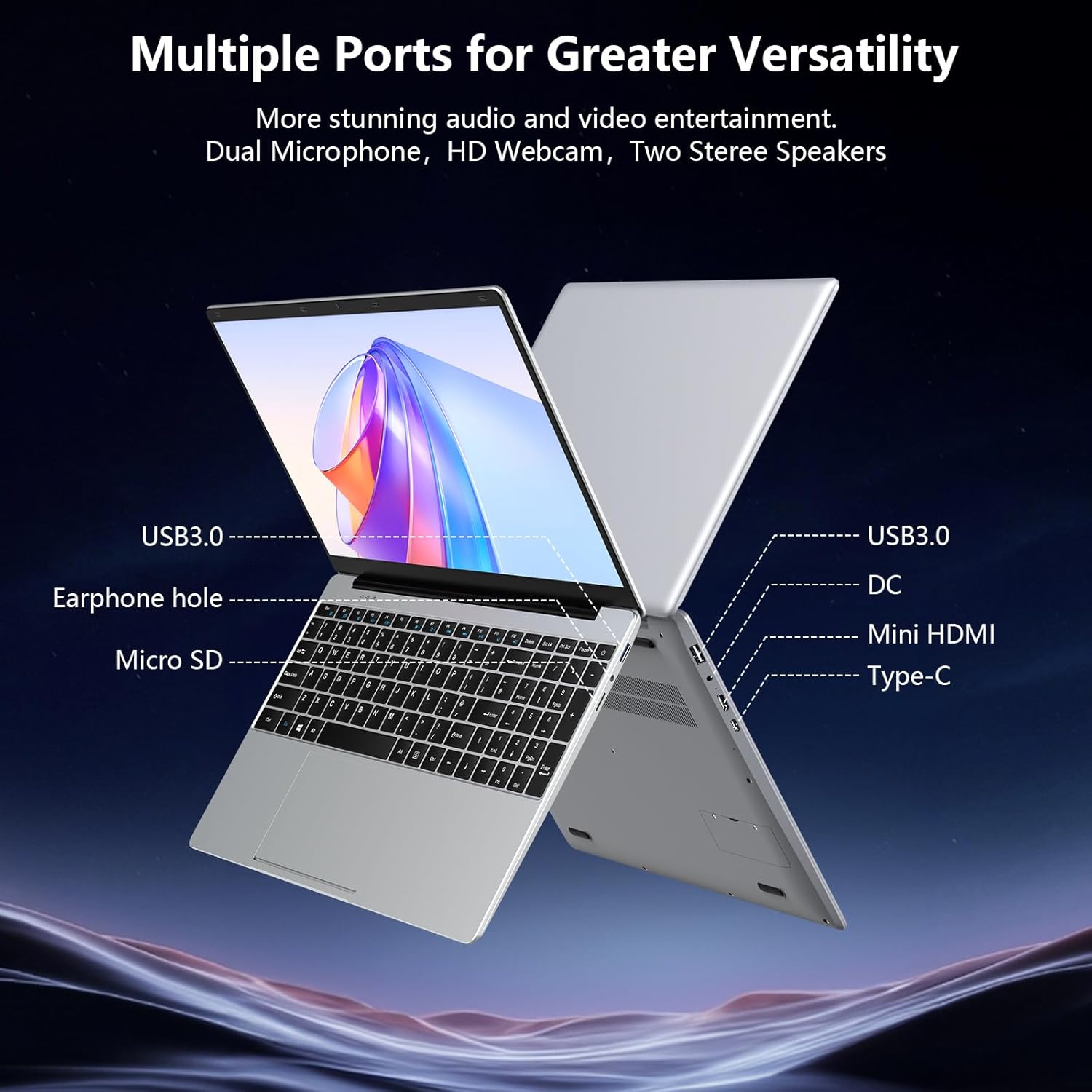
Figure 4: Multiple Ports. This image illustrates the placement of USB 3.0, Type-C, Mini HDMI, and other ports on the laptop's sides.
2.4 Audio and Webcam
- Dual Stereo Speakers: Provides clear audio output for multimedia and communication.
- HD Webcam (200W Front): For video calls and online meetings.
- Dual Microphone: Enhances audio input clarity during calls.

Figure 5: Audio and Webcam Features. This image shows the laptop in use for a video call, emphasizing the integrated speakers and webcam.
3. Maintenance
Proper maintenance ensures the longevity and optimal performance of your laptop.
3.1 Battery Care
- To maximize battery life, avoid fully discharging the battery frequently.
- Store the laptop in a cool, dry place when not in use for extended periods.
- The laptop features a 6500mAh battery designed for up to 10-12 hours of use, depending on usage patterns.
3.2 Cleaning
- Use a soft, lint-free cloth to clean the screen and exterior surfaces. For stubborn marks, dampen the cloth slightly with water or a screen-safe cleaner.
- Avoid using harsh chemicals or abrasive materials.
- Ensure the laptop is powered off and unplugged before cleaning.
3.3 Cooling System
The Gezoon D1523 laptop incorporates a scientific cooling solution with a silent fan and copper tube technology to manage heat and reduce noise.
- Ensure ventilation openings are not blocked when using the laptop on soft surfaces.
- Regularly check for dust accumulation in the vents and clean gently with compressed air if necessary.

Figure 6: Scientific Cooling Technology. This image highlights the laptop's cooling vents, designed for efficient heat dissipation.
4. Troubleshooting
This section provides solutions to common issues you might encounter.
4.1 Power and Boot Issues
- Laptop does not turn on: Ensure the power adapter is securely connected and the battery has sufficient charge. Try holding the power button for 10-15 seconds to perform a hard reset.
- Laptop turns on but no display: Connect an external monitor via the Mini HDMI port to check if the issue is with the laptop's internal display.
4.2 Performance Issues
- Slow performance: Close unnecessary applications running in the background. Ensure Windows is up to date. For optimal performance, it is recommended to keep the software installation light, as the Intel Celeron N4020C processor is designed for basic tasks.
- 100% CPU utilization: This can occur during demanding tasks. Monitor processes in Task Manager and close any non-essential applications.
4.3 Connectivity Problems
- Wi-Fi not connecting: Check if Wi-Fi is enabled in Windows settings. Restart your router and the laptop. Ensure you are within range of your Wi-Fi network.
- Bluetooth device not pairing: Ensure the Bluetooth device is in pairing mode and within range. Check Bluetooth drivers in Device Manager.
5. Specifications
Detailed technical specifications for the Gezoon D1523 Laptop.

Figure 7: Gezoon D1523 Key Specifications. This infographic provides a visual summary of the laptop's main features.
| Feature | Detail |
|---|---|
| Model Name | D1523 |
| Processor | Intel Celeron N4020C (Dual-core, up to 2.8 GHz) |
| RAM | 8GB LPDDR4 |
| Storage | 512GB M.2 SSD |
| Display | 15.6-inch Full HD (1920x1080) LCD |
| Graphics | Intel UHD Graphics 600 (Integrated) |
| Operating System | Windows 11 Pro |
| Battery | 6500mAh (7.6V), up to 10-12 hours |
| Connectivity | Wi-Fi 5 (802.11ac), Bluetooth 4.2 |
| Ports | 2x USB-A 3.0, 1x Full-Featured Type-C, 1x Mini HDMI, 1x TF Card Slot (Max 128GB), 1x 3.5mm Audio Jack, DC-in |
| Webcam | 200W Front Camera |
| Dimensions (L x W x Th) | 12.6" x 8.2" x 0.7" |
| Weight | 2.86 Pounds |
6. Warranty and Support
Information regarding your product's warranty and how to obtain support.
6.1 Warranty Information
The Gezoon D1523 laptop comes with a Two-year product and accessories warranty from the manufacturer. Please retain your proof of purchase for warranty claims.
This warranty covers manufacturing defects and malfunctions under normal use. It does not cover damage caused by misuse, accidents, unauthorized modifications, or natural disasters.
6.2 Customer Support
For technical assistance, troubleshooting beyond this manual, or warranty service, please contact Gezoon customer support. Refer to the contact information provided with your product packaging or visit the official Gezoon website for support details.
When contacting support, please have your laptop's model number (D1523) and purchase information readily available.
