1. Introduction
This manual provides detailed instructions for the installation, operation, and maintenance of your Zcargel 8.4-inch Android 14 Car Stereo. This unit is designed to fit Grand Cherokee, RAM, and Wrangler models from 2015 to 2021, offering advanced features such as Wireless CarPlay, Android Auto, split screen functionality, and support for AHD cameras. Please read this manual thoroughly before installation and use to ensure proper function and safety.
2. Package Contents
Carefully unpack the box and ensure all items listed below are present and undamaged. If any items are missing or damaged, please contact customer support.
- 8.4-inch Android 14 Car Stereo Unit
- Power Cable
- RCA Input/Output Cables
- USB Cables (Double USB interface)
- Camera Input Cable
- Radio Adapter Cable
- GPS Antenna
- External Microphone
- AHD/CVBS Reversing Camera (if included in package)
- Canbus Box
- Instruction Manual

Image: Overview of included components for the Zcargel car stereo.
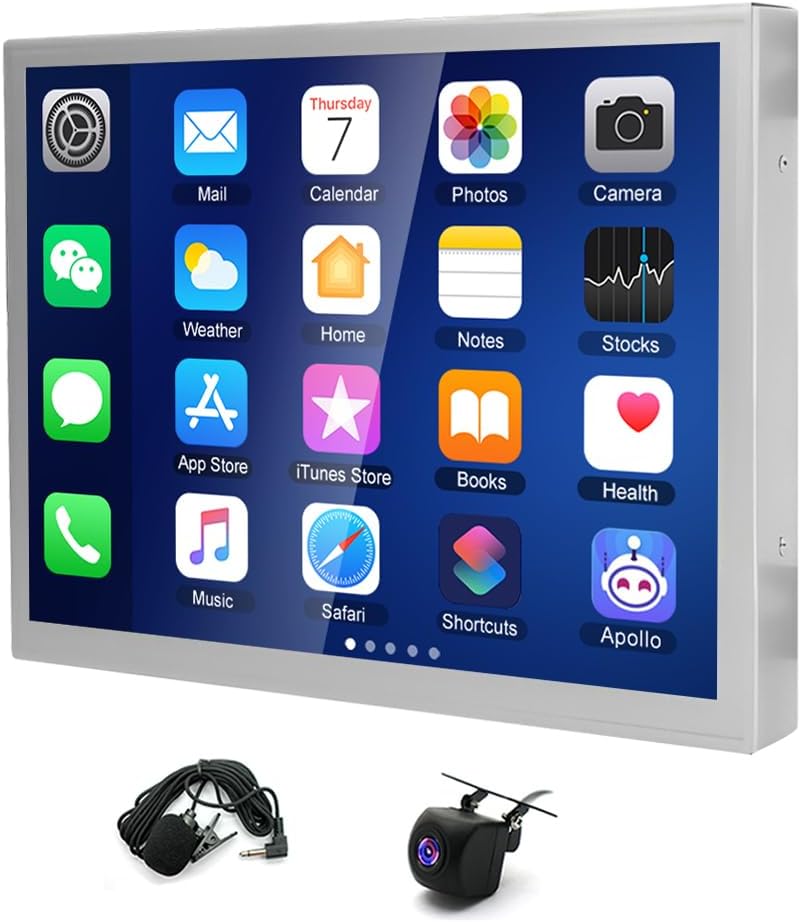
Image: Detailed view of all items included in the product package.
3. Setup & Installation
The Zcargel 8.4-inch Android 14 Car Stereo is designed for straightforward installation. It is compatible with Grand Cherokee, RAM, and Wrangler models from 2015 to 2021. For optimal performance and safety, professional installation is recommended.
3.1 General Installation Steps
- Preparation: Before starting, ensure the vehicle's ignition is off and the battery is disconnected to prevent electrical shorts.
- Remove Existing Unit: Carefully remove the factory radio unit from your vehicle's dashboard. Refer to your vehicle's service manual for specific instructions on dashboard disassembly.
- Connect Wiring Harness: Connect the provided power cable, RCA input/output cables, USB cables, camera input cable, and radio adapter cable to the corresponding ports on the new stereo unit. Ensure the Canbus box is correctly integrated into the wiring harness.
- GPS Antenna Installation: Mount the GPS antenna in a location with a clear view of the sky, typically on the dashboard or under the windshield, ensuring it is securely attached.
- External Microphone Installation: Connect the external microphone and route it to a suitable location, such as near the rearview mirror or on the A-pillar, for clear voice pickup.
- Reversing Camera Installation (Optional): If installing a reversing camera, connect it to the camera input cable and route the wiring to the rear of the vehicle.
- Test Connections: Before fully reassembling the dashboard, reconnect the vehicle battery and perform a preliminary test of the stereo's functions (power, audio, touch screen, CarPlay/Android Auto, camera input).
- Secure Unit and Reassemble: Once all functions are verified, securely mount the new stereo unit into the dashboard and reassemble all removed panels.
3.2 Wiring Diagram

Image: Wiring diagram illustrating connections for the car stereo system.
Refer to the wiring diagram for specific connection points. Ensure all connections are firm and correctly matched to avoid malfunctions.
3.3 Initial Power-Up
After installation, turn on your vehicle's ignition. The stereo should power on automatically. Follow any on-screen prompts for initial setup, such as language selection and time zone.
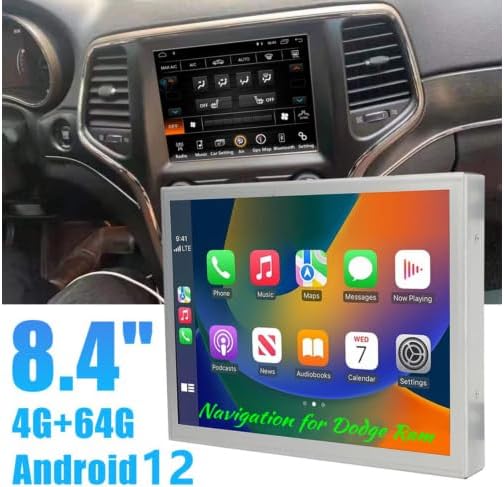
Image: The Zcargel car stereo integrated into a vehicle's dashboard.
4. Operating Instructions
The Zcargel 8.4-inch Android 14 Car Stereo features an intuitive touch screen interface. Navigate through menus by tapping icons and swiping across the screen.
4.1 Wireless CarPlay / Android Auto
This unit supports both Wireless Apple CarPlay and Android Auto. This allows seamless integration of your smartphone for navigation, calls, messages, and music.
- Initial Connection: Enable Bluetooth and Wi-Fi on your smartphone. On the car stereo, go to the CarPlay or Android Auto application. Follow the on-screen instructions to pair your phone via Bluetooth.
- Automatic Connection: After the first successful setup, your phone will automatically connect wirelessly to the car stereo via Bluetooth and Wi-Fi when you start the vehicle.
- Voice Control: Use Siri or Google Assistant for hands-free operation, including getting directions, making calls, sending messages, and playing music.

Image: The car stereo screen showing the Apple CarPlay interface.
4.2 Mirror Link Function
The mirror link function allows you to display your smartphone's screen directly onto the car stereo. This feature is compatible with both Android and iOS devices.
- Activation: Access the 'Mirror Link' application on the stereo.
- Connection: Follow the on-screen instructions to connect your smartphone, typically via USB or Wi-Fi, depending on your phone's operating system.
- Usage: Once connected, your phone's screen will be mirrored, allowing you to view videos, GPS, and other content on the larger display.
4.3 GPS Navigation
The unit includes built-in offline maps. For real-time traffic and updated map data, an internet connection is required.
- Offline Maps: Access the pre-installed navigation application. You may need to download map data for your region using an internet connection initially.
- Online Navigation: When connected to Wi-Fi or a mobile hotspot, the system can provide real-time navigation and traffic updates.
- Smartphone Sync: GPS navigation can also be synced via Wireless CarPlay or Android Auto, utilizing your smartphone's navigation applications.
4.4 Split Screen Function
The split screen feature allows you to run two applications simultaneously on the 8.4-inch display, such as navigation and music playback.
- Activation: While an application is open, long-press the recent apps button or follow the specific gesture for split screen mode on Android 14.
- Application Selection: Select a second compatible application to run alongside the first.
4.5 Steering Wheel Control
The stereo supports steering wheel control functions, allowing you to manage audio and other features without taking your hands off the wheel.
- Configuration: Access the 'Steering Wheel Control' settings in the system menu.
- Mapping: Follow the on-screen instructions to map your vehicle's steering wheel buttons to the desired functions on the stereo.
4.6 Radio (FM/RDS)
The built-in radio tuner supports FM bands and RDS (Radio Data System) for enhanced information display.
- Access: Open the 'Radio' application from the main menu.
- Scanning: Use the auto-scan function to find available stations or manually tune to a specific frequency.
- RDS: When available, RDS will display station information, song titles, or traffic announcements.
4.7 Media Playback
The stereo supports various audio, video, and picture formats for playback via USB or other connected devices.
- Audio Formats: APE, FLAC, WAV, MP3, WMA, and more.
- Video Formats: MKV, RMVB, AVI, MP4, MDV, and more.
- Picture Formats: PNG, JPEG, JPG, GIF, WBMP, BNP, and more.
- USB Playback: Insert a USB drive into one of the USB interfaces. The system will automatically detect and allow you to browse media files.
4.8 System Settings
Access the 'Settings' menu to customize various aspects of the stereo's operation.
- Language: Change the system language (Chinese, English, French, Italian, Korean, Japanese, Arabic, Spanish, Portuguese, Russian, Turkish, Vietnamese, Hebrew, Polish, German).
- Display: Adjust brightness, night vision mode, and other display preferences.
- Sound: Configure audio equalizer, balance, and fader settings.
- Factory Settings: To access advanced factory settings, the keyword is 8888 or 3368. Use with caution as incorrect changes can affect system performance.
5. Maintenance
Proper maintenance ensures the longevity and optimal performance of your car stereo.
- Cleaning the Screen: Use a soft, lint-free cloth to gently wipe the touch screen. For stubborn smudges, slightly dampen the cloth with water or a screen-safe cleaner. Avoid harsh chemicals or abrasive materials.
- Software Updates: Periodically check for software updates through the system settings or the manufacturer's website to ensure you have the latest features and bug fixes.
- Environmental Conditions: Avoid exposing the unit to extreme temperatures, direct sunlight for prolonged periods, or excessive moisture.
- Cable Connections: Periodically check all cable connections to ensure they are secure and free from corrosion.
6. Troubleshooting
If you encounter issues with your Zcargel car stereo, refer to the following common problems and solutions before contacting support.
| Problem | Possible Cause | Solution |
|---|---|---|
| Unit does not power on. | Loose power connection, blown fuse, vehicle battery issue. | Check power cable connections. Inspect vehicle fuses. Ensure vehicle battery is charged. |
| No sound from speakers. | Speaker wires disconnected, volume too low, mute activated, incorrect audio settings. | Verify speaker wire connections. Increase volume. Check if mute is active. Adjust audio settings in the system menu. |
| Touch screen unresponsive. | System freeze, temporary software glitch. | Restart the unit (turn vehicle ignition off and on). If persistent, perform a factory reset (use keyword 8888 or 3368, consult support). |
| Wireless CarPlay/Android Auto not connecting. | Bluetooth/Wi-Fi off on phone, incorrect pairing, software issue. | Ensure phone's Bluetooth and Wi-Fi are on. Delete previous pairings and re-pair. Restart both phone and stereo. |
| GPS signal weak or inaccurate. | GPS antenna obstruction, poor antenna placement, outdated map data. | Ensure GPS antenna has a clear view of the sky. Check antenna connection. Update map data if necessary. |
| Reversing camera not displaying. | Camera cable disconnected, camera faulty, incorrect input selected. | Check camera input cable connection. Verify camera power. Ensure correct video input is selected in settings. |
7. Specifications
Detailed technical specifications for the Zcargel 8.4-inch Android 14 Car Stereo.
- Operation System: Android 14
- Chipset: 8227L-DEMO
- Screen Size: 8.4 inches
- Memory: 2GB (RAM) + 32GB (ROM)
- Screen Resolution: 1280x720
- Radio Chip: MT6625
- Power Output: 4x45W
- Work Temperature: -20℃ to 75℃
- Steering Wheel Control: Support
- Power Amplifier Chip: TDA7388
- Radio Band: Frequency Modulation (FM) / RDS
- Video Output: Support
- Reversing Input: AHD/CVBS
- External Microphone: Support
- Split Screen: Support
- Maps: Built-in offline maps (requires internet to download data)
- WIFI: Support
- USB: Double USB interface
- Audio Formats: APE, FLAC, WAV, MP3, WMA, and more
- Video Formats: MKV, RMVB, AVI, MP4, MDV, and more
- Picture Formats: PNG, JPEG, JPG, GIF, WBMP, BNP, and more
- Factory Setting Keyword: 8888 or 3368
- Language Support: Chinese, English, French, Italian, Korean, Japanese, Arabic, Spanish, Portuguese, Russian, Turkish, Vietnamese, Hebrew, Polish, German
- Fitment: Compatible for Grand Cherokee/RAM/Wrangler 2015-2021
- Item Weight: 1.55 Kilograms (3.41 pounds)
- Product Dimensions: 11.42 x 8.66 x 5.12 inches
- Connectivity Technology: Bluetooth
- Special Feature: Touchscreen
8. Warranty & Support
Zcargel is committed to providing quality products and customer satisfaction.
8.1 Product Warranty
This product comes with a 12-month warranty from the date of purchase, covering manufacturing defects. Additionally, a 30-day refund guarantee is provided for initial product issues.
8.2 Customer Support
For any questions, technical assistance, or warranty claims, please contact Zcargel customer support. We aim to provide a satisfactory response within 24 hours.
- Online Support: Visit the Zcargel store on Amazon or the official Zcargel website for FAQs and contact options.
- Email Support: Refer to your purchase documentation for the dedicated customer support email address.