
Introduction
This manual provides comprehensive instructions for the RedThunder K75 Wireless Mechanical Gaming Keyboard. It covers setup, operation, maintenance, troubleshooting, and product specifications to ensure optimal use and longevity of your device.
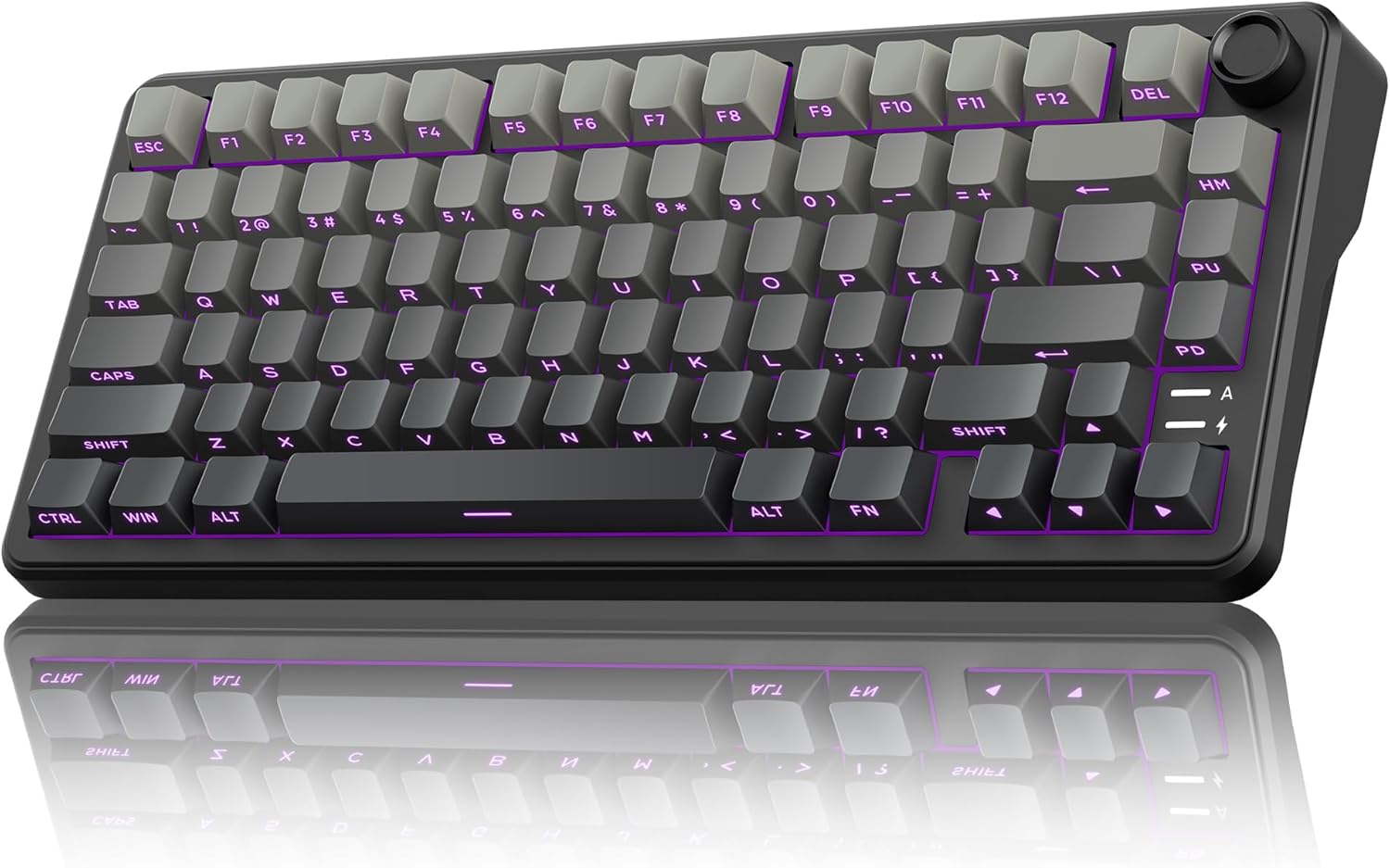
Image: The RedThunder K75 Wireless Mechanical Gaming Keyboard, showcasing its compact layout and RGB backlighting.
What's in the Box
Verify that all components are present in the package:
- K75 Keyboard
- USB Cable
- Switches (spare)
- User Manual (this document)
- Keycap Puller

Image: A visual representation of the RedThunder K75 keyboard and its included accessories, such as the USB cable, spare switches, and keycap puller.
Setup
Connectivity Modes
The K75 keyboard supports three connection modes: Wired (USB Type-C), 2.4GHz Wireless, and Bluetooth (BT).
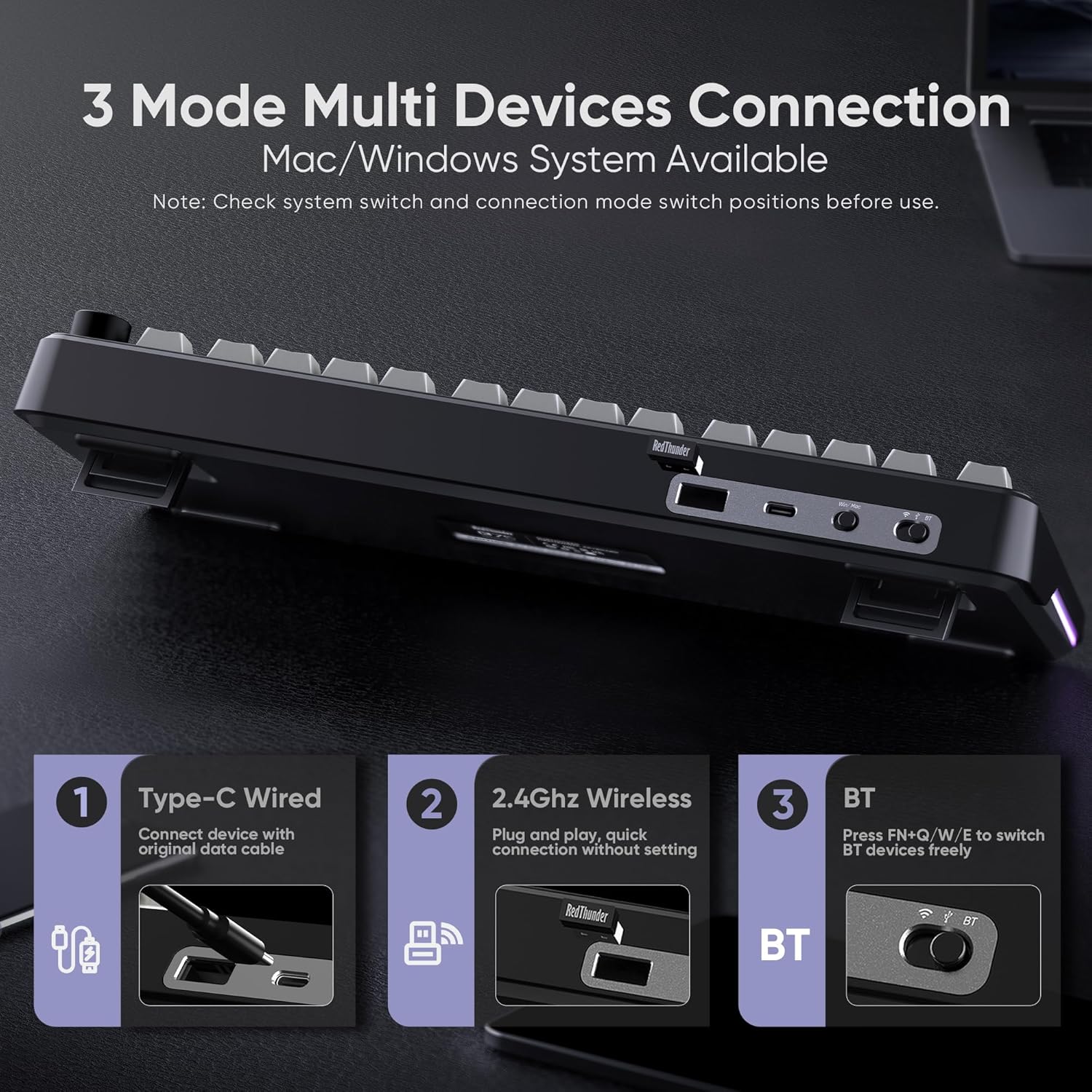
Image: A diagram illustrating the three connectivity options for the RedThunder K75 keyboard: wired via USB-C, 2.4GHz wireless with a dongle, and Bluetooth.
- Wired Mode: Connect the keyboard to your device using the provided USB Type-C cable. This mode also charges the keyboard.
- 2.4GHz Wireless Mode:
- Locate the 2.4G dongle (usually stored in a compartment on the keyboard).
- Plug the dongle into a USB port on your computer.
- Switch the keyboard to 2.4G wireless mode using the switch on the top of the keyboard. The keyboard should connect automatically.
- Bluetooth (BT) Mode:
- Switch the keyboard to BT mode using the switch on the top.
- On your device (PC, laptop, tablet, mobile phone), search for Bluetooth devices.
- Select "RedThunder K75" from the list to pair.
- Use FN+Q/W/E to switch between BT1, BT2, or BT3 devices.
Note: Ensure the system switch (Windows/MacOS) on the keyboard is set correctly for your operating system before use.
Charging the Keyboard
The K75 keyboard features a 4000mAh rechargeable battery. Connect the keyboard via the USB Type-C cable to a computer's USB port or a qualified data-capable charger (DC: 5V) for optimal charging. A charging indicator light will show the power status.

Image: The RedThunder K75 keyboard highlighting its 4000mAh battery, indicating up to 48 hours with backlight on and 266 hours with backlight off.
Operating Instructions
Multi-function Control Knob
The CNC knob located on the top right of the keyboard has dual functionality:
- Switching Modes: Long press the knob for approximately 5 seconds to switch between Gaming Mode (light mode) and Office Mode (volume mode).
- Gaming Mode (Light Mode):
- Rotate the knob to adjust the brightness of the RGB lights.
- Click the knob to cycle through different lighting effects.
- Office Mode (Volume Mode):
- Rotate the knob to adjust the system volume.
- Click the knob to play or pause media.

Image: A close-up of the K75's CNC knob and indicator lights, detailing how to switch between volume and brightness modes, and how to adjust settings within each mode. It also shows the Caps Lock and Charging Indicator lights.
RGB Backlighting Control
The K75 features full RGB backlighting with 1.68 million colors. Control lighting effects using FN key combinations, the CNC knob, or the programmable software.
- FN + \: Adjust lighting effects.
- FN + PU: Switch backlight color.
- FN + Up/Down Arrow: Increase/decrease backlight brightness.
- FN + Left/Right Arrow: Adjust light speed.
- FN + TAB: Adjust side lighting modes.
- FN + PD: Press once to activate self-set game lighting, press twice to start customized game lighting.
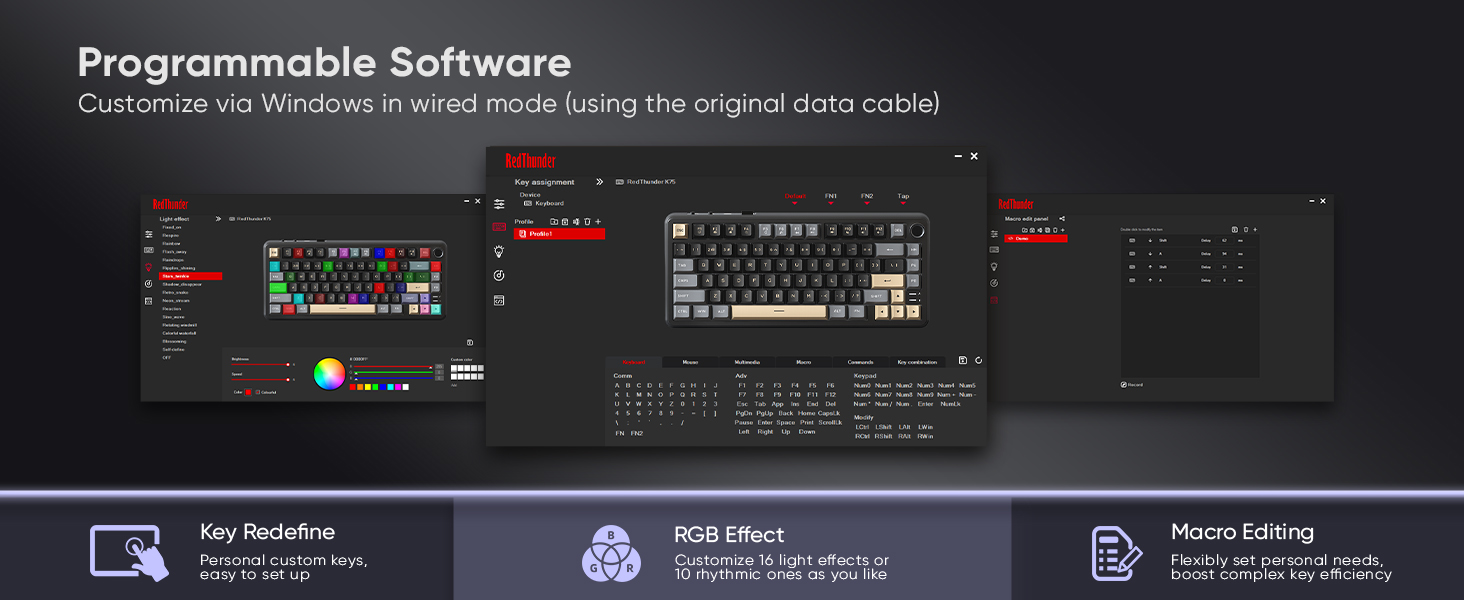
Image: A visual guide to FN key combinations for controlling the K75's RGB backlighting, including changing effects, colors, brightness, and speed.
Video: Demonstrates various RGB backlight effects and adjustments on the RedThunder K75 keyboard.
Hot-Swappable Switches
The K75 features a hot-swappable PCB, allowing you to replace 3-pin or 5-pin mechanical switches without soldering. This enables customization of typing feel and sound.

Image: An exploded view showing the hot-swappable components of the K75 keyboard, including PBT keycaps, pre-lubed switches, stabilizers, and hot-swap sockets.
Note: The keyboard comes with pre-lubricated coconut linear switches. Spare switches and a key puller are included for experimentation. Not recommended for beginners without prior experience.
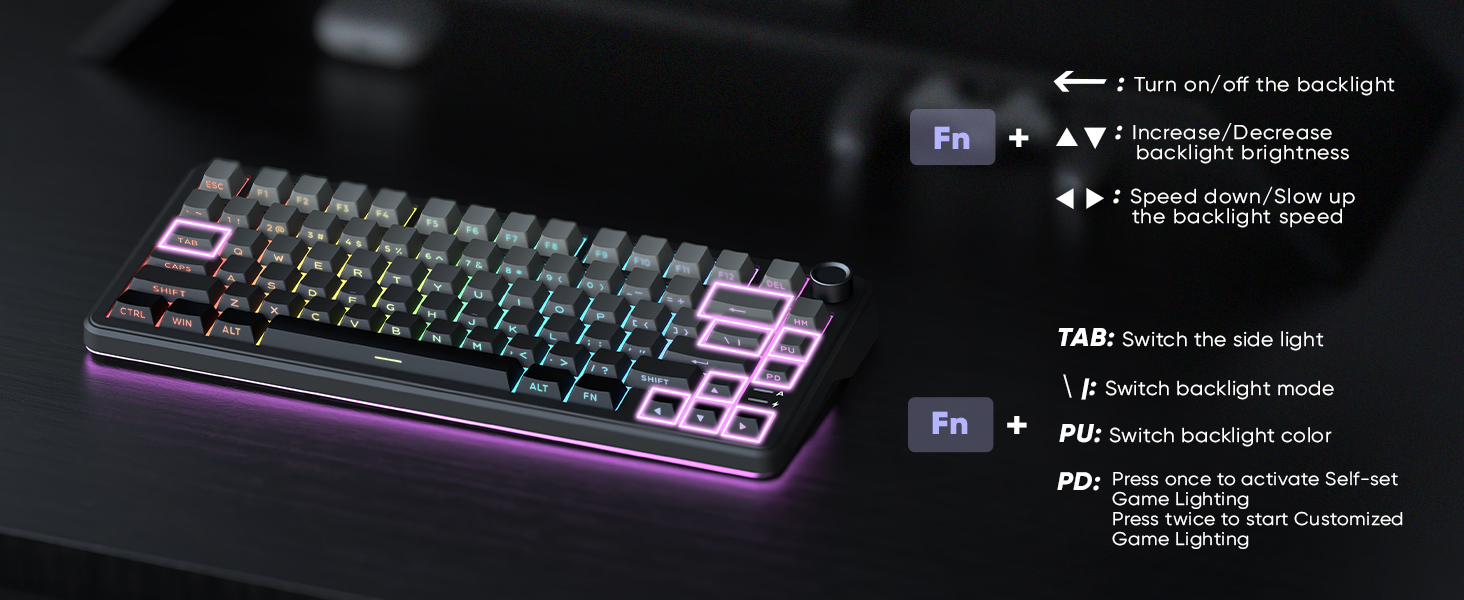
Image: Detailed specifications for the Cream Switch, including tactile force, bottoming force, conduction travel, and total travel, along with a force-travel diagram.
Programmable Software
Customize keyboard functions, key mapping, macro definitions, and backlight effects using the K75-US driver software. This software is compatible with Windows and functions in 2.4G wireless or wired mode.
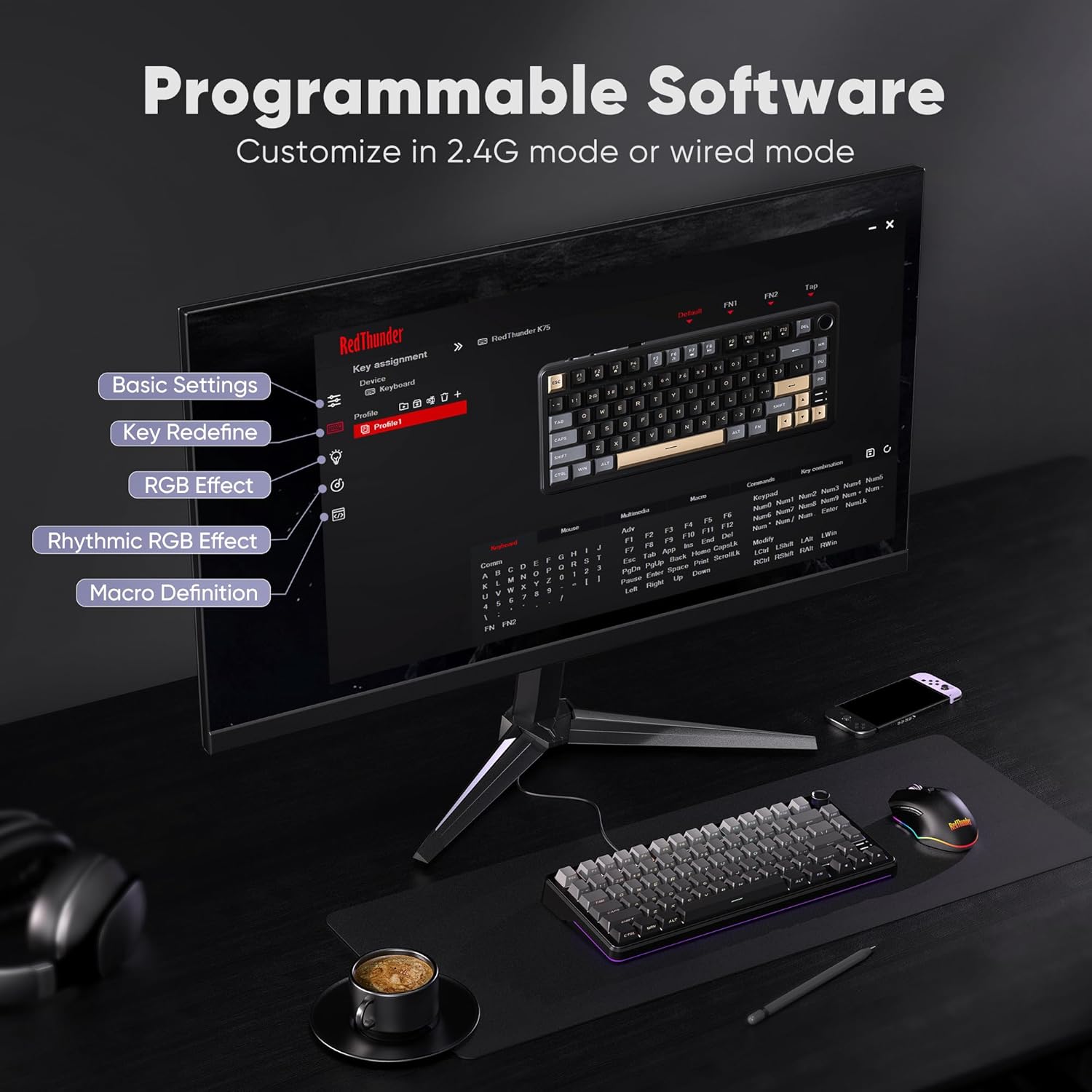
Image: A screenshot of the K75 programmable software interface, showing options for basic settings, key redefinition, RGB effects, rhythmic RGB effects, and macro definition.
Video: Overview of the RedThunder K75 Mechanical Keyboard, demonstrating its features including the gasket structure, PBT keycaps, and RGB lighting.
Maintenance
- Cleaning: Use a soft, dry cloth to clean the keyboard surface. For keycaps, a damp cloth with mild soap can be used, ensuring no liquid enters the switches.
- Keycap Removal: Use the provided keycap puller to safely remove keycaps for cleaning or switch replacement. Gently pull straight up to avoid damaging the switch stem.
- Switch Replacement: Use the provided switch puller to carefully remove switches. Align new switches with the PCB pins and press firmly until they click into place.
- Battery Care: Avoid fully discharging the battery frequently. Charge the keyboard using the original cable or a compatible 5V data-capable cable.
- Storage: Store the keyboard in a cool, dry place away from direct sunlight and extreme temperatures.
Troubleshooting
| Issue | Possible Solution |
|---|---|
| Keyboard not responding in wireless mode. | Ensure the keyboard is switched to 2.4G or BT mode. Check battery level. Re-pair Bluetooth or re-insert 2.4G dongle. Try wired mode to confirm functionality. |
| Keys not registering or double-typing. | This could indicate a faulty switch. Use the provided switch puller to replace the affected switch with a spare. Ensure the switch is fully seated. |
| RGB lighting not working or incorrect. | Check FN key combinations for lighting control. Ensure the keyboard is charged. Use the programmable software to reset or customize lighting effects. |
| Bluetooth connection issues. | Ensure the keyboard is in BT mode and discoverable. Remove the keyboard from your device's Bluetooth list and re-pair. Ensure no other devices are interfering. |
| Software not detecting keyboard. | Ensure the keyboard is connected via wired mode or 2.4G wireless mode. The software is only compatible with Windows. Restart the software and keyboard. |
Specifications
- Model: K75
- Layout: 75% Compact (80 keys + knob)
- Connectivity: 2.4G Wireless, Bluetooth 5.0, Wired (USB Type-C)
- Switches: Hot-Swappable (3-pin/5-pin compatible), Pre-lubed Linear Switches (Cream Switch)
- Keycaps: Side-Printed PBT Keycaps
- Backlighting: Full RGB (1.68 million colors), South-facing LEDs, Side Lighting
- Battery: 4000mAh Lithium Ion (included)
- Dimensions: 12.8"L x 5.71"W x 1.77"H (32.5 x 14.5 x 4.5 cm)
- Weight: 2.16 pounds (approx. 850g)
- Compatible Devices: PC, Laptop, Smartphone, Tablet, PS, XBOX
- Special Features: Gasket Structure (5-layer sound absorption), CNC Control Knob, Two-stage Foot Support, Programmable Software
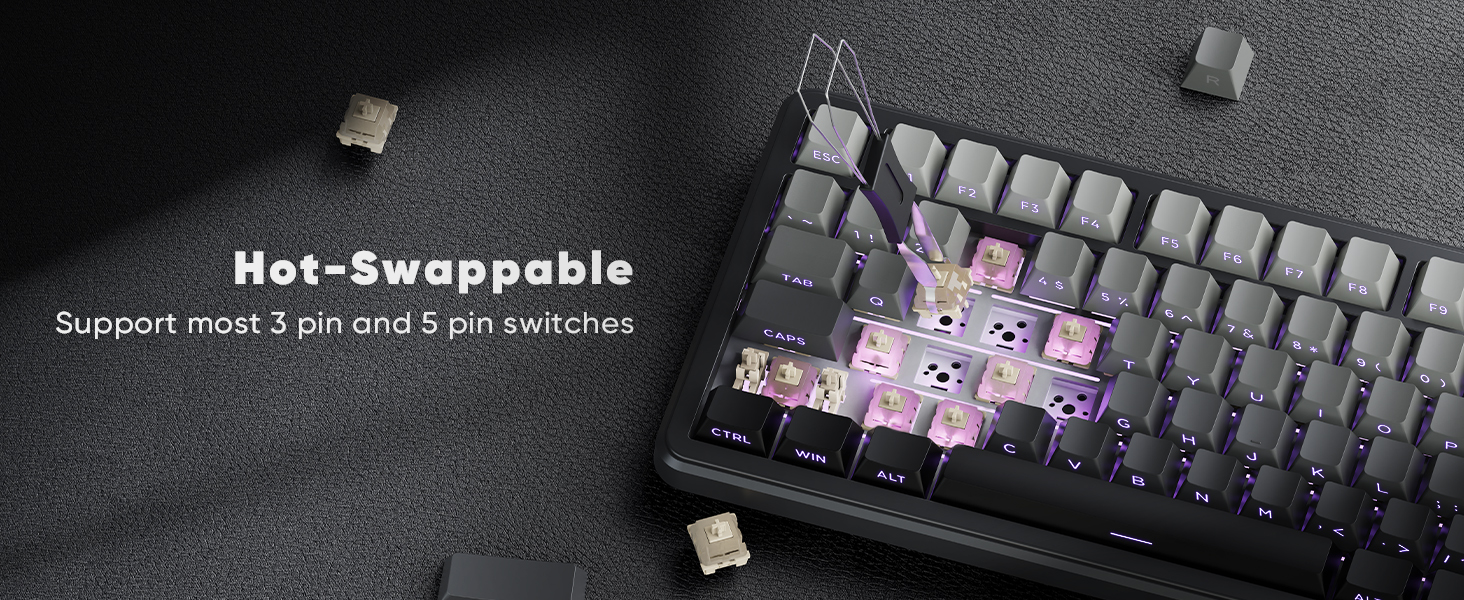
Image: An exploded diagram illustrating the 5-layer gasket structure of the K75 keyboard, designed for effective noise reduction and a softer typing experience.
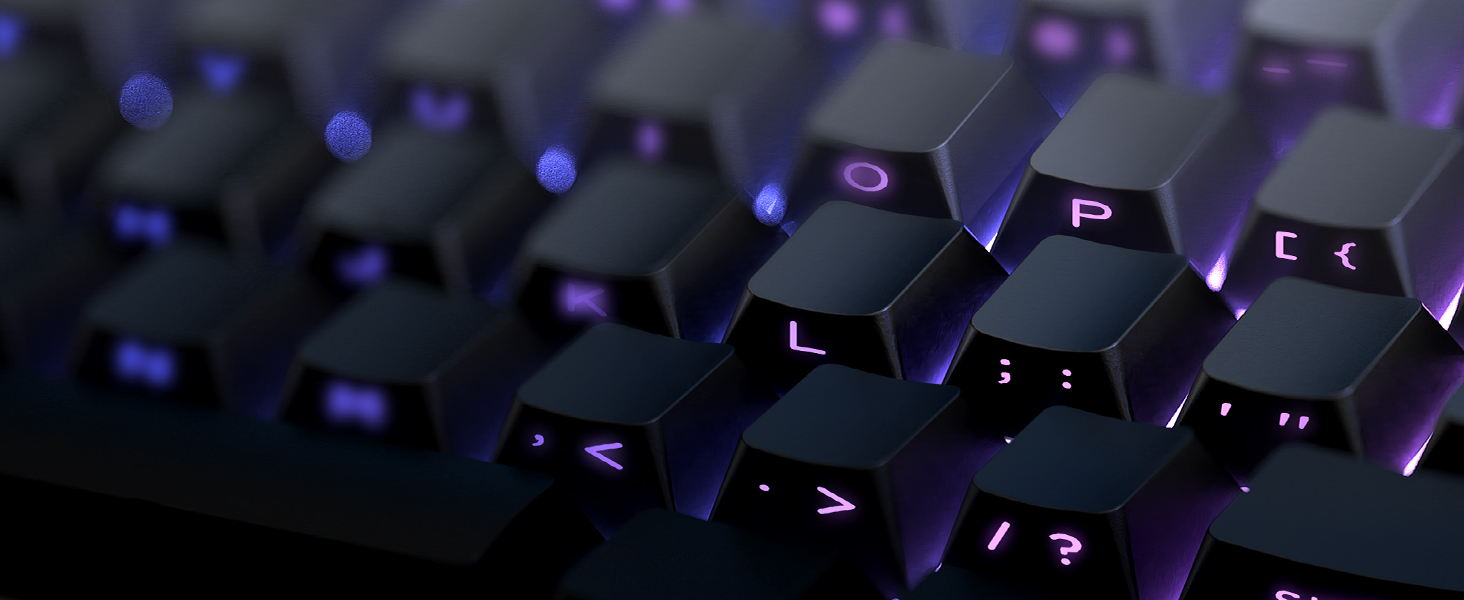
Image: A comparison of the K75's 75% compact layout with a full-size keyboard, highlighting its smaller footprint and dimensions (32.7cm length, 14.4cm width, 4.5cm height).
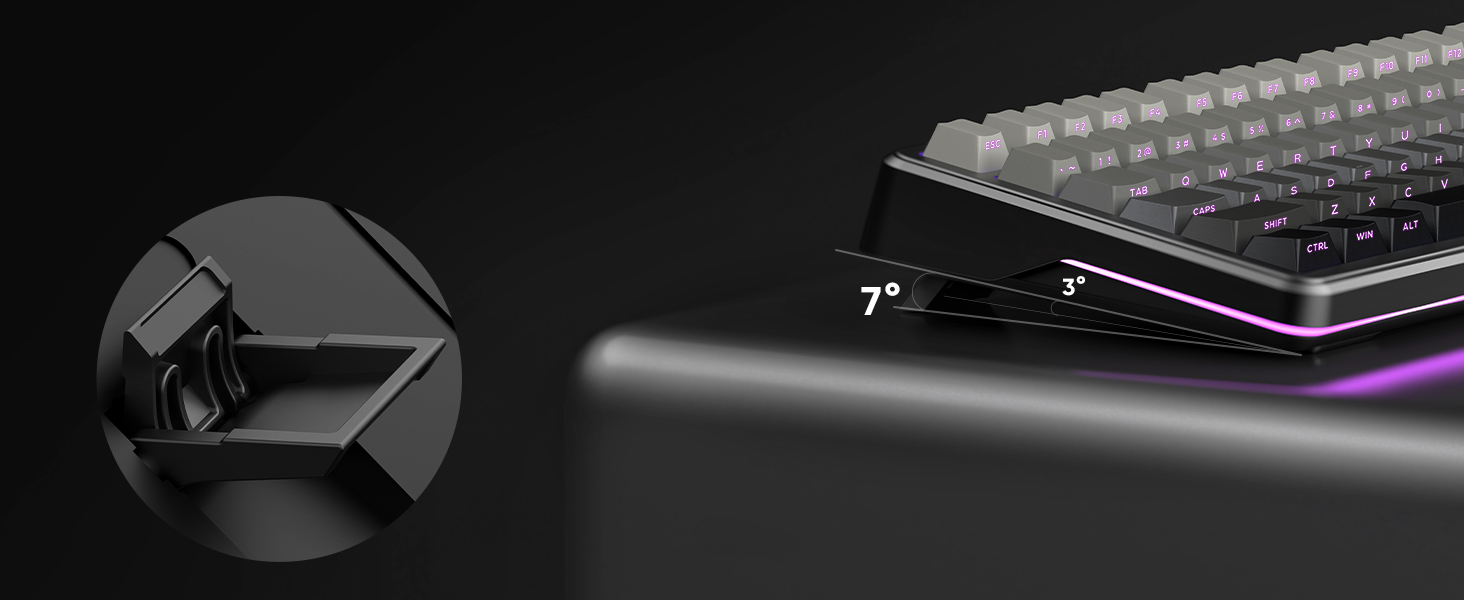
Image: A close-up view of the K75's side-printed PBT keycaps, designed for durability and clear visibility of characters with backlighting.
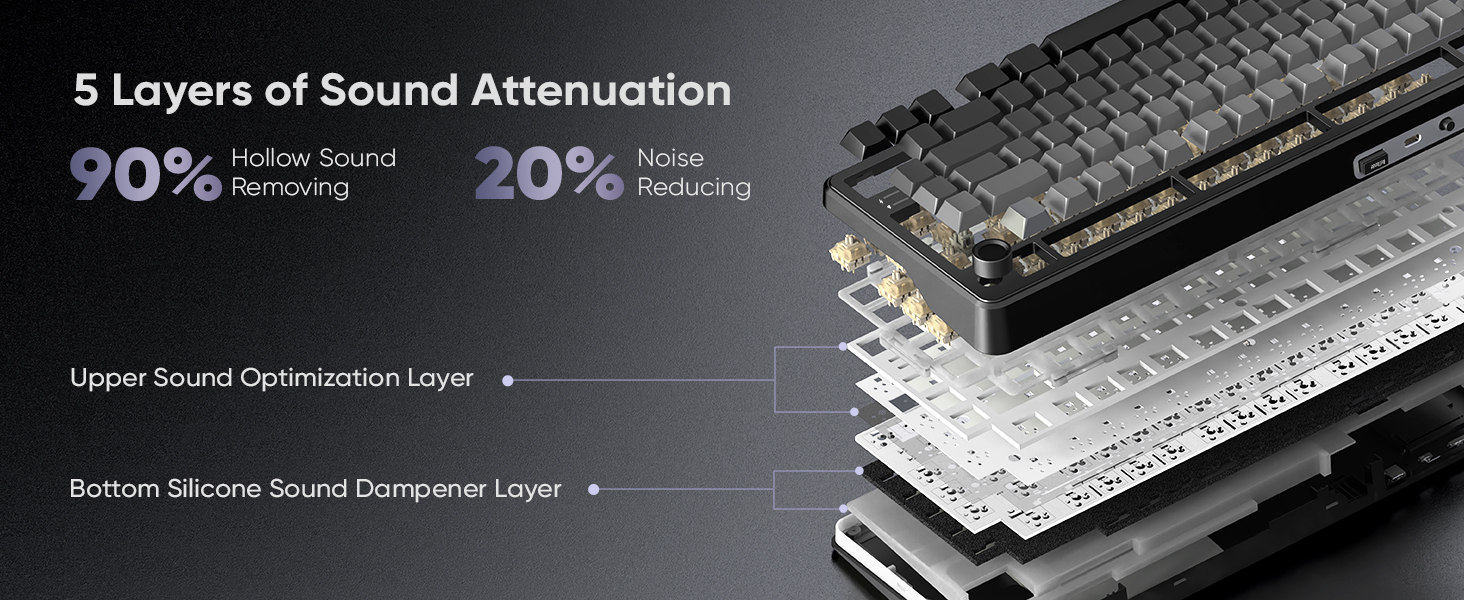
Image: An illustration of the K75 keyboard's two-stage adjustable foot support, allowing users to set the typing angle to 3 or 7 degrees for ergonomic comfort.
Warranty and Support
For warranty information and technical support, please refer to the official RedThunder website or contact their customer service directly. Keep your purchase receipt for warranty claims.
