
1. Product Overview
The MAIWO External Hard Drive Enclosure provides a versatile solution for connecting 2.5-inch and 3.5-inch SATA SSDs and HDDs to your computer via USB 3.0. This enclosure supports high-speed data transfer, offers storage for SD cards, and can connect to a CD box. Its tool-free design ensures easy installation and portability.
- Compatibility: Supports 2.5 and 3.5 inch SATA SSD/HDD (DO NOT SUPPORT IDE).
- High-Speed Transfer: Up to 6Gbps with USB 3.0 and UASP support (on Windows 8.1 or above).
- SD Card Storage: Integrated slots for storing up to 6 SD cards (cards are not readable by the enclosure).
- CD Box Compatibility: Supports mobile CD boxes with a 7+15PIN SATA interface for reading CDs.
- Detachable Design: Composed of a case and a SATA to USB cable, allowing flexible use.
- Features: Tool-free installation, maximum 24TB capacity, 12V 2A independent power adapter, 5mm EVA crash pad, LED indicator.

Figure 1: Product overview showing USB 3.0 5Gbps transfer speed capability.
2. Compatibility
This enclosure is designed for 2.5-inch and 3.5-inch SATA I/II/III SSDs and HDDs with a serial port interface. It is compatible with various operating systems and devices including desktops, laptops, Xbox, PS5/PS4/PS3, TVs, and routers. Please note that IDE drives are not supported.

Figure 2: Supported drive types (2.5" and 3.5" SATA) and unsupported drive types (IDE).
3. Installation Guide
3.1 Package Contents
Verify that all items are present in the package:
- 1x 2.5"/3.5" SATA Enclosure (Toolless)
- 1x 12V/2A Power Adapter
- 1x User Manual
3.2 Hardware Installation
Follow these steps to install your hard drive into the enclosure:
- Step 1: Insert the SATA to USB adapter into the enclosure's internal SATA port.
- Step 2: Open the back cover of the enclosure. Carefully insert your 2.5-inch or 3.5-inch SATA SSD/HDD into the enclosure, ensuring it connects securely to the adapter. Close the back cover.
- Step 3: Connect the provided 12V/2A power adapter to the enclosure's power input port.
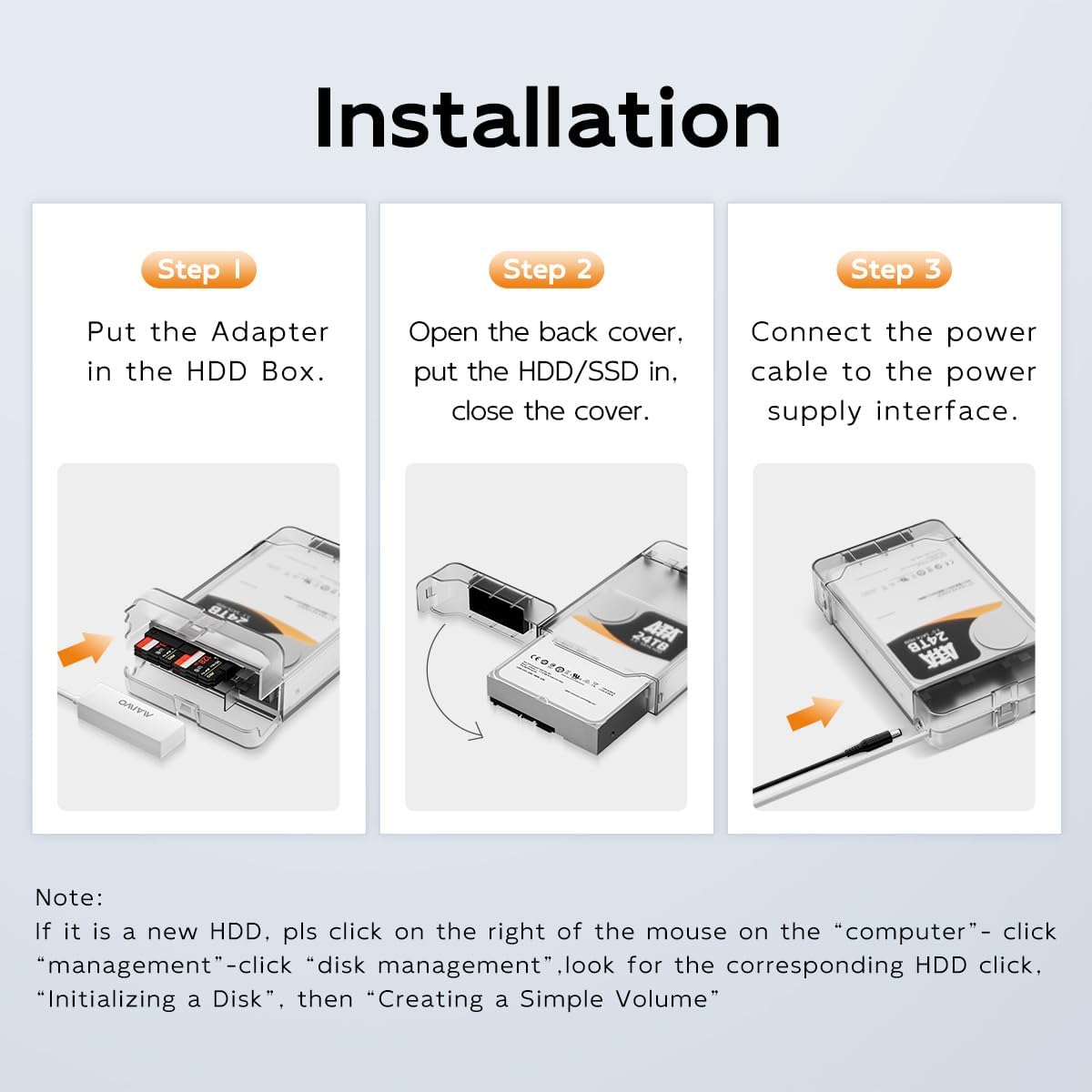
Figure 3: Step-by-step hardware installation process.
3.3 Initial Setup for New Hard Drives
If you are using a brand new hard drive, it may need to be initialized and formatted before use. Follow these steps:
- Connect the enclosure to your computer via the USB 3.0 cable.
- Right-click on 'This PC' (or 'My Computer') and select 'Manage'.
- In the Computer Management window, navigate to 'Disk Management'.
- Locate your new hard drive (it may appear as 'Unallocated Space').
- Right-click on the drive and select 'Initialize Disk', then 'New Simple Volume' to format it. Follow the on-screen prompts to complete the process.
4. Operating Instructions
4.1 Connecting to a Computer
After installing the hard drive, connect the USB 3.0 cable from the enclosure to an available USB 3.0 port on your computer. The enclosure is plug-and-play, and your operating system should automatically detect the drive.
4.2 Data Transfer
The enclosure utilizes a JMS578 chip and USB 3.0 for data transfer speeds up to 6Gbps. For optimal performance, ensure your computer's USB port supports USB 3.0 and UASP (USB Attached SCSI Protocol), especially on Windows 8.1 or newer operating systems.
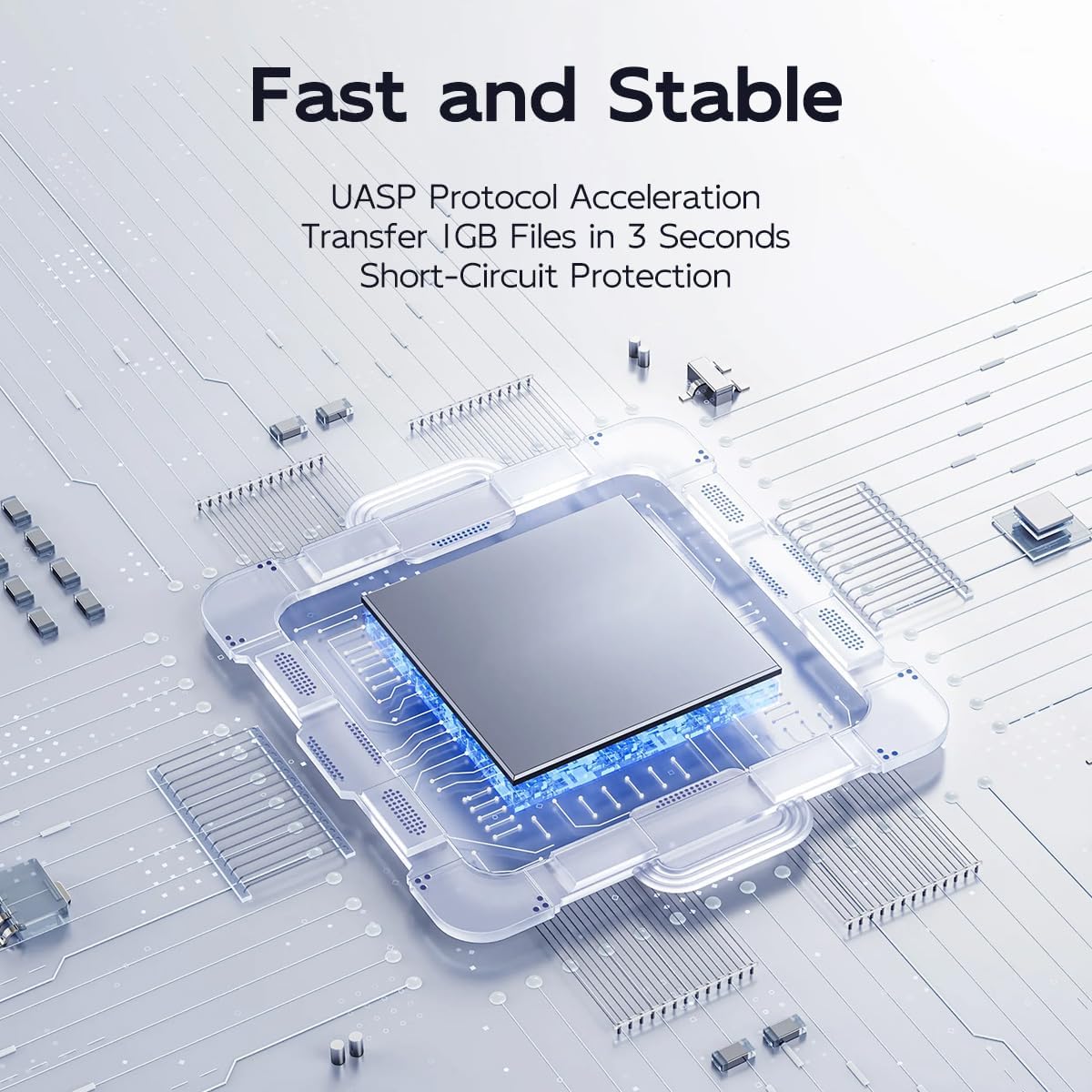
Figure 4: High-speed data transfer capabilities with UASP support.
4.3 Using with a CD Box
The SATA cable of this enclosure can also be used to connect to a mobile CD box with a 7+15PIN SATA interface, allowing you to read CDs through the USB connection to your computer.

Figure 5: Connecting a CD box using the enclosure's SATA adapter.
4.4 SD Card Storage
The enclosure features dedicated slots for storing up to 6 standard SD cards. Please note that these slots are for storage purposes only, and the enclosure does not provide functionality to read the SD cards.

Figure 6: SD card storage feature of the enclosure.
5. Maintenance
To ensure the longevity and optimal performance of your MAIWO External Hard Drive Enclosure, follow these maintenance guidelines:
- Cleaning: Use a soft, dry cloth to clean the exterior of the enclosure. Avoid using liquid cleaners or solvents.
- Storage: Store the enclosure in a cool, dry place away from direct sunlight and extreme temperatures.
- Protection: The enclosure includes a 5mm EVA crash pad to protect the installed drive from minor impacts. Handle with care to prevent damage.
- Power Adapter: Always use the provided 12V/2A independent power adapter. Disconnect it when the enclosure is not in use for extended periods.

Figure 7: Independent power adapter and LED indicator for operational status.
6. Troubleshooting
If you encounter issues with your enclosure, refer to the following common problems and solutions:
- Drive Not Detected:
- Ensure the hard drive is securely seated within the enclosure and properly connected to the SATA adapter.
- Verify the USB 3.0 cable is firmly connected to both the enclosure and your computer.
- Confirm the 12V/2A power adapter is connected and powered on, especially for 3.5-inch HDDs.
- If it's a new drive, ensure it has been initialized and formatted via Disk Management (refer to Section 3.3).
- Try connecting to a different USB port on your computer or a different computer to rule out port issues.
- Slow Data Transfer Speeds:
- Ensure you are connected to a USB 3.0 port on your computer. USB 2.0 ports will result in significantly slower speeds.
- Verify your operating system supports UASP for optimal performance (Windows 8.1 or later).
- Check the health of your hard drive. A failing drive can cause slow transfer speeds.
- LED Indicator Not Lighting Up:
- Ensure the power adapter is correctly connected and the power outlet is functional.
- Check if the hard drive is properly installed and making contact with the SATA adapter.
7. Technical Specifications
| Feature | Specification |
|---|---|
| Hardware Interface | USB 3.0 Type A |
| Brand | MAIWO |
| Color | White |
| Product Dimensions (L x W x H) | 7.48" x 4.53" x 1.38" (190 x 115 x 35mm) |
| Hardware Platform Compatibility | Desktop, TV, Router, Laptop, Phone (Requires OTG), Tablet, PS4, Xbox, PS5/PS4/PS3 |
| Memory Storage Capacity (Max) | 24 TB |
| Hard Disk Form Factor | 2.5 Inches, 3.5 Inches |
| Data Transfer Rate | Up to 5000 Megabytes Per Second (5Gbps) |
| Enclosure Material | High-Strength ABS Plastic |
| Power Adapter | 12V/2A Independent Power Adapter |
| Item Weight | 60 Grams |
8. Warranty and Support
8.1 Warranty Information
This MAIWO product comes with a One Year Warranty from the date of purchase. The warranty covers manufacturing defects and malfunctions under normal use. It does not cover damage caused by misuse, accidents, unauthorized modifications, or natural disasters.
8.2 Customer Support
For technical assistance, warranty claims, or any questions regarding your MAIWO External Hard Drive Enclosure, please contact MAIWO customer support through the retailer's platform or visit the official MAIWO website for contact information.