
1. Introduction
This manual provides comprehensive instructions for the installation, operation, and maintenance of your ZOSI WiFi 6 2K Add-on Security Camera (3MP). This camera is designed to expand your existing ZOSI WiFi 6 NVR system and is not a standalone device. It is compatible only with ZOSI NVR Systems models ZR08WU, ZR08WS, and ZR08PP.
Please read this manual carefully before using the product to ensure correct setup and optimal performance. Keep this manual for future reference.
2. Product Overview
2.1 Package Contents
- ZOSI WiFi 6 2K Add-on Security Camera (3MP)
- 12V 1A Power Adapter (with 3m cable)
- Mounting Screw Kit
- Quick Start Guide (refer to this manual for detailed instructions)
2.2 Camera Components

Figure 2.2.1: ZOSI WiFi 6 2K Add-on Security Camera Components. This image highlights the antenna, speaker, 4.0mm lens, two warm lights for color night vision, microphone, four IR-LEDs for up to 80ft night vision, power supply port, and network port.
- Antenna: For WiFi 6 connectivity to the NVR.
- Speaker: Enables two-way audio communication.
- 4.0mm Lens: Provides a 90° viewing angle.
- Warm Lights (2pcs): Activates for color night vision in low-light conditions.
- Microphone: Captures audio for two-way communication and recording.
- IR-LEDs (4pcs): Provides infrared illumination for black and white night vision up to 80ft.
- Power Supply Port: Connects to the 12V 1A power adapter.
- Network Port: Used for wired pairing with the NVR.
2.3 Compatibility
This add-on camera is exclusively designed to work with specific ZOSI WiFi 6 NVR Systems. It is not a standalone camera and requires pairing with one of the following NVR models:
- ZR08WU
- ZR08WS
- ZR08PP
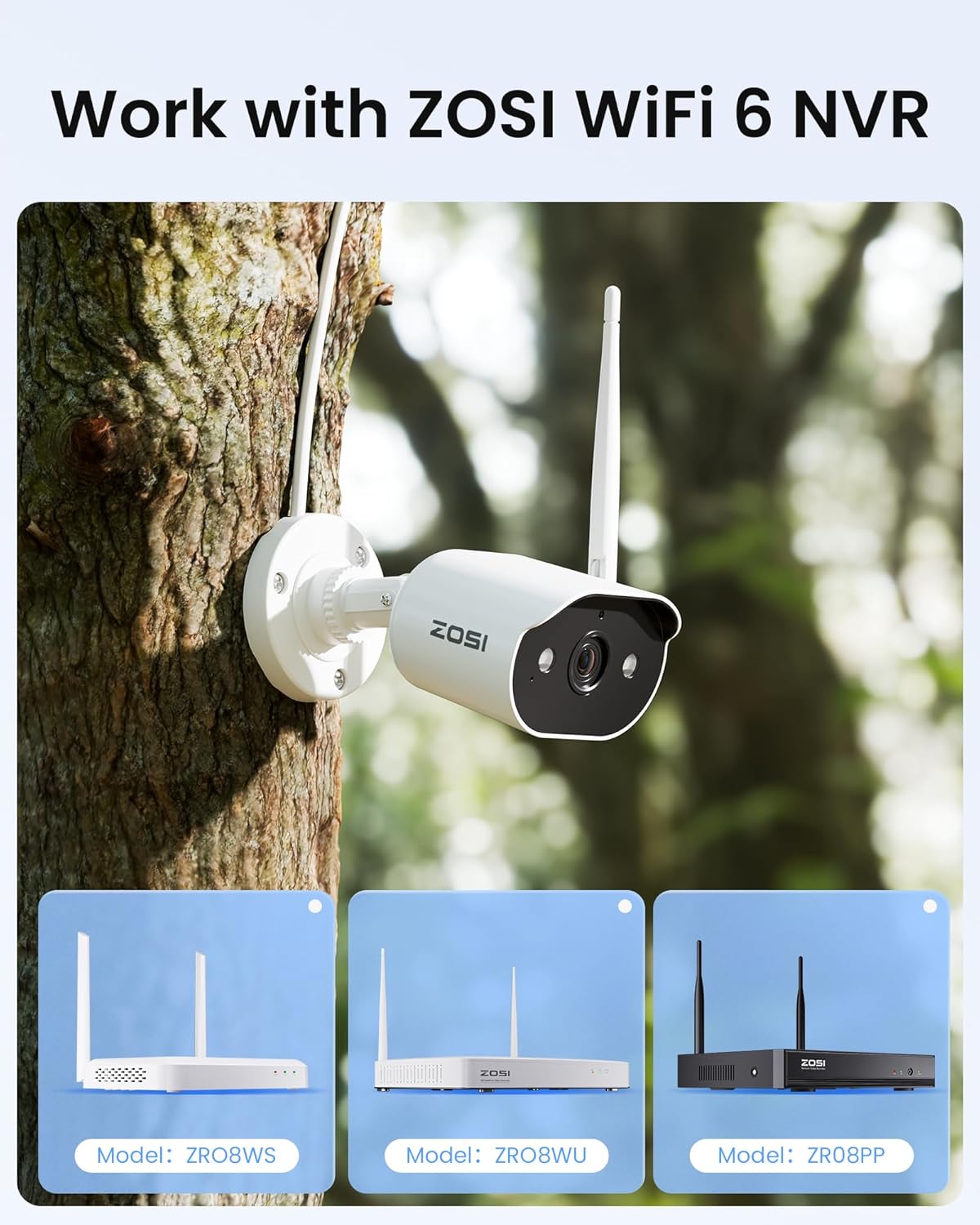
Figure 2.3.1: Compatible ZOSI WiFi 6 NVR Systems. The image illustrates the add-on camera's compatibility with NVR models ZR08WS, ZR08WU, and ZR08PP.
3. Setup Guide
3.1 Initial Power-Up
- Unpack the camera and power adapter.
- Connect the 12V 1A power adapter to the camera's power input port.
- Plug the power adapter into a standard electrical outlet. The camera will power on and initiate its startup sequence.
3.2 Wired Pairing with ZOSI WiFi 6 NVR
To add the camera to your ZOSI WiFi 6 NVR system, follow these steps for wired pairing:
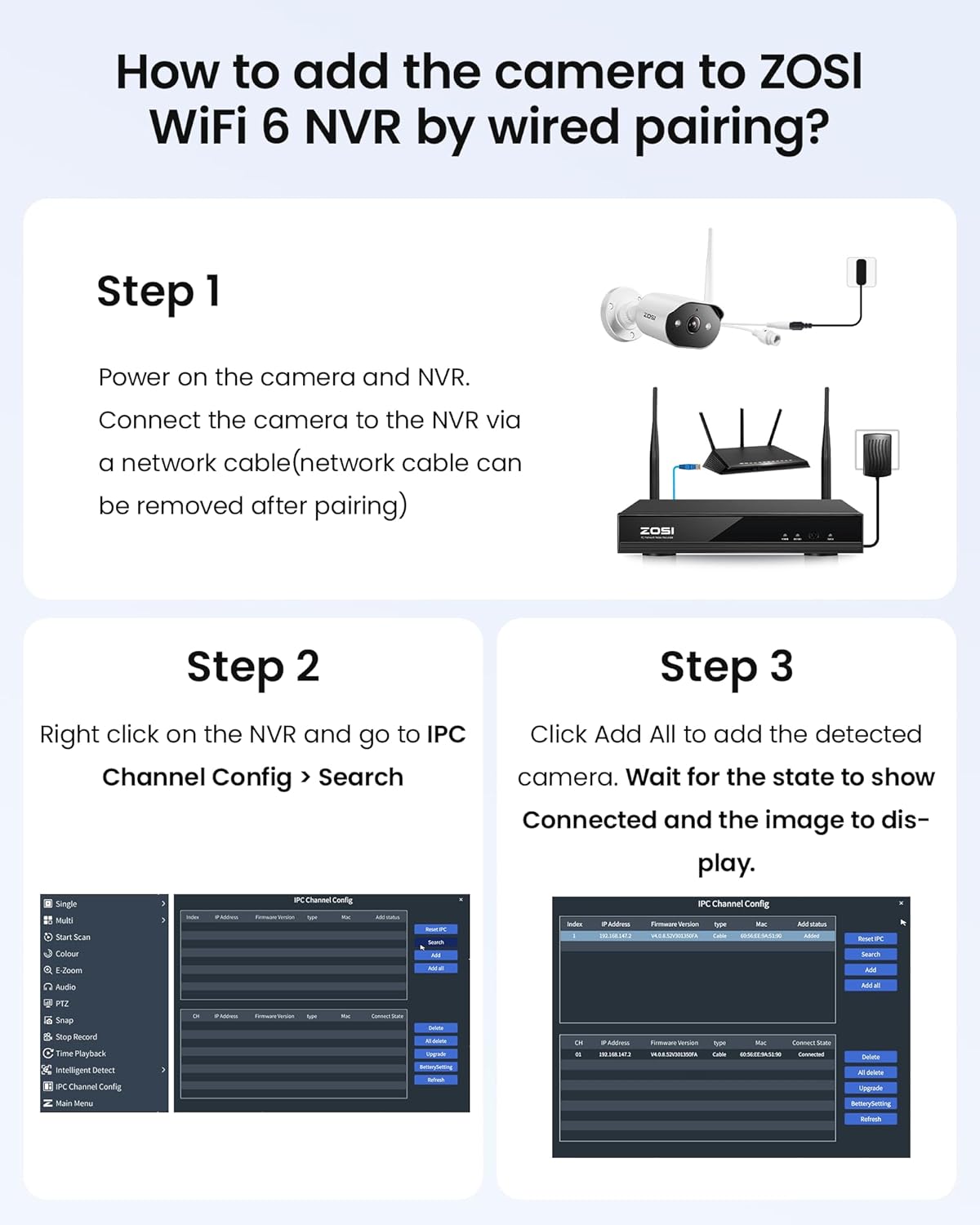
Figure 3.2.1: Wired Pairing Process. This image illustrates the three main steps for connecting the camera to the NVR using a wired connection for initial pairing.
- Step 1: Power and Connect. Power on both the camera and your ZOSI NVR. Connect the camera to the NVR using a network cable. The network cable can be removed after successful pairing.
- Step 2: Access NVR Settings. Right-click on the NVR's display interface. Navigate to IPC Channel Config, then select Search.
- Step 3: Add Camera. In the search results, click Add All to add the detected camera(s). Wait for the status to change to "Connected" and for the camera's video feed to display on the NVR.
Once successfully paired, the camera will communicate wirelessly with the NVR, and the network cable can be disconnected if desired.
3.3 Mounting the Camera
The camera features a rugged IP66-rated aluminum housing, making it suitable for both outdoor and indoor use. It can be easily mounted on walls or ceilings for optimal coverage.
- Choose a suitable location for mounting, ensuring a clear field of view and within range of your NVR's WiFi signal (if operating wirelessly).
- Use the provided mounting screw kit to securely attach the camera to the desired surface.
- Adjust the camera's angle to cover the desired monitoring area.
4. Operation
4.1 2K Resolution and Night Vision
The camera records in 2K (3MP) resolution, providing clear and detailed images. It features advanced night vision capabilities:
- Infrared (IR) Night Vision: The 4pcs IR-LEDs provide black and white night vision up to 80ft in complete darkness.
- Color Night Vision: The 2pcs warm lights activate in low-light conditions to provide full-color night vision, offering more detail and clarity.

Figure 4.1.1: Night Vision Comparison. This image demonstrates the difference between standard black and white night vision (spotlight off) and full-color night vision (spotlight on).
4.2 Smart AI Human Detection
The camera incorporates advanced AI-powered analytics to accurately identify human shapes, minimizing false alarms from pets, vehicles, or other moving objects. When a human is detected, the system can trigger spotlights and a siren to deter intruders, and send notifications to your connected device.

Figure 4.2.1: AI Human Detection in Action. This image illustrates how the camera detects a person and can activate spotlights, a siren, and send a mobile notification.
4.3 Two-Way Audio
Equipped with a built-in microphone and speaker, the camera supports two-way audio communication. This allows you to hear what's happening around the camera and speak through the camera from your NVR or connected mobile application.

Figure 4.3.1: Two-Way Audio Communication. This image demonstrates a scenario where two-way audio can be used to communicate with visitors.
5. Maintenance
5.1 Cleaning the Camera
- Ensure the camera is powered off before cleaning.
- Use a soft, dry cloth to wipe the camera body.
- For the lens, use a lens cleaning cloth and a specialized lens cleaning solution to avoid scratches.
- Do not use harsh chemicals or abrasive cleaners.
5.2 Firmware Updates
Periodically check the ZOSI official website or your NVR's system settings for available firmware updates. Keeping your camera's firmware updated ensures optimal performance, security, and access to new features.
6. Troubleshooting
| Problem | Possible Cause | Solution |
|---|---|---|
| Camera not powering on. | No power to adapter; faulty adapter; loose connection. | Check power outlet. Ensure adapter is securely connected to camera and outlet. Test with another 12V 1A adapter if available. |
| No image on NVR after pairing. | Incorrect pairing steps; network cable issue; camera not connected to NVR's WiFi. | Re-attempt wired pairing process (Section 3.2). Ensure network cable is functional during pairing. Verify camera is within NVR's WiFi range. |
| Poor WiFi connection or frequent disconnections. | Camera too far from NVR; interference from other devices; physical obstructions. | Relocate camera closer to the NVR. Minimize obstructions (thick walls, metal objects). Reduce interference from other WiFi devices. |
| AI Human Detection not working accurately. | Sensitivity settings too low/high; environmental factors. | Adjust detection sensitivity settings in the NVR or mobile app. Ensure camera lens is clean and free from obstructions. |
7. Specifications
| Feature | Detail |
|---|---|
| Model | ZOSI WiFi 6 2K Add-on Security Camera (3MP) |
| Resolution | 2K (3 Megapixels) |
| Compatibility | ZOSI WiFi 6 NVR Systems (ZR08WU, ZR08WS, ZR08PP) |
| Connectivity | WiFi 6 (IEEE 802.11ax) |
| Night Vision | IR Night Vision (up to 80ft), Color Night Vision (with warm lights) |
| Audio | Two-Way Audio (built-in microphone and speaker) |
| Detection | Smart AI Human Detection |
| Weatherproof Rating | IP66 (Outdoor/Indoor use) |
| Power Supply | DC 12V 1A (Power Adapter included) |
| Power Cord Length | 3 meters (approx. 10 feet) |
| Lens | 4.0mm |
| Viewing Angle | 90° |

Figure 7.1.1: Power Adapter Specifications. This image details the input and output voltage/current of the power adapter and its connector dimensions.
8. Warranty and Support
ZOSI products typically come with a limited warranty. Please refer to the warranty card included with your product or visit the official ZOSI website for detailed warranty terms and conditions.
For technical support, troubleshooting assistance, or any inquiries regarding your ZOSI product, please contact ZOSI Customer Support through their official website or the contact information provided in your product packaging.
ZOSI Official Website: www.zositech.com


