
1. Introduction
This manual provides essential information for the proper use and care of your onn. 10.1" Tablet, 2024 Model. This device features a 10.1" 1280 x 800 resolution IPS LCD touchscreen, powered by a 2 GHz Octa-Core processor with 3 GB RAM and 32 GB of internal storage, expandable via a memory card reader. It operates on Android 14 and includes a 2 MP front-facing camera and a 5 MP rear-facing camera. The tablet is designed for general use, including browsing, media consumption, and app usage, with a battery life of up to 17 hours.

Figure 1.1: Front view of the onn. 10.1" Tablet, showing the display and typical Android interface.
2. What's in the Box
Upon unboxing your onn. 10.1" Tablet, please verify that all the following items are present:
- onn. 10.1" Tablet (2024 Model)
- Charger
3. Setup
3.1 Initial Charging
Before first use, fully charge your tablet. Connect the provided charger to the tablet's charging port and plug it into a power outlet. The battery indicator on the screen will show charging progress. A full charge can take several hours.
3.2 Powering On/Off
To power on the tablet, press and hold the Power button (typically located on the side or top edge) until the onn. logo appears on the screen. To power off, press and hold the Power button until a power menu appears, then select 'Power off'.
3.3 Initial Setup Wizard
Upon first power-on, the tablet will guide you through an initial setup wizard. Follow the on-screen prompts to:
- Select your language.
- Connect to a Wi-Fi network.
- Sign in with your Google account or create a new one. This is necessary to download apps from the Google Play Store.
- Set up screen lock (PIN, pattern, or password).
- Review and accept terms and conditions.
3.4 Inserting a Memory Card
The tablet's storage is expandable. Locate the memory card slot (refer to Figure 3.1 for typical placement). Gently insert a compatible memory card (e.g., microSD) into the slot until it clicks into place. Ensure the card is oriented correctly.

Figure 3.1: Various views of the onn. 10.1" Tablet, illustrating the location of ports and buttons.
4. Operating Instructions
4.1 Basic Navigation
The tablet uses touch gestures for navigation:
- Tap: To open apps, select items, or activate buttons.
- Swipe: To scroll through pages, move between home screens, or dismiss notifications.
- Pinch-to-zoom: To zoom in or out on images or web pages.
- Long press: To access contextual menus or move app icons.
4.2 Connecting to Wi-Fi
To connect to a Wi-Fi network:
- Go to Settings > Network & internet > Internet.
- Turn on Wi-Fi.
- Select your desired network from the list.
- Enter the password if prompted, then tap Connect.
4.3 Using the Cameras
The tablet has a 2 MP front-facing camera and a 5 MP rear-facing camera. Open the Camera app to take photos or record videos. You can switch between front and rear cameras using the camera toggle icon within the app.
4.4 Installing and Managing Apps
Apps can be downloaded from the Google Play Store. Tap the Play Store icon on your home screen or app drawer, search for the desired app, and tap 'Install'. To uninstall an app, long-press its icon on the home screen or in the app drawer, then drag it to the 'Uninstall' option, or go to Settings > Apps > See all apps, select the app, and tap 'Uninstall'.
4.5 Battery Management
To maximize battery life (up to 17 hours), consider these tips:
- Reduce screen brightness.
- Turn off Wi-Fi or Bluetooth when not in use.
- Close unused apps running in the background.
- Enable battery saver mode in Settings.
4.6 Google Kids Space
The tablet includes Google Kids Space, a feature designed to provide a safe and engaging environment for children. You can set up and manage Kids Space through the tablet's settings, allowing you to control content and screen time.

Figure 4.1: User interacting with the onn. 10.1" Tablet.
5. Maintenance
5.1 Cleaning the Tablet
To clean the screen, use a soft, lint-free cloth specifically designed for electronics. For the tablet body, a slightly damp cloth can be used. Avoid using harsh chemicals, abrasive materials, or excessive moisture.
5.2 Software Updates
Periodically check for software updates to ensure your tablet has the latest features and security patches. Go to Settings > System > System update.
5.3 Storage Management
To optimize performance, regularly manage your tablet's storage. Delete unnecessary files, uninstall unused apps, and move large media files to a memory card if applicable. You can check storage usage in Settings > Storage.
5.4 Battery Care
To prolong battery lifespan, avoid extreme temperatures. Do not leave the tablet in direct sunlight or very cold environments. It is generally recommended to keep the battery charge between 20% and 80% for optimal long-term health, though occasional full charges/discharges are acceptable.
6. Troubleshooting
This section addresses common issues you might encounter with your tablet.
6.1 Tablet Not Powering On
- Ensure the tablet is sufficiently charged. Connect the charger and wait a few minutes before attempting to power on again.
- Press and hold the Power button for at least 10-15 seconds to perform a forced restart.
6.2 Screen Not Responding
- Restart the tablet by holding the Power button.
- Ensure the screen is clean and free of debris or moisture.
6.3 Wi-Fi Connection Issues
- Toggle Wi-Fi off and on in Settings.
- Restart your Wi-Fi router.
- Forget the network in tablet settings and reconnect.
6.4 Apps Crashing or Freezing
- Close and reopen the app.
- Clear the app's cache and data in Settings > Apps.
- Ensure the app is updated to its latest version.
6.5 Charging Issues
- Ensure the charger and cable are securely connected to both the tablet and the power outlet.
- Try a different power outlet.
- Inspect the charging port on the tablet for any debris or damage.
- If issues persist, try using a different compatible charger and cable.
6.6 Factory Reset
If other troubleshooting steps fail, a factory reset may resolve persistent issues. Warning: This will erase all data on your tablet. Back up important data before proceeding. Go to Settings > System > Reset options > Erase all data (factory reset).
7. Specifications
Detailed technical specifications for the onn. 10.1" Tablet (2024 Model):
| Feature | Specification |
|---|---|
| Model Name | onn 10.1" Tablet, 32GB, (2024 Model) - Pearl |
| Operating System | Android 14 |
| Screen Size | 10.1 Inches |
| Screen Resolution | 1280 x 800 pixels (IPS LCD touchscreen) |
| Processor | 2 GHz Octa-Core processor |
| RAM | 3 GB |
| Internal Storage | 32 GB |
| Expandable Storage | Yes, with a memory card reader |
| Rear Camera Resolution | 5 MP |
| Front Camera Resolution | 2 MP |
| Battery Life (Average) | Up to 17 hours |
| Wireless Connectivity | Bluetooth, Wi-Fi |
| Item Weight | 9.6 ounces |
| Product Dimensions (LxWxH) | 11 x 2 x 9 inches |
| Color | Pearl |
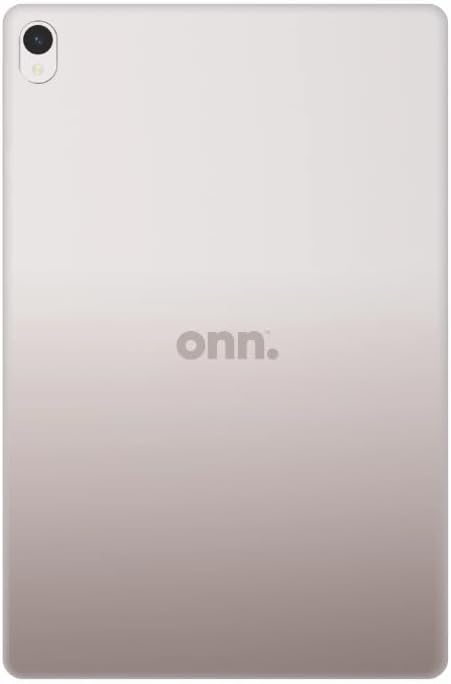
Figure 7.1: Rear view of the onn. 10.1" Tablet.
8. Warranty and Support
This onn. tablet is offered as a renewed product. It typically comes with a 90-day refund or replacement policy from the seller. Please refer to your purchase documentation for specific warranty details and return policies provided by the Amazon Renewed program or your specific seller.
For technical support or further assistance, please contact Amazon Renewed customer service or the specific seller from whom you purchased the device. Their contact information can usually be found on your order details page.
For general information about the onn. brand or product line, you may visit the official onn. website if available.


