
1. Introduction
This manual provides detailed instructions for the installation, operation, and maintenance of your ZALMAN P60 Mid Tower PC Case. Please read this manual thoroughly before beginning assembly to ensure correct setup and optimal performance. Keep this manual for future reference.
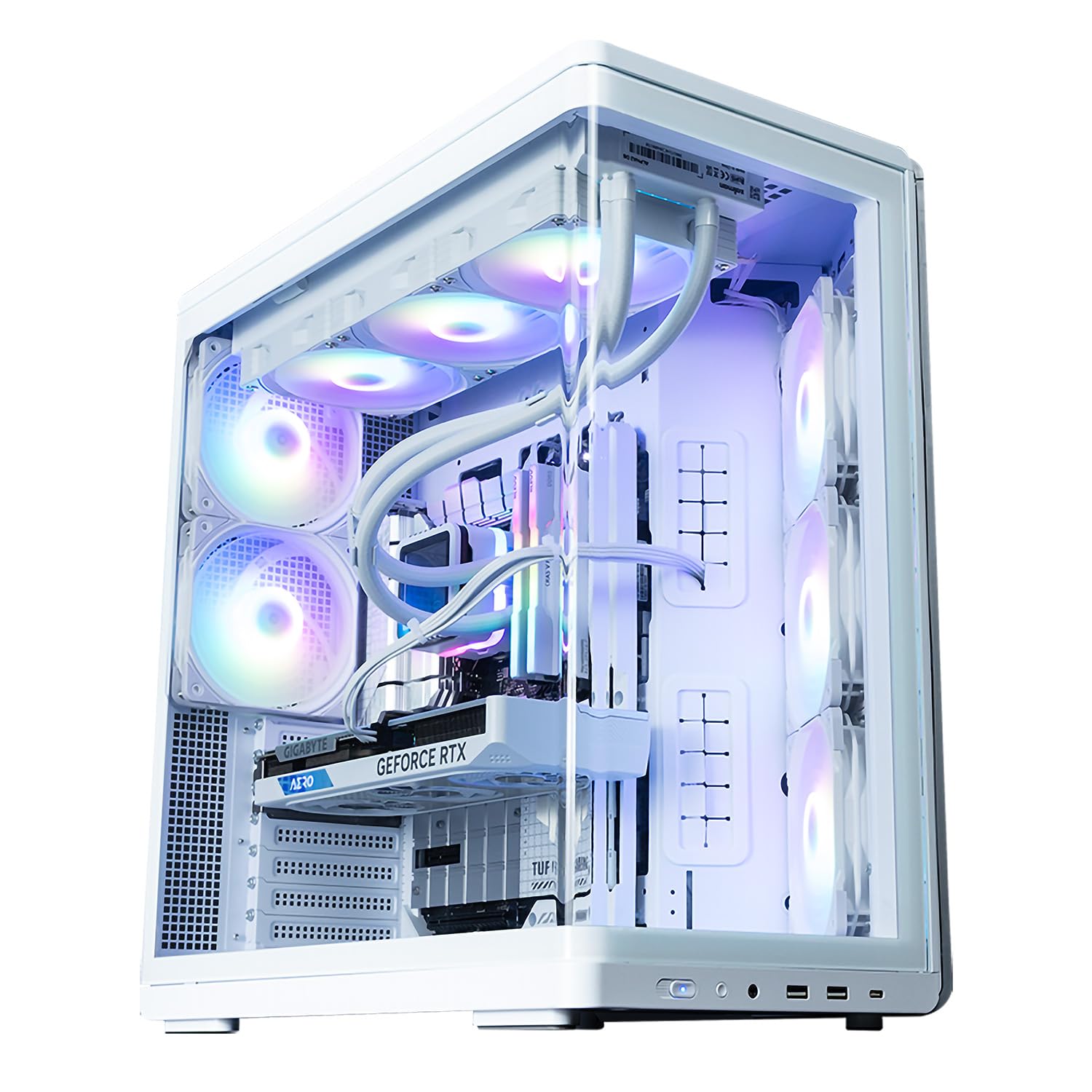
Image 1.1: ZALMAN P60 White Mid Tower PC Case with internal RGB lighting, showcasing its curved glass panel and spacious interior.
2. Safety Information
- Always disconnect the power supply from the wall outlet before installing or removing any components.
- Handle all components with care to prevent damage. Static electricity can harm sensitive electronic parts. Consider using an anti-static wrist strap.
- Keep small parts and accessories out of reach of children.
- Ensure proper ventilation around the PC case to prevent overheating.
- Do not attempt to modify the case structure, as this may void your warranty and pose safety risks.
3. Package Contents
Please verify that all items listed below are present in your package:
- ZALMAN P60 Mid Tower PC Case
- Accessory Kit (screws, standoffs, cable ties)
- Quick Start Guide
- GPU Support Bracket
- Pre-installed Fans: 3x 120mm Reverse ARGB Fans (Side), 2x 120mm ARGB Fans (Rear)
4. Product Features
- Curved Tempered Glass Design: Features integrated curved tempered glass on the front and side, creating an open design that highlights ARGB lighting and allows for neat cable management.
- Optimized Airflow: Includes a total of five 120mm ARGB fans for angled side airflow, with support for up to 11 fans. This ensures robust cooling performance and ideal airflow.
- Spacious Interior: Provides ample space for graphics cards up to 435mm in length and supports 360mm radiators, offering flexible compatibility for various builds.
- Motherboard Compatibility: Compatible with ATX, Micro-ATX, and Mini-ITX motherboards, including those with rear-facing connectors from brands like ASUS, MSI, and GIGABYTE.
- Dedicated GPU Support: Standard equipped with a height-adjustable dedicated GPU support bracket for secure installation of large graphics cards.

Image 4.1: The ZALMAN P60 case design, highlighting its aesthetic appeal and available color options.
5. Setup & Installation
5.1. Preparing the Case
- Place the case on a flat, stable surface.
- Carefully remove the side panels by unscrewing the thumbscrews at the rear of the case and sliding the panels off.
5.2. Motherboard Installation
- Install the I/O shield into the motherboard tray opening from the inside of the case.
- Align the motherboard with the pre-installed standoffs. If necessary, install additional standoffs from the accessory kit for your specific motherboard size (ATX, Micro-ATX, Mini-ITX).
- Secure the motherboard with the provided screws.
5.3. Power Supply Unit (PSU) Installation
- Mount the PSU into its designated compartment at the rear of the case.
- Secure the PSU with screws from the accessory kit.
5.4. Storage Drive Installation
The ZALMAN P60 supports 1x 2.5/3.5" Combo, 1x 2.5", and 2x 3.5" drives.
- 2.5" Drives: Locate the 2.5" drive mounts, typically behind the motherboard tray. Secure the SSDs using the provided screws.
- 3.5" Drives: Install HDDs into the drive cages, usually located in the lower chamber. Slide the drives into the trays and secure them.
5.5. Graphics Card (GPU) Installation
- Remove the necessary expansion slot covers at the rear of the case.
- Insert the graphics card into the PCIe slot on the motherboard.
- Secure the graphics card with screws.
- Utilize the included height-adjustable GPU support bracket to prevent sag for larger cards. Adjust its height to firmly support the GPU.

Image 5.1: Internal view highlighting the GPU support bracket and drive bay area.
5.6. Fan and Radiator Installation
The ZALMAN P60 comes with 5 pre-installed ARGB fans and supports additional fans and radiators as detailed in the specifications.
- Additional Fans: Mount additional 120mm or 140mm fans to the top, side, or bottom mounts as needed, securing them with screws.
- Radiators: Install liquid cooling radiators to the top, rear, or bottom mounts, ensuring proper alignment and securing with screws.

Image 5.2: Internal view illustrating various fan mounting locations and radiator support.
5.7. Cable Management
Utilize the cable routing cutouts and tie-down points behind the motherboard tray to manage cables neatly. This improves airflow and aesthetics.
6. Operation
6.1. Powering On
After all components are installed and cables are connected, close the side panels. Connect the power cable to the PSU and a wall outlet. Press the power button on the front I/O panel to start your PC.
6.2. ARGB Lighting Control
The pre-installed ARGB fans can be controlled via your motherboard's ARGB software (if compatible) or a dedicated ARGB controller (if included or purchased separately). Refer to your motherboard manual for specific ARGB header connections and software instructions.
7. Maintenance
7.1. Cleaning Dust Filters
Regularly clean the dust filters to maintain optimal airflow and cooling performance. Dust filters are typically located at the top, front, and bottom of the case and can be easily removed for cleaning.
7.2. General Cleaning
Use a soft, dry cloth to wipe down the exterior of the case. For stubborn marks, a slightly damp cloth can be used. Avoid abrasive cleaners or solvents that may damage the finish or tempered glass.
8. Troubleshooting
- PC not powering on: Ensure all power cables (24-pin ATX, 8-pin CPU, GPU power) are securely connected. Check the power switch on the PSU. Verify front panel header connections to the motherboard.
- Fans not spinning/RGB not lighting up: Check fan and ARGB cable connections to the motherboard or controller. Ensure ARGB software is correctly configured.
- Overheating: Verify all fans are spinning correctly and are oriented for proper airflow (intake/exhaust). Clean dust filters. Ensure no cables are obstructing airflow.
- Loose components: Periodically check that all screws and connections are secure, especially after moving the PC.
9. Specifications
| Feature | Specification |
|---|---|
| Brand | ZALMAN |
| Model Name | P60 |
| Case Type | Mid Tower |
| Color | White |
| Product Dimensions (W×D×H) | 290 × 475 × 478 mm |
| Product Weight | 10.2 kg |
| Materials | Steel, Tempered Glass, Plastic |
| Supported Motherboards | ATX, Micro-ATX, Mini-ITX |
| Supported Power Supply | ATX (Rear Mount) |
| Drive Bays | 1x 2.5"/3.5" Combo, 1x 2.5", 2x 3.5" |
| Expansion Slots | 7 |
| Included Case Fans | Side: 3x 120mm Reverse ARGB, Rear: 2x 120mm ARGB |
| Supported Case Fans | Top: 3x 120mm / 2x 140mm, Side/Bottom: 3x 120mm, Rear: 2x 120mm |
| Supported Radiators | Top: 360/280/240/140/120mm, Rear: 120mm, Bottom: 360/240/120mm |
| CPU Cooler Height Clearance | Max 170mm |
| GPU Length Clearance | Max 435mm |
| PSU Length Clearance | Max 180mm |
| Front I/O Ports | 1x USB 20Gbps Type-C, 2x USB 5Gbps Type-A, 1x Audio Jack |
| Special Features | Curved Tempered Glass, Dual-Chamber Structure, Included GPU Support Bracket, ARGB Lighting |
10. Warranty & Support
10.1. Warranty Information
The ZALMAN P60 Mid Tower PC Case comes with a 1-year warranty from the date of purchase. This warranty covers manufacturing defects and faulty materials under normal use. It does not cover damage caused by misuse, accidents, unauthorized modifications, or improper installation.
10.2. Technical Support
For technical assistance, troubleshooting, or warranty claims, please visit the official ZALMAN website or contact their customer support. Ensure you have your product model and proof of purchase ready when seeking support.
Official ZALMAN Website: www.zalman.com


