
1. Introduction
This manual provides essential information for the proper installation, operation, and maintenance of your AOC 22P2T 21.5-inch FHD VA Touch Monitor. Please read this manual thoroughly before using the product to ensure optimal performance and safety.
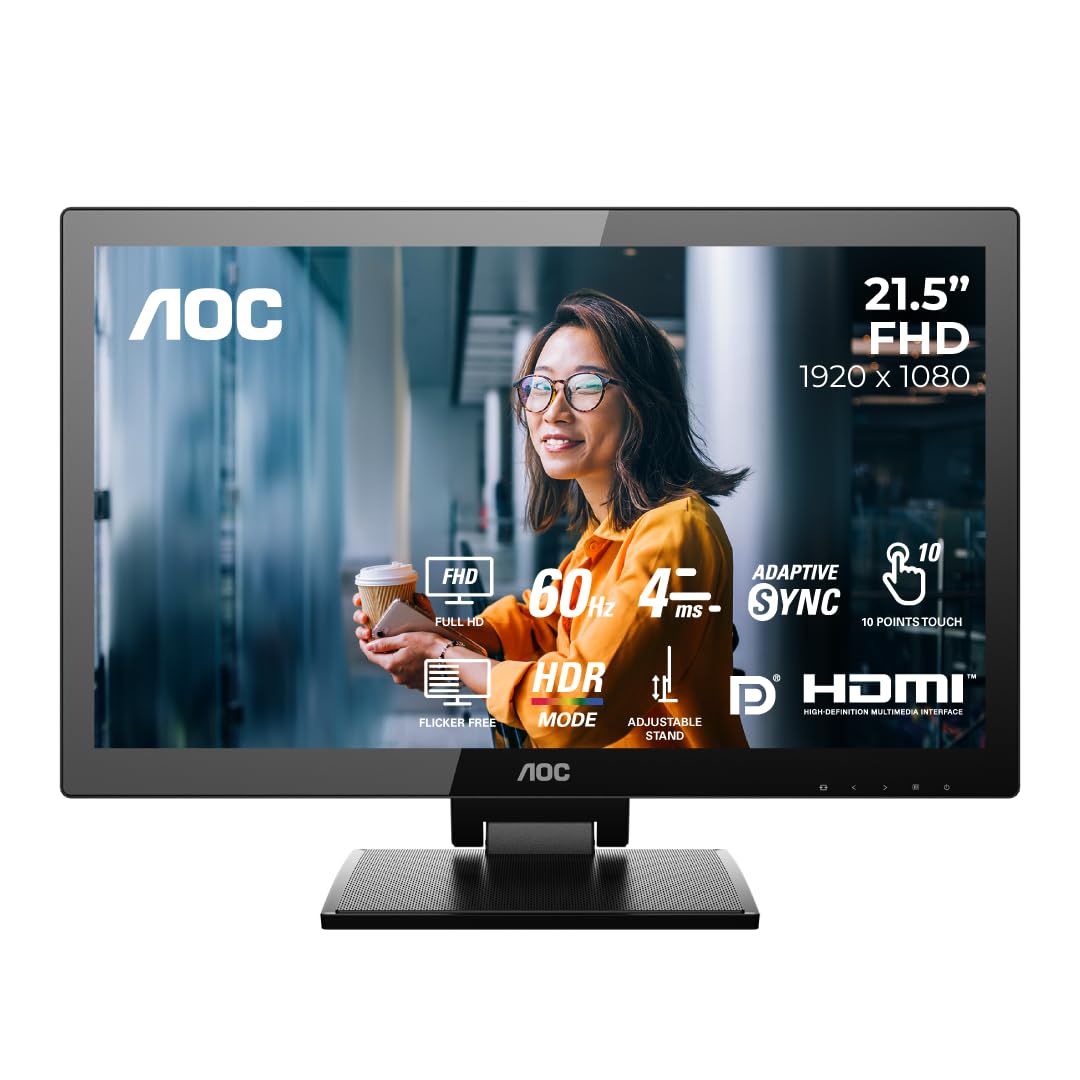
Image 1.1: The AOC 22P2T monitor, showcasing its design and key features like FHD, 60Hz, 4ms response, Adaptive Sync, 10-point touch, HDR mode, and HDMI connectivity.
2. Safety Information
Observe the following safety precautions to prevent damage to the monitor and ensure user safety:
- Do not expose the monitor to rain or moisture to avoid fire or shock hazards.
- Do not open the monitor casing. There are no user-serviceable parts inside. Refer all servicing to qualified personnel.
- Place the monitor on a stable, flat surface to prevent it from falling.
- Ensure proper ventilation around the monitor. Do not block ventilation openings.
- Use only the power adapter and cables supplied with the monitor.
- Disconnect the power plug from the outlet if the monitor will not be used for an extended period.
3. Package Contents
Verify that all items are present in the package:
- AOC 22P2T Monitor
- Z-type Folding Stand
- Power Cable
- HDMI Cable
- USB Upstream Cable
- Quick Start Guide
- Warranty Card
4. Setup
4.1 Unpacking
Carefully remove the monitor and all accessories from the packaging. Retain the packaging materials for future transport or storage.
4.2 Stand Assembly
Attach the Z-type folding stand to the monitor. Ensure it is securely fastened. The stand allows for flexible tilt adjustment from -5° to 90°.

Image 4.1: The flexible Z-type folding stand, illustrating its adjustable tilt range for ergonomic comfort.
4.3 Connecting the Monitor
Connect the monitor to your computer and power source using the following steps:
- Power Connection: Connect the power cable to the monitor's power input and then to a power outlet.
- Video Connection: Connect one end of the HDMI, DisplayPort (DP), or DVI cable to the corresponding port on your computer's graphics card and the other end to the monitor. For optimal performance, HDMI or DisplayPort is recommended.
- USB Upstream Connection: To enable the touchscreen functionality and USB 3.2 ports on the monitor, connect the USB upstream cable from the monitor to an available USB port on your computer.
- Audio Connection (Optional): If using external speakers or headphones, connect them to the monitor's audio output jack. The monitor also has built-in 2W speakers.
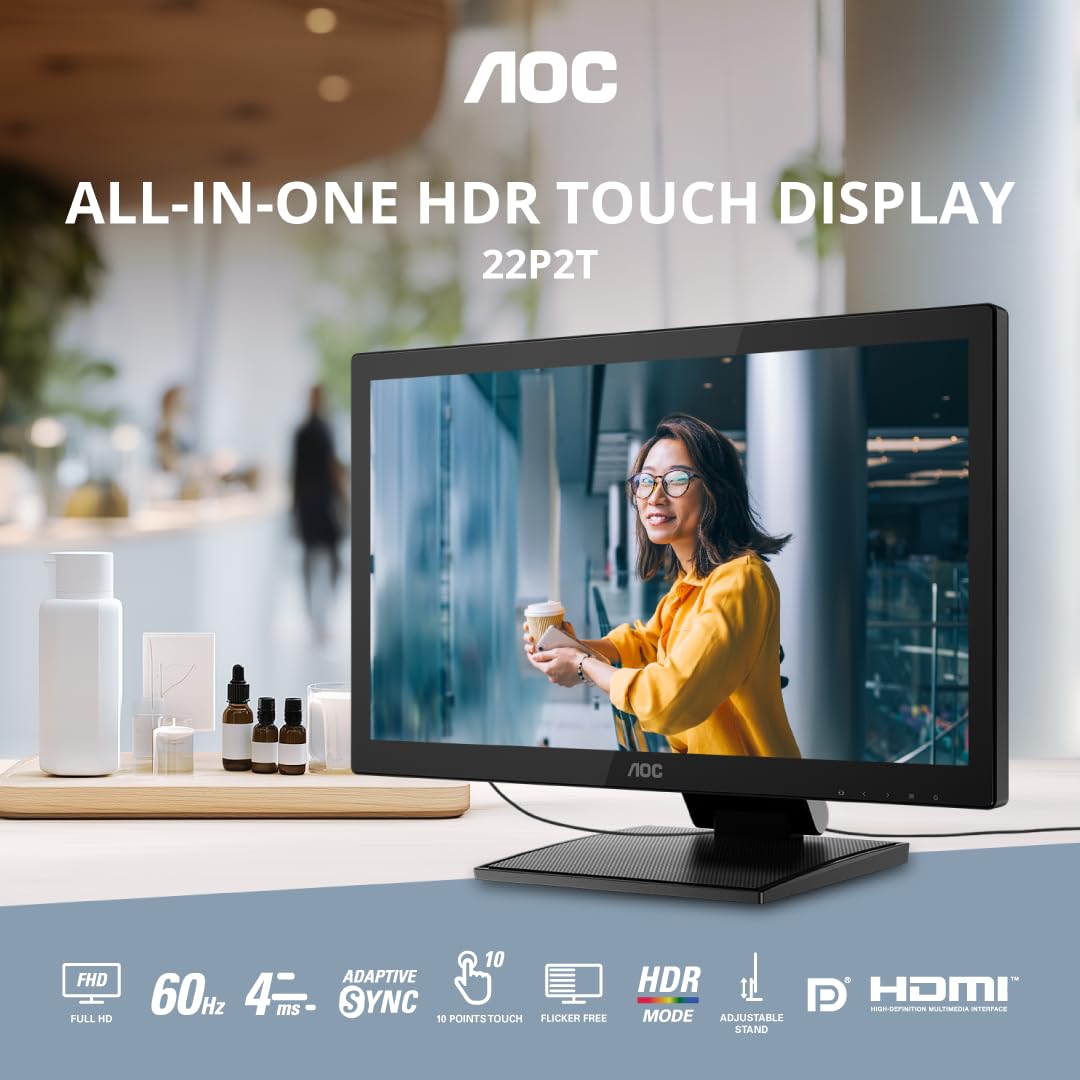
Image 4.2: Connectivity options on the AOC 22P2T monitor, including HDMI, DP, DVI, and USB 3.2 ports.
5. Operating Instructions
5.1 Power On/Off
Press the power button located on the monitor to turn it on or off. The power indicator light will illuminate when the monitor is on.
5.2 Using the Touchscreen
The AOC 22P2T features a 10-point capacitive touchscreen. Ensure the USB upstream cable is connected to your computer for touch functionality. The touchscreen is compatible with Windows 11/10.

Image 5.1: A user interacting with the monitor's 10-point capacitive touchscreen.
5.3 On-Screen Display (OSD) Menu Navigation
Use the buttons on the monitor's bezel to access and navigate the On-Screen Display (OSD) menu. This menu allows you to adjust various display settings.
5.4 Adjusting Display Settings
Within the OSD menu, you can adjust settings such as:
- Brightness/Contrast: Adjust the overall luminance and contrast of the display.
- Color Settings: Modify color temperature, gamma, and individual RGB levels.
- HDR Mode: Activate HDR mode simulation for richer tones, brilliant highlights, and enhanced detail.
- Low Blue Light Mode: Reduce blue light emission to protect your eyes during extended use.
- Clear Vision: Enhance sharpness for low-resolution images.
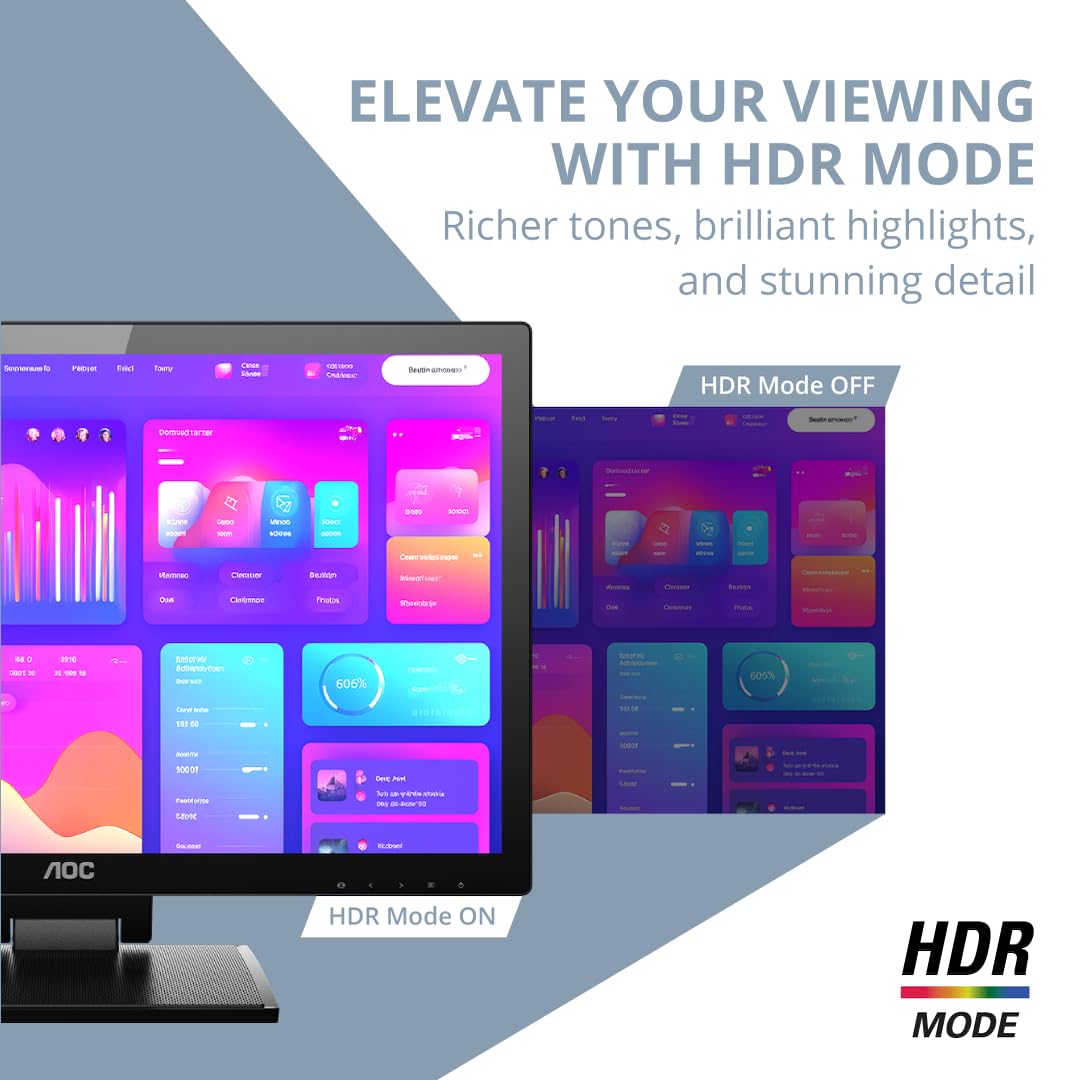
Image 5.2: Visual comparison of HDR mode off versus HDR mode on, demonstrating improved picture quality.
5.5 Using Built-in Speakers
The monitor includes dual 2W built-in speakers. Ensure your computer's audio output is directed to the monitor or connected via HDMI/DisplayPort for sound playback.
5.6 USB 3.2 Fast Charge Port
The yellow USB port on the monitor supports fast charging for mobile devices. Connect your device to this port using a compatible USB cable.
6. Maintenance
6.1 Cleaning the Screen
To clean the screen, gently wipe it with a soft, lint-free cloth. For stubborn marks, lightly dampen the cloth with water or a non-abrasive screen cleaner. Do not spray cleaner directly onto the screen.
6.2 General Care
Keep the monitor away from direct sunlight, excessive heat, and extreme cold. Avoid placing heavy objects on the monitor or its cables. Do not use harsh chemicals or abrasive materials for cleaning any part of the monitor.
6.3 IP65 Water & Dustproof Information
The front panel of the AOC 22P2T monitor is IP65 rated, meaning it is protected against dust ingress and low-pressure water jets from any direction. This makes it suitable for environments where splashes or dust might occur. However, it is not designed for immersion in water.
7. Troubleshooting
If you encounter issues with your monitor, refer to the following common problems and solutions:
- No Image on Screen:
- Ensure the power cable is securely connected and the monitor is turned on.
- Verify that the video cable (HDMI, DP, DVI) is properly connected to both the monitor and the computer.
- Check if the correct input source is selected in the monitor's OSD menu.
- Touchscreen Not Responding:
- Confirm that the USB upstream cable is connected from the monitor to your computer.
- Ensure your operating system (Windows 11/10) is properly configured for touch input.
- Restart your computer.
- Flickering or Distorted Image:
- Check the video cable for damage or loose connections.
- Adjust the refresh rate in your computer's display settings.
- Ensure the monitor's resolution is set to its native resolution (1920 x 1080).
- No Sound from Built-in Speakers:
- Verify that the audio output on your computer is directed to the monitor.
- Check the volume settings on both the monitor and your computer.
- Ensure the HDMI or DisplayPort cable is used for video and audio transmission.
8. Specifications
| Feature | Description |
|---|---|
| Brand | AOC |
| Model Name | 22P2T |
| Screen Size | 22 Inches (21.5-inch viewable) |
| Display Type | VA Panel, LCD |
| Resolution | Full HD (1920 x 1080 Pixels) |
| Aspect Ratio | 16:9 |
| Refresh Rate | 75 Hz |
| Response Time | 0.03 Milliseconds |
| Contrast Ratio | 3000:1 (Static) |
| Dynamic Contrast Ratio | 50M:1 (DCR) |
| Image Brightness | 250 cd/m² |
| Viewing Angle | 178 Degrees (H/V) |
| Touchscreen | 10-Point Capacitive Touch |
| Connectivity | 1x HDMI, 1x DisplayPort, 1x DVI, 1x USB 3.2 (Fast Charge) |
| Built-in Speakers | Dual 2W Speakers |
| Special Features | HDR Mode Simulation, DCB Color Boost, Clear Vision, Low Blue Light, IP65 Water & Dustproof (Front Panel) |
| Stand | Z-type Folding Bracket (Tilt: -5° to 90°) |
| Mounting Type | Wall Mount (VESA compatible) |
| Item Dimensions (DxWxH) | 18.7D x 51.5W x 38.2H Centimeters |
| Item Weight | 6090 Grams |

Image 8.1: Overview of the AOC 22P2T monitor's key features and specifications.
9. Warranty and Support
9.1 Warranty Information
The AOC 22P2T monitor comes with a 3 Years Manufacturer Warranty. Please refer to the warranty card included in your package for detailed terms and conditions. Keep your purchase receipt as proof of purchase for warranty claims.
9.2 Customer Support
For technical assistance, service, or warranty inquiries, please contact AOC customer support. Contact details can typically be found on the AOC official website or on the warranty card provided with your product.
Manufacturer Contact Information:
TPV Technology India Pvt Ltd, TPV Display Technology (Wuhan) Co. Ltd., Unique No. 11, Zhuankou Development District of Economic Technological Development Zone, Wuhan City, P. R. China
Importer/Packer Contact Information:
TPV TECHNOLOGY INDIA PRIVATE LIMITED, 501-508, 5TH FLOOR BESTECH CHAMBERS, BLOCK B SEC 27, SUSHANT LOK 1 GURUGRAM – 122002