
1. Introduction
This manual provides detailed instructions for the installation, operation, and maintenance of your ANJIELO SMART Wired Video Intercom System. This system is designed for multifamily apartments, offering secure and convenient communication with visitors. Please read this manual thoroughly before installation and use to ensure proper function and safety.
2. Product Overview
The ANJIELO SMART Wired Video Intercom System is a comprehensive solution for building access control and communication. It features a robust outdoor doorbell unit and multiple indoor monitors, enabling visual and audio communication with visitors, as well as remote unlocking capabilities via RFID cards.

Figure 2.1: Multifamily Intercom System Overview. This image illustrates a typical installation in a multi-story building, showing one outdoor doorbell unit connected to multiple indoor monitors, allowing separate monitoring for each unit without interference.
Key Features:
- Multifamily Design: Supports 2 to 12 indoor monitors with one outdoor camera.
- Night Vision: Built-in LED infrared lights for clear video in low-light conditions.
- Two-Way Audio: Enables communication between indoor monitors and the outdoor unit.
- Silent Mode: Option to mute doorbell rings for undisturbed rest.
- IP65 Weatherproof: Outdoor unit is resistant to rain and dust.
- 7-inch LCD Monitor: Slim design, touch-key operation, hands-free display.
- RFID Card Unlock: Convenient access control for residents.
- 4-Wire Connection: Standard wiring for reliable communication.
3. Package Contents
Verify that all items are present in your package:
- Outdoor Doorbell Unit (Quantity: 1)
- Indoor Monitor (Quantity: 3 for this specific model)
- 5-meter 4-core connection cable (for testing purposes)
- Mounting screws and anchors
- Power adapter(s)
- User Manual (this document)
Note: Additional cables, electric locks, power supplies for locks, and exit buttons are not included and must be purchased separately if required for your installation.
4. Specifications
| Feature | Specification |
|---|---|
| Model Name | 60120S-2+67022E |
| Connectivity | Wired (4-wire system) |
| Outdoor Unit Functions | Intercom, Monitor, RFID Unlock |
| Indoor Monitor Screen | 7-inch TFT LCD |
| Camera Resolution | 1.0 MP |
| Camera View Angle | 120 Degrees |
| Night Vision | Built-in LED Infrared Light |
| Outdoor Unit Material | ABS Plastic, Aluminum Alloy (weatherproof housing) |
| Indoor Monitor Material | ABS Engineering Plastic |
| Waterproof Rating | IP65 (Outdoor Unit) |
| Power Supply (Outdoor) | DC15V 1.2A |
| Power Supply (Indoor) | AC100-240V input |
| Installation Type | Surface Mounting (Outdoor & Indoor) |
| Operating Temperature | -30°C to +60°C (Outdoor Unit) |
| Outdoor Unit Dimensions (2-6 units) | 264 x 127 x 43 mm |
| Outdoor Unit Dimensions (8-12 units) | 330 x 127 x 43 mm |
| Indoor Monitor Dimensions | 218 x 123 x 22 mm |
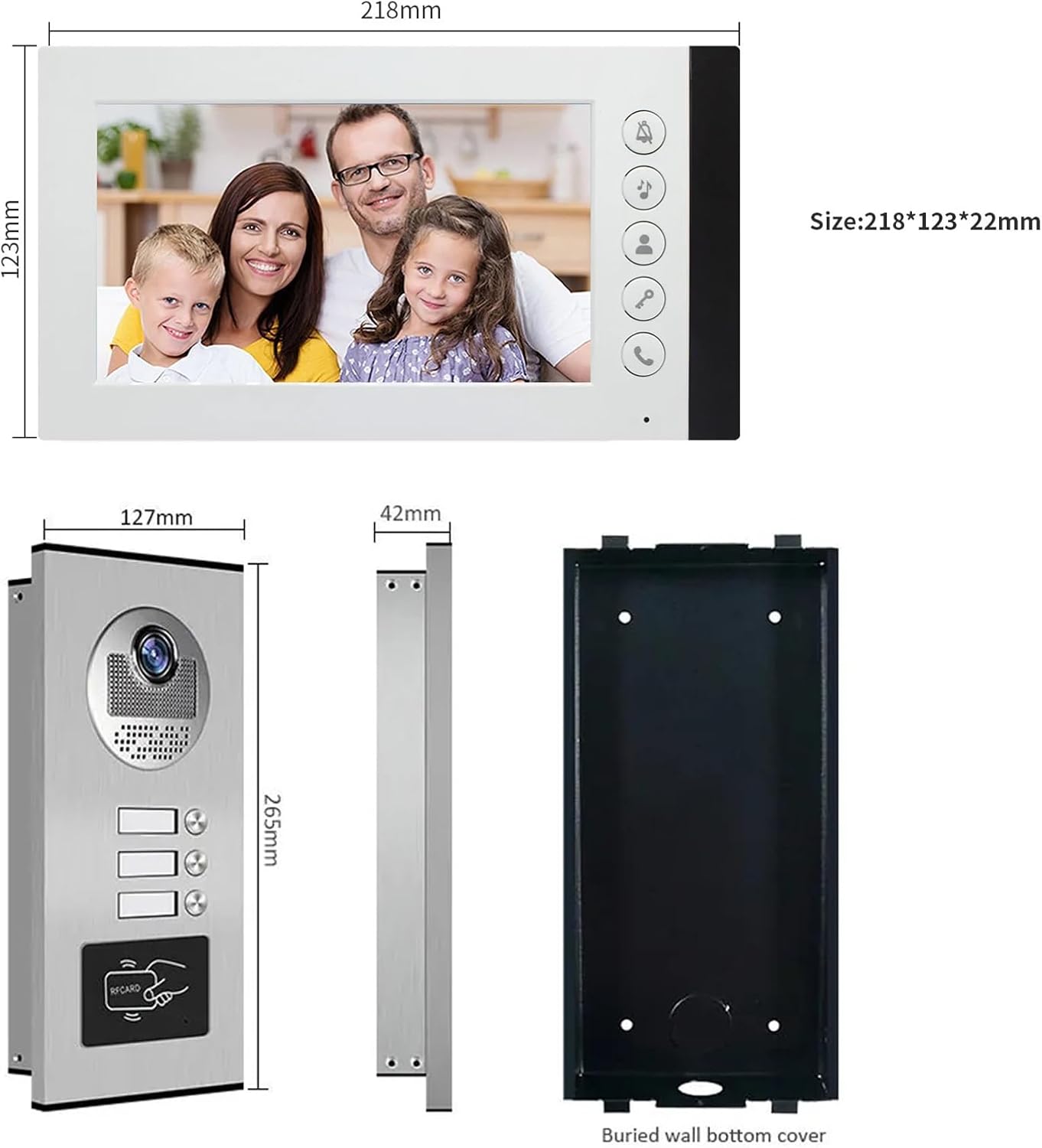
Figure 4.1: Product Dimensions. This image provides detailed measurements for both the indoor monitor and the outdoor doorbell unit, including the buried wall bottom cover for the outdoor unit.
5. Safety Information
- Always disconnect power before performing any installation or maintenance.
- Ensure all wiring is correctly connected according to the wiring diagram to prevent damage to the system or electrical hazards.
- Do not expose the indoor monitor to water or high humidity.
- The outdoor unit is IP65 weatherproof, but avoid submerging it in water.
- Use only the provided power adapters or approved replacements.
- Keep the product away from strong magnetic fields or sources of interference.
- Professional installation is recommended for complex wiring setups.
6. Setup and Installation
6.1 Wiring Instructions
The system uses a 4-wire connection. A 5-meter 4-core cable is included for testing. For permanent installation, you will need to purchase longer cables based on the distance between the outdoor unit and the indoor monitors. Refer to the table below for recommended cable types and distances:
| Distance | Cable Diameter |
|---|---|
| Up to 50 meters | 0.5 mm² (AWG 20) |
| 50 - 100 meters | 0.75 mm² (AWG 18) |
| Over 100 meters | 1.0 mm² (AWG 17) or consult a professional |
Ensure all connections are secure and insulated. Incorrect wiring can damage the system.
6.2 Mounting the Outdoor Unit
- Choose a suitable location near your entrance, typically at eye level (around 1.5 meters or 5 feet from the ground).
- Use the included mounting bracket as a template to mark drilling points on the wall.
- Drill holes and insert wall anchors.
- Secure the mounting bracket to the wall with screws.
- Connect the 4-core wiring and power supply to the outdoor unit.
- Attach the outdoor unit to the mounting bracket, ensuring it is firmly in place.
- Verify the unit is level and the camera view is unobstructed.

Figure 6.1: Outdoor Unit Installation. This image shows the outdoor unit installed in an exterior environment, highlighting its weather resistance and suitable mounting location.
6.3 Mounting the Indoor Monitor
- Select a convenient indoor location, such as a hallway or living area, where the monitor is easily accessible.
- Mark drilling points using the monitor's mounting bracket.
- Drill holes and insert wall anchors.
- Secure the mounting bracket to the wall.
- Connect the 4-core wiring from the outdoor unit and the power adapter to the indoor monitor.
- Carefully attach the indoor monitor to the mounting bracket.
- Plug in the power adapter to an electrical outlet.
7. Operating Instructions
7.1 Receiving a Call
When a visitor presses the call button on the outdoor unit, the indoor monitor(s) will ring and automatically display the video feed from the outdoor camera.
- To answer the call, press the Answer button (typically a phone icon) on the indoor monitor.
- You can now speak with the visitor using the two-way audio function.
- To end the conversation, press the Answer button again.
7.2 Monitoring the Outdoor Area
You can manually view the outdoor area at any time:
- Press the Monitor button (often an eye icon) on the indoor monitor. The screen will display the live video feed from the outdoor camera.
- Press the Monitor button again to turn off the display.
7.3 Unlocking the Door
If an electric lock is connected to the system, you can unlock the door remotely:
- During a call or while monitoring, press the Unlock button (often a key icon) on the indoor monitor. The connected electric lock will disengage.
- The outdoor unit also supports RFID card unlocking. Present a pre-programmed RFID card to the reader on the outdoor unit to unlock the door.
7.4 Night Vision
The outdoor unit is equipped with built-in LED infrared lights, which automatically activate in low-light conditions to provide clear black-and-white video footage.

Figure 7.1: Day and Night Vision. This image illustrates the system's ability to provide clear visuals both during the day and at night, thanks to its integrated infrared night vision.
7.5 Silent Mode
To avoid disturbance, especially during nighttime, you can activate the silent mode:
- Press the Silent Mode button (often a bell with a slash through it) on the indoor monitor. The doorbell ringtone will be muted.
- The monitor will still display the video feed when a visitor calls, allowing you to see who is at the door without audible notification.
- Press the Silent Mode button again to deactivate it.
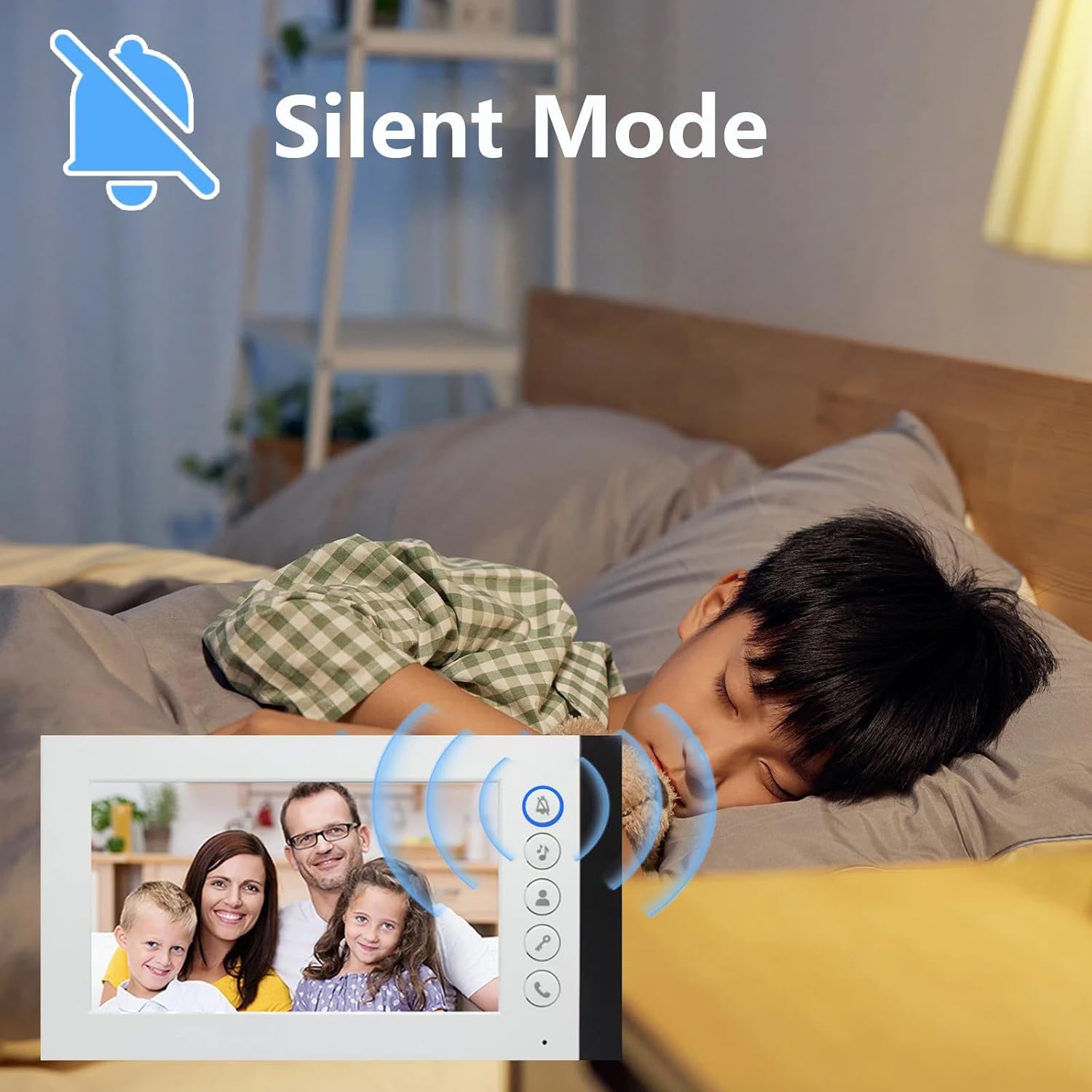
Figure 7.2: Silent Mode Activation. This image demonstrates the silent mode feature, which allows users to mute the doorbell ringtone for undisturbed rest while still being able to see visitors on the monitor.
7.6 Ringtone Selection
The indoor monitor offers 52 different ringtones. Consult the monitor's on-screen menu or specific buttons to browse and select your preferred ringtone.
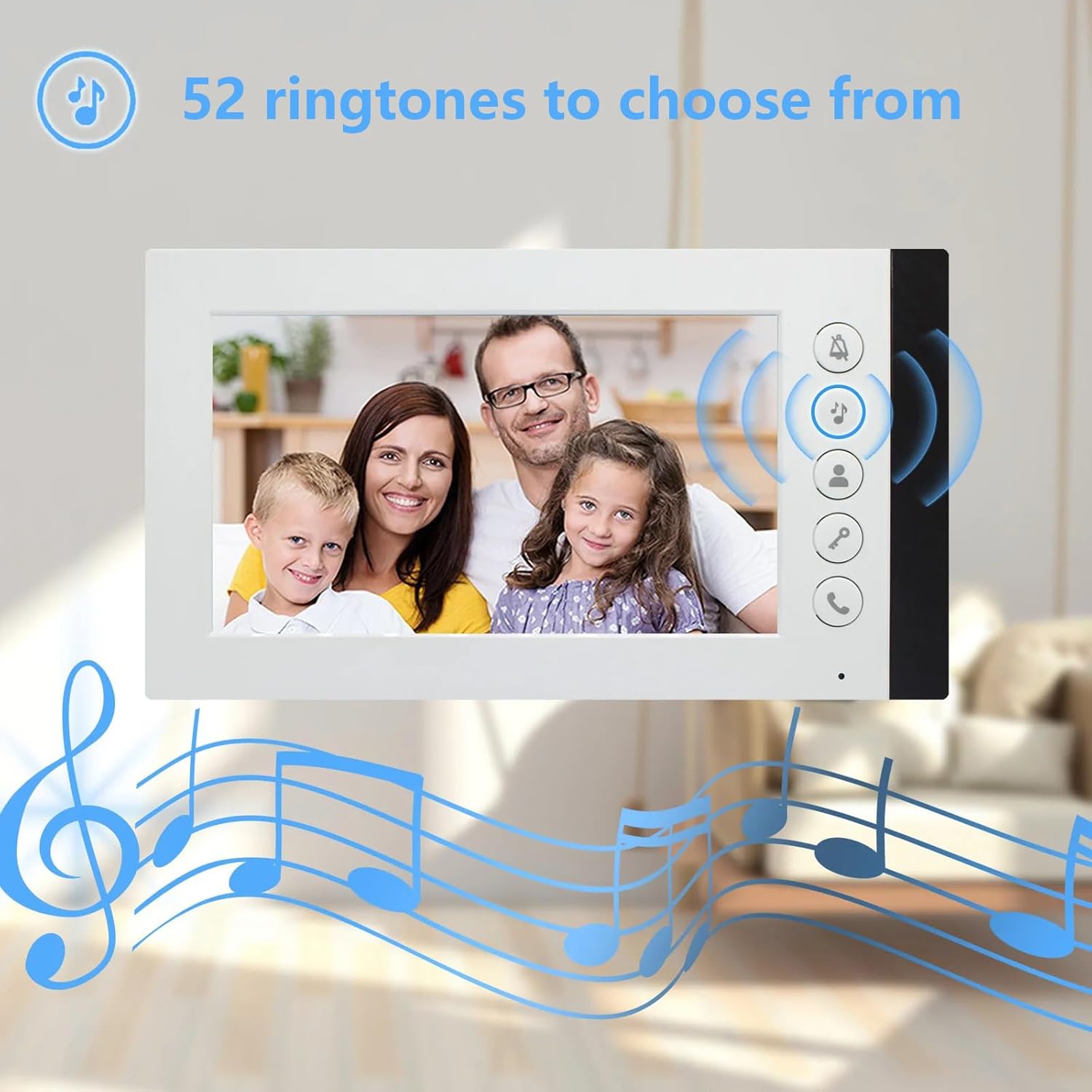
Figure 7.3: Ringtone Options. This image highlights the availability of 52 different ringtones for the indoor monitor, allowing users to customize their doorbell sound.
8. Maintenance
- Cleaning: Use a soft, dry cloth to clean the indoor monitor and outdoor unit. For stubborn dirt, a slightly damp cloth can be used, but ensure no liquid enters the devices. Do not use abrasive cleaners or solvents.
- Cable Inspection: Periodically check all wiring connections for signs of wear, damage, or loose connections. Repair or replace damaged cables immediately.
- Outdoor Unit Lens: Keep the camera lens on the outdoor unit clean and free from obstructions (e.g., dirt, spiderwebs) to ensure clear video quality.
- Power Supply: Ensure power adapters are not damaged and are securely plugged into outlets.
9. Troubleshooting
| Problem | Possible Cause | Solution |
|---|---|---|
| No video or audio on monitor |
|
|
| Monitor not ringing when doorbell is pressed |
|
|
| Poor video quality (blurry, dark) |
|
|
| Door unlock function not working |
|
|
10. Warranty and Support
ANJIELO SMART products are designed for reliability and performance. For warranty information, technical support, or service inquiries, please refer to the contact information provided with your purchase documentation or visit the official ANJIELO SMART website. Please have your model number (60120S-2+67022E) and purchase date ready when contacting support.