
Introduction
This manual provides comprehensive instructions for the MAHVEC Car Radio Stereo, specifically designed for Volvo XC90 models manufactured between 2004 and 2014. This advanced head unit features a 9-inch HD in-cell touch screen, runs on Android 15, and offers a robust 4GB RAM with 128GB ROM for smooth performance. Key functionalities include wireless CarPlay and Android Auto, integrated GPS navigation, WiFi connectivity, Bluetooth 5.0 for hands-free communication and audio streaming, FM/RDS radio, and support for steering wheel controls. An AHD backup camera is also included to enhance driving safety.
Before installation, please ensure your vehicle's compatibility by verifying the model year and dashboard shape. If your original car central control has an AUX option, it will not be compatible with this unit.
Setup and Installation
The MAHVEC Car Radio Stereo is designed for a plug-and-play installation with the provided wiring harness. Professional installation is recommended to ensure correct setup and avoid damage.
Compatibility Check
Confirm your Volvo XC90 model year is between 2004 and 2014. Visually compare your dashboard with the 'Before' image below. If your original car central control unit includes an AUX option, this stereo is not compatible.
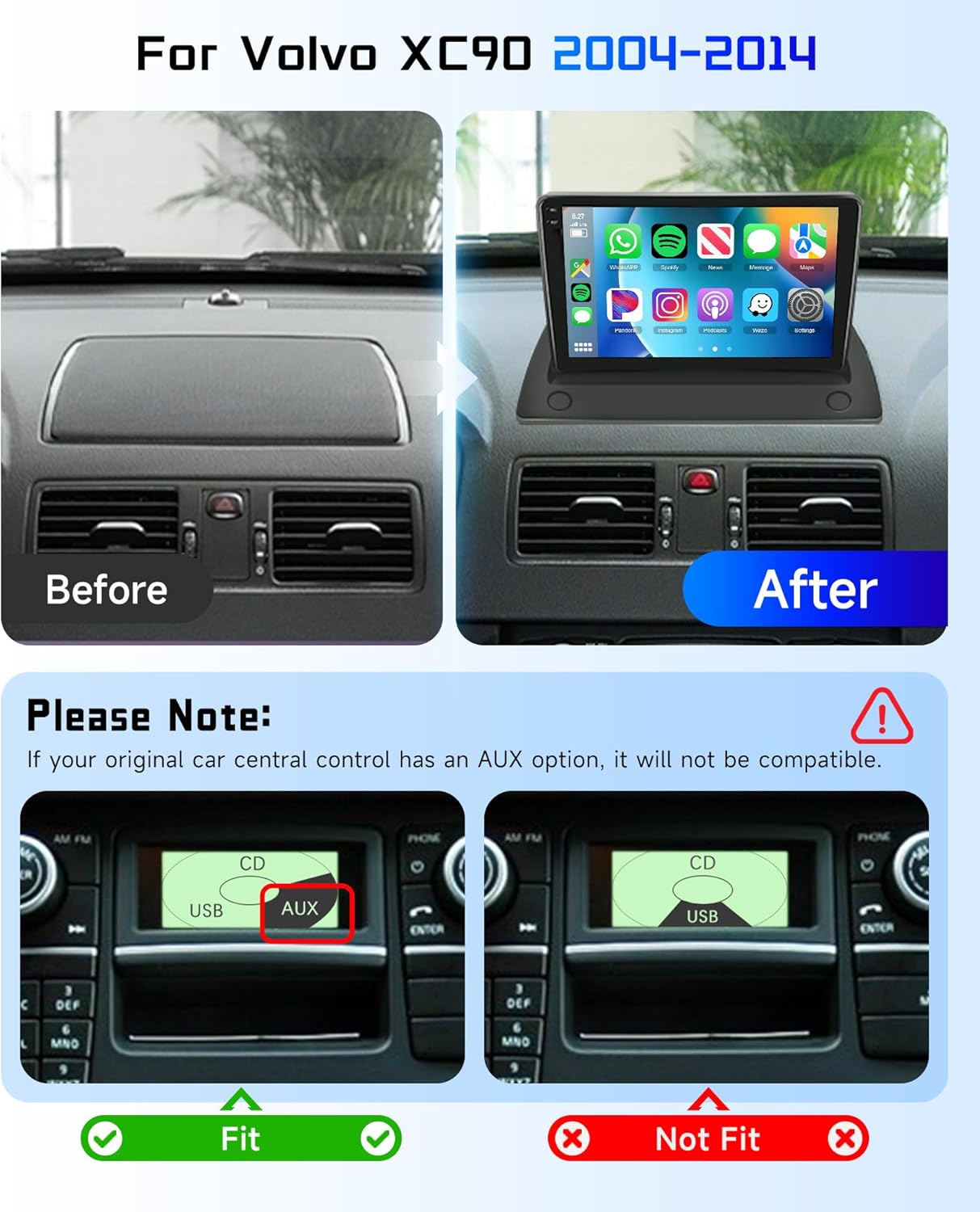
Image: Comparison of the Volvo XC90 dashboard before and after installing the MAHVEC car stereo. The 'Before' image shows the original car radio, and the 'After' image displays the new 9-inch HD in-cell touch screen integrated into the dashboard.
Reversing Camera Wiring
The included AHD backup camera requires specific wiring for proper functionality. Follow the diagram below for connecting the reverse trigger cable, ground, and backup light power.

Image: Detailed wiring diagram for the reversing camera, illustrating connections for the reverse trigger cable, ground (GND), and backup light positive (+).
Operating Instructions
In-Cell Touch Screen
The unit features an upgraded 9-inch HD In-Cell full touch screen with 1280x720P resolution. This technology integrates touch sensors directly into the panel, resulting in a thinner, lighter display with over 95% light transmittance for brighter visuals and a 20-30% faster touch response.

Image: Visual representation of the In-Cell screen technology, emphasizing its clarity, responsiveness, and slim profile.
Wireless CarPlay & Android Auto
Connect your smartphone wirelessly to access navigation, music, calls, and messages directly on the car stereo display. This feature supports both iOS CarPlay and Android Auto, allowing for voice control via Siri or Google Assistant.
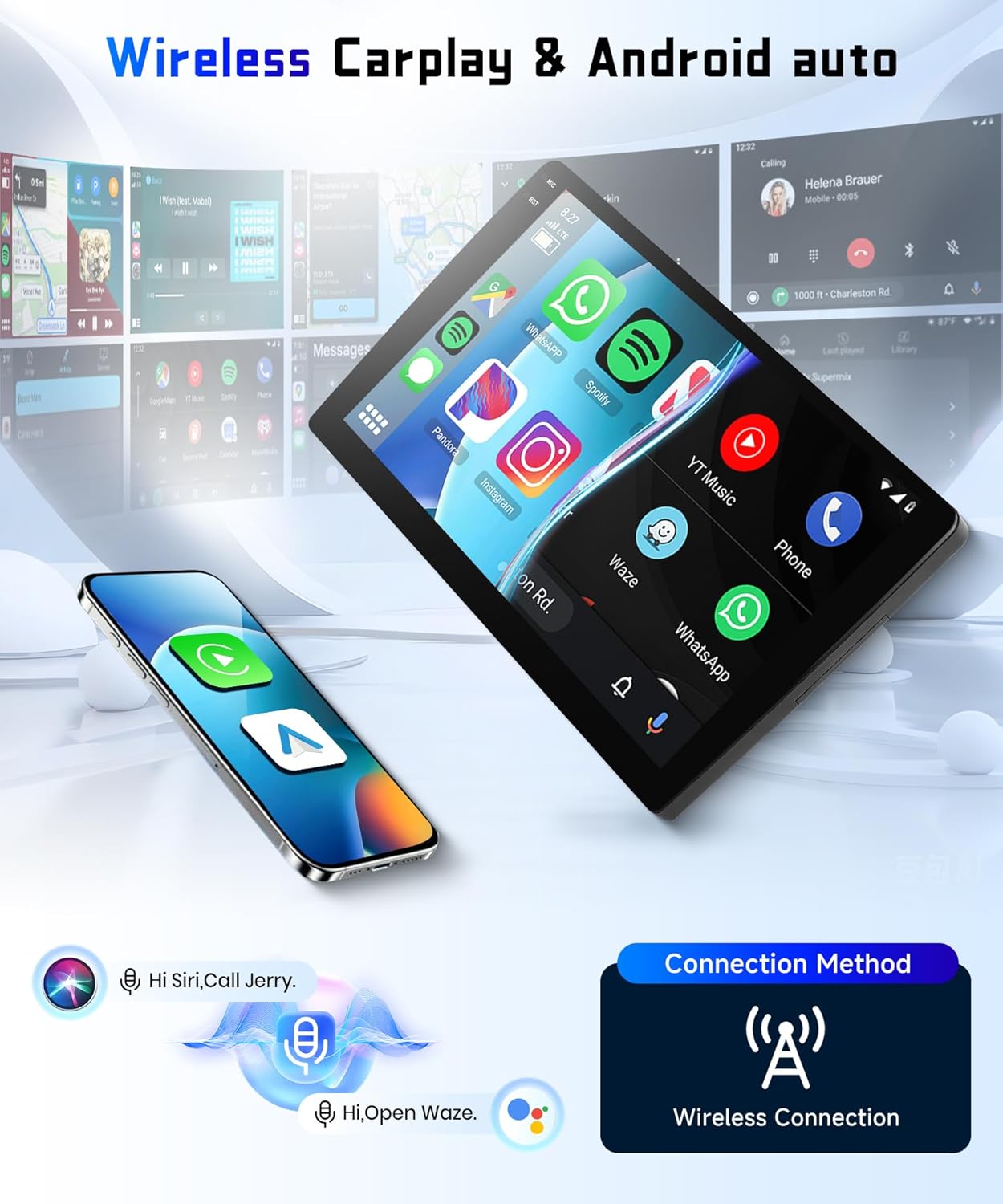
Image: Display of the car stereo interface running Wireless CarPlay and Android Auto, demonstrating seamless smartphone integration.
Connection Steps (CarPlay/Android Auto)
- Open the 'S-Play' application on the car stereo.
- Ensure Bluetooth is enabled on your smartphone and the car stereo.
- Pair your smartphone with the car stereo via Bluetooth.
- Follow the on-screen prompts to allow contact and favorite syncing.
- Confirm the connection to CarPlay or Android Auto when prompted.
Video: This video demonstrates the process of connecting your smartphone for Wireless CarPlay and Android Auto, including Bluetooth pairing and interface navigation.
GPS Navigation & WiFi
The unit includes a built-in GPS chip for offline navigation and supports WiFi connectivity for online map updates and downloading various entertainment applications.

Image: The car stereo displaying GPS navigation features and available applications through WiFi connectivity.
Bluetooth 5.0
Bluetooth 5.0 ensures faster pairing, stable connectivity, and precise positioning. It enables hands-free calling and seamless music streaming from your paired device.
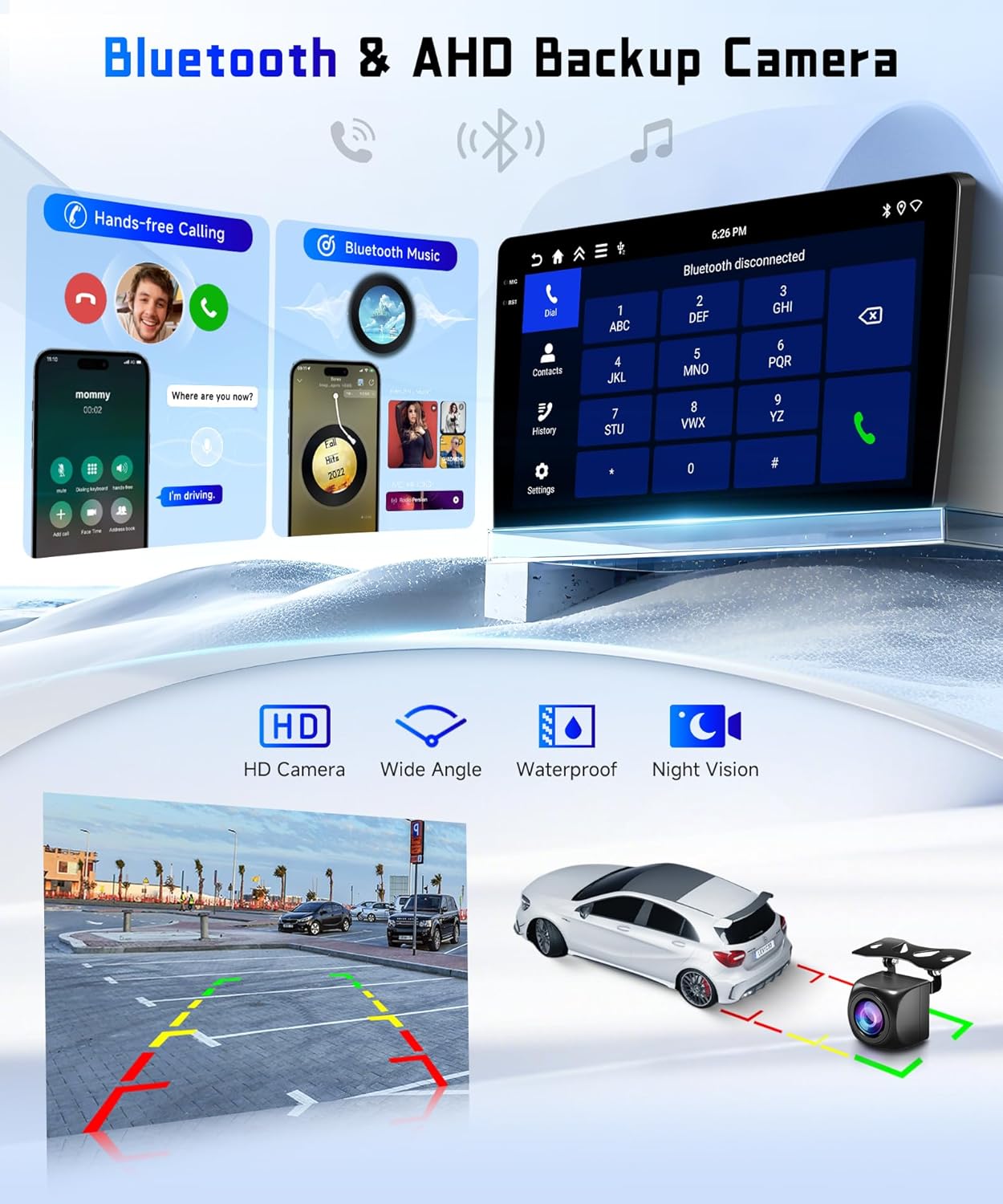
Image: Bluetooth functionality for calls and music, integrated with the AHD backup camera display.
FM/RDS Radio & EQ Settings
Enjoy built-in FM/RDS radio with multiple EQ settings, presets, and adjustable volume, fader, balance, treble, and bass for a customized audio experience.

Image: The FM/RDS radio interface and examples of customizable UI themes.
Steering Wheel Control Learning
The unit supports steering wheel controls for screen-free operation. You can program the buttons on your steering wheel to control various functions of the stereo.
Video: This segment demonstrates how to configure and learn steering wheel controls for the car stereo.
Mirror Link
Mirror Link allows you to cast your smartphone screen (both iOS and Android) directly onto the car stereo display, enabling you to view apps and content from your phone.

Image: Mirror Link functionality, allowing smartphone screen mirroring to the car stereo.
Split Screen Function
The split-screen function allows you to run two applications simultaneously on the display, such as navigation and music. To enable this, navigate to Settings > Factory Setup (password: 1234) and activate the 'Split screen function'.
Video: This segment demonstrates how to enable and use the split-screen function on the car stereo.
Time Settings
To adjust the time settings, go to Settings > More Settings > Date and Time. You can choose to use the network time or GPS to provide time information.
Video: This segment illustrates how to access and modify the time settings on the car stereo.
UI Theme Customization
The car stereo offers multiple user interface themes that can be switched freely to personalize your experience. Access these options through the 'ThemeSelect' app.
Video: This segment demonstrates how to change the user interface theme on the car stereo.
Maintenance
To ensure the longevity and optimal performance of your MAHVEC Car Radio Stereo, follow these general maintenance guidelines:
- Screen Cleaning: Use a soft, lint-free cloth, slightly dampened with water or a screen-safe cleaner, to gently wipe the display. Avoid abrasive materials or harsh chemicals.
- Software Updates: Periodically check for available software updates through the system settings to ensure you have the latest features and performance enhancements.
- Environmental Care: Avoid exposing the unit to extreme temperatures, direct sunlight for prolonged periods, or excessive moisture.
Troubleshooting
If you encounter issues with your car stereo, refer to the following common troubleshooting tips:
- No Power: Check all power connections to ensure they are securely fastened. Verify the vehicle's fuse box for any blown fuses related to the stereo.
- No Sound: Ensure the volume is not muted or set to minimum. Check speaker connections. Verify audio output settings in the system menu.
- Bluetooth Connectivity Issues: Ensure Bluetooth is enabled on both the stereo and your smartphone. Delete previous pairings and attempt to re-pair the devices. Ensure no other devices are interfering with the connection.
- GPS Signal Loss: Ensure the GPS antenna is properly installed and has a clear line of sight to the sky. Check GPS settings within the navigation application.
- Touch Screen Unresponsive: Perform a system restart. If the issue persists, check for any physical damage or debris on the screen.
- CarPlay/Android Auto Not Connecting: Ensure your phone's Bluetooth is connected to the stereo. Verify that the 'S-Play' app is open and that your phone is compatible with wireless CarPlay/Android Auto.
For more complex issues or if troubleshooting steps do not resolve the problem, please contact MAHVEC customer support.
Specifications

Image: Product dimensions and a visual representation of the packing list.
| Feature | Detail |
|---|---|
| Model | 4Core 4G+128G |
| Operating System | Android 15 |
| Display Size | 9 Inches |
| Display Type | HD In-Cell Touch Screen (1280x720P) |
| Memory (RAM) | 4GB |
| Storage (ROM) | 128GB |
| Connectivity | Bluetooth 5.0, USB, Wi-Fi |
| Special Features | GPS Navigation, Wireless Android Auto, Wireless CarPlay, FM/RDS Radio, Steering Wheel Control, AHD Backup Camera |
| Included Components | MAHVEC Car Stereo, Backup Camera, External Mic |
| Item Weight | 1.76 pounds |
| Package Dimensions | 7.87 x 5.91 x 1.97 inches |
Warranty Information
The MAHVEC Car Radio Stereo comes with a 3-year warranty. For detailed terms and conditions, please refer to the warranty card included in your product packaging or contact customer support.
Additionally, protection plans are available for purchase to extend coverage:
- 2-Year Protection Plan
- 3-Year Protection Plan
- Complete Protect (monthly billing)
Customer Support
For any questions, technical assistance, or support regarding your MAHVEC Car Radio Stereo, please contact our customer service team. MAHVEC is committed to providing high-standard customer service and offers 24/7 emergency support and quality guarantee.
You can visit the official MAHVEC store on Amazon for more information and to contact the seller directly: MAHVEC Store