Introduction
This manual provides detailed instructions for the operation and maintenance of your Generic GT826 Gaming Headset. Please read this manual thoroughly before using the product to ensure proper functionality and to maximize your gaming experience.
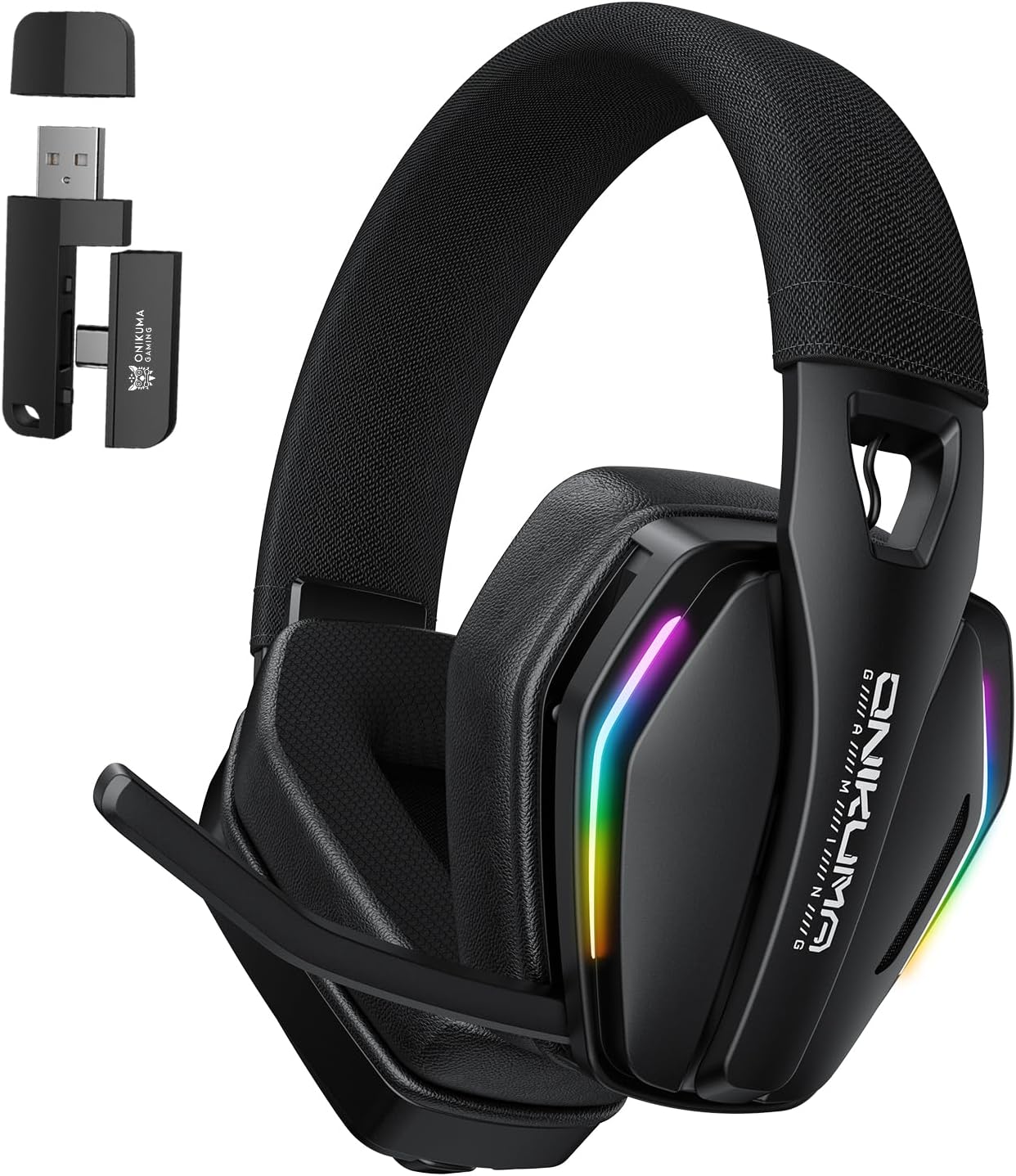
Image: The GT826 Gaming Headset, showcasing its design with RGB lighting on the earcups and the adjustable microphone.
Package Contents
Upon unboxing, please verify that all the following items are included:
- GT826 Gaming Headset
- USB Type-C Charging Cable
- 2.4GHz Wireless USB Dongle
- User Manual

Image: The GT826 headset laid out with its accessories: a USB-C charging cable, a 2.4GHz wireless dongle, and the instruction manual.
Setup
1. Charging the Headset
Before initial use, fully charge the headset.
- Connect the supplied USB Type-C charging cable to the charging port on the headset.
- Connect the other end of the cable to a USB power source (e.g., computer USB port, USB wall adapter).
- The LED indicator on the headset will show charging status (e.g., red for charging, off or blue for fully charged).
- A full charge typically takes approximately 2 hours.
2. Connecting the Headset
The GT826 headset supports three connectivity modes: 2.4GHz Wireless, Bluetooth 5.4, and Wired (via USB Type-C).
2.1. 2.4GHz Wireless Connection (Recommended for Gaming)
- Insert the 2.4GHz USB dongle into an available USB port on your PC, PlayStation, or other compatible device.
- Power on the headset by pressing and holding the Power button.
- The headset will automatically attempt to connect to the dongle. A successful connection is indicated by a stable LED light (refer to LED indicator section for details).
- On your device, select "GT826" as the audio output and input device.

Image: The GT826 headset demonstrating its 2.4GHz wireless connectivity with the USB dongle plugged into a device, alongside a smartphone showing Bluetooth connectivity.
2.2. Bluetooth 5.4 Connection
- Ensure the headset is powered on.
- Press and hold the Mode button (or a dedicated Bluetooth button if available) until the LED indicator flashes, indicating pairing mode.
- On your mobile device, tablet, or computer, enable Bluetooth and search for available devices.
- Select "GT826" from the list of found devices to pair.
- Once paired, the LED indicator will become stable.
2.3. Wired Connection (USB Type-C)
- Connect the USB Type-C cable directly from the headset to your device's USB-C port.
- The headset will function as a wired audio device. No battery power is consumed in this mode.
Operating Instructions
Power On/Off
- Power On: Press and hold the Power button for approximately 3 seconds until the LED indicator lights up.
- Power Off: Press and hold the Power button for approximately 3 seconds until the LED indicator turns off.
Volume Control
Use the volume roller or buttons located on the earcup to adjust the audio output level.
Microphone Usage
The GT826 features a 120-degree adjustable microphone for clear communication.
- Adjusting the Microphone: Gently pivot the microphone boom to position it optimally near your mouth. The microphone can rotate up to 120 degrees.
- Mute/Unmute: Use the dedicated microphone mute button on the earcup to toggle the microphone on or off. An LED indicator on the microphone or headset may show its status.
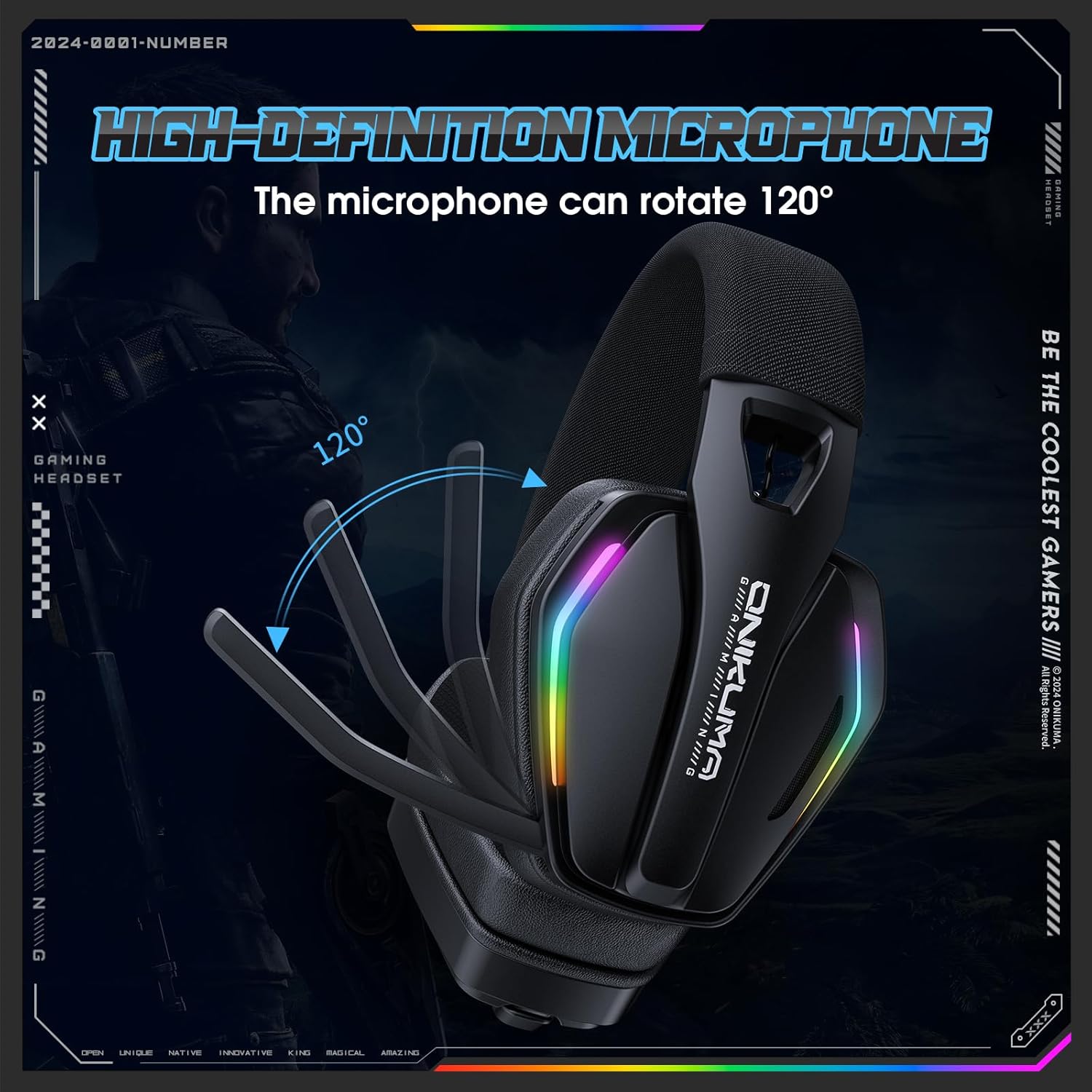
Image: The GT826 headset with its microphone boom rotated to demonstrate the 120-degree adjustment capability.
RGB Lighting Control
The headset features vibrant RGB lighting effects on the earcups.
- Toggle RGB: Press the RGB lighting button (if available) or a combination of buttons to cycle through lighting modes or turn the lighting on/off.
- Note that using RGB lighting will reduce battery life.
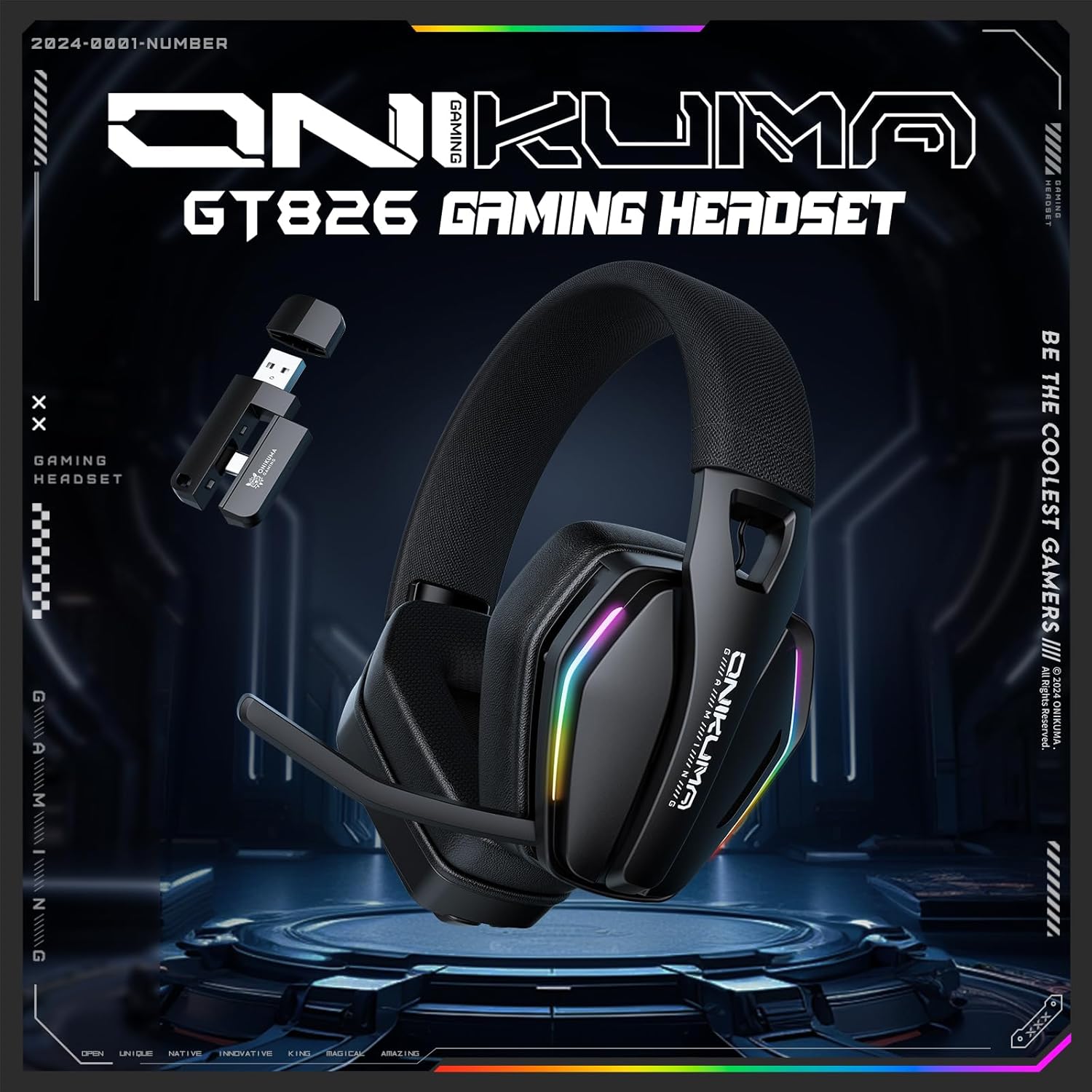
Image: The GT826 headset illuminated with its dynamic RGB lighting effects, positioned on a desk.
Switching Connectivity Modes
To switch between 2.4GHz Wireless and Bluetooth modes, press the Mode button on the headset. The LED indicator will change to reflect the active mode.
Maintenance
Cleaning
- Use a soft, dry cloth to clean the headset's surfaces.
- For earcups, a slightly damp cloth with mild soap can be used, but ensure no moisture enters the speaker grilles.
- Avoid using harsh chemicals, solvents, or abrasive materials.
Storage
- Store the headset in a cool, dry place away from direct sunlight and extreme temperatures.
- When not in use, it is recommended to store the headset in its original packaging or a protective case to prevent damage.
Battery Care
- To prolong battery life, avoid fully discharging the headset frequently.
- Charge the headset regularly, even if not in constant use.
- Do not expose the battery to high temperatures.
Troubleshooting
| Problem | Possible Cause | Solution |
|---|---|---|
| No sound from headset |
|
|
| Microphone not working |
|
|
| Headset not connecting wirelessly |
|
|
| Short battery life |
|
|
Specifications
| Feature | Detail |
|---|---|
| Model Name | GT826 |
| Connectivity Technology | 2.4GHz Wireless, Bluetooth 5.4, Wired (USB Type-C) |
| Audio Driver Size | 40mm |
| Frequency Response | 20Hz - 20KHz |
| Sensitivity | 117 ± 3dB |
| Impedance | 32 Ohms |
| Microphone | 120° Adjustable, Detachable |
| Battery Capacity | 1000mAh |
| Usage Time (No RGB) | Up to 60 hours |
| Usage Time (With RGB) | Up to 20 hours |
| Charging Time | Approximately 2 hours |
| Wireless Range | Up to 49 feet (15 meters) |
| Weight | 12.8 ounces |
| Material | Memory Foam, Mesh, Plastic |
| Noise Control | Passive Noise Cancellation |
Warranty and Support
For warranty information or technical support, please refer to the documentation included with your purchase or contact the retailer/manufacturer directly. Keep your proof of purchase for warranty claims.
For further assistance, you may visit the manufacturer's official website or contact their customer service department.
