1. Product Overview
The Generic V9 Prime is a digital satellite receiver designed for Free-to-Air (FTA) DVB-S/S2/S2X broadcasts. It supports H.265 HEVC 10-bit decoding, various multi-stream formats, and features built-in 2.4G WiFi for network connectivity. This receiver also includes a CA card slot for conditional access and supports advanced features like Biss Auto Roll and SAT2IP.
1.1 Key Features
- DVB-S/S2/S2X Support: Compatible with various satellite broadcast standards, including VCM/ACM/multi-stream/T2-MI.
- HEVC Main 10 Profile: Supports H.265 video decoding for high-efficiency video compression.
- Conditional Access (CA) Card Slot: Allows for the insertion of a CA card to access encrypted programs.
- Network Connectivity: Features built-in 2.4G WiFi and an Ethernet port. Supports 3G/4G USB dongles.
- Advanced Decoding: Supports BISS auto roll, Full PowerVu, DRE, and Biss key.
- SAT2IP & DLNA: Stream satellite TV programs to mobile devices via GTShare APK and supports DLNA.
- Media Playback & PVR: USB 2.0 port for personal video recording (PVR), TimeShift, and playback of various media files.
- Online Services: Access to Online Movie, YouTube, and WebTV.
- Network Sharing: Supports Cccam, Newcam, and Mgcam protocols.
1.2 Package Contents
Verify that all items are present in the package:
- 1x V9 Prime Satellite Receiver
- 1x Remote Controller
- 1x Power Supply (DC12V/1.5A)
- 1x HDMI Cable
- 1x User Manual (this document)
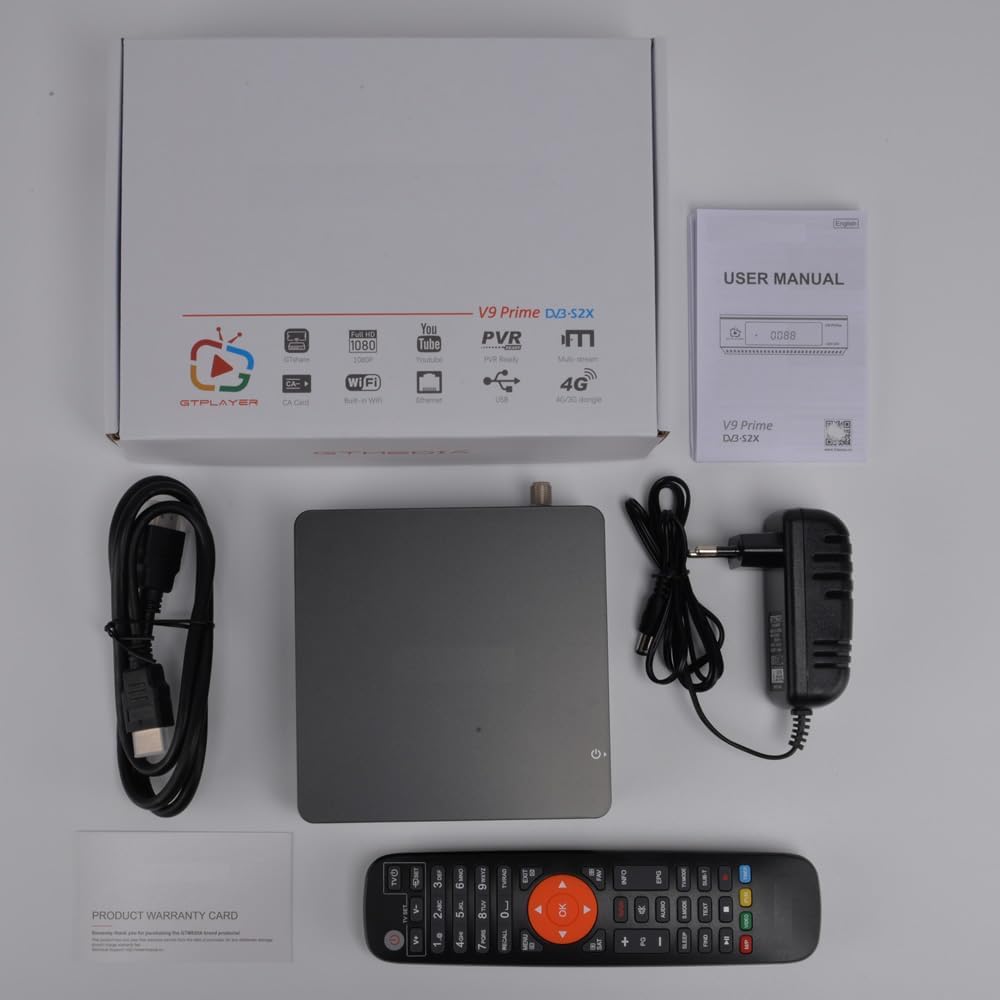
Figure 1.2.1: Package Contents
2. Setup
2.1 Connecting the Receiver
Follow these steps to connect your V9 Prime Digital Satellite Receiver to your television and satellite dish:
- Connect the satellite LNB cable from your dish to the LNB IN port on the rear panel of the receiver.
- Connect one end of the HDMI cable to the HD OUT port on the receiver and the other end to an available HDMI input on your television. Alternatively, use the AV OUT port for older televisions.
- If using a wired network, connect an Ethernet cable to the RJ45 port on the receiver.
- Insert the power adapter into the DC IN (DC12V/1.5A) port and then plug it into a power outlet.
- If you have a CA card, gently insert it into the CA Card SLOT as indicated.
- Turn on your television and select the correct HDMI or AV input source.

Figure 2.1.1: Rear Panel Interfaces

Figure 2.1.2: CA Card Insertion
2.2 Initial Power On
Upon first power-on, the receiver may guide you through an initial setup wizard. Follow the on-screen prompts to configure language, time zone, and basic display settings. Ensure your TV Standard and Aspect Mode are correctly set in the AV Settings menu.
Video 2.2.1: Initial Setup and AV Settings Configuration
This video demonstrates navigating the receiver's menu to adjust AV settings, including TV Standard and Aspect Mode, ensuring optimal display on your television.
3. Operating Instructions
3.1 Basic Navigation
Use the provided remote control to navigate the receiver's on-screen menus. The MENU button accesses the main menu, arrow keys navigate options, and OK confirms selections. The EXIT button returns to the previous screen or live TV.
3.2 Channel Scan
To receive satellite channels, you must perform a channel scan:
- Press the MENU button on your remote.
- Navigate to Installation and select Antenna Setting.
- Select the desired satellite from the Satellite List. You may need to add a new satellite if yours is not listed by selecting Add and entering the satellite details (Name, Longitude, Direction).
- Configure LNB Power (On), LNB Frequency (e.g., Universal1 9750/10600), and DiSEqC settings if applicable.
- Navigate to Start Search and select Blind Search for a comprehensive scan. Choose FTA Only if you only want free channels.
- Confirm the search to begin scanning for channels. The receiver will display progress and found channels.
Video 3.2.1: Satellite Setup and Blind Search Process
This video illustrates how to add a new satellite, configure LNB settings, and perform a blind search to find available channels on your V9 Prime receiver.
3.3 CA Card Functionality
If you have a valid Conditional Access (CA) card, insert it into the designated slot. The receiver will automatically detect the card and allow access to subscribed encrypted channels. Navigate to the CA menu option to view card status or settings.
3.4 Network Features (WiFi/Ethernet)
To use online features, connect your receiver to the internet:
- For WiFi: Go to Settings > Network > WiFi. Select your network and enter the password.
- For Ethernet: Ensure an Ethernet cable is connected to the RJ45 port. The receiver should automatically obtain an IP address via DHCP.
3.5 Media Playback and PVR
Connect a USB storage device (FAT/FAT32/NTFS) to the USB HOST port to access media files or record programs.
- Media Playback: Navigate to Media Center > File, then select Video, Music, or Picture to browse and play files from your USB device.
- PVR (Personal Video Recorder): While watching a channel, press the Record button on the remote to start recording. Press it again to stop. Recorded files can be accessed via Media Center > Record Files.
- TimeShift: Allows you to pause live TV. Connect a USB device, then press the TimeShift button on the remote.
3.6 YouTube and Online Services
Access YouTube and other online services through the main menu.
- Select YouTube from the main menu.
- If prompted for an API key, go to Settings within the YouTube app, change API Key Source to Server, and select Update API Key.
- Browse or search for videos.
Video 3.6.1: YouTube API Key Update Process
This video demonstrates how to update the YouTube API key from the server, resolving potential issues with accessing YouTube content.
3.7 SAT2IP (DVB2IP) and MeeCast
The V9 Prime supports streaming satellite channels to mobile devices via SAT2IP (DVB2IP) and the MeeCast app.
- Ensure your receiver and mobile device are connected to the same local network.
- On the receiver, navigate to APP > DVB2IP Setting. Set DVB2IP Mode to On and configure other settings as desired. Press OK to save.
- Download and install the GTShare APK (for Android) or MeeCast app on your mobile device.
- Open the app, and it should detect your V9 Prime receiver on the network. Select the receiver.
- You can now browse and watch TV channels from your receiver on your mobile device. The app also offers remote control functionality and web video casting.
Note: DVB2IP functionality is primarily designed for Android devices and may not be fully supported on Apple iOS.
Video 3.7.1: DVB2IP Configuration and MeeCast App Usage
This video demonstrates how to enable DVB2IP on the receiver and use the MeeCast app on a mobile device to stream TV channels and cast web videos.
4. Maintenance
4.1 Firmware Upgrade
Firmware updates can improve performance and add new features. You can upgrade the firmware via USB or FTP.
- Via USB: Download the latest firmware file from the manufacturer's website to a USB drive. Insert the USB drive into the receiver's USB port. Navigate to Upgrade in the main menu, select USB Upgrade, choose the firmware file, and follow the on-screen instructions.
- Via FTP: Ensure the receiver is connected to the internet. Navigate to Upgrade > FTP Upgrade and follow the prompts to download and install the latest firmware.
Caution: Do not power off the receiver during a firmware upgrade. This can cause permanent damage.
5. Troubleshooting
If you encounter issues with your V9 Prime receiver, refer to the following common problems and solutions:
| Problem | Possible Cause | Solution |
|---|---|---|
| No Signal / Black Screen | Incorrect LNB connection, wrong satellite selected, dish misalignment. | Check LNB cable connection. Verify satellite selection and LNB frequency in Antenna Settings. Ensure dish is correctly aligned. |
| No Audio | TV volume too low, incorrect audio output settings, damaged HDMI/AV cable. | Increase TV volume. Check AV Setting > SPDIF/HDMI audio output. Try a different cable. |
| Remote Control Not Working | Dead batteries, obstructed IR sensor, remote not paired (if applicable). | Replace batteries. Ensure no obstructions between remote and receiver. Point remote directly at the receiver. |
| Cannot Connect to WiFi | Incorrect password, out of range, router issues. | Double-check WiFi password. Move receiver closer to router. Restart router. Try wired Ethernet connection. |
| YouTube Not Working / API Key Error | Outdated API key. | Go to YouTube app Settings, change API Key Source to Server, and select Update API Key. |
6. Specifications
Detailed technical specifications for the V9 Prime Digital Satellite Receiver:
- CPU: 770MHz Dual Core
- Flash Memory: 64MB SPI Flash
- DDR3 Memory: 1G bit RAM
- Panel Display: 4-digit white LED display (supports function display)
- LED Indicator: Power ON (Green); Standby (Red)
- IR: Exit IR for 38KHz, Infra Remote control
- LNB IN: Frequency Range 950MHz to 2150MHz
- HD OUT: Up to 1080P
- AV OUT: 3-pin 3.5 mm jack
- USB HOST: 1x USB 2.0 port (supports FAT/FAT32/NTFS)
- RJ45: 1x Ethernet port
- CA Card SLOT: 1x
- DC IN: DC12V/1.5A
- Connectivity Technology: Ethernet, HDMI, USB, Wi-Fi (Built-in 2.4G)
- Audio Output Mode: Stereo
- Video Output Resolution: 1080 Pixels
- Supported Standards: DVB-S, DVB-S2, DVB-S2X, VCM, ACM, Multi-stream, T2-MI, HEVC, AVS+, BISS
- Aspect Ratio: 16:9
- Product Dimensions: 4.92"D x 4.92"W x 1.49"H (125mm x 125mm x 38mm)
- Manufacturer: YuanJin

Figure 6.1.1: Product Dimensions
7. Warranty and Support
The Generic V9 Prime Digital Satellite Receiver comes with a 6-month warranty from the date of purchase. This warranty covers manufacturing defects and malfunctions under normal use.
For technical support, troubleshooting assistance, or warranty claims, please contact your retailer or the manufacturer, YuanJin. Refer to the contact information provided with your purchase documentation.
For firmware updates and additional resources, visit the official product support website (if available, check manufacturer documentation).