
1. Introduction
This manual provides detailed instructions for the installation, operation, and maintenance of your PHILIPS TAC-1109 Car Dashcam. Please read this manual thoroughly before using the device to ensure proper functionality and safety. The PHILIPS TAC-1109 is designed to record driving footage in 2K resolution, offering features such as WiFi connectivity, Super Night Vision, Loop Recording, and Parking Mode.
2. Package Contents
Verify that all items are present in the package:
- PHILIPS TAC-1109 Car Dashcam
- Hardwire Kit
- 32GB MicroSD Card (if included with purchase)
- User Manual (this document)

Image 1: PHILIPS TAC-1109 Dashcam, Hardwire Kit, and MicroSD card.
3. Product Overview
Familiarize yourself with the components of your dashcam.

Image 2: Dimensions of the PHILIPS TAC-1109 Car Recorder (approximately 9cm x 3cm).
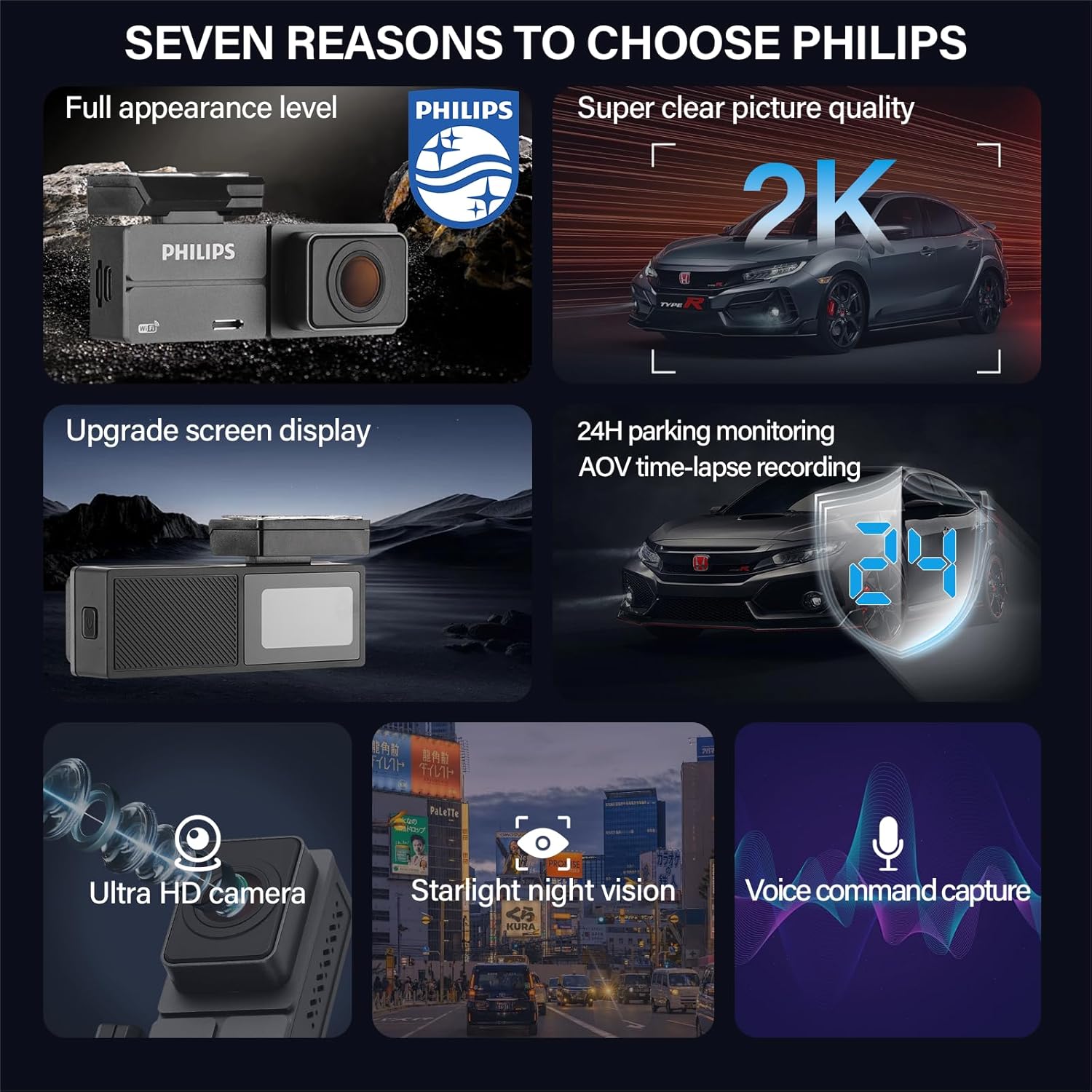
Image 3: The dashcam features a 1.47-inch IPS display, a detachable rear base for easy installation, and an adjustable lens for optimal viewing angles.
Key Features:
- 2K Front Camera: Records clear and detailed footage.
- 140° Wide-Angle Lens: Provides a broad view of the road, reducing blind spots.
- Built-in WiFi & App Control: Connects to the Wolfbox app for viewing, downloading, and sharing videos.
- 24H Parking Surveillance: Monitors your vehicle when parked (requires hardwire kit).
- Super Night Vision: Enhanced low-light recording with WDR, HDR, and F1.5 aperture.
- Loop Recording: Automatically overwrites old footage when the memory card is full.
- G-Sensor: Detects impacts and locks important video files.
- Compact Design: Discreet and easy to install without obstructing vision.
4. Setup and Installation
4.1 Memory Card Insertion
- Ensure the dashcam is powered off.
- Locate the MicroSD card slot on the side of the dashcam.
- Insert the 32GB MicroSD card (or a compatible card, up to 128GB, Class 10 or higher) into the slot until it clicks into place.
- To remove, gently push the card in until it springs out.
4.2 Mounting the Dashcam
- Clean the windshield area where you intend to mount the dashcam.
- Attach the adhesive mount to the dashcam's rear base.
- Peel off the protective film from the adhesive mount.
- Press the dashcam firmly onto the chosen spot on your windshield, ensuring it does not obstruct your view.
- Adjust the lens angle to capture the desired view of the road.
4.3 Power Connection (Standard)
- Connect the provided power cable to the dashcam's power input port.
- Plug the other end of the power cable into your vehicle's 12V power outlet (cigarette lighter socket).
- Route the cable neatly along the windshield and dashboard edges to avoid interference with driving.
4.4 Hardwire Kit Installation (for Parking Surveillance)
The included hardwire kit is required for 24-hour parking surveillance functionality. Professional installation is recommended for this component.
- Identify your vehicle's fuse box.
- Connect the red wire of the hardwire kit to a constant power fuse (always on).
- Connect the yellow wire to an ACC (Accessory) fuse (powers on with ignition).
- Connect the black wire to a metal ground point on the vehicle chassis.
- Connect the hardwire kit's output to the dashcam's power input.
5. Operating Instructions
5.1 Powering On/Off
- Automatic: The dashcam will power on and begin recording automatically when your vehicle's ignition is turned on (if connected to the 12V outlet or ACC fuse).
- Manual: Press and hold the power button (usually located on the side or bottom) for a few seconds to manually power on or off the device.
5.2 Basic Recording
Once powered on, the dashcam automatically starts continuous loop recording. The recording status is typically indicated by a flashing LED light or an icon on the screen.
5.3 App Control & WiFi Connection
The dashcam features built-in WiFi for seamless control via the Wolfbox app.

Image 4: The dashcam connects to the Wolfbox app via built-in WiFi, allowing users to access camera settings, playback recordings, download files, and perform OTA updates.
- Download the "Wolfbox" app from your smartphone's app store (compatible with iPhone and Android).
- Turn on the dashcam.
- On your smartphone, go to WiFi settings and connect to the dashcam's WiFi network (SSID and password usually displayed on the dashcam screen or in the manual).
- Open the Wolfbox app. You can now control the dashcam, view live footage, playback recorded videos, download files to your phone, and share them.
5.4 Loop Recording
The dashcam continuously records video in short segments (e.g., 1, 3, or 5 minutes). When the memory card is full, the oldest unlocked video files are automatically overwritten by new recordings. This ensures continuous recording without manual intervention.
5.5 G-Sensor (Emergency Recording)
The built-in G-sensor detects sudden impacts or collisions. When an event is detected, the current video segment is automatically locked and saved to a protected folder on the memory card, preventing it from being overwritten by loop recording. This ensures critical evidence is preserved.
5.6 Parking Surveillance
With the hardwire kit properly installed, the dashcam can monitor your vehicle even when parked. It offers:
- Crash Detection Mode: Records when an impact is detected while parked.
- 24-hour Delay Mode (Time-lapse): Records continuously at a low frame rate, compressing hours of footage into minutes, providing extended coverage while conserving storage.
5.7 Super Night Vision
The dashcam utilizes advanced WDR (Wide Dynamic Range) and HDR (High Dynamic Range) technologies, combined with an F1.5 large aperture lens, to enhance video clarity and detail in low-light conditions, providing clear night driving footage.

Image 5: Illustration of Super Night Vision capability and Loop Recording functionality.
6. Maintenance
6.1 Memory Card Management
- Regularly format the MicroSD card (e.g., once a month) to maintain optimal performance and prevent data corruption. This can usually be done through the dashcam's settings menu or the companion app.
- Replace the MicroSD card periodically (e.g., every 6-12 months) as continuous overwriting can degrade its lifespan.
6.2 Cleaning
- Use a soft, dry cloth to clean the dashcam lens and body.
- Do not use abrasive cleaners or solvents, as they may damage the device.
- Ensure the windshield area around the lens is clean for clear recordings.
7. Troubleshooting
| Problem | Possible Cause | Solution |
|---|---|---|
| Dashcam does not power on. | No power supply; faulty cable; loose connection. | Check power cable connection; ensure vehicle's 12V outlet is functional; test with another power source if possible. |
| Recording stops or freezes. | Memory card full or corrupted; incompatible memory card; firmware issue. | Format the memory card; replace with a new, compatible (Class 10 or higher) MicroSD card; update firmware via app if available. |
| WiFi connection issues. | Incorrect WiFi password; app not updated; interference. | Verify WiFi password; ensure Wolfbox app is updated; restart dashcam and phone; try connecting in a different location. |
| Poor video quality. | Dirty lens; protective film still on lens; incorrect settings. | Clean the lens; remove any protective film; check video resolution settings in the app. |
| Parking surveillance not working. | Hardwire kit not installed correctly; parking mode not enabled. | Ensure hardwire kit is properly installed and connected; enable parking mode in dashcam settings via the app. |
8. Specifications
| Feature | Detail |
|---|---|
| Brand | Philips |
| Model Name | TAC-1109 |
| Video Resolution | 2K (Front Camera) |
| Viewing Angle | 140 Degrees |
| Screen Size | 1.4 Inches (IPS Display) |
| Special Features | App Control, Built-in WiFi, Parking Monitor, Super Night Vision (WDR, HDR, F1.5 Aperture), G-Sensor, Loop Recording, Time-lapse Video |
| Mounting Hardware | Hardwire Kit (Included) |
| Product Dimensions | 13 x 18 x 15 cm (approximate packaging dimensions) |
| Item Weight | 440 g |
| Vehicle Service Type | Car |
9. Warranty and Support
For warranty information and customer support, please refer to the official Philips website or contact your local Philips service center. The product typically comes with a standard warranty as per regional regulations.
For further assistance, you may visit the Philips Store on Amazon or refer to the warranty policy provided at the time of purchase.