
1. Introduction
Thank you for choosing the StarTech Inverter Split Air Conditioner. This manual provides essential information for the safe and efficient operation, installation, and maintenance of your new air conditioning unit. Please read this manual thoroughly before using the appliance and keep it for future reference.
This unit features advanced inverter technology, Wi-Fi control, and a cooling capacity of 18000 BTU, designed to provide optimal comfort and energy efficiency in your home.
2. Safety Information
WARNING: To reduce the risk of fire, electric shock, or injury, observe the following safety precautions:
- Installation must be performed by qualified personnel in accordance with national wiring standards.
- Ensure the power supply matches the unit's specifications.
- Do not operate the unit with wet hands or when standing on a wet surface.
- Keep children away from the unit and remote control.
- Do not insert objects into the air outlet or inlet.
- Turn off the power supply before cleaning or maintenance.
- Do not attempt to repair the unit yourself. Contact qualified service personnel.
3. Product Overview and Features
The StarTech ST-C18SACINV/WIFI is a high-performance inverter split air conditioner designed for efficient cooling. It comes with a sleek white indoor unit and an outdoor unit, offering a range of smart features for enhanced user experience.

Figure 3.1: StarTech Inverter Split Air Conditioner Indoor Unit. This image displays the elegant white indoor unit of the air conditioner, featuring the StarTech logo and 'INVERTER' branding, along with a Wi-Fi indicator.
Key Features:
- Inverter Technology: Provides rapid, efficient, and reliable cooling while optimizing energy consumption.
- Wi-Fi Control: Manage your air conditioner remotely via a smartphone app for convenience.
- LED Display: Clear display on the indoor unit shows precise temperature settings and operational status.
- LCD Remote Control: User-friendly remote with an LCD screen for easy operation.
- Multi Fan Speeds: Choose from various fan speeds for customized airflow.
- Vertical & Horizontal Swing: Automatic swing function distributes air evenly throughout the room.
- Turbo Cooling: Delivers rapid cooling when immediate comfort is needed.
- Quiet Mode: Operates at ultra-low noise levels for a peaceful environment.
- Sleep Mode: Maintains optimal room temperature throughout the night for comfortable sleep.
- Auto Clean: Helps prevent mold and bacteria growth by cleaning the indoor unit's internal components.
- Self-Diagnosis: Automatically detects and displays system errors for quick troubleshooting.
- Low Voltage Startup & Soft Start: Ensures smooth operation even with fluctuating power supply.
- Timer Function & Clock Display: Schedule operation and monitor time.
- Child Lock Function: Prevents accidental changes to settings.
- 'I Feel' Mode: Adjusts temperature based on the remote control's location for personalized comfort.
- X-Fan Mode: Continues fan operation after shutdown to dry the evaporator, preventing mildew.
- Dehumidify: Effectively reduces humidity for improved comfort.

Figure 3.2: Diagram illustrating various product features with corresponding icons, such as Inverter Technology, Wi-Fi Control, LED Display, and more.
4. Setup and Installation
IMPORTANT: Installation of this split air conditioner requires specialized tools and knowledge. It must be performed by a certified and qualified HVAC technician to ensure proper function, safety, and warranty validity.
General Installation Steps (for qualified technicians):
- Site Selection: Choose appropriate locations for both indoor and outdoor units, ensuring proper airflow and drainage.
- Mounting the Indoor Unit: Securely mount the indoor unit on a wall, ensuring it is level.
- Installing the Outdoor Unit: Place the outdoor unit on a stable, level surface, away from direct sunlight or obstructions.
- Refrigerant Piping: Connect the refrigerant lines between the indoor and outdoor units. Ensure proper insulation and leak testing. The unit requires an outdoor unit.
- Electrical Wiring: Connect the power supply and communication cables according to the wiring diagram provided in the full installation manual. Ensure all connections are secure and grounded.
- Drainage Pipe Installation: Install the drainage pipe for the indoor unit to ensure proper condensate removal.
- Vacuuming and Refrigerant Charging: Evacuate the system to remove air and moisture, then charge with the correct amount of refrigerant (R32).
- Test Run: Perform a test run to verify all functions are operating correctly and there are no leaks or unusual noises.
Initial Power-On:
After professional installation, turn on the main power supply to the unit. The unit will typically perform a self-check. Use the remote control or Wi-Fi app to select your desired operating mode.
5. Operating Instructions
Your StarTech air conditioner can be controlled via the included LCD remote control or through a smartphone app using Wi-Fi.
Using the LCD Remote Control:
Point the remote control directly at the indoor unit's receiver. Ensure there are no obstructions between the remote and the unit.
- Power Button: Press to turn the unit ON or OFF.
- Mode Button: Cycle through available modes: Cool, Dry (Dehumidify), Fan, Auto.
- Temperature Buttons (▲/▼): Adjust the desired temperature.
- Fan Speed Button: Select desired fan speed (Auto, Low, Medium, High).
- Swing Button: Activate or deactivate the vertical and horizontal airflow swing.
- Sleep Button: Activates Sleep Mode for comfortable night operation.
- Timer Button: Set the ON/OFF timer.
- Turbo Button: Activates Turbo Cooling for rapid temperature reduction.
- Quiet Button: Activates Quiet Mode for reduced noise levels.
- 'I Feel' Button: Activates the 'I Feel' function, sensing temperature at the remote's location.
Wi-Fi Control (App Control):
To use Wi-Fi control, download the dedicated StarTech air conditioner app on your smartphone. Follow the in-app instructions to connect your air conditioner to your home Wi-Fi network. Once connected, you can control the unit from anywhere with an internet connection, including changing modes, adjusting temperature, setting timers, and monitoring status.
6. Maintenance
Regular maintenance ensures optimal performance and extends the lifespan of your air conditioner. Always turn off the power supply before performing any maintenance.
Air Filter Cleaning:
- Open the front panel of the indoor unit.
- Remove the air filters.
- Clean the filters with a vacuum cleaner or wash them with lukewarm water.
- Allow filters to dry completely before reinstalling.
- Clean filters every two weeks or more frequently if the unit is used often or in dusty environments.
Indoor Unit Cleaning:
- Wipe the indoor unit with a soft, dry cloth. For stubborn dirt, use a damp cloth with a mild detergent, then wipe dry.
- Do not use harsh chemicals, abrasive cleaners, or solvents.
- Utilize the Auto Clean function regularly to maintain internal cleanliness.
Outdoor Unit Maintenance:
Periodically check the outdoor unit for any obstructions (leaves, debris) and clear them. Ensure the area around the outdoor unit is clear for proper airflow. Professional cleaning of the outdoor coil is recommended annually.
7. Troubleshooting
Before contacting service, please check the following common issues and solutions:
| Problem | Possible Cause | Solution |
|---|---|---|
| Unit does not start | No power supply; Remote control batteries low; Timer function active. | Check power breaker; Replace batteries; Cancel timer setting. |
| Insufficient cooling | Dirty air filters; Doors/windows open; Room too large; Air inlet/outlet blocked. | Clean air filters; Close doors/windows; Ensure proper room size; Clear obstructions. |
| Unusual noise | Loose parts; Unit not level; Foreign objects inside. | Check for loose parts; Ensure unit is level; Contact service if noise persists. |
| Water leakage | Drain pipe clogged or bent; Improper installation. | Check and clear drain pipe; Contact installer for inspection. |
| Wi-Fi connection issues | Router issues; Incorrect password; Unit too far from router. | Restart router; Re-enter password; Move unit closer or use Wi-Fi extender. |
If the problem persists after trying these solutions, please contact StarTech customer support or a qualified service technician.
8. Specifications
Detailed technical specifications for the StarTech ST-C18SACINV/WIFI Inverter Split Air Conditioner.
| Specification | Detail |
|---|---|
| Brand | StarTech |
| Model Number | ST-C18SACINV/WIFI |
| Cooling Capacity | 18000 BTU |
| Operating Mode | Cooling Only |
| Inverter Type | Rotary Inverter (Charmo) |
| Control Method | Remote Control, App Control (Wi-Fi) |
| Installation Type | Split System |
| Air Conditioner Usage | Residential |
| Item Weight | 44 kg |
| Shipping Dimensions | 63 x 63 x 63 cm |
| Country of Origin/Manufacture | China |
| Included Components | LCD Remote Control, Wi-Fi Control Module |
| Special Features | Sleep Mode, Low Voltage Startup, Soft Start, Turbo Cooling, Multi Fan Speeds, Vertical & Horizontal Swing, LED Display, Timer Function, Clock Display, Temperature Sensor, Mode Sensor, Quiet Mode, X-Fan Mode, Dehumidification, Auto Clean, Self-Diagnosis |
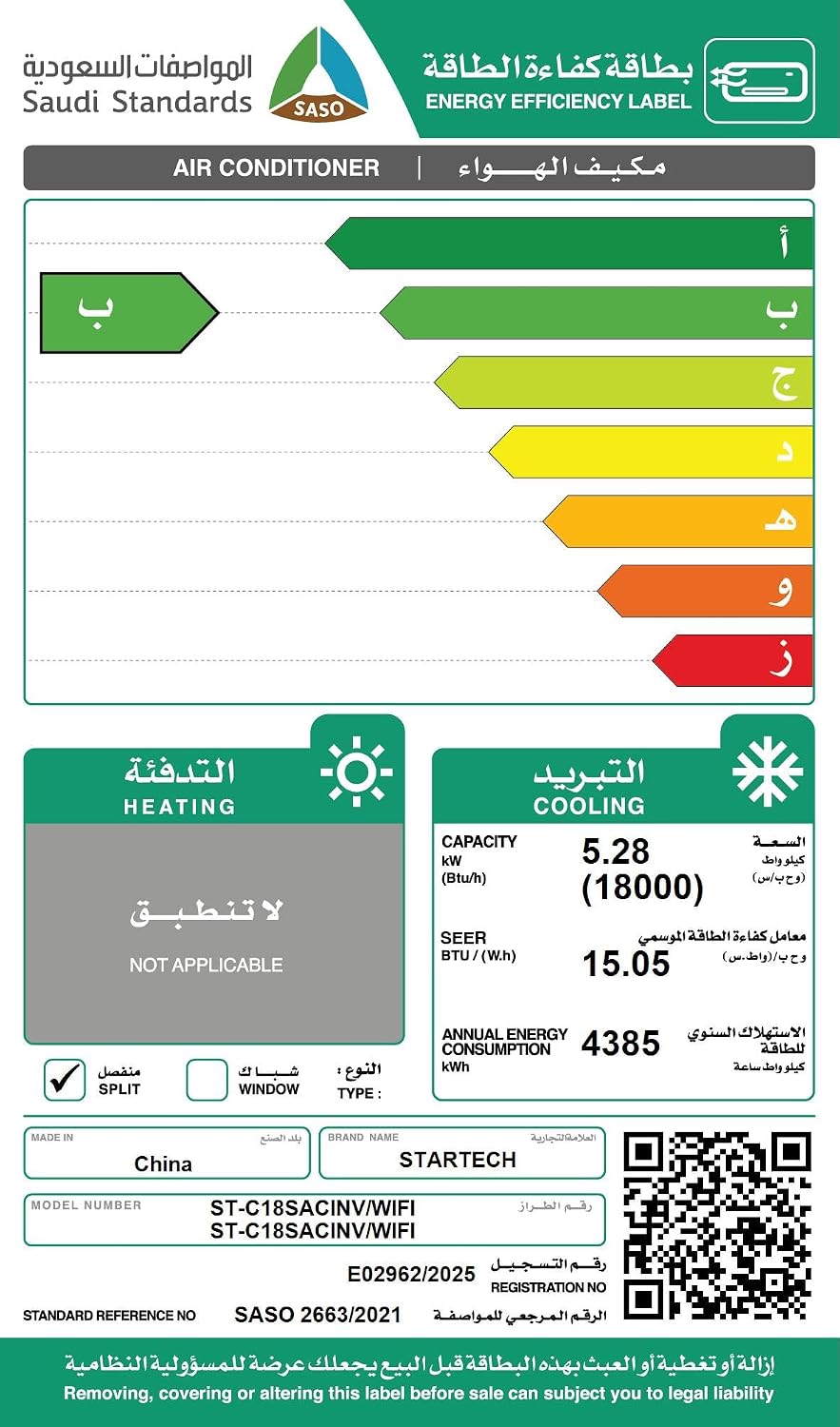
Figure 8.1: Energy Efficiency Label for StarTech ST-C18SACINV/WIFI. This label provides details on cooling capacity (18000 BTU), SEER, annual energy consumption (4385 kWh), and the energy efficiency rating (B).
For more details on the energy efficiency certificate, visit: sls.gov.sa Certificate Authentication
9. Warranty and Support
Your StarTech Inverter Split Air Conditioner comes with a 10-year warranty on the compressor, ensuring long-term reliability and peace of mind. Please refer to your warranty card for full terms and conditions.
For technical support, service requests, or warranty claims, please contact your local StarTech authorized service center or the retailer where you purchased the product. Keep your purchase receipt and model information handy when contacting support.