
1. Introduction
The JAIOTlink D1 5-in-1 Smart Lock offers advanced security and convenience for your home. This keyless entry deadbolt integrates multiple access methods, a built-in camera, and a doorbell, providing a comprehensive solution for modern smart homes. This manual will guide you through the installation, setup, operation, and maintenance of your smart lock.
2. Product Overview & Features
The JAIOTlink D1 Smart Lock combines five secure unlocking methods with integrated smart features:
- 5-in-1 Keyless Smart Lock: Offers fingerprint recognition, passcode entry, IC card, mechanical key, and remote app control.
- Fast Fingerprint Unlock: High-precision sensor recognizes fingerprints in less than 0.5 seconds with over 99% accuracy, featuring an anti-spoofing algorithm.
- Anti-Peep Virtual Code: Protects your privacy by allowing random digits before or after your real password.
- App & Compatible with Alexa: Remote unlocking, real-time alerts for tampering, forced entry, or low battery, and access to unlock history via app or voice commands.
- Built-in Doorbell Camera, Voice Changer & 2-Way Audio: HD camera captures snapshots when the doorbell rings, sending them to your phone. Two-way audio with voice changer for secure communication with visitors.
- Rechargeable Battery: Extended use with smart low battery alerts via the app.
- Weather-Resistant: Engineered for outdoor installation, withstanding rain, dust, and temperature changes.
- Multi-User Code Management: Create permanent, temporary, or one-time codes for various users and monitor access history.

Image: The JAIOTlink D1 Smart Lock highlighting its five versatile unlocking methods.

Image: Fingerprint unlocking on the JAIOTlink D1 Smart Lock, demonstrating quick recognition.

Image: Anti-peeping password feature in use on the JAIOTlink D1 Smart Lock.
3. Setup & Installation
Follow these steps for proper installation of your JAIOTlink D1 Smart Lock. Ensure the door surface is clean and flat before beginning.
3.1. Installation Video Guide
Video: Detailed guide on how to install the JAIOTlink D1 Smart Lock.
3.2. Step-by-Step Installation
- Mount the Lock Body:
- Ensure the 'UP' marking on the latch faces upward.
- Insert the latch into the door edge and secure it with screws.

Image: Door dimensions and lock components for easy installation.
- Install Studs & Front Panel Wires:
- Tighten the bolts to ensure stability of the front panel.
- Pass the data cables through the bottom of the lock body.
- Apply Rear Seal & Attach Cover:
- Align the front and back panels horizontally.
- Tighten the three connecting screws to secure the panels.
- Connect Data Cable & Fix Rear Panel:
- Gently connect the data cable without pulling it.
- Secure the three screws in place on the rear panel.
3.3. Adding an Administrator & App Connection
Before connecting to Wi-Fi, an administrator must be added to the lock.
- Add Administrator:
- Wake up the door lock keypad.
- Press the '*' key followed by the '#' key.
- Input the initial administrator information: 123456, then press the '#' key to confirm.
- Press '1' to enter administrator settings.
- Press '1' again to add an administrator.
- Enter your desired administrator password, then re-enter it. The voice prompt will confirm "001 entered successfully."

Image: Keypad instructions for adding an administrator.
- Connect to the App:
- Download the Tuya app from Google Play or the App Store.
- Enable Wi-Fi and Bluetooth on your mobile phone.
- On the lock keypad, press the '*' key followed by the '#' key.
- Input your administrator password, then press '#'.
- Press '3' to enter network settings.
- Press '1' to connect via hotspot. The keypad's '5' key will now flash.
- The device should be automatically detected via Bluetooth in the Tuya app. Follow the in-app instructions to add the device and enter your Wi-Fi network name and password.
Video: Guide on how to connect and work with the Tuya APP.
4. Operating Instructions
4.1. Unlocking Methods
- Fingerprint: Place your registered finger on the sensor.
- Passcode: Enter your registered passcode on the keypad.
- IC Card: Tap your registered IC card on the designated area.
- Mechanical Key: Use the physical key as a backup.
- App Control: Unlock remotely via the Tuya app.
4.2. Smart Features
- Remote Control via App: Unlock from anywhere, receive instant alerts, and view unlock history.
- Voice Control: Compatible with Alexa for voice commands (e.g., "Alexa, open the front door!").
- Doorbell Camera & 2-Way Audio: When the doorbell is pressed, the HD camera captures a snapshot and sends it to your phone. Use two-way audio with a voice changer to communicate with visitors.

Image: Remote control and two-way audio functionality via the app.
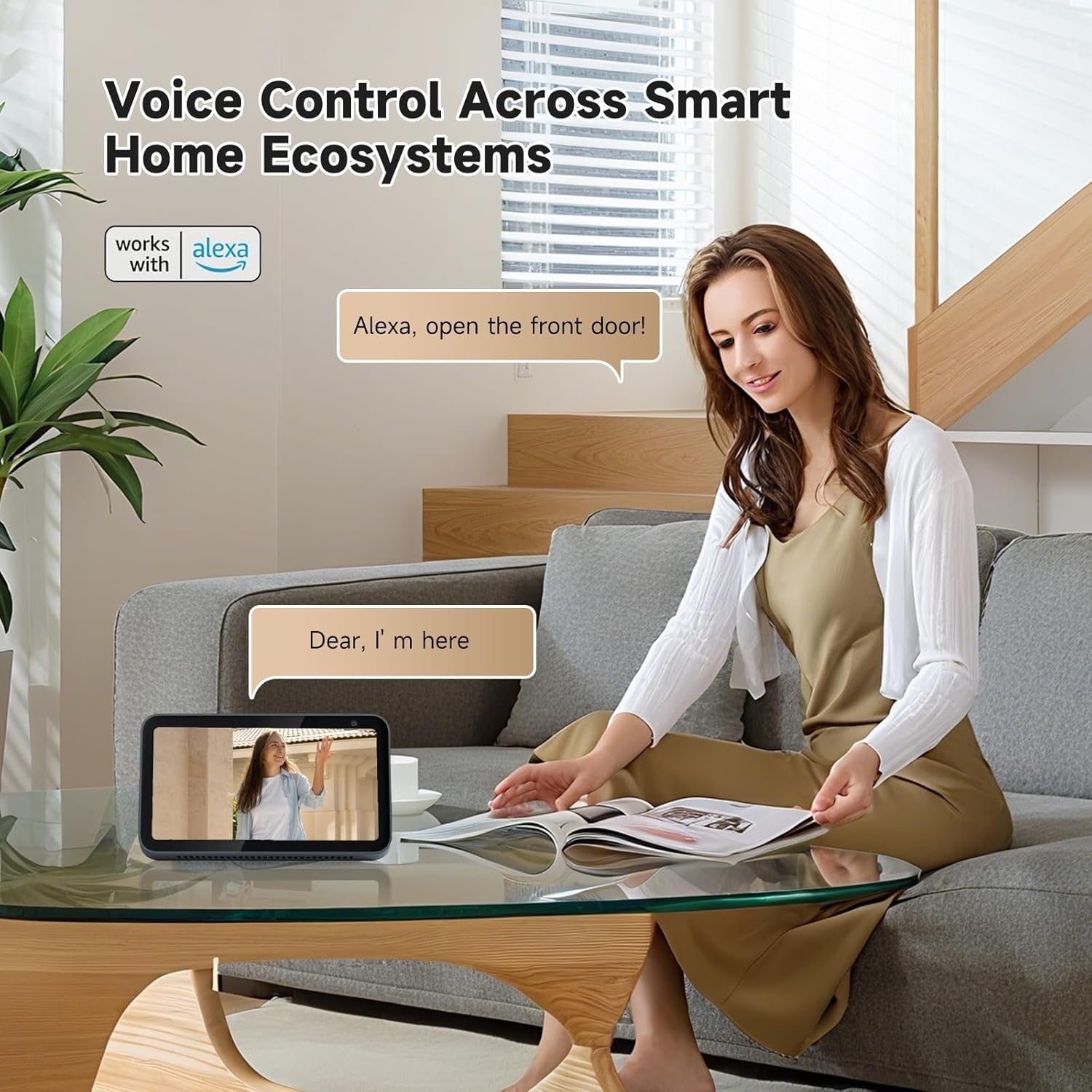
Image: Voice control integration with Alexa.
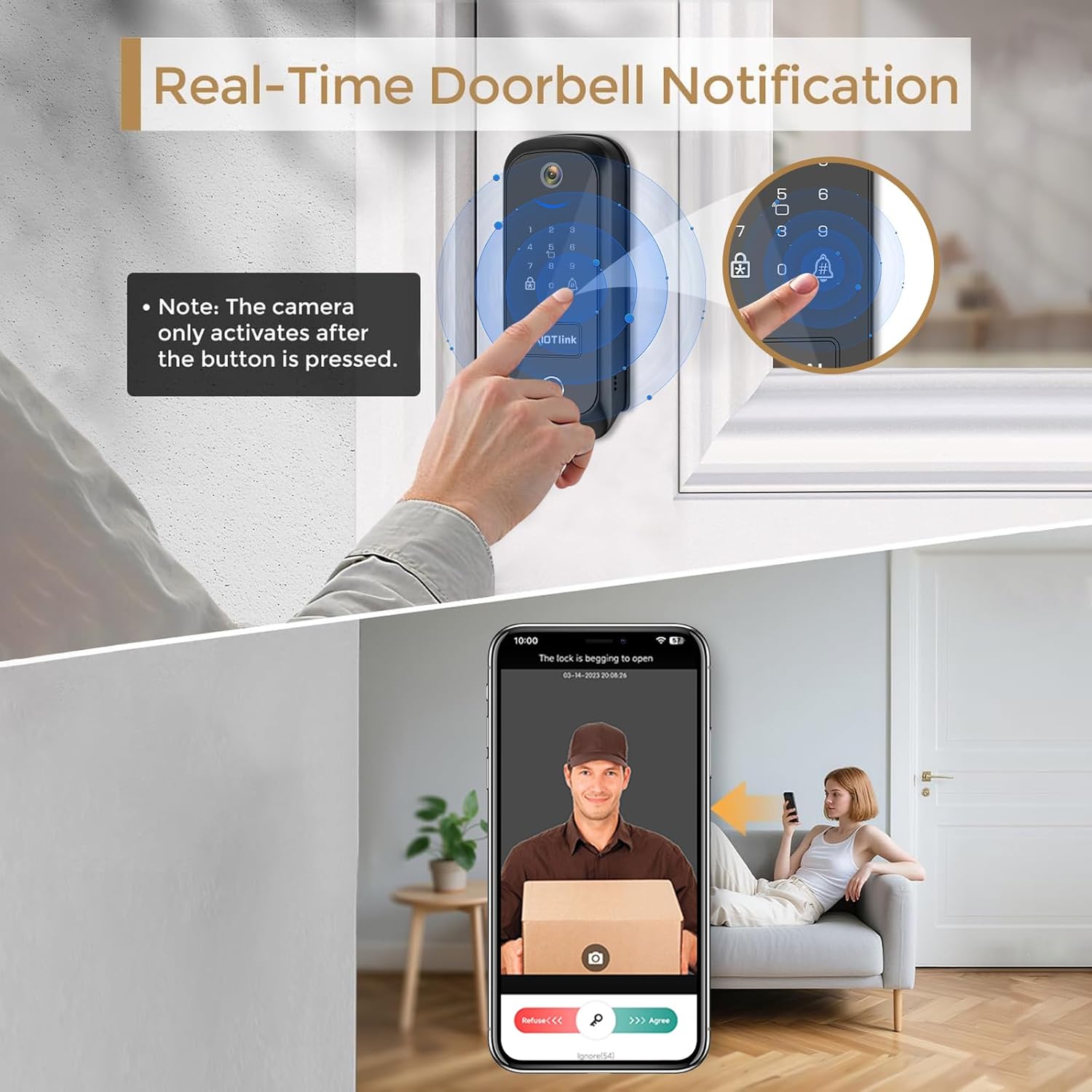
Image: Real-time doorbell notification on a smartphone.

Image: Direct Wi-Fi connection with router for remote access.

Image: Mute Mode feature for quiet operation.
5. Maintenance
5.1. Battery Management
The smart lock is equipped with a rechargeable lithium battery. The app will notify you when the battery is running low to prevent accidental lockouts.

Image: Built-in rechargeable battery for long-lasting performance.

Image: Low battery alert and emergency Type-C port for charging.
5.2. Weather Resistance
The front lock is IP65 waterproof and designed to operate in temperatures from -4°F to 140°F, ensuring reliable performance in various weather conditions.

Image: Weather resistance features of the JAIOTlink D1 Smart Lock.
6. Troubleshooting
If you encounter issues with your JAIOTlink D1 Smart Lock, consider the following:
- Connection Issues: Ensure your Wi-Fi network is stable and that you have correctly entered the network name and password during app setup. Verify that an administrator has been added to the lock before attempting Wi-Fi pairing.
- Fingerprint Reader: If the fingerprint reader is unreliable, ensure your finger is clean and dry, and try re-registering your fingerprint.
- Temporary Pin Removal: The system allows for management of temporary pins. Refer to the app's member management section to delete or modify temporary access codes.
- Doorbell Camera Activation: The camera activates when the doorbell button is pressed. It is not motion-sensing.
- Low Battery: If the lock is unresponsive, the battery may be depleted. Use the emergency Type-C port for power or replace the rechargeable battery.
7. Specifications
| Brand | JAIOTlink |
| Model Name | D1 |
| Lock Type | Biometric, Combination Lock, Deadbolt, Keypad |
| Special Feature | Anti-Peeping Password, Auto-Lock, Back-Lit Keypad, Fingerprint, Passcode Unlock |
| Material | Aluminum |
| Color | Black |
| Item Dimensions L x W x H | 2.7 x 1.2 x 6.7 inches |
| Item Weight | 2.53 pounds (1.15 Kilograms) |
| Batteries | 1 Lithium Ion battery required (included) |
| Connectivity Protocol | Wi-Fi |
| Controller Type | Amazon Alexa, Android, iOS |
| Included Components | Back Plate*1, Front Plate*1, Hardware Assembly*1, Key *2, IC card *2, User Guide*1 |
8. Warranty & Support
JAIOTlink is committed to providing quality products and customer satisfaction.
- Warranty: 1 Year Warranty.
- Returns: Free 30-day refund/replacement.
- Customer Service: 24-hour customer support available.
- Email Support: E-Mingxun@outlook.com

Image: JAIOTlink customer support details.