
1. Introduction
Thank you for purchasing the EraVortx XF40H Handheld Game Console. This device is designed to provide a portable and immersive retro gaming experience with its high-performance hardware and extensive game library. Please read this manual carefully to ensure proper setup, operation, and maintenance of your console.

Image 1: The EraVortx XF40H Handheld Game Console showcasing its interface with different game genres like Puzzle, Leisure, Fighting, Racing, Adventure, and Sports.
2. Safety Information
To ensure safe operation and prevent damage to the device, please observe the following safety guidelines:
- Do not expose the device to extreme temperatures, direct sunlight, or high humidity.
- Avoid dropping or subjecting the device to strong impacts.
- Keep the device away from water and other liquids.
- Do not attempt to disassemble or modify the device. This will void the warranty.
- Use only the provided charging cable and a compatible power adapter (not exceeding 5V2A).
- Supervise children during use to prevent misuse.
- If the device overheats, discontinue use immediately and allow it to cool down.
3. What's in the Box
Your EraVortx XF40H package includes the following items:
- 1x XF40H Handheld Game Console
- 1x Organizer Bag
- 1x Type-C Charging Cable
- 1x 128GB TF Card (pre-installed)
- 1x Screen Film (pre-applied)
- 1x User Manual
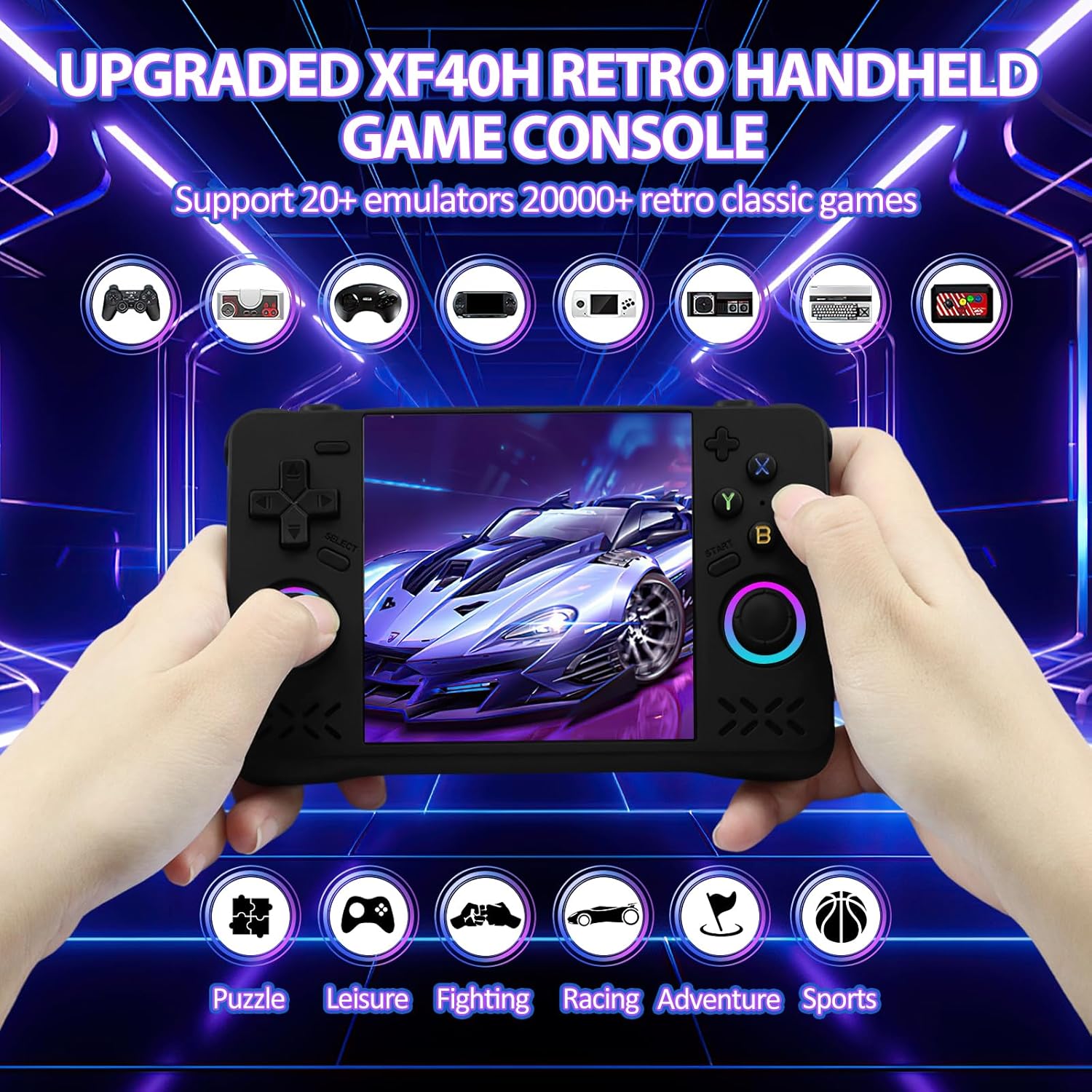
Image 2: The complete packing list for the XF40H console, showing the console, Type-C charging cable, storage case, 128GB TF card, screen film, and user manual.
4. Product Overview
Familiarize yourself with the buttons and ports of your XF40H console:

Image 3: A detailed view of the XF40H console highlighting the L1/L2 keys, headphone jack, OTC jack, R1/R2 keys, charging interface, volume keys, direction key, select key, left joystick, horn, vibration motor, Y/X/A/B keys, power indicator, start key, and right joystick.
Controls:
- Direction Key (D-Pad): For directional input in games and menu navigation.
- Left/Right Joysticks: Analog input for precise movement.
- Y/X/A/B Buttons: Action buttons for gameplay.
- L1/L2/R1/R2 Keys: Shoulder buttons for additional game controls.
- SELECT Key: Used for various in-game functions or menu selections.
- START Key: Used to pause games, confirm selections, or start gameplay.
- Volume Keys: Adjust the audio output level.
- Power Indicator: Shows the device's power status.
Ports:
- Charging Interface (Type-C): For charging the console.
- Headphone Jack (3.5mm): For private audio listening.
- OTC Jack: For connecting external devices.
5. Setup
5.1 Initial Charging
Before first use, fully charge your XF40H console. Connect the provided Type-C charging cable to the console's charging interface and the other end to a compatible USB power adapter (not included, max 5V2A). The red light will indicate charging and turn off when fully charged.
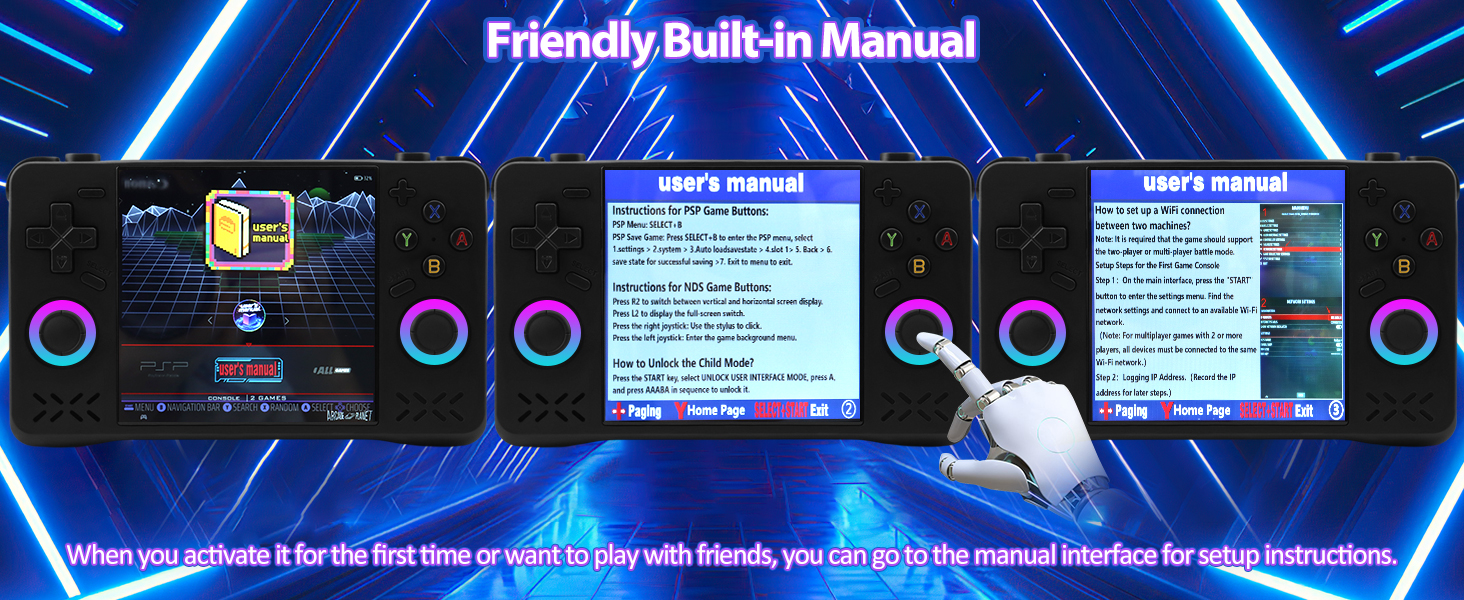
Image 4: Visual guide for charging the XF40H console, indicating the red light for charging and its automatic turn-off upon full charge. Important note: Do not press the reset button during charging.
5.2 Powering On/Off
- To Power On: Press and hold the Power button until the screen lights up.
- To Power Off: Press and hold the Power button, then select 'Power Off' from the options.
6. Operating Instructions
6.1 Navigating the Menu
The XF40H runs on an open-source Linux system. Use the D-Pad or joysticks to navigate through the main menu and select different emulators or game categories. Press the 'A' button to confirm a selection and 'B' to go back.
6.2 Playing Games
Select an emulator from the main menu, then browse the list of preloaded games. Select a game to start playing. The console supports over 20,000 retro classics across multiple emulators.
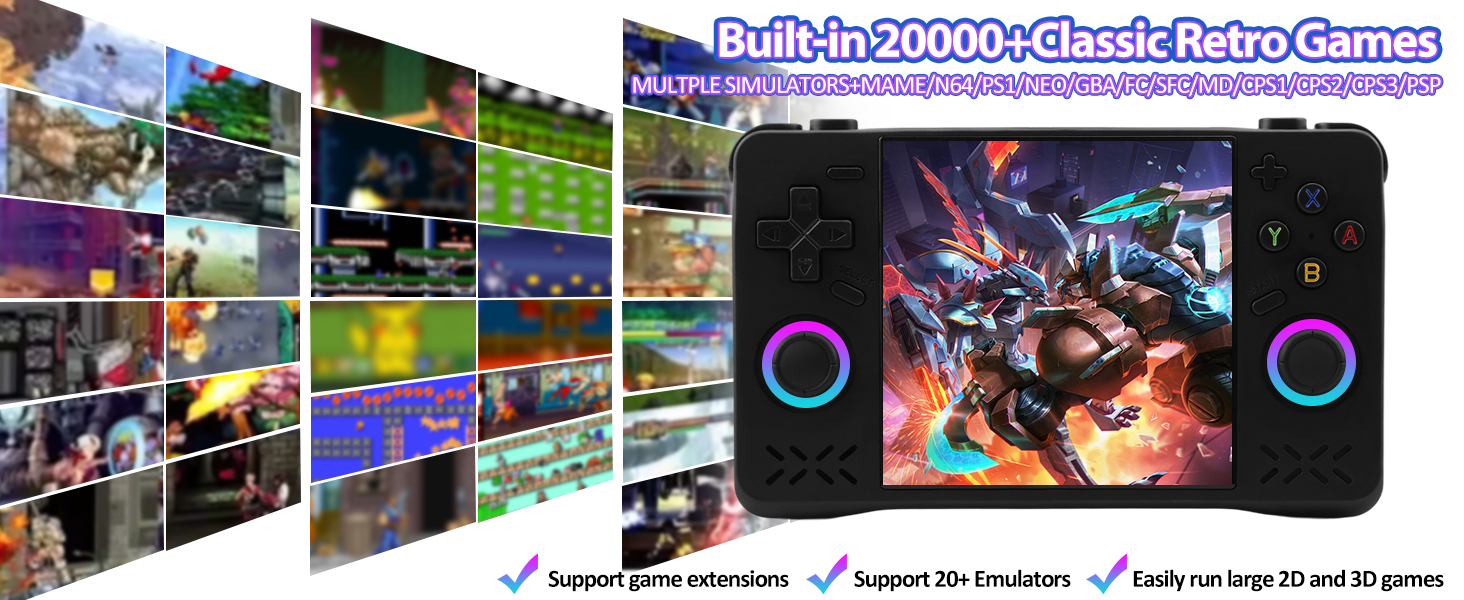
Image 5: The XF40H console showing a game in progress, with a menu on the left listing various emulators like Dreamcast, GameGear, NeoGeo, PlayStation, and PSP.
6.3 In-Game Shortcuts
The XF40H features essential hotkeys for enhanced gameplay:
| Action | Shortcut Combination |
|---|---|
| Confirm | Key A |
| Return | Key B |
| Quick Search | Key Y |
| Main Menu | START |
| Save Game Progress | SELECT + R1 |
| Load Saved Game Progress | SELECT + L1 |
| Exit the Game | (SELECT + START) * 2 |
| Display FPS | SELECT + B |
| Pause the Game | SELECT + A |
| RA Menu | SELECT + X |
| Game Acceleration Start/Stop | SELECT + R2 |
| Game Screenshot | SELECT + Y |
Table 1: Essential Hotkey Combinations for XF40H Gameplay (except for PSP and NDS).
6.4 Wi-Fi and Multiplayer
The console supports a Wi-Fi module for online multiplayer battles. You can also connect a wired controller (not included) for local couch co-op. Refer to the built-in manual for detailed instructions on setting up Wi-Fi and multiplayer connections.

Image 6: Two XF40H consoles demonstrating Wi-Fi connection for multiplayer gaming, highlighting the ability to share the joy of couch co-op.
6.5 Built-in Manual
For detailed setup instructions, especially for Wi-Fi and multiplayer, access the friendly built-in manual on the console. This manual provides specific guidance for various functions.
Image 7: The XF40H console displaying its friendly built-in manual, which offers instructions for PSP and NDS game buttons, and guidance on setting up Wi-Fi connections.
7. Maintenance
7.1 Cleaning
Use a soft, dry cloth to clean the console's exterior. Do not use liquid cleaners or abrasive materials. For the screen, use a microfiber cloth designed for electronics.
7.2 Storage
When not in use, store the console in its organizer bag in a cool, dry place away from direct sunlight and extreme temperatures.
8. Troubleshooting
- Device not turning on: Ensure the battery is charged. Connect to the charger and try again.
- Screen frozen: Press and hold the Power button for 10 seconds to force a restart.
- Games not loading: Ensure the TF card is properly inserted. Some games may require specific emulator settings, refer to the built-in manual.
- Poor Wi-Fi connection: Ensure the console is within range of a strong Wi-Fi signal. Check router settings if necessary.
9. Specifications
| Feature | Detail |
|---|---|
| System | Open Source Linux System |
| Emulators Supported | MAME, N64, PS1, PSP, DC, NDS, GBC, SFC, NEOGEO, GBA, IFC, ISFC, IMDI, CPS1, CPS2, CPS3 |
| Screen | 4.0-inch IPS OCA full fit HD MIPIScreen |
| Resolution | 720x720 |
| CPU | RK3326 ARM 64bit quad core Cortex-A35 CPU up to 1.5GHz |
| GPU | Mali-G31MP2 (520MHz), Support for OpenGL ES 3.2 |
| RAM | 1GB+8GB EMMC |
| TF Card | 128GB (included), supports 16GB-256GB |
| Horn | Built-in 8Ω1W Cavity Horn |
| Vibration Motor | Rated speed: 13000+3000 RPM, Vibration Level: 1G |
| Wi-Fi | 2.4G WiFi 802.11B/G/N |
| Battery | Built-in 4000mAh rechargeable battery |
| Input Power | 5V1.5-2A |
| Maximum Power Consumption | 5W |
| Battery Life | 6-8 Hours |
| Charging Time | 2 Hours |
| Type-C Charging Interface | Support |
| Type-C OTG Data Port | Support |
| Earphone | Standard 3.5mm Interface |
Table 2: Technical Specifications of the EraVortx XF40H Handheld Game Console.

Image 8: The XF40H console's back panel, emphasizing its 4000mAh built-in battery for 6-8 hours of gameplay after a 2-hour charge.
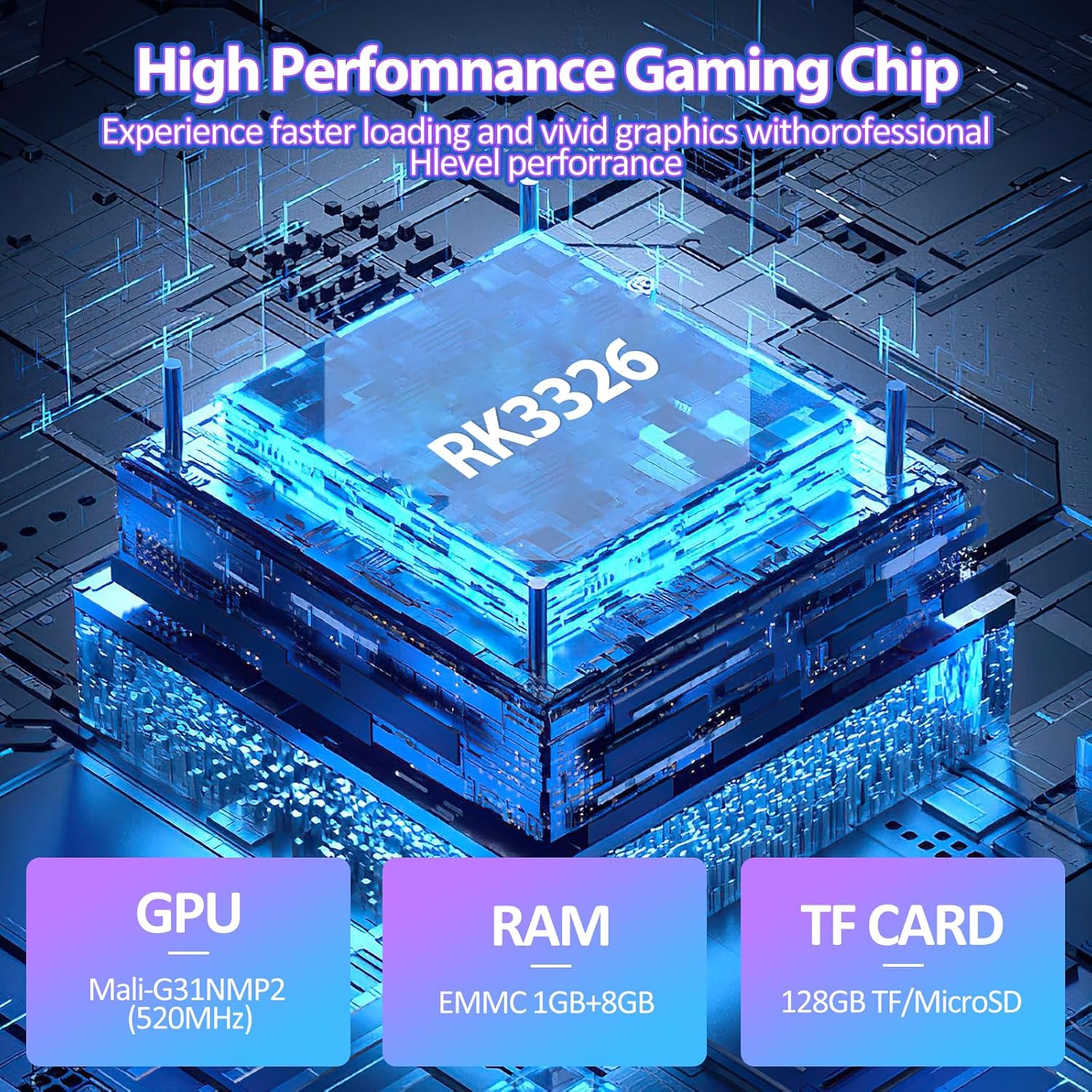
Image 9: An internal view of the XF40H console's high-performance gaming chip (RK3326), detailing its Mali-G31MP2 GPU, 1GB+8GB EMMC RAM, and 128GB TF card.
10. Warranty and Support
For warranty information and customer support, please refer to the documentation included in your product package or visit the official EraVortx website. If you encounter any issues not covered in this manual, please contact EraVortx customer service for assistance.
11. Official Product Videos
11.1 Game Console Screen Protector Effect Demonstration
Video 1: This video demonstrates the effect of the screen protector on the game console, showing its clarity and protection.
11.2 Anbernic RG35XX H Retro Handheld Game Consoles
Video 2: This video provides an overview of the Anbernic RG35XX H retro handheld game console, showcasing its design and features.
11.3 XF43 Retro Handheld Game Console
Video 3: This video presents the XF43 retro handheld game console, highlighting its various functionalities and design aspects.