
1. Product Overview
The Dell Inspiron 14 7440 is a versatile 2-in-1 business laptop designed to adapt to various user needs. Its flexible hinge allows for seamless transitions between laptop, tent, stand, and tablet modes, making it suitable for productivity, entertainment, and creative tasks. This manual provides essential information for setting up, operating, maintaining, and troubleshooting your device.
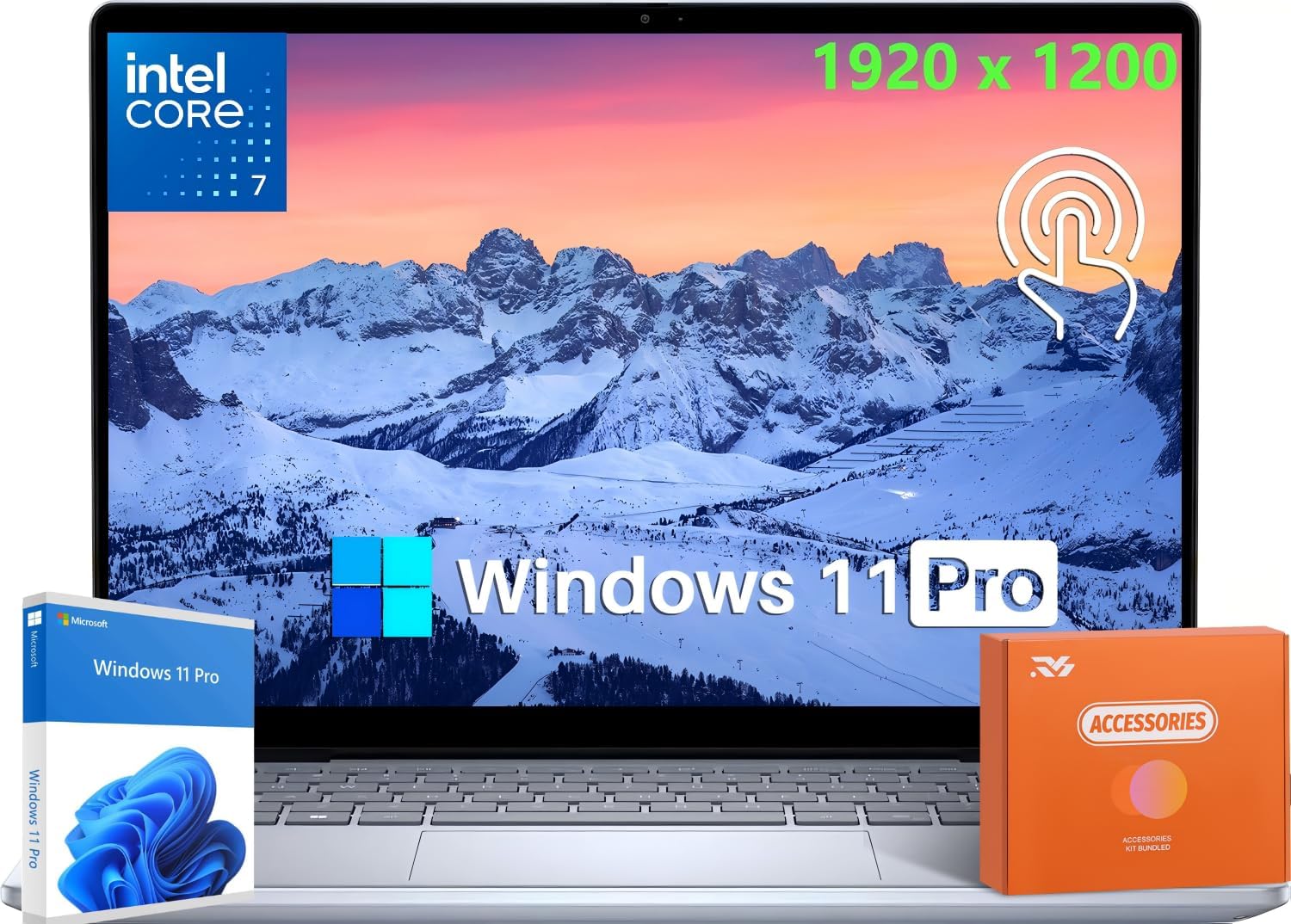
Figure 1.1: Dell Inspiron 14 7440 2-in-1 Laptop with Windows 11 Pro interface and bundled accessories. This image showcases the laptop's display, keyboard, and accompanying software and hardware components.
Key Features:
- Processor: Intel Deca-Core 7 150U Processor for efficient performance.
- Display: 14" FHD+ (1920 x 1200) LED Touchscreen with 16:10 aspect ratio.
- Memory & Storage: Up to 64 GB DDR5 RAM and 2 TB PCIe NVMe M.2 SSD for fast multitasking and ample storage.
- Operating System: Pre-installed with Windows 11 Pro for enhanced productivity and security.
- Versatile Design: 360° flip and fold design supports laptop, tent, stand, and tablet modes.
- Connectivity: Wi-Fi 6E, Bluetooth, multiple USB Type-C and Type-A ports, HDMI, and universal audio port.
- Webcam & Audio: Integrated Widescreen FHD (1080p) Webcam and 2 tuned speakers with Dolby Atmos Core and Waves MaxxAudio Pro.
2. Setup Guide
2.1 Unboxing and Initial Inspection
Carefully remove your Dell Inspiron 14 7440 laptop and its accessories from the packaging. Verify that all components listed in the "What's in the Box" section are present and undamaged.
What's in the Box:
- Dell Inspiron 14 7440 2-in-1 Laptop
- 65W AC adapter (USB Type-C)
- Documentation and Accessories
2.2 Powering On and Initial Setup
- Connect Power: Plug the 65W USB Type-C AC adapter into the laptop's USB Type-C port and then into a power outlet.
- Power On: Open the laptop lid or press the power button located on the side of the chassis.
- Windows Setup: Follow the on-screen instructions to complete the Windows 11 Pro initial setup. This includes selecting your region, connecting to a Wi-Fi network, creating a user account, and configuring privacy settings.
- Updates: After setup, it is recommended to check for and install any available Windows updates and Dell driver updates to ensure optimal performance and security.
3. Operating Your Laptop
3.1 Understanding 2-in-1 Modes
The Dell Inspiron 14 7440 features a 360° hinge, allowing it to transform into four distinct modes:
- Laptop Mode: Standard laptop configuration for typing and traditional computing tasks.
- Tent Mode: Ideal for watching movies or presentations in confined spaces.
- Stand Mode: Perfect for touch-based interactions, presentations, or video calls.
- Tablet Mode: Fully folded back for use as a tablet, great for browsing, drawing, or note-taking.

Figure 3.1: The 360° hinge provides versatile usability, allowing the laptop to be used in four different modes: traditional laptop, tent, stand, and tablet. This flexibility enhances user experience for various activities.

Figure 3.2: The laptop in tent mode, showcasing the Windows 11 interface. This mode is ideal for media consumption or presentations.

Figure 3.3: The laptop in stand mode, displaying media content. This configuration is suitable for touch interactions and viewing.
3.2 Using the Touchscreen and Touchpad
The 14" FHD+ touchscreen allows for intuitive navigation and interaction with Windows 11 Pro. Use multi-touch gestures for zooming, scrolling, and switching applications. The precision touchpad supports multi-finger gestures for enhanced control.

Figure 3.4: Dell ComfortView software solution helps reduce harmful blue light emissions, enhancing eye comfort during extended viewing times.
3.3 Connecting External Devices
Your laptop is equipped with various ports for connecting peripherals:
- USB Type-C 3.2 Gen 2 (10 Gbps): 2 ports with Power Delivery and DisplayPort 1.4 support. Use these for high-speed data transfer, charging, and connecting external displays.
- USB 3.2 Gen 1 Type-A: 2 ports for connecting standard USB devices like mice, keyboards, or external drives.
- HDMI 1.4: 1 port for connecting to external monitors or projectors.
- Universal Audio Port: 1 port for connecting headphones or a headset with a microphone.
4. Maintenance and Care
4.1 Cleaning Your Laptop
- Screen: Use a soft, lint-free cloth lightly dampened with water or a screen cleaner. Do not spray liquid directly onto the screen.
- Keyboard and Chassis: Use a soft, dry cloth. For stubborn dirt, a slightly damp cloth with mild soap solution can be used, ensuring no liquid enters openings.
- Ports: Keep ports free of dust and debris. Use compressed air if necessary, but avoid direct contact with internal components.
4.2 Battery Care
To maximize battery life and longevity:
- Avoid extreme temperatures.
- Do not fully discharge the battery frequently.
- If storing the laptop for an extended period, charge the battery to about 50-60%.
- Use only the original Dell 65W AC adapter.
4.3 Software Updates
Regularly update your Windows 11 Pro operating system and Dell drivers. This ensures your system has the latest security patches, performance improvements, and feature enhancements. You can check for Windows updates via Settings > Windows Update, and Dell updates via the Dell SupportAssist application.
5. Troubleshooting
This section addresses common issues you might encounter with your Dell Inspiron 14 7440.
5.1 Power and Boot Issues
- Laptop does not turn on: Ensure the AC adapter is securely connected to both the laptop and a working power outlet. Try a different outlet. If the battery is completely drained, it may take a few minutes to show signs of life after plugging in.
- Laptop turns on but no display: Connect an external monitor to the HDMI port to check if the issue is with the laptop's display. Try restarting the laptop by holding the power button for 15 seconds.
5.2 Performance Issues
- Slow performance: Check Task Manager (Ctrl+Shift+Esc) for high CPU, RAM, or disk usage by applications. Close unnecessary programs. Ensure Windows and drivers are up to date.
- Overheating: Ensure the laptop's vents are not blocked. Use the laptop on a hard, flat surface. Excessive heat can lead to performance throttling.
5.3 Connectivity Issues
- Wi-Fi not connecting: Verify Wi-Fi is enabled (Fn + F2 or through Windows settings). Restart your router and the laptop. Check network adapter drivers.
- USB devices not recognized: Try connecting the device to a different USB port. Ensure device drivers are installed. Restart the laptop.
For more complex issues, refer to Dell's official support website or contact Dell technical support.
6. Technical Specifications
Detailed specifications for the Dell Inspiron 14 7440 2-in-1 Business Laptop:

Figure 6.1: Key internal specifications including Intel Core™ 7 Processor 150U, 2 TB PCIe NVMe SSD, 64 GB DDR5 Memory, and Intel® Graphics.
| Component | Specification |
|---|---|
| Processor | Intel Deca-Core 7 150U (1.8 to 5.4 GHz, 10 Cores, 12 Threads, 12 MB Cache) |
| Display | 14" FHD+ (1920 x 1200) LED, 16:10, Touch, 60Hz |
| Graphics | Integrated Intel Graphics |
| Memory (RAM) | 64 GB DDR5 5200 MHz RAM (2 x 32 GB) |
| Storage | 2 TB PCIe NVMe M.2 SSD |
| Networking | Intel Wi-Fi 6E + Bluetooth |
| Operating System | Windows 11 Pro |
| Camera | Integrated Widescreen FHD (1080p) Webcam with Dual Digital Microphone Array |
| Audio | 2 tuned speakers, Dolby Atmos Core and Waves MaxxAudio Pro |
| Ports | 2x USB Type-C 3.2 Gen 2 (PD, DP 1.4), 2x USB 3.2 Gen 1 Type-A, Universal audio port, HDMI 1.4 |
| Chassis Material | Aluminum |
| Color | Ice Blue |
| Battery | 4-Cell, 6WHr (Up to 10 hours, 20 minutes battery life) |
| Power Adapter | 65W AC adapter, USB Type-C |
| Dimensions (LxWxH) | 12.36 x 8.90 x 0.74 inches (31.39 x 22.61 x 1.88 cm) |
| Weight | 3.77 lbs (1.71 kg) |

Figure 6.2: Side profile illustrating the laptop's thickness at 18.90mm.
7. Warranty and Support
7.1 Product Warranty
Your Dell Inspiron 14 7440 laptop comes with a standard manufacturer's warranty. Please refer to the warranty documentation included with your product for specific terms, conditions, and duration. Keep your proof of purchase for warranty claims.
7.2 Technical Support
For technical assistance, driver downloads, or further troubleshooting, please visit the official Dell support website. You can find comprehensive resources, FAQs, and contact information for Dell's customer service and technical support teams.