
Introduction
The KINMRIS X10 Pro Retro Gaming Console offers a vast library of classic games and emulators in a compact, plug-and-play format. This manual provides essential information for setting up, operating, and maintaining your device, ensuring an enjoyable gaming experience.
Package Contents
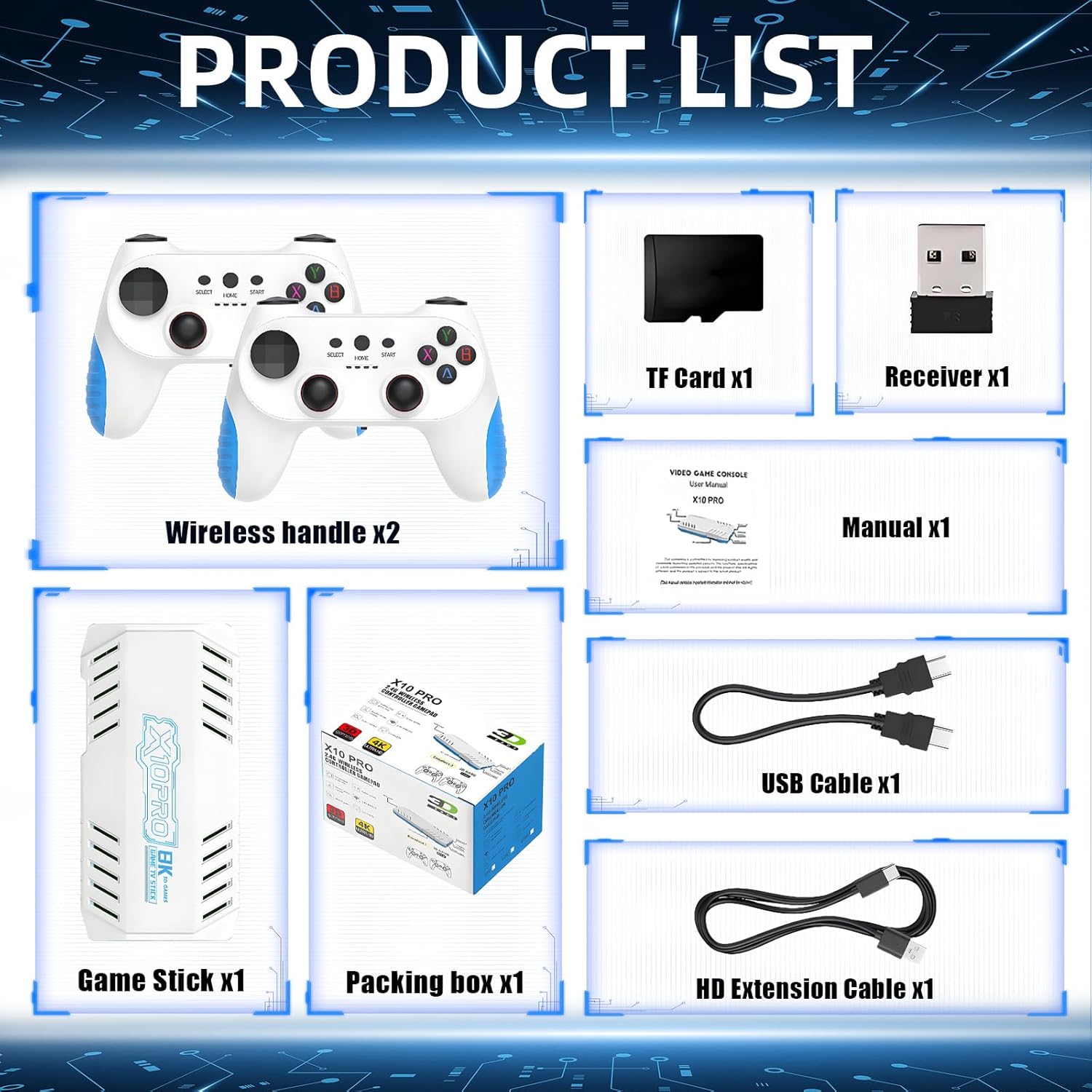
Before you begin, please verify that all items listed below are included in your package:
- 1 × Host (TV Stick)
- 1 × 128G Memory Card (pre-installed)
- 2 × Wireless Game Controllers
- 1 × USB Charging Cable
- 1 × Receiver
- 1 × HD Extension Cable
- 1 × User Manual
Product Overview
The X10 Pro Game Stick is a compact device designed for retro gaming. It connects directly to your TV via HDMI. The included wireless controllers provide an ergonomic design for comfortable gameplay, featuring personalized buttons, plastic material for reduced weight, all-region rockers, and a non-slip design.


Technical Specifications
The KINMRIS X10 Pro is equipped with advanced hardware to deliver a smooth retro gaming experience:
- CPU: Quad-core ARM Cortex-A55 2.0GHz
- GPU: Mali-G31 MP2 GPU, frequency 650MHz
- Memory: LPDDR3 2GB
- Input Voltage: 5V/2A
- External Storage: Supports external TF card, expandable to 512G
- Video Resolution: 4K/1080P/720P HD output
- Connectivity: Compatible with TVs, monitors, projectors
- Controller Type: Joystick
- Power Source: Battery Powered (for controllers)
- Material: Plastic
- Product Dimensions: 6.5 x 4.72 x 4.49 inches

Setup Instructions
Follow these steps to connect your KINMRIS X10 Pro Retro Gaming Console to your TV and begin playing:
- Connect the Game Stick: Insert the X10 Pro Game Stick into an available HDMI port on your television or display.
- Connect Power: Connect the USB power cable to the Game Stick and then to a 5V/2A USB power source (e.g., a TV USB port or a wall adapter).
- Connect Receiver: Plug the wireless receiver into one of the USB ports on the Game Stick.
- Insert Batteries: Open the battery compartment on each wireless controller and insert two AA batteries (not included).
- Select Input: On your TV, switch the input source to the corresponding HDMI port where the Game Stick is connected.
- Start Gaming: The game menu should appear on your screen. Use the wireless controllers to navigate and select games.


Video 1: A demonstration of the X10 Pro Retro Gamestick setup and initial use, showcasing its ease of connection and game library.
Operating Instructions
The X10 Pro is designed for intuitive use. Here are key operational aspects:
- Game Selection: Use the directional pad or joysticks on the wireless controller to browse through the pre-installed game library, which contains over 50,000 retro games.
- Emulator Support: The console supports over 50 emulators, providing access to a wide range of retro gaming platforms.
- Multiplayer: The included dual 2.4G wireless controllers support two-player gaming for a shared experience.
- Saving Progress: The system allows for saving game progress. Refer to the on-screen prompts within individual games for specific saving procedures.
- Exiting Games: To exit a game and return to the main menu, consult the specific emulator's controls, often involving a combination of 'Select' and 'Start' buttons.
Maintenance
Proper care will extend the life and performance of your KINMRIS X10 Pro:
- Cleaning: Use a soft, dry cloth to clean the console and controllers. Avoid liquid cleaners, solvents, or abrasive materials, as these can damage the finish or internal components.
- Storage: Store the device in a cool, dry place away from direct sunlight, high humidity, and extreme temperatures.
- Battery Care: Remove batteries from the wireless controllers if they will not be used for an extended period to prevent potential leakage and damage.
Troubleshooting
If you encounter issues with your KINMRIS X10 Pro, refer to the following common problems and solutions:
- No Display on TV:
- Ensure the Game Stick is securely connected to the HDMI port on your TV.
- Verify the TV input source is set to the correct HDMI channel.
- Confirm the USB power cable is connected to the Game Stick and receiving power from a 5V/2A source.
- Try connecting the Game Stick to a different HDMI port or another TV to rule out display issues.
- Controllers Not Responding:
- Check if batteries are correctly inserted into the controllers and have sufficient charge. Replace if necessary.
- Ensure the wireless receiver is properly plugged into one of the USB ports on the Game Stick.
- Press the 'Mode' button on the controller to ensure it is powered on and attempting to pair with the receiver.
- Game Performance Issues (Lag, Freezing):
- Ensure the Game Stick has adequate ventilation to prevent overheating, which can affect performance.
- While the console is powerful, some highly demanding retro games or specific emulators may exhibit varying performance.
Warranty and Support
For detailed warranty information, product registration, or technical assistance, please refer to the contact details provided in the original product packaging. You may also visit the official KINMRIS website for further support resources and frequently asked questions.