
1. Product Overview and Compatibility
This iCarSEPTON Android radio receiver is designed to upgrade your vehicle's infotainment system. It features a 7-inch touch screen with 2GB RAM and 32GB storage, powered by a 1.8GHz quad-core processor. Key features include Wireless CarPlay, Android Auto, Bluetooth, FM Radio, GPS Navigation, Wi-Fi connectivity, Rear View Camera support, and Steering Wheel Control compatibility.
Compatible Vehicle Models:
- Ford Edge (2007-2010)
- Ford Expedition (2007-2014)
- Ford Explorer (2006-2010)
- Ford Fusion (2006-2009)
- Ford Shelby GT500 (2007-2009)
- Ford Taurus (2008-2009)
Before purchase, verify the year, dimensions, and shape of your vehicle’s center console to ensure proper fitment.

Image: Compatibility chart for various Ford models. Green checkmarks indicate compatible dashboards, while red crosses indicate incompatible ones. This helps users confirm if their vehicle's console matches the required specifications for installation.
2. What's in the Box
The following components are included with your iCarSEPTON 7-inch Android Car Radio:
- iCarSEPTON 7-inch Android Car Radio Unit
- Back Camera
- Harness Cable
- Canbus Box
- GPS Cable
- USB Cables (x2)
- Radio Adapter
- Reverse Cable
- Instructions and Installation Guide
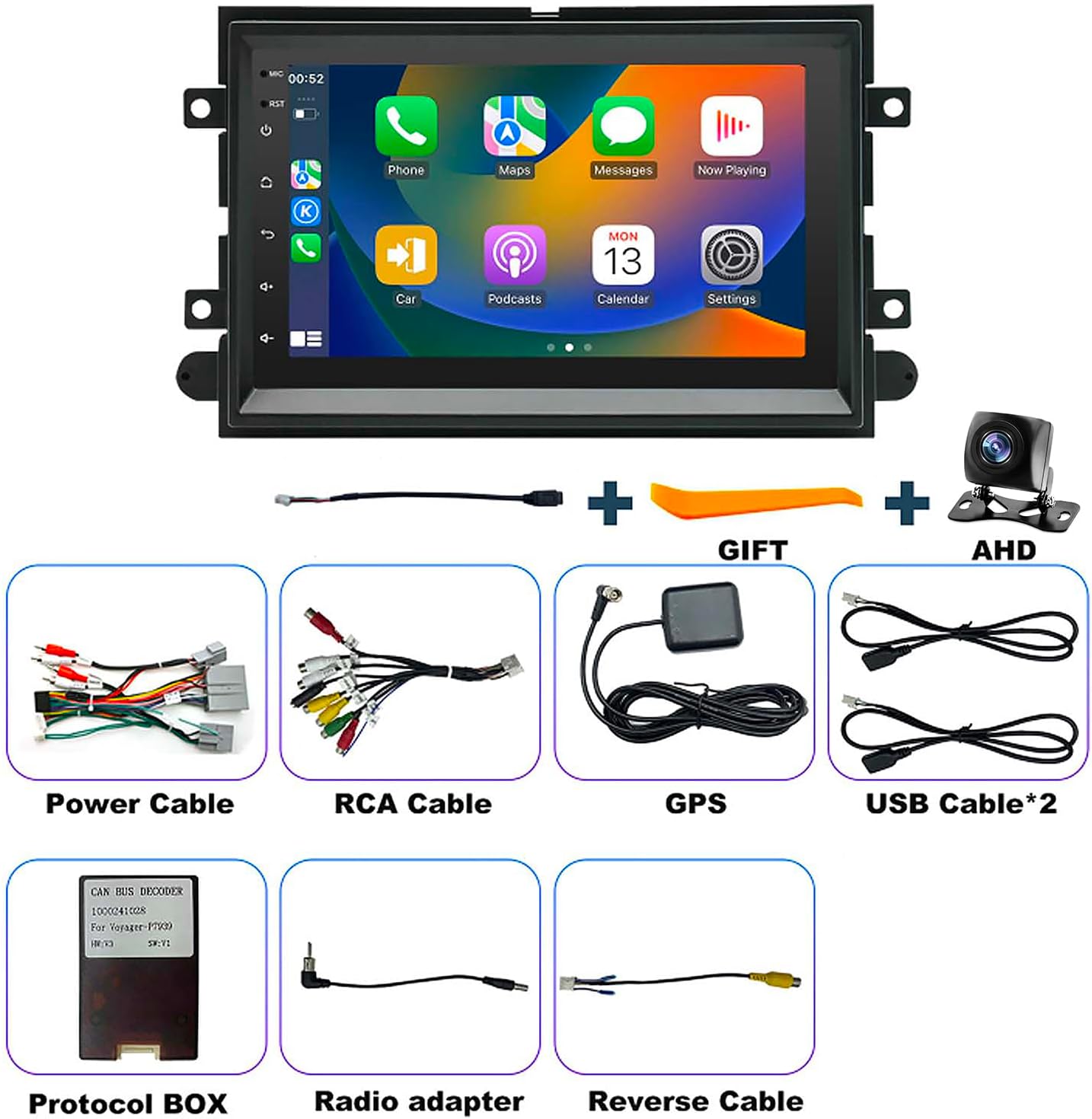
Image: All components included in the product package, such as the main radio unit, various cables (power, RCA, USB, reverse), GPS antenna, Canbus box, and a back camera.
3. Setup and Installation
Installation of the iCarSEPTON car radio is designed to be straightforward, often plug-and-play for compatible vehicles. It is recommended to consult the included installation guide for detailed, vehicle-specific instructions. Ensure all connections are secure before powering on the unit.
3.1 Wiring Connections
Refer to the wiring diagram for correct connection of all cables, including power, RCA, GPS, USB, and the reverse camera.

Image: A comprehensive wiring diagram illustrating how to connect the various cables and components to the main car radio unit, including optional connections.
3.2 Camera Cable Insertion
It is crucial to insert the camera cable into the designated port on the radio unit. This cable also functions as an enhancer for Wi-Fi and Bluetooth signals, regardless of whether a physical camera is installed.
Video: This video demonstrates the physical installation process of the iCarSEPTON car radio, including how to connect the camera cable to enhance Wi-Fi and Bluetooth signals. It shows the unit being placed into the dashboard and the final appearance.
4. Operating Instructions
4.1 System and Settings Overview
The radio operates on an Android system, providing access to various settings and applications. You can customize themes, adjust volume, set navigation preferences, and configure other system options. The system password for factory settings is 8888.
Video: A preview video demonstrating the user interface and various system settings of the iCarSEPTON car radio, including navigation through menus like System Info, Factory Settings, Car Settings, Android Settings, Volume Settings, Navigation, GPS Detection, Steering Learn, Logo Settings, and Other Settings. It also shows the EQ settings and different UI themes.
4.2 Bluetooth Connection
To connect your phone via Bluetooth:
- On the car radio, navigate to the Bluetooth settings.
- On your phone, search for Bluetooth devices and look for "CarBT".
- Enter the password 0000 on your phone when prompted.
If you encounter issues, try turning Bluetooth on and off several times on both devices, or clear previous connection records on the car radio.
Video: A preview video demonstrating how to connect a mobile phone to the iCarSEPTON car radio via Bluetooth. It shows the steps for searching for the device, entering the password '0000', and confirming the connection.
4.3 Wireless CarPlay and Android Auto
After successfully connecting your smartphone via Bluetooth, the Zlink application will automatically connect to either CarPlay (for iPhone) or Android Auto (for Android phones).
For CarPlay: Ensure the iPhone CarPlay function is open (General > CarPlay > Zlink > Open/Close CarPlay).
For Android Auto: If you cannot connect, please download the Android Auto app on your phone.

Image: Visual guide for connecting Wireless CarPlay and Android Auto, showing the steps and the resulting interface on the car radio screen.
Video: A preview video demonstrating how to connect an iPhone to the iCarSEPTON car radio for CarPlay functionality via Bluetooth. It shows the pairing process and the CarPlay interface appearing on the screen.
Video: A preview video demonstrating how to connect an Android phone to the iCarSEPTON car radio for Android Auto functionality via Bluetooth. It shows the pairing process and the Android Auto interface appearing on the screen.
4.4 Disconnecting CarPlay/Android Auto
To disconnect CarPlay or Android Auto:
- Clear background applications on the car radio by pressing the second button from the top right.
- Find the Zlink application and turn off the automatic CarPlay/Android Auto background connection.
- Alternatively, on your iPhone, go to Settings > General > CarPlay > Zlink to enable or disable CarPlay.
Video: A preview video demonstrating how to disconnect CarPlay from the iCarSEPTON car radio. It shows clearing background apps and disabling the Zlink connection.
Video: A preview video demonstrating how to disconnect Android Auto from the iCarSEPTON car radio. It shows clearing background apps and disabling the Zlink connection.
4.5 Using Bluetooth and Wi-Fi Simultaneously
To use both Bluetooth and Wi-Fi simultaneously, ensure you turn off the automatic CarPlay/Android Auto connection in the Zlink settings. If Zlink automatically connects, Wi-Fi will stop.
Video: A preview video demonstrating how to use Bluetooth and Wi-Fi simultaneously on the iCarSEPTON car radio by manually managing the Zlink connection to prevent automatic CarPlay activation.
4.6 GPS Navigation and Wi-Fi
The unit supports both online and offline maps. With Wi-Fi, you can access live navigation, accurate directions, and real-time traffic updates. You can also stream music, watch videos, and download apps.

Image: The car radio screen displaying Wi-Fi settings and a GPS navigation map, highlighting the device's connectivity and navigation capabilities.
4.7 Steering Wheel Control (SWC)
The car radio supports steering wheel controls, allowing you to manage essential functions without taking your hands off the wheel. Configuration may be required in the system settings.
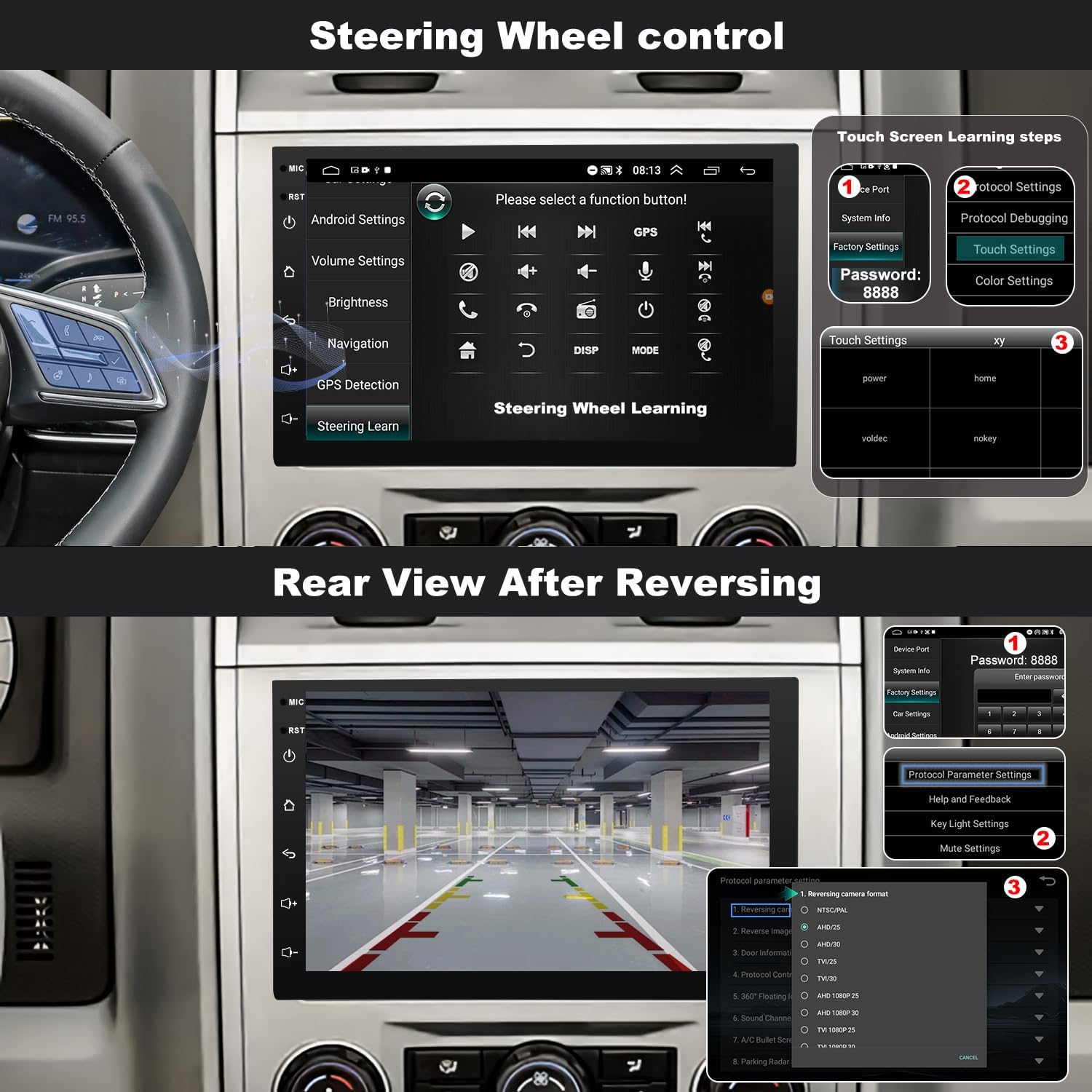
Image: The car radio screen showing the 'Steering Learn' interface, where users can program their vehicle's steering wheel buttons to control the radio functions.
4.8 Rear View Camera
The included rear view camera provides a clear view of what’s behind your car, aiding in parking and reversing. Ensure the camera is properly wired and configured in the settings.
Image: The car radio screen displaying the rear view camera feed, complete with parking guidelines, and options for adjusting reverse video resolution in the settings.
4.9 Split Screen Functionality
The split screen feature allows you to run two applications simultaneously, such as navigation and music playback, enhancing multitasking while driving.
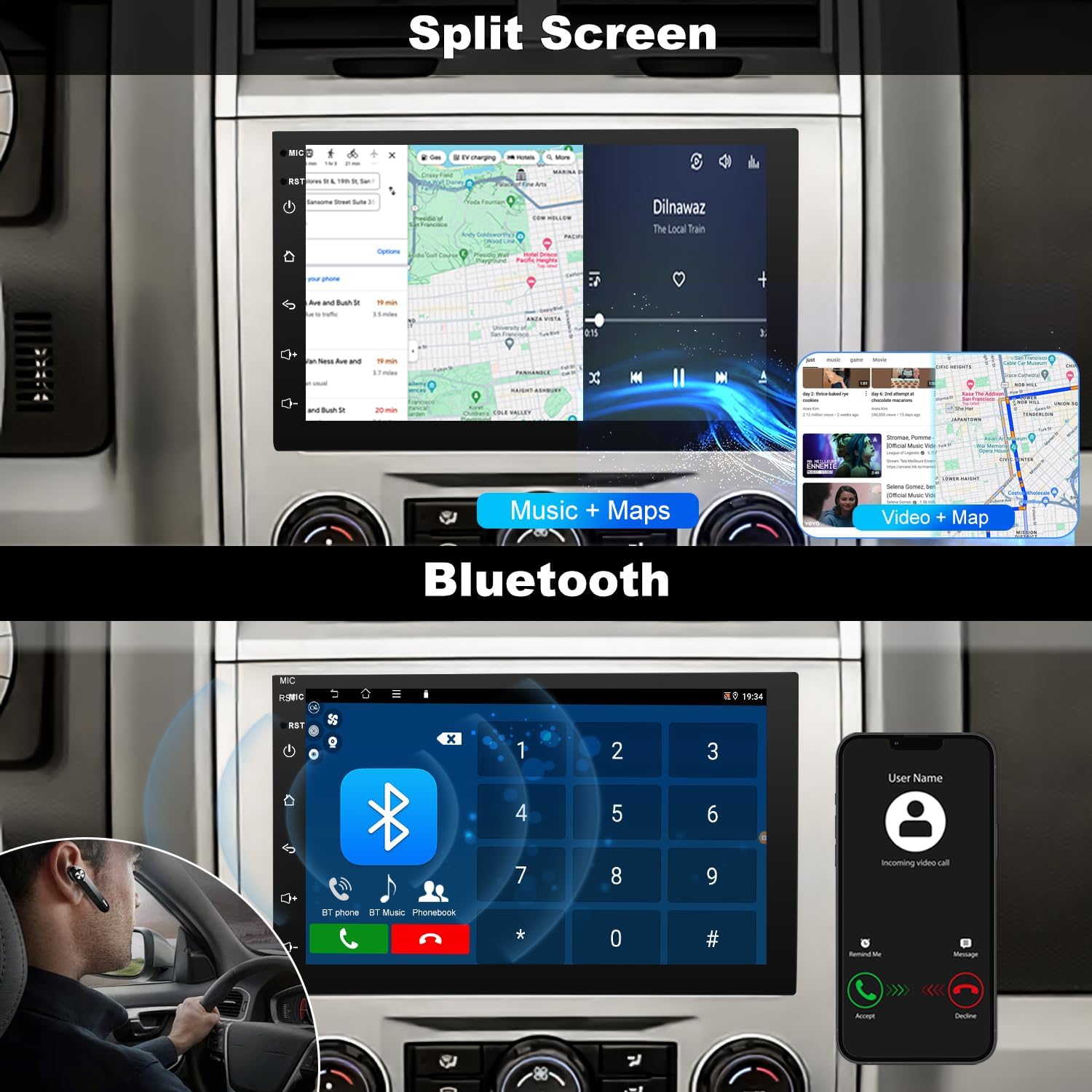
Image: The car radio screen demonstrating the split screen function, showing a map application on one side and a music player on the other, allowing for simultaneous use.
5. Troubleshooting
Refer to the following common issues and their solutions:
- Q: Why is the radio screen black or not starting?
A: Try pressing the small round RST hole with a toothpick. Check the blue/red fuse at the back to ensure it's not burnt out. Also, verify that the Canbus box is properly connected. - Q: Why is the touch screen unresponsive?
A: Use five fingers to re-calibrate the touch screen, following the instructions in the instructional video (if available). - Q: Why is there no sound?
A: Check if the speaker cables are connected incorrectly or reversed. Also, make sure the Canbus box is properly connected. - Q: Why can't Bluetooth connect? Why are the Bluetooth and Wi-Fi signals poor?
A: 1. Connect the reversing cable to the Bluetooth and Wi-Fi signal enhancer. 2. Go to "Car-BT", enter the password "0000" to connect. If needed, delete previous connection records and try again. - Q: How do I connect and disconnect CarPlay?
A: 1. Connect to Bluetooth, and Zlink will automatically connect to CarPlay. 2. Close background apps by pressing the second button from the top right. 3. Go to iPhone Settings > General > CarPlay > Zlink to enable or disable CarPlay. - Q: Why isn't the steering wheel control working?
A: 1. Check if the protocol serial port wire is reversed or missing. Also, ensure no plugs are disconnected. 2. Verify that the correct protocol is selected. - Q: Why is the reversing camera not showing?
A: 1. Check the wiring to ensure it's connected correctly, as shown in the pictures. 2. Go to Settings > Factory Settings (password 8888) > Protocol Parameter Settings > Reverse Video Resolution Settings, and select AHD/25.
6. Specifications
| Feature | Detail |
|---|---|
| Brand | iCarSEPTON |
| Display Size | 7 Inches |
| Memory Storage Capacity | 32 GB |
| Connectivity Technology | Bluetooth, USB, Wi-Fi |
| Special Features | Touch Screen & Split Screen Function, Back up camera & Steering wheel controls, Bluetooth & Voice Control, GPS Navigation & WIFI, Wireless Wired Carplay & Android Auto |
| Audio Output Mode | Stereo |
| Map Type | Worldwide |
| Item Weight | 2.65 pounds |
| Package Dimensions | 11.42 x 7.28 x 3.94 inches |
7. Warranty and Support
The iCarSEPTON car radio comes with a 12-month warranty.
Our team offers technical support for all iCarSEPTON products. If you have any questions or require assistance with your Ford Edge, Expedition, Explorer, Fusion, Shelby GT500, or Taurus accessories, please do not hesitate to reach out. We are committed to providing prompt support.
For further assistance, please contact iCarSEPTON customer service.