
1. Introduction
The Jacchozhi Face-HM01 Smart Lock is an advanced keyless entry system designed for enhanced home security and convenience. It integrates multiple unlocking methods including face recognition, palm vein scanning, fingerprint, keypad code, fob card, app remote control, and traditional mechanical key access. This manual provides detailed instructions for installation, operation, maintenance, and troubleshooting to ensure optimal performance of your smart lock.
Video 1: Jacchozhi Face-HM-01 Appearance and Features Overview. This video demonstrates the various features and the overall design of the smart lock, highlighting its multiple access methods and integrated components.
2. Safety Information
- Read all instructions carefully before installation and use.
- Do not attempt to disassemble or repair the lock yourself. Contact customer support for assistance.
- Keep the mechanical keys in a safe place outside your home.
- Ensure the battery is charged regularly to avoid power loss.
- Protect the lock from extreme temperatures and direct water exposure, although it is designed with some water resistance (IP65).
- Avoid using abrasive cleaners or solvents on the lock's surface.
3. Package Contents
Verify that all components are present before beginning installation:
- Jacchozhi Face-HM01 Smart Lock (Front and Rear Panels)
- Mortise Lock Body
- Strike Plate and Strike Box
- Mounting Screws and Hardware
- Rechargeable Battery
- Mechanical Keys (2)
- Fob Cards (2)
- Installation Template
- User Manual
4. Setup
4.1. Installation
The Jacchozhi Face-HM01 Smart Lock is designed for standard residential doors, fitting 2-3/8" or 2-3/4" backsets and door thicknesses from 1-3/8" to 2-1/8". Follow these general steps for installation. For a detailed visual guide, please refer to the installation video below.
Video 2: Jacchozhi Face-HM-01 Installation Guide. This video provides a step-by-step visual guide for installing the smart lock on your door, including preparing the door, mounting the components, and connecting the wiring.
- Prepare the Door: Ensure your door meets the specified dimensions. Use the provided template to mark and drill any necessary holes.
- Install Mortise Lock Body: Insert the mortise lock body into the door edge and secure it with screws. Ensure the square hole is horizontal.
- Attach Front Panel: Route the cables through the door and attach the front panel, aligning the spindle with the mortise.
- Attach Mounting Plate: Secure the mounting plate to the door, ensuring the cables are not pinched.
- Connect Cables: Connect the cables from the front panel to the rear panel.
- Attach Rear Panel: Secure the rear panel to the mounting plate.
- Install Battery: Insert the rechargeable battery into the battery compartment.
- Test Functionality: Test all unlocking methods and ensure the lock operates smoothly.
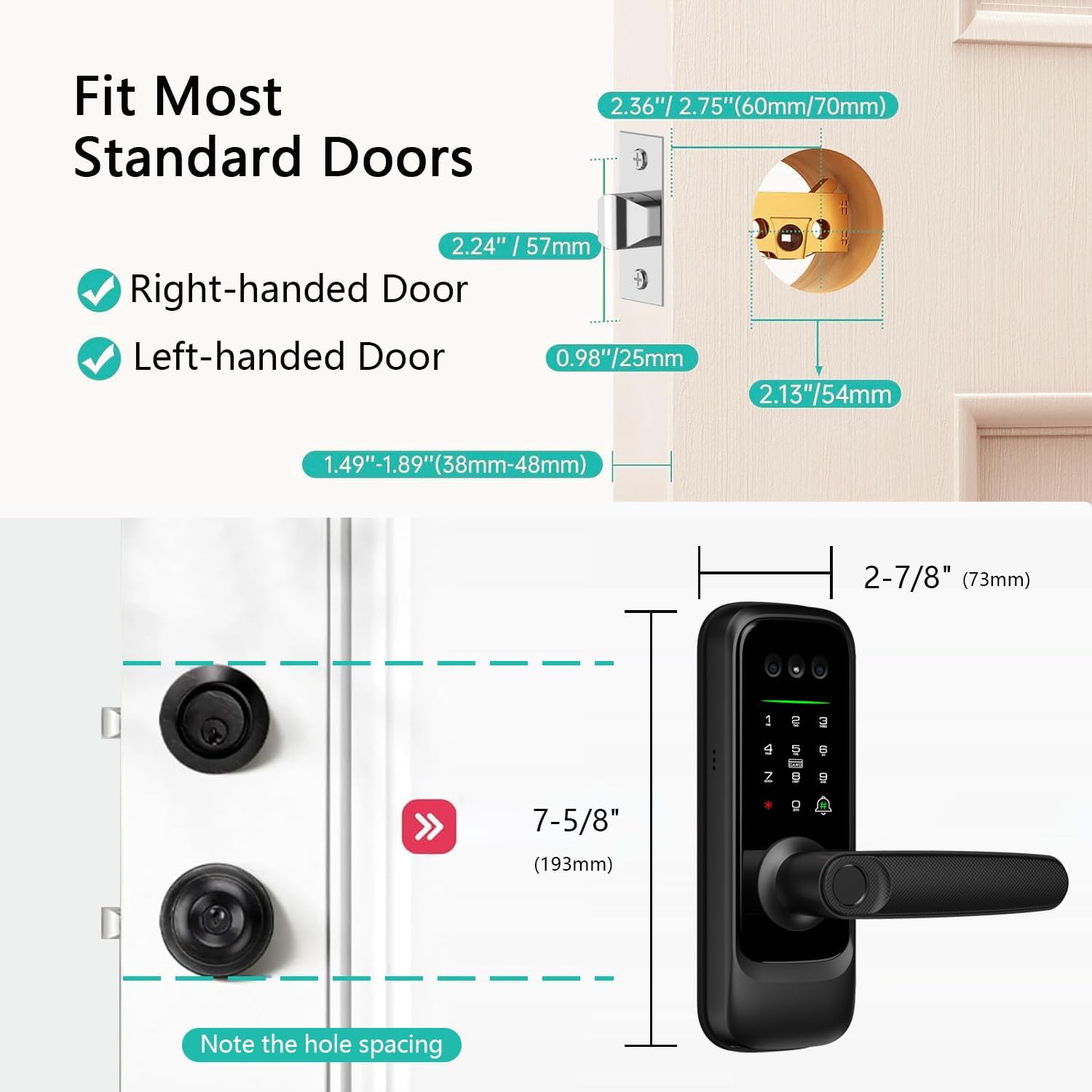
Image 1: Door Compatibility Diagram. This image illustrates the standard door dimensions and backset requirements for proper installation of the Jacchozhi Face-HM01 Smart Lock, including measurements for right-handed and left-handed doors.

Image 2: Installation Step. This image shows a person using a screwdriver to secure the mortise lock body into the door frame, an essential step in the smart lock installation process.
4.2. Initial Configuration (Tuya App)
Download the Tuya Smart app from your device's app store. Follow the in-app instructions to pair your smart lock and register initial users. This typically involves creating an account, adding the device, and then enrolling administrators for face, palm vein, and fingerprint access.
5. Operation
5.1. Unlocking Methods

Image 3: Multiple Access Methods. This infographic visually represents the eight distinct methods available for unlocking the Jacchozhi Face-HM01 Smart Lock, offering versatile entry options.
- Face Recognition: Stand in front of the lock, and it will automatically scan your face for recognition. Once recognized, the lock will unlock.
- Palm Vein Recognition: Place your palm over the designated sensor. The lock will scan your palm vein pattern for secure access.
- Fingerprint Unlock: Place your registered finger on the fingerprint sensor located on the handle. The lock will verify your fingerprint and unlock.
- Keypad Code: Enter your programmed numerical code on the touchscreen keypad. The lock supports anti-peep codes for added security.
- Fob Card: Present a registered fob card to the card reader area on the lock.
- App Remote Control: Use the Tuya Smart app on your smartphone to remotely unlock the door from anywhere with an internet connection.
- Voice Control: Integrate with Amazon Alexa or Google Assistant for voice-activated unlocking (requires proper setup and security protocols).
- Mechanical Key: In case of power failure or electronic malfunction, use the provided mechanical key for emergency access.

Image 4: Face Recognition Unlock. This image depicts a user unlocking the door using face recognition technology, where the smart lock scans the user's face for secure access.

Image 5: Palm Vein Unlock. This image shows a user gaining entry by placing their hand over the smart lock's sensor for palm vein recognition, a contactless and secure method.

Image 6: Fingerprint Sensor Versatility. This image highlights the advanced fingerprint sensor's ability to recognize fingerprints even under challenging conditions such as dirty, peeling, sweaty, or faint prints, ensuring reliable access for all users.

Image 7: Fingerprint Unlock in Use. This image shows a user's finger activating the fingerprint sensor on the smart lock's handle, demonstrating the quick and secure fingerprint unlocking process.

Image 8: Anti-Peep Code Entry. This image demonstrates the use of an anti-peep code on the smart lock's keypad, where extra digits can be entered before or after the actual code to prevent others from guessing it.

Image 9: App Remote Unlock. This image illustrates the convenience of unlocking the smart lock remotely using the Tuya Smart app on a smartphone, showing the app interface and the lock on the door.

Image 10: Voice Control Integration. This image demonstrates the smart lock's compatibility with voice assistants like Amazon Alexa, allowing users to unlock their door using voice commands for hands-free convenience.
5.2. Video Doorbell & Two-Way Audio
The integrated camera and doorbell allow you to see and communicate with visitors at your door. When the doorbell is pressed, you receive an instant video call on your smartphone via the Tuya app.

Image 11: Video Doorbell Functionality. This image shows a smartphone receiving a video call from the smart lock's integrated doorbell, allowing the user to see and interact with a visitor remotely.

Image 12: Two-Way Audio. This image illustrates the two-way audio feature of the video doorbell, enabling users to communicate with visitors through their smartphone when the doorbell is pressed.
5.3. Night Vision Camera
The smart lock features an infrared camera that automatically switches to night vision mode, providing clear visibility up to 3 meters in low-light conditions. A 160° wide-angle lens ensures comprehensive coverage of your doorstep.

Image 13: Night Vision Capability. This image demonstrates the smart lock's night vision feature, showing clear visibility of a person at the door in both day and night conditions.
5.4. Remote Control & Monitoring (Tuya App)
The Tuya Smart app provides extensive remote control and monitoring capabilities:
- User Management: Add or remove users, assign different access methods.
- Temporary Passwords: Generate one-time or time-limited access codes for guests or service providers.
- Activity Alerts: Receive instant notifications for door activity, such as unlocking events or doorbell presses.
- Video Surveillance: Access live video feed from the camera anytime, anywhere.
- Access Log: Review a history of all lock and unlock events.

Image 14: Temporary Password Generation. This image shows how to generate and share temporary access codes for guests via the app, providing flexible access control.

Image 15: Real-time Notifications. This image demonstrates the app's ability to send real-time notifications to your smartphone, alerting you to visitors or door unlock events, even when you are away.

Image 16: Surveillance Camera. This image shows the live video surveillance feature accessible through the app, allowing users to monitor their doorstep remotely.

Image 17: Video Log. This image displays the video log feature within the app, which records and stores video clips of door activity for review.
5.5. Human Detection
The built-in sensor detects approaching individuals, automatically waking the lock and illuminating the keypad. This feature can be disabled in high-traffic areas to conserve battery life.

Image 18: 24H Human Detection. This image illustrates the smart lock's 24-hour infrared human detection feature, which automatically senses and activates the lock when someone approaches the door.
5.6. Battery Management
The smart lock is powered by a rechargeable battery. The Tuya app will provide low battery warnings. If the battery fully drains, a Type-C emergency port allows for a quick power boost, and the mechanical key can always be used as a failsafe.

Image 19: Low Battery Alert and Emergency Power. This image shows a low battery alert on the smartphone app and the smart lock being charged via its Type-C emergency port, ensuring continuous functionality.
6. Maintenance
- Cleaning: Wipe the lock's surface with a soft, damp cloth. Do not use harsh chemicals or abrasive materials.
- Battery Care: Recharge the battery when low battery alerts are received. Avoid fully draining the battery frequently to prolong its lifespan.
- Firmware Updates: Regularly check the Tuya app for available firmware updates to ensure optimal performance and security.
7. Troubleshooting
If you encounter issues with your Jacchozhi Face-HM01 Smart Lock, consider the following common solutions:
- Lock Not Responding: Check the battery level. If low, recharge using the Type-C port or replace the battery.
- Unlocking Failure: Ensure your biometric data (face, palm, fingerprint) is correctly enrolled and positioned. For keypad codes, verify the correct sequence.
- App Connectivity Issues: Ensure your Wi-Fi network is stable and the lock is within range. Restart the app and the lock if necessary.
- Doorbell Not Alerting: Check app notification settings and ensure the lock is connected to the internet.
- Physical Obstruction: Ensure there are no physical obstructions preventing the latch from extending or retracting fully.
For more complex issues or persistent problems, please refer to the detailed troubleshooting section within the Tuya Smart app or contact Jacchozhi customer support.
8. Specifications
| Brand | Jacchozhi |
| Model Number | Face-HM01 |
| Lock Type | Biometric |
| Special Features | Alarm, Face Recognition, Fingerprint, Palm Vein, Camera, Doorbell, Motion Sensor |
| Item Dimensions (L x W x H) | 7.5 x 3.5 x 11 inches |
| Item Weight | 3.3 Pounds |
| Material | Aluminum |
| Color | Black |
| Connectivity Protocol | Bluetooth, Wi-Fi |
| Control Method | App, Remote, Touch, Voice |
| Controller Type | Amazon Alexa, Android, iOS |
| Recommended Uses | Front door |
| Water Resistance | IP65 (from A+ content image) |
9. Warranty & Support
9.1. Warranty Information
Jacchozhi products are covered by a limited warranty against defects in materials and workmanship. Please retain your proof of purchase for warranty claims. Specific warranty duration and terms may vary; refer to the product packaging or contact customer support for details.
9.2. Customer Support
For technical assistance, troubleshooting, or warranty inquiries, please contact Jacchozhi customer support:
- Email: jacchozhi@outlook.com
- Online Support: Visit the official Jacchozhi website for FAQs and additional resources.