
1. Introduction
The Cadothy Amaze 5 Pro is an all-in-one live streaming device designed to integrate the functionalities of a computer, camera, sound card, and microphone into a single unit. This device is suitable for various live streaming platforms, including TikTok, YouTube, and Facebook, providing a streamlined solution for content creators.
This manual provides instructions for the proper setup, operation, and maintenance of your Amaze 5 Pro device.
2. What's in the Box
Verify that all items are present in the packaging:
- Amaze 5 Pro Live Streaming Machine
- Power Adapter
- Connection Cable
3. Setup
3.1 Unpacking and Placement
Carefully remove the Amaze 5 Pro device from its packaging. Place the device on a stable, flat surface with adequate ventilation. Ensure no obstructions block the heat dissipation vents located on the device.
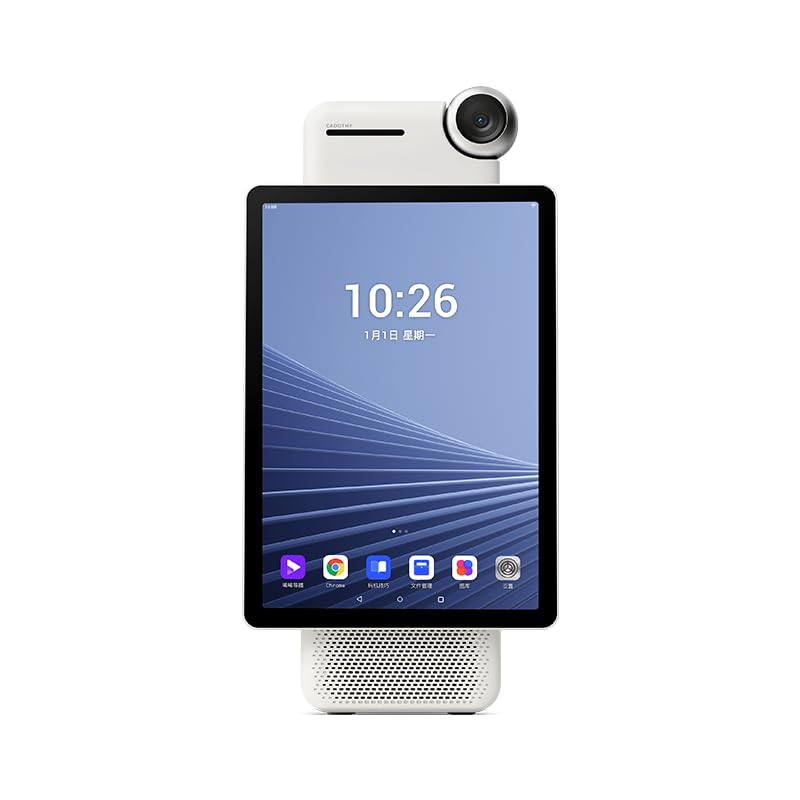
Image: The Amaze 5 Pro device, showing its integrated screen and camera module. The screen displays a vibrant landscape, indicating its display capabilities.
3.2 Power Connection
- Connect the provided power adapter to the power input port on the Amaze 5 Pro device.
- Plug the power adapter into a standard electrical outlet.
- Press the power button to turn on the device. The screen will illuminate, indicating the device is starting up.
3.3 Network Connection
The Amaze 5 Pro supports both Wi-Fi and Ethernet connectivity for stable live streaming.
- Wi-Fi: Navigate to the device settings, select "Network & Internet," then "Wi-Fi." Choose your desired network and enter the password.
- Ethernet: Connect an Ethernet cable from your router or network switch to the Ethernet port on the Amaze 5 Pro device. The device will automatically detect and connect to the wired network.

Image: A user demonstrating the Cadothy Amaze 5 Pro in a live streaming setup, highlighting its rotatable screen and integrated camera for versatile use.
4. Operating Instructions
4.1 User Interface Overview
The Amaze 5 Pro features an intuitive touch-screen interface. The home screen provides access to various applications and settings. Swipe gestures and taps are used for navigation.

Image: An overview of the Cadothy iBig All-in-one Live Streaming Machine 5Pro, detailing its key features such as clear image quality, multi-platform support, and professional heat dissipation.
4.2 Starting a Live Stream
- Open your preferred live streaming application (e.g., TikTok, YouTube, Facebook) from the home screen.
- Log in to your account if prompted.
- Configure your stream settings, including title, description, and privacy settings.
- Ensure the camera and microphone are active and properly configured within the application.
- Initiate the live stream.
4.3 Camera and Audio Settings
The Amaze 5 Pro features a 50 Megapixel camera with ultra-fast autofocus and AI beautification. Audio input is managed through the integrated microphone and sound card.
- Camera: Access camera settings within your streaming application or the device's camera app to adjust resolution, focus, and other visual enhancements.
- Audio: Adjust microphone sensitivity and output volume through the device's sound settings. External microphones can be connected via available ports if desired.

Image: Detailed view of the Cadothy Amaze 5 Pro's camera capabilities, highlighting its 50 Megapixel sensor, 30ms ultra-fast focus, and AI Beautification features for enhanced live broadcasts.
4.4 Interactive Live Streaming Operating System
The device integrates several software tools to enhance the live streaming experience:
- XiXi Director: Live streaming director software for camera switching, image composition, virtual scenes, and recording.
- Duoduo Prompter: Automatic subtitle scrolling and smart teleprompting for easy-to-use, high-definition display.
- Remote Camera: Remote image linkage live studio, offsite video feed integration, mobile screen mirroring, and wireless transmission.

Image: An illustration of the interactive operating system of the Cadothy Amaze 5 Pro, showcasing its integrated software features like XiXi Director for stream management, Duoduo Prompter for teleprompting, and Remote Camera for multi-device integration.
5. Maintenance
5.1 Cleaning the Device
To maintain optimal performance and appearance:
- Power off and unplug the device before cleaning.
- Use a soft, dry, lint-free cloth to wipe the exterior surfaces.
- For the screen, use a screen-specific cleaning solution and a microfiber cloth.
- Avoid using abrasive cleaners, solvents, or aerosol sprays.
5.2 Heat Dissipation
The Amaze 5 Pro is designed with an extra-large heat dissipation plate (620,018 mm²) to ensure stable operation for up to 72 hours with temperatures maintained below 48°C. Ensure the vents are clear of dust and obstructions to facilitate proper airflow.

Image: Internal view of the Cadothy Amaze 5 Pro, highlighting the Qualcomm Snapdragon QC8250 Processor and the extensive heat dissipation area designed for smooth, lag-free streaming.
6. Troubleshooting
| Problem | Possible Cause | Solution |
|---|---|---|
| Device does not power on. | No power, faulty adapter, or power button issue. | Ensure power adapter is securely connected and plugged into a working outlet. Try a different outlet. Contact support if issue persists. |
| No internet connection. | Wi-Fi/Ethernet not connected, incorrect password, or router issue. | Check Wi-Fi settings and password. Ensure Ethernet cable is connected. Restart your router. |
| Lagging or freezing during live stream. | Poor network connection, high device load, or overheating. | Ensure stable internet connection. Close unnecessary applications. Check for proper ventilation around the device. |
| Camera or microphone not working. | Permissions not granted, hardware issue, or application settings. | Check application permissions for camera and microphone. Verify settings within the streaming app. Restart the device. |
7. Specifications
| Feature | Detail |
|---|---|
| Brand | Cadothy |
| Model Name | Amaze 5 Pro |
| Item Model Number | SNL02 |
| Product Dimensions | 6.77 x 4.88 x 13.78 inches |
| Item Weight | 12.54 pounds (5.7 Kilograms) |
| Connectivity Technology | Bluetooth, Ethernet, Wi-Fi |
| Connector Type | HDMI |
| Resolution | 4K |
| Special Features | Browser, Smart Director System, AI Beautification, Ultra-fast focus |
| Processor | Qualcomm Snapdragon QC8250 |
| Camera | 50 Megapixels, 1/1.3-inch CMOS sensor, f/1.8 aperture, 7-layer professional lens |
| Heat Dissipation Area | 620,018 mm² |
| Battery | 10,000 mAh high-capacity battery (for stable operation up to 72 hours) |
8. Warranty and Support
8.1 Warranty Information
For information regarding the product warranty, please refer to the warranty card included with your purchase or visit the official Cadothy website. Standard warranty terms typically cover manufacturing defects for a specified period from the date of purchase.
8.2 Customer Support
If you encounter any issues not covered in the troubleshooting section or require further assistance, please contact Cadothy customer support. Contact details can be found on the official Cadothy website or on your product packaging.
Online Resources: Visit the Cadothy Store on Amazon