
1. Introduction
Thank you for choosing the Hodozzy Android 15 Car Stereo. This advanced 1-DIN car multimedia system features a 7-inch retractable touchscreen, powered by Android 15 with 6GB RAM and 128GB ROM, offering a seamless and intelligent driving experience. It integrates wireless CarPlay, Android Auto, GPS navigation, Bluetooth 5.0, FM/AM/RDS radio, DSP audio processing, and rearview camera support. This manual provides essential information for installation, operation, and maintenance to ensure optimal performance and safety.
2. Safety Information
- Professional Installation Recommended: Due to the complexity of car electrical systems, professional installation is highly recommended to prevent damage to the unit or your vehicle.
- Power Supply: Ensure the unit is connected to a 9V-16V DC power supply. Incorrect voltage can cause damage.
- Wiring: Follow the wiring diagram precisely. Incorrect wiring can lead to malfunctions or electrical hazards.
- Driving Safety: Do not operate the unit in a way that distracts you from driving. Always prioritize road safety.
- Temperature: Avoid exposing the unit to extreme temperatures outside its operating range (-40°C to +85°C).
- Cleaning: Use a soft, dry cloth for cleaning. Avoid abrasive cleaners or solvents.
3. Package Contents
Verify that all items listed below are included in your package:
- 1 x Hodozzy Android Car Stereo Main Unit
- 1 x Power Cable Harness
- 1 x GPS Antenna
- 1 x User Manual
- 1 x Accessory (Mounting Bracket/Screws)
- 1 x 4G Module
- 1 x WiFi Antenna
- 1 x Rearview Camera
- 1 x External Microphone
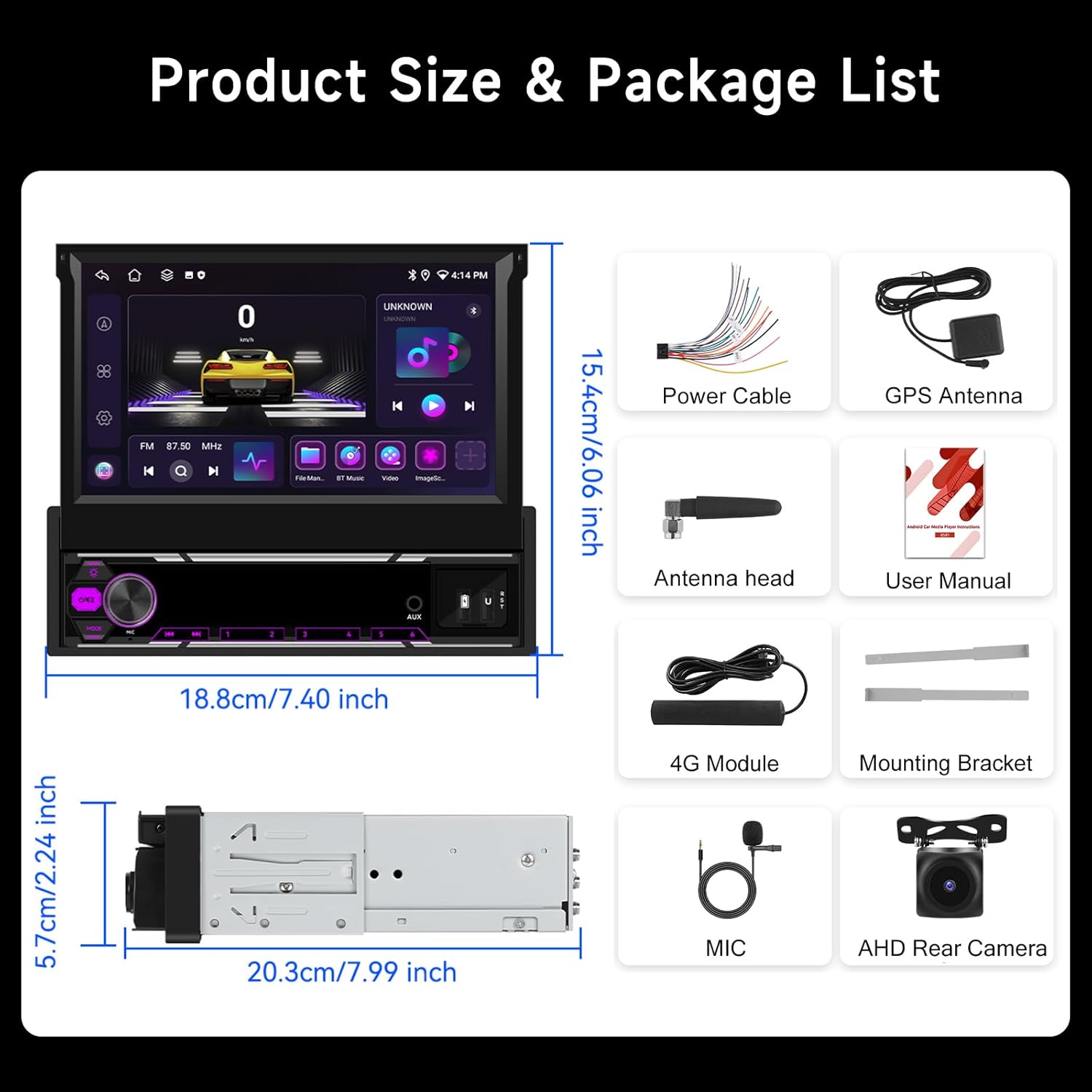
Image: Hodozzy Android 15 Car Stereo dimensions and included accessories.
4. Product Overview
The Hodozzy Android 15 Car Stereo is designed to enhance your in-car entertainment and navigation. It features a powerful Android 15 operating system, a responsive 7-inch capacitive touchscreen, and a retractable design for flexible installation in 1-DIN slots.
Key Features:
- Android 15 OS: Latest operating system for smooth performance.
- High Performance: 6GB RAM + 128GB ROM for fast multitasking and ample storage.
- 7-inch Retractable Touchscreen: 1024x600 resolution, adjustable for optimal viewing.
- Wireless CarPlay & Android Auto: Seamless smartphone integration.
- GPS Navigation: Supports online and offline maps (GPS/BDS/Glons).
- Built-in WiFi & Bluetooth 5.0: For internet access, hands-free calling, and audio streaming.
- FM/AM/RDS Radio: Access to local radio stations with station information.
- DSP Audio Processing: Enhanced sound quality with customizable equalizer settings.
- Rearview Camera Input: Automatic display for safer parking.
- Steering Wheel Control Support: Convenient control without taking hands off the wheel.
- Split Screen Functionality: Run two applications simultaneously.

Image: Hodozzy Android 15 Car Stereo main unit.

Image: Android 15 system performance and integrated Wi-Fi/GPS navigation.
5. Setup
5.1. Installation
The Hodozzy Android 15 Car Stereo is designed for 1-DIN slots. Due to the varying complexity of vehicle wiring, professional installation is strongly recommended.
- Disconnect Battery: Before starting, disconnect the vehicle's negative battery terminal to prevent electrical shorts.
- Remove Old Unit: Carefully remove your existing car stereo from the dashboard.
- Connect Wiring Harness: Connect the provided power cable harness to the corresponding wires of your vehicle. Ensure correct connections for power (ACC, B+, GND), speaker outputs, and other auxiliary wires (e.g., reverse trigger, steering wheel control).
- Connect Antennas: Connect the GPS antenna, WiFi antenna, and 4G module (if applicable) to their respective ports on the main unit. Position the GPS antenna in a location with a clear view of the sky.
- Connect Rearview Camera: If installing the rearview camera, connect its video cable to the 'CAM IN' port and its power cable to the reverse light circuit.
- Connect Microphone: Plug in the external microphone for improved call quality.
- Mount Unit: Slide the main unit into the 1-DIN slot and secure it using the provided mounting brackets.
- Reconnect Battery: Reconnect the vehicle's negative battery terminal.
5.2. Initial Power On
After installation, turn on your vehicle's ignition. The stereo should power on automatically. Follow any on-screen prompts for initial setup, such as language selection and time zone.
6. Operating Instructions
6.1. Screen Operation and Adjustment
The 7-inch touchscreen is capacitive and supports multi-touch gestures. The screen is manually retractable and adjustable for angle.
- Retract/Extend Screen: Gently push or pull the screen to retract or extend it from the main unit.
- Adjust Angle: Tilt the screen up or down to achieve the best viewing angle.
- Touch Gestures: Use standard Android touch gestures (tap, swipe, pinch-to-zoom) to navigate the interface.
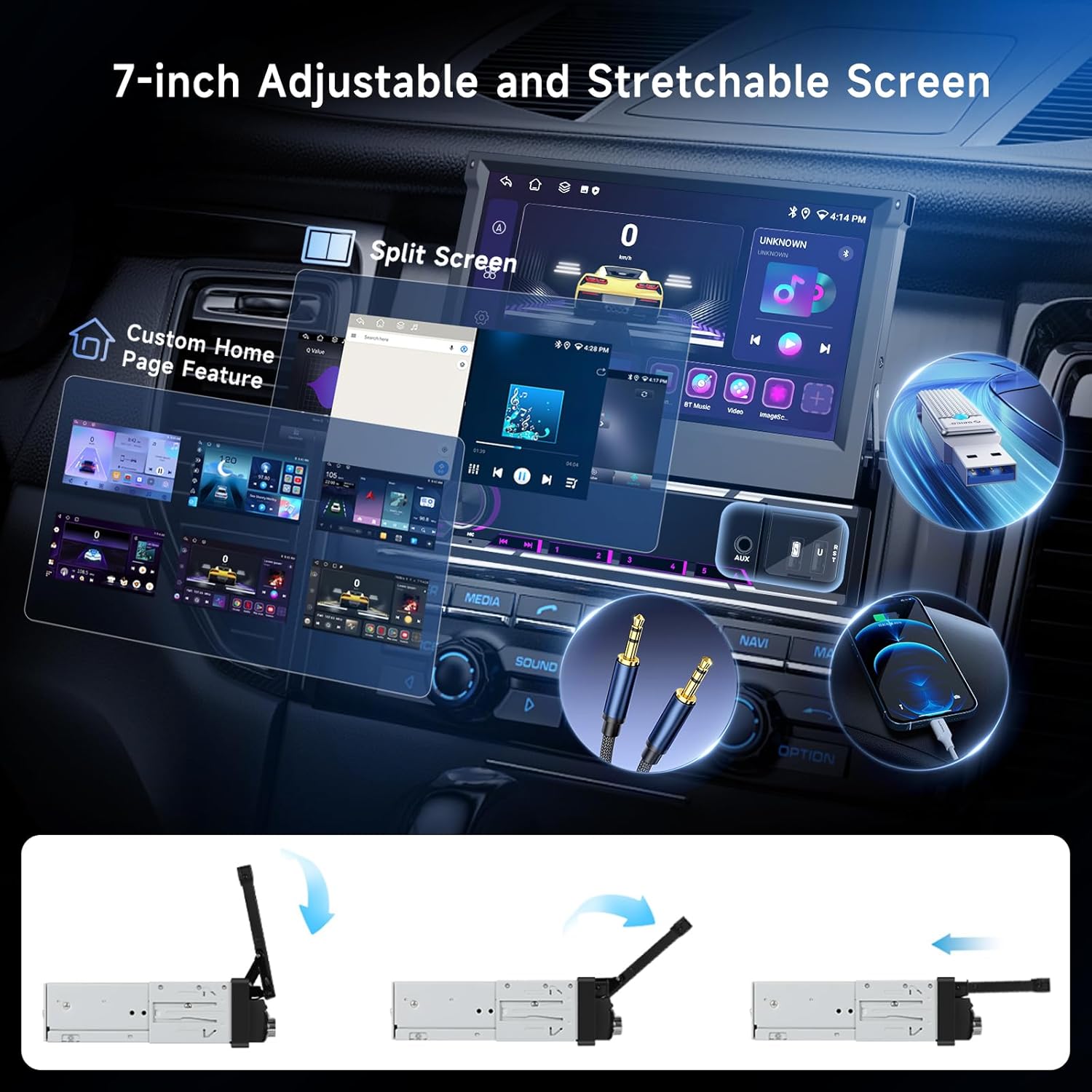
Image: Retractable screen mechanism and interface features.
6.2. Wireless CarPlay & Android Auto
Connect your iPhone or Android smartphone wirelessly for seamless access to navigation, music, calls, and messages.
- Enable Bluetooth & Wi-Fi: On your smartphone, ensure Bluetooth and Wi-Fi are enabled.
- Pair Device: On the car stereo, go to the Bluetooth settings and pair with your smartphone.
- Launch CarPlay/Android Auto: Once paired, the system should prompt you to launch CarPlay or Android Auto. Follow the on-screen instructions on both the stereo and your phone.

Image: Wireless CarPlay, Android Auto, and MirrorLink connection methods.
6.3. GPS Navigation
The unit supports GPS/BDS/Glons navigation with pre-installed offline maps. Online navigation is also available via Wi-Fi.
- Offline Maps: The unit comes with pre-loaded offline maps. For updates or new regions, connect to Wi-Fi and download maps through the navigation app.
- Online Maps: Connect the unit to a Wi-Fi hotspot (e.g., from your smartphone) to use online navigation apps like Google Maps, Waze, etc.
- Voice Guidance: Enable voice guidance in the navigation app settings for turn-by-turn directions.
6.4. Bluetooth 5.0
Bluetooth 5.0 provides stable connections for hands-free calling and high-quality audio streaming.
- Pairing: Go to the Bluetooth menu on the stereo, enable Bluetooth, and search for available devices. Select your phone from the list and confirm the pairing code.
- Hands-Free Calling: Once paired, you can make and receive calls directly from the stereo screen. Use the external microphone for clear communication.
- Audio Streaming: Play music from your smartphone via Bluetooth. Control playback (play/pause, skip tracks) from the stereo.

Image: DSP audio settings, FM/AM/RDS radio, and Bluetooth functions.
6.5. FM/AM/RDS Radio
Access local radio stations with clear reception and RDS (Radio Data System) information.
- Auto Scan: In the Radio app, select 'Auto Scan' to automatically search and save available stations.
- Manual Tuning: Manually tune to specific frequencies using the on-screen controls.
- Presets: Save your favorite stations to preset buttons for quick access.
- RDS: When available, RDS will display station names, program types, and traffic information.
6.6. DSP Audio Settings
The built-in DSP (Digital Sound Processor) allows for advanced audio customization.
- Equalizer: Adjust frequency bands to tailor the sound to your preference. Choose from preset EQ modes or create custom settings.
- Balance/Fader: Adjust the sound distribution between front/rear and left/right speakers.
- Loudness/Bass Boost: Enhance low frequencies for a richer sound.
6.7. USB Media Playback
Connect USB drives to play audio and video files.
- Connect USB: Insert a USB flash drive into one of the USB ports.
- Access Files: Open the 'File Manager' or 'Music/Video Player' app to browse and play media files.
- Supported Formats: The unit supports various audio (APE/FLAC/WAV/MP3/WMA) and video (MKV/RMVB/AVI/MP4/MDV) formats.
6.8. Rearview Camera
When the vehicle is shifted into reverse gear, the stereo automatically displays the rearview camera feed.
- Automatic Display: The screen will switch to the camera view when reverse gear is engaged.
- Parking Guidelines: Dynamic parking guidelines may be displayed (if supported by the camera).

Image: Rearview camera display and steering wheel control functions.
6.9. Steering Wheel Controls
The unit supports connection to your vehicle's steering wheel controls for convenient operation.
- Configuration: Access the 'Steering Wheel Control' settings in the system menu. Follow the on-screen instructions to program each button (e.g., volume up/down, track skip, answer/hang up calls).
6.10. Split Screen & Customization
Enhance multitasking and personalize your user interface.
- Split Screen: Long-press an app icon or use the recent apps button to activate split-screen mode, allowing two apps to run side-by-side.
- Home Page Customization: Drag and drop app icons, add widgets, and change wallpapers to personalize your home screen layout.
7. Maintenance
- Screen Cleaning: Use a soft, lint-free cloth to wipe the touchscreen. For stubborn smudges, slightly dampen the cloth with water or a screen-safe cleaner. Do not spray cleaner directly onto the screen.
- Software Updates: Periodically check for system software updates via the 'Settings' menu. Connecting to Wi-Fi is required for downloads. Updates can improve performance and add new features.
- General Care: Avoid placing heavy objects on the unit or exposing it to direct sunlight for extended periods when parked.
8. Troubleshooting
Refer to the table below for common issues and their solutions.
| Problem | Possible Cause | Solution |
|---|---|---|
| Unit does not power on | Incorrect wiring; Blown fuse; Vehicle battery low | Check power connections (ACC, B+, GND); Inspect vehicle fuses; Check car battery voltage. |
| No sound | Speaker wires disconnected; Volume too low; Mute activated; DSP settings incorrect | Verify speaker wiring; Increase volume; Check mute status; Reset DSP settings. |
| GPS signal lost or inaccurate | GPS antenna obstructed or disconnected; Outdated maps | Ensure GPS antenna has a clear view of the sky and is securely connected; Update offline maps via Wi-Fi. |
| Bluetooth connection unstable | Interference; Device too far; Phone Bluetooth issue | Move phone closer; Restart phone's Bluetooth; Re-pair the device. |
| Rearview camera not displaying | Camera wiring incorrect; Reverse trigger not connected | Check camera video and power connections; Ensure reverse trigger wire is correctly connected to the vehicle's reverse light circuit. |
| Touchscreen unresponsive | System freeze; Screen calibration issue | Restart the unit (press and hold power button); If issue persists, perform a factory reset (data will be lost). |
9. Specifications
Detailed technical specifications for the Hodozzy Android 15 Car Stereo:
| Feature | Specification |
|---|---|
| Model | 6G+128G |
| Operating System | Android 15.0 |
| Processor | 8581 (8-core, 1.6 GHz) |
| RAM | 6GB |
| ROM | 128GB |
| Screen Size | 7 inches |
| Screen Resolution | 1024 x 600 |
| Screen Material | Capacitive Touchscreen |
| Output Power | 4 x 50W |
| Radio Chip | SI4755 (FM/AM/RDS) |
| DSP Chip | AK7604 |
| Bluetooth Version | 5.0 |
| USB Version | 2.0 |
| Operating Voltage | 9V - 16V |
| Operating Temperature | -40°C to +85°C |
| Navigation Support | GPS/BDS/Glons (Offline maps built-in, requires network download for updates) |
| Rearview Camera Input | CVBS/AHD/360 Panorama (Optional) |
| Supported Audio Formats | APE/FLAC/WAV/MP3/WMA, etc. |
| Supported Video Formats | MKV/RMVB/AVI/MP4/MDV, etc. |
| Supported Image Formats | PNG/JPEG/JPG/GIF/WBMP/BNP, etc. |
| Languages | Multi-language support (e.g., English, French, German, Spanish, Italian) |
| Item Weight | 1.83 Kilograms |
| Package Dimensions | 26.9 x 24.4 x 9.7 cm |
10. Support
For further assistance, technical support, or warranty inquiries, please contact Hodozzy customer service through the platform where you purchased the product. Please have your model number (6G+128G) and purchase details ready when contacting support.