
EKAT EKAT 4G+128G Android Car Radio
EKAT 4G+128G Android Car Radio User Manual
For Jeep Grand Cherokee (1999-2004)
1. Introduction
This manual provides detailed instructions for the installation, operation, and maintenance of your EKAT 4G+128G Android Car Radio. This 9-inch HD touchscreen stereo is designed for Jeep Grand Cherokee models from 1999 to 2004, offering an upgraded Android 15 system with features like Wireless CarPlay, Android Auto, 5GHz WiFi, GPS navigation, EQ adjustment, Split Screen functionality, Steering Wheel Control (SWC) compatibility, and an AHD Rear View Camera.
Please read this manual thoroughly before installation and use to ensure proper function and to maximize your experience with the device.

Image 1.1: Overview of the EKAT 4G+128G Android Car Radio and its main components.
2. Safety Information
Observe the following safety guidelines to prevent injury or damage to the device and your vehicle:
- Professional Installation Recommended: Due to the complexity of vehicle electrical systems, professional installation is highly recommended. Incorrect wiring can cause damage to the unit or the vehicle.
- Disconnect Battery: Always disconnect the vehicle's negative battery terminal before beginning any installation or wiring work to prevent electrical shorts.
- Avoid Distractions: Do not operate the device or view videos while driving. Always prioritize safe driving.
- Proper Ventilation: Ensure the unit has adequate ventilation and is not obstructed by other components.
- Use Correct Voltage: This unit is designed for 12V DC vehicle electrical systems. Do not connect to other voltage sources.
- Protect Wiring: Route all wiring carefully to avoid pinching, chafing, or interference with vehicle moving parts.
3. Package Contents
Verify that all items are present in the package:
- EKAT Android Car Radio (Main Unit)
- Installation Cable (Wiring Harness)
- AHD Rear Camera
- GPS Antenna
- Instruction Manual (This Document)
4. Installation Guide
This section provides a general overview of the installation process. Specific vehicle disassembly and reassembly steps may vary. Refer to your vehicle's service manual for detailed instructions on removing the factory radio.
4.1 Pre-Installation Steps
- Disconnect Battery: Disconnect the negative terminal of your vehicle's battery.
- Remove Factory Radio: Carefully remove the existing factory radio and trim panels. This may involve removing screws, clips, and potentially modifying the dashboard opening for the new unit. For Jeep Grand Cherokee 1999-2004, you may need to remove factory vents by drilling or using a Dremel, then mounting them to this unit.
- Inspect Wiring: Familiarize yourself with the vehicle's wiring harness.
4.2 Wiring Connections
Connect the provided wiring harness to the car radio and then to the vehicle's factory harness. Ensure all connections are secure. Key connections include:
- Power (Constant 12V, Switched 12V, Ground): Essential for unit operation.
- Speaker Wires: Connect to the corresponding vehicle speaker wires.
- Antenna: Connect the radio antenna.
- GPS Antenna: Mount the GPS antenna in a location with a clear view of the sky (e.g., dashboard, under windshield).
- Rear Camera: Connect the AHD rear camera cable to the designated input on the car radio. Ensure the reverse trigger wire is connected to the vehicle's reverse light circuit.
- Steering Wheel Control (SWC): Connect SWC wires if your vehicle supports it. Programming will be done in the settings.
- Amplifier Trigger: If your vehicle has a factory amplifier, you may need to tap into the amplifier switch wire to ensure the amplifier powers on with the head unit. This is a common point of troubleshooting if no sound is present after installation.
4.3 Mounting and Testing
- Test Connections: Before fully reassembling, reconnect the vehicle battery and perform a basic test of the radio's functions (power on, sound, touch screen, camera input, etc.).
- Mount Unit: Secure the car radio into the dashboard opening.
- Reassemble: Reinstall all trim panels and secure them properly.

Image 4.1: Visual comparison of the dashboard before and after installing the EKAT Android Car Radio, including product dimensions.
5. Operating Instructions
5.1 Android 15 System Overview
The unit runs on an upgraded Android 15 operating system, providing a familiar smartphone-like interface. Navigate through apps, settings, and media using the 9-inch HD Incell touchscreen. Swipe gestures and tap controls are intuitive.

Image 5.1: The Android 15 operating system interface displayed on the car radio's 9-inch screen.
5.2 Wireless CarPlay & Android Auto
Connect your smartphone wirelessly for seamless integration of navigation, music, calls, and messages.
- Enable Bluetooth & Wi-Fi: On your car radio and smartphone, ensure Bluetooth and Wi-Fi are enabled.
- Pair Device: On the car radio, open the 'CarPlay' or 'Android Auto' application. Follow the on-screen instructions to pair your phone via Bluetooth.
- Automatic Connection: Once paired, your phone should automatically connect to Wireless CarPlay or Android Auto when the car radio starts.
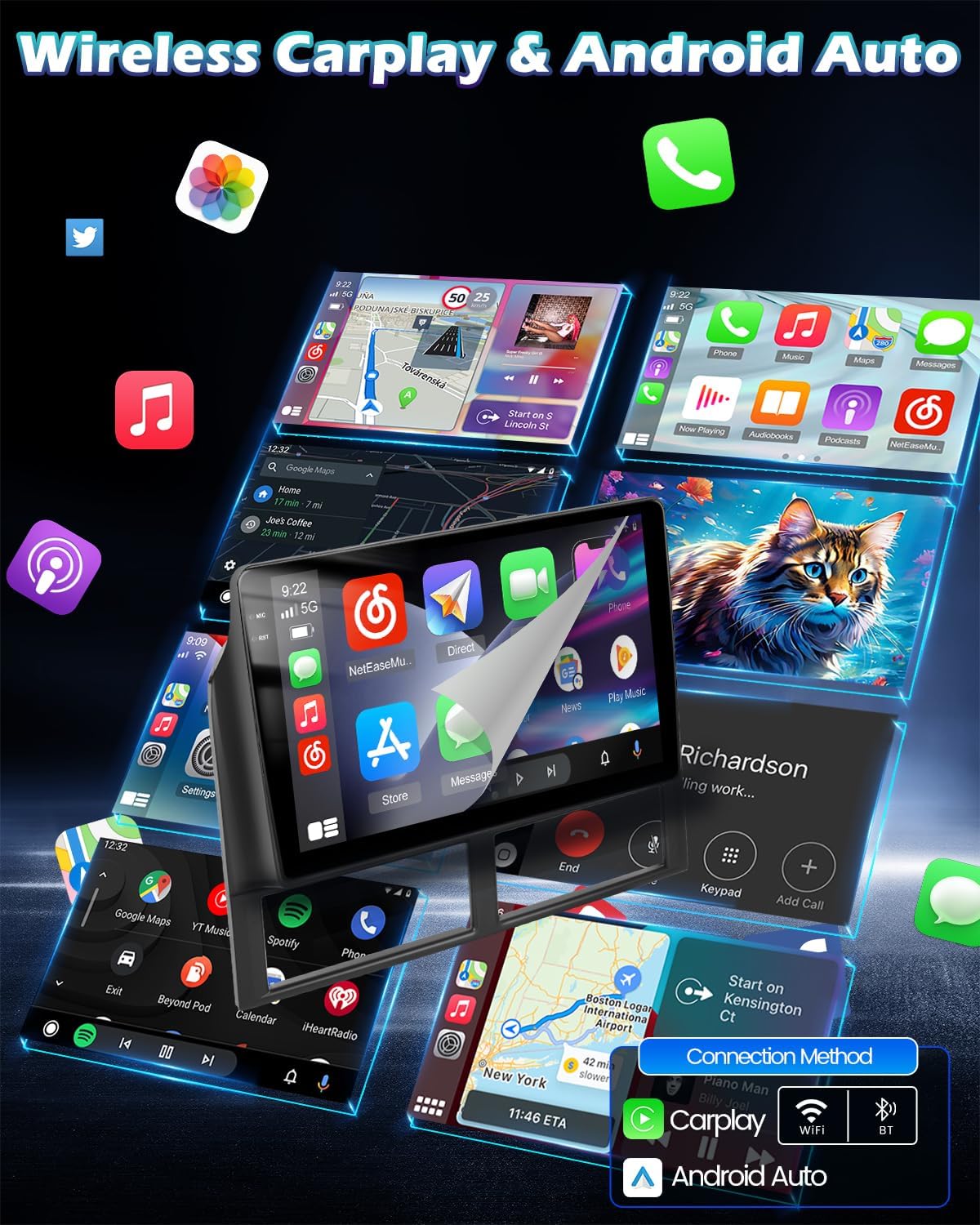
Image 5.2: Demonstration of Wireless CarPlay and Android Auto functionality.
5.3 5GHz WiFi & GPS Navigation
The unit supports 5GHz WiFi for faster internet connectivity and includes integrated GPS navigation.
- WiFi Connection: Go to Settings > Network & Internet > Wi-Fi. Select your desired network and enter the password.
- GPS Navigation: The pre-installed navigation app uses the external GPS antenna for accurate positioning. You can use online maps (requires WiFi) or download offline maps for use without an internet connection.

Image 5.3: Visual representation of 5GHz WiFi and GPS navigation features.
5.4 EQ Adjustment
Customize your audio experience with the built-in Equalizer (EQ).
- Access EQ: Open the 'Sound Effect' or 'EQ' application from the main menu.
- Adjust Settings: Use the sliders to adjust frequency bands, select preset modes (e.g., Pop, Rock, Jazz), or create custom profiles. You can also adjust loudness and balance/fader settings.

Image 5.4: The Equalizer (EQ) adjustment interface for audio customization.
5.5 Split Screen Functionality
The split-screen feature allows you to run two applications simultaneously, such as navigation and music playback.
- Activate Split Screen: While an app is open, press and hold the recent apps button (usually a square icon) or swipe from the side (depending on system settings) to activate split-screen mode.
- Select Second App: Choose another compatible app to occupy the second half of the screen.
5.6 Steering Wheel Control (SWC)
Program your vehicle's steering wheel buttons to control the car radio for convenience and safety.
- Access SWC Settings: Go to Settings > Steering Wheel Control.
- Program Buttons: Follow the on-screen instructions to assign functions (e.g., volume up/down, track skip, mode) to your steering wheel buttons. Press and hold a button on the steering wheel, then select the corresponding function on the screen.
5.7 AHD Rear View Camera
The included AHD rear view camera provides a clear image when reversing.
- Automatic Display: When the vehicle is shifted into reverse gear, the car radio will automatically display the rear camera feed.
- Parking Guidelines: Dynamic or static parking guidelines may be available to assist with parking.

Image 5.5: Demonstration of HD Reverse Camera and Steering Wheel Control setup.
6. Maintenance
- Screen Cleaning: Use a soft, lint-free cloth to clean the touchscreen. For stubborn smudges, lightly dampen the cloth with water or a screen-safe cleaner. Do not use abrasive cleaners or solvents.
- Software Updates: Periodically check for system updates in the settings menu to ensure optimal performance and security. Updates may be available via WiFi.
- General Care: Avoid exposing the unit to extreme temperatures, direct sunlight for prolonged periods, or excessive moisture.
7. Troubleshooting
If you encounter issues, refer to the following common problems and solutions:
| Problem | Possible Cause | Solution |
|---|---|---|
| No Power | Incorrect wiring; Blown fuse; Loose connection. | Check power and ground wires; Inspect vehicle fuses; Ensure all connections are secure. |
| No Sound | Speaker wires disconnected; Volume too low; Amplifier not triggered. | Check speaker wiring; Increase volume; Ensure amplifier trigger wire is correctly connected. |
| GPS Not Working / Inaccurate | GPS antenna obstructed or disconnected. | Ensure GPS antenna has a clear view of the sky and is securely connected. |
| Touch Screen Unresponsive | System freeze; Software issue. | Restart the unit (press and hold power button); Perform a factory reset (data will be lost). |
| CarPlay/Android Auto Disconnects or Blaring Sound | Interference; Software glitch; Loose connection. | Ensure strong Wi-Fi/Bluetooth signal; Restart phone and car radio; Check for software updates. |
| Unit Shuts Off Randomly | Loose power connection; Overheating; Electrical issue in vehicle. | Check all power connections; Ensure adequate ventilation; Consult a professional auto electrician. |
8. Specifications
| Feature | Specification |
|---|---|
| Operating System | Android 15 |
| RAM | 4GB |
| ROM (Internal Storage) | 128GB |
| Screen Size | 9 Inches |
| Display Type | Incell Screen |
| Connectivity | Bluetooth, 5GHz Wi-Fi |
| Navigation | Integrated GPS (Worldwide Map Type) |
| Special Features | Wireless Carplay, Android Auto, EQ, FM RDS Radio, AHD Rear View Camera, Steering Wheel Control, Split Screen |
| Audio Output Mode | Stereo |
| Item Weight | 2.97 pounds |
| Package Dimensions | 11.18 x 10.16 x 3.31 inches |
| Vehicle Service Type | Car (Jeep Grand Cherokee 1999-2004) |
9. Warranty and Support
9.1 Product Warranty
This EKAT car radio comes with a 2-year warranty from the date of purchase. This warranty covers manufacturing defects and malfunctions under normal use. It does not cover damage caused by improper installation, misuse, accidents, or unauthorized modifications.
9.2 Customer Support
For technical assistance, troubleshooting beyond this manual, or warranty claims, please contact EKAT customer support through the retailer where the product was purchased. Please have your purchase receipt and product model information ready when contacting support.
Ask a question about this manual
Ask about setup, troubleshooting, compatibility, parts, safety, or missing instructions. Manuals+ will review the question and use this page’s manual context to help answer it.