
Kyehuy DC309
Kyehuy 5K Digital Camera DC309 User Manual
Model: DC309 | Brand: Kyehuy
1. Introduction
This manual provides detailed instructions for the proper use and maintenance of your Kyehuy 5K Digital Camera, Model DC309. Please read this manual thoroughly before using the camera to ensure optimal performance and longevity.
2. Package Contents
Upon opening the package, verify that all items listed below are present and in good condition:
- Kyehuy 5K Digital Camera (1 unit)
- User Manual (1 unit)
- USB Cable (1 unit)
- Camera Bag (1 unit)
- Camera Strap (1 unit)
- 32GB Card (1 unit)
- Batteries (2 units)
- USB Adapter (1 unit)
- Cleaning Cloth (1 unit)

Image: Contents of the Kyehuy 5K Digital Camera package.
Video: Unboxing and overview of the Kyehuy 5K Digital Camera package contents.
3. Setup
3.1. Battery and SD Card Installation
Follow these steps to install the battery and memory card:
- Locate the battery/card compartment on the bottom of the camera.
- Slide the compartment cover open.
- Insert the battery, ensuring correct orientation as indicated inside the compartment.
- Insert the 32GB Micro SD card into its slot until it clicks into place.
- Close the compartment cover securely.
Video: Instructions on how to install the battery and format the SD card.
3.2. Charging the Camera
To charge the camera:
- Use the provided Type-C cable and 5V adapter to connect the camera to a power source.
- The indicator light will be red while charging.
- The indicator light will turn off when the camera is fully charged.
4. Operating Instructions
4.1. Power On/Off
Press the ON/OFF button located on the top of the camera to power it on or off. The lens will extend upon powering on and retract upon powering off.
4.2. Taking Photos
The camera features a 64MP sensor and 6X optical zoom for high-quality images.
- Autofocus: In still image mode, half-press the shutter button to activate autofocus. The focus frame will turn from red to green when focus is achieved. Fully press the shutter button to take the picture.
- Optical Zoom: Use the zoom controls to adjust the 6X optical zoom.
- Flash: The built-in flash can be activated for low-light conditions.
- Dual Lens: Utilize the front and rear dual cameras for versatile shooting, including selfies.
- Clear Pictures: The camera's default resolution is 24MP. For sharper photos, adjust settings to 64MP. Maintain a shooting distance of at least 4 inches.

Image: Demonstrating the dual lens capability for selfies.

Image: Innovative autofocus for sharp 64MP images.

Image: 6X Optical Zoom mechanism.
4.3. Recording Videos
The camera supports 5K video recording. Switch to video mode using the mode button and press the shutter button to start/stop recording. The camera supports recording while charging.
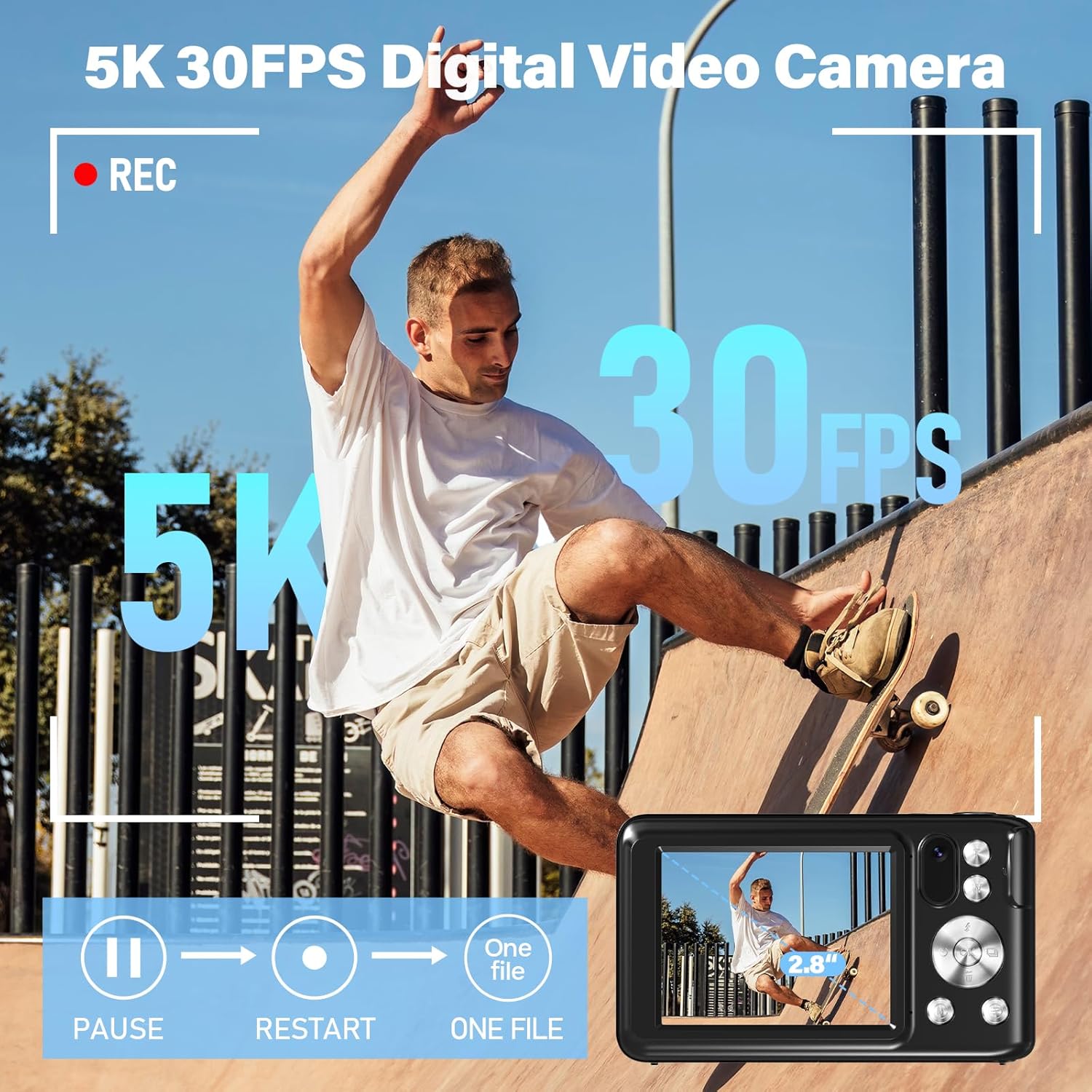
Image: 5K 30FPS Digital Video Recording.
4.4. Touch Screen Navigation
The 2.8-inch IPS touch screen allows for easy navigation of menus, previewing, and editing photos and videos. Tap on-screen icons to select options.
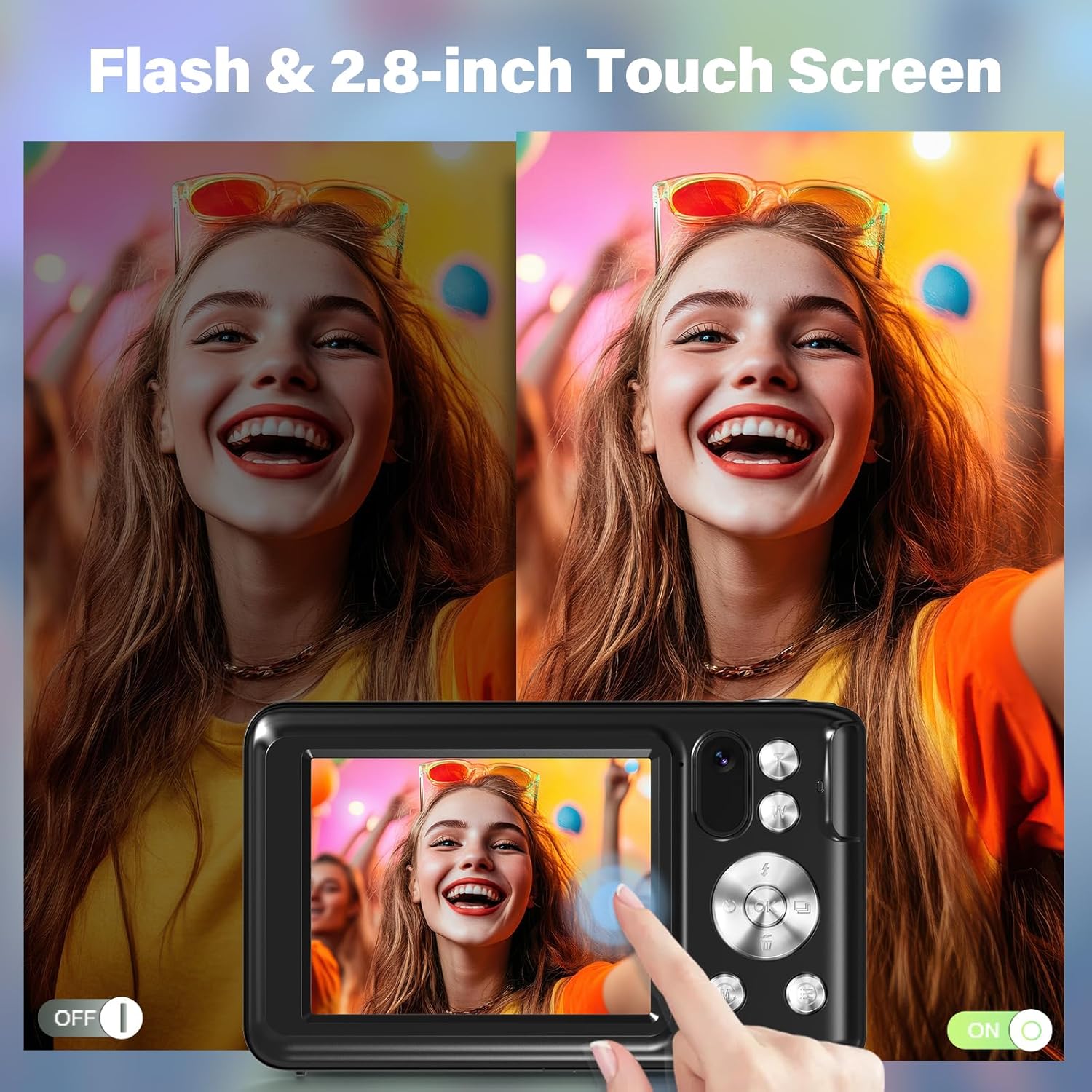
Image: 2.8-inch touch screen interface.
4.5. Wi-Fi Connectivity
The built-in Wi-Fi function allows for instant sharing of videos and photos to your mobile phone. Download the "Viipulse" app for easy control and access to the camera's features.

Image: Wi-Fi connectivity for sharing photos and videos.
4.6. Webcam and Vlogging Functionality
The camera can be used as a webcam for live streaming and vlogging. Connect it to your computer via USB to utilize this feature.
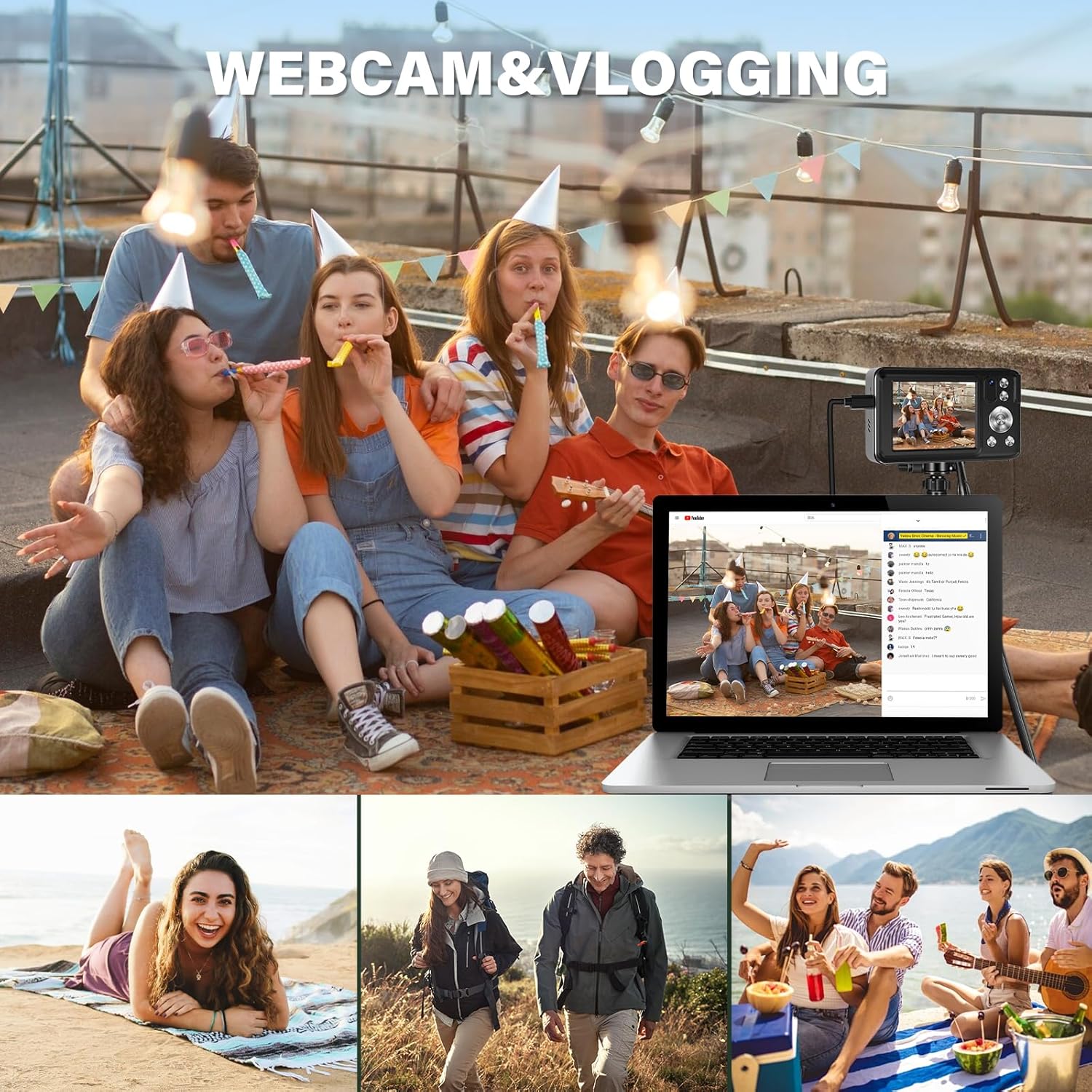
Image: Camera used for webcam and vlogging.
4.7. Playback and Deleting Photos
To review and manage your media:
- Press the direction key-mode button after shooting an image to enter playback mode.
- Browse images by pressing Left and Right keys or swiping left or right on the screen.
- To delete a photo, press the Down button while browsing the picture.
- After viewing the photos, press the mode button to exit.
5. Maintenance
5.1. Cleaning
Use the provided cleaning cloth to gently wipe the camera body and lens. Avoid using harsh chemicals or abrasive materials that could damage the camera's surface or optics.
5.2. Battery Care
To prolong battery life:
- Charge batteries fully before first use.
- Store batteries in a cool, dry place when not in use.
- Avoid exposing batteries to extreme temperatures.
5.3. Storage
When not in use, store the camera in its camera bag to protect it from dust and scratches. Keep it in a dry environment away from direct sunlight and extreme temperatures.
6. Troubleshooting
This section addresses common issues and their solutions:
Q: How to Charge the Camera?
A: 1. Please use the Type-C cable and 5V adapter to connect the camera to a power source. 2. When the camera indicator light is red, it means the camera is charging. 3. When the indicator light goes out, it means the camera is fully charged.
Q: How to Download Photo/Video to computer?
A: 1. Please use the Type-C cable to connect the computer. 2. When the camera is on and connected, please select MSDC mode. 3. After downloading, please remove the cable from MSDC mode.
Q: How to Play back and Delete Photo?
A: 1. Press the direction key-mode button after shooting an image to enter the play-back mode. 2. Browse images by pressing Left and Right keys or swiping left or right to view the images. 3. If you want to delete the photo, please press the Down button while browsing the picture. 4. After viewing the photos, please press the mode button to exit.
Q: How to Format the Micro SD Card?
A: 1. In Photo mode, press the Mode button 3 times to enter the system setting interface and select the "Format" option. 2. Press "OK" button to confirm formatting. 3. Press the mode button again to exit the system settings page. 4. To format: Click Settings > Select the format card > Select "YES".
Q: How to use the autofocus function?
A: 1. In still image mode, half-press the shutter button to focus. 2. Once focused, the focus frame will turn from red to green. 3. Fully press the shutter button to take the picture.
Q: How to take clear pictures?
A: 1. The camera's default resolution is 24MP when powered on. You can adjust the settings menu according to your needs. For sharper photos, we recommend selecting 64MP. 2. Keep a shooting or recording distance of at least 4 inches. Once focus is achieved, image quality will be clearer.
7. Specifications
| Feature | Detail |
|---|---|
| Brand | Kyehuy |
| Model Name | DC309 |
| Effective Still Resolution | 64 MP |
| Video Resolution | 5K |
| Optical Zoom | 6x |
| Image Stabilization | Optical |
| Photo Sensor Technology | CMOS |
| Screen Size | 2.8 Inches |
| Display Type | LCD (Touch Screen) |
| Connectivity Technology | USB, Wi-Fi |
| Memory Storage Capacity | 32 GB (included) |
| Battery Type | Lithium Ion (2 included) |
| Special Feature | Compact, Dual Lens, Autofocus, Webcam Function |
| Color | Black |
| Material | Plastic |
| Water Resistance Level | Not Water Resistant |
8. Warranty Information
This Kyehuy 5K Digital Camera comes with a 1-year warranty from the date of purchase, covering manufacturing defects. Please retain your proof of purchase for warranty claims.
9. Customer Support
For any questions, technical assistance, or support, please contact our 24-hour after-sales service team. Refer to the contact information provided on the product packaging or the official Kyehuy website.

Image: Kyehuy customer support.
Ask a question about this manual
Ask about setup, troubleshooting, compatibility, parts, safety, or missing instructions. Manuals+ will review the question and use this page’s manual context to help answer it.