1. Introduction
Thank you for choosing the Skyworth H30P Smart 360° Pan & Tilt Indoor Wi-Fi Security Camera. This camera is designed to provide comprehensive surveillance for your indoor spaces, offering advanced features like 360° pan and tilt, two-way audio, and remote viewing via a mobile app. Please read this manual carefully before use to ensure proper installation and operation.
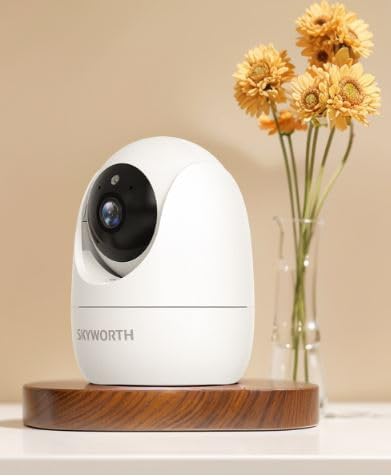
Figure 1: Skyworth H30P Smart Wi-Fi Camera
2. Safety Information
- Ensure the camera is used indoors only. It is not water-resistant (IP20 rating).
- Use only the power adapter provided with the device.
- Keep the camera away from direct sunlight, heat sources, and moisture.
- Do not attempt to disassemble or modify the camera. This will void the warranty.
- Keep out of reach of children and pets.
- Ensure stable Wi-Fi connectivity for optimal performance.
3. Package Contents
Please check the package contents upon opening. If any items are missing or damaged, contact customer support.
- Skyworth H30P Smart Wi-Fi Camera (1 unit)
- Power Adapter (1 unit)
- Mounting Accessories (screws, wall plugs)
- User Manual (this document)
4. Product Overview
The Skyworth H30P camera features a compact dome shape with pan and tilt functionality, allowing for a 360-degree viewing angle. It includes a high-quality CMOS image sensor, infrared LEDs for night vision, and a built-in microphone and speaker for two-way audio communication.
Key Features:
- 360° Pan & Tilt: Full room coverage with no blind spots.
- 2K Resolution: Provides clear and detailed video footage.
- Wi-Fi Connectivity: Easy remote access and control via smartphone app.
- Full Color Night Vision: Enhanced visibility in low-light conditions up to 10 meters.
- Two-Way Audio: Communicate with people or pets through the camera.
- Motion Detection: Receive alerts for detected movement.
- Micro SD Card Support: Up to 128GB for local storage (Micro SD card not included).
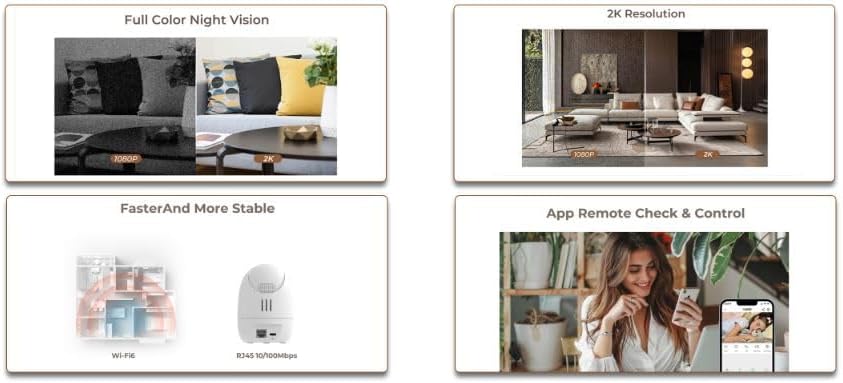
Figure 2: Demonstrates 2K resolution and full color night vision capabilities.
This image illustrates the camera's ability to capture clear images with 2K resolution and its full color night vision feature, which provides visibility even in dark environments.
5. Setup
5.1 Powering On
- Connect the power adapter to the camera's power input port.
- Plug the power adapter into a standard AC power outlet.
- The camera will power on, and its indicator light will begin to flash, indicating it is ready for setup.
5.2 App Installation and Account Creation
- Download the dedicated mobile application from your smartphone's app store (e.g., App Store for iOS, Google Play Store for Android). Search for "Skyworth Smart Home" or refer to the QR code on the packaging.
- Open the app and follow the on-screen instructions to create a new account or log in if you already have one.
5.3 Connecting to Wi-Fi
- In the app, tap on "Add Device" or the "+" icon.
- Select "Security Camera" or the specific model (H30P) from the list of devices.
- Follow the in-app prompts to connect the camera to your 2.4GHz Wi-Fi network. Ensure your Wi-Fi password is correct.
- The app may ask you to scan a QR code displayed on your phone screen with the camera lens, or to listen for an audible pairing tone.
- Once connected, the camera's indicator light will turn solid, and you will receive a confirmation in the app.

Figure 3: Illustrates Wi-Fi connectivity and remote control via mobile app.
This image shows the camera's wireless connectivity and how it can be controlled and monitored remotely using a smartphone application.
5.4 Mounting the Camera
The H30P camera can be placed on a flat surface like a shelf or table, or mounted on a wall.
Tabletop/Shelf Placement:
- Place the camera on a stable, flat surface within Wi-Fi range.
- Ensure the camera has a clear line of sight to the area you wish to monitor.
Wall Mounting:
- Choose a suitable location on the wall, ensuring it is within Wi-Fi range and has a power outlet nearby.
- Use the provided mounting template (if available) or mark the screw positions on the wall.
- Drill pilot holes and insert wall plugs if necessary.
- Secure the mounting bracket (if included) to the wall using the screws.
- Attach the camera to the mounting bracket.
6. Operating the Camera
6.1 Live View
- Open the mobile app and select your H30P camera from the device list.
- You will see the live video feed from the camera.
6.2 Pan and Tilt Control
- On the live view screen in the app, use the directional controls (usually a joystick or arrows) to remotely adjust the camera's viewing angle.
- The camera supports 360° horizontal rotation and vertical tilt.
6.3 Two-Way Audio
- To speak through the camera, tap the microphone icon in the app and hold it while speaking. Release to listen.
- To listen to audio from the camera's environment, ensure the speaker icon in the app is enabled.
6.4 Motion Detection and Alerts
- Access the camera settings in the app to configure motion detection sensitivity and alert preferences.
- You can set up push notifications to your smartphone when motion is detected.
6.5 Recording and Storage
- The camera supports continuous recording or event-triggered recording (e.g., motion detection).
- Insert a Micro SD card (up to 128GB, not included) into the camera's Micro SD card slot for local storage.
- Recorded footage can be accessed and reviewed through the mobile app.
7. Maintenance
- Cleaning: Gently wipe the camera lens and body with a soft, dry cloth. Do not use liquid cleaners or abrasive materials.
- Firmware Updates: Regularly check the mobile app for available firmware updates to ensure optimal performance and security.
- Storage Management: If using a Micro SD card, periodically review and delete old footage to free up space, or enable loop recording if supported.
8. Troubleshooting
| Problem | Possible Cause | Solution |
|---|---|---|
| Camera not powering on | Power adapter not connected or faulty; power outlet issue. | Check power connections. Try a different power outlet. Ensure the power adapter is working. |
| Unable to connect to Wi-Fi | Incorrect Wi-Fi password; camera too far from router; 5GHz Wi-Fi network used. | Verify Wi-Fi password. Move camera closer to router. Ensure you are connecting to a 2.4GHz Wi-Fi network. Reset camera and try again. |
| No live video feed | Poor Wi-Fi signal; camera offline; app issue. | Check Wi-Fi signal strength. Restart the camera and router. Close and reopen the app. |
| Two-way audio not working | Microphone/speaker muted in app; volume too low; network latency. | Check app settings for audio controls. Adjust volume. Ensure stable network connection. |
| Motion alerts not received | Motion detection disabled; incorrect sensitivity settings; app notifications blocked. | Enable motion detection in app settings. Adjust sensitivity. Check phone notification settings for the app. |
9. Specifications
| Feature | Detail |
|---|---|
| Model Number | H30P |
| Dimensions | 8.5 x 8.5 x 12 cm |
| Weight | 164 grams |
| Color | White |
| Connectivity | Wi-Fi (2.4GHz) |
| Resolution | 2 Megapixels (2K effective video resolution) |
| Frame Rate | 30fps |
| Viewing Angle | 360 degrees (Pan & Tilt) |
| Night Vision Range | Up to 10 meters (Full Color Night Vision with Infrared LEDs) |
| Storage | Micro SD card (up to 128GB, not included) |
| Power Source | AC (5 Watts) |
| Special Features | Pan/Tilt, Full Color Night Vision, Two-Way Audio, Remote View, Motion Sensor |
| Indoor/Outdoor Use | Indoor only (IP20) |
| Compatible Devices | Smartphone, Tablet, Smart Displays |
10. Warranty and Support
For warranty information and customer support, please refer to the warranty card included in your product packaging or visit the official Skyworth website. You can also contact your retailer for assistance.
Manufacturer: Skyworth
Country of Origin: China


