
1. Introduction
This manual provides essential instructions for the GWVEE Replacement Remote Control, designed for seamless operation with UBOX10, UBOX11, and UBOX 12 PRO MAX TV Boxes. This remote offers full functionality for power, navigation, volume, and smart features, serving as an ideal replacement for lost or damaged original remotes. It does not include voice control functionality.
2. Product Overview
The GWVEE Replacement Remote Control features an ergonomic design for comfortable handling and responsive buttons for reliable daily use. It is engineered for high-performance signal transmission, ensuring a stable connection and extended range with your UBOX device.

Image 1: Front and side view of the GWVEE Replacement Remote Control.

Image 2: Key features including comfortable grip, sensitive buttons, arc design, and no programming requirement.
The remote incorporates an upgraded chip and is constructed from new ABS material, contributing to its durability and performance. It is designed for immediate use without complex setup procedures.
3. Setup
The GWVEE Replacement Remote Control is designed for instant plug-and-play operation. No programming or Bluetooth pairing is required.
3.1 Battery Installation
- Locate the battery compartment on the back of the remote control.
- Slide the battery cover downwards or outwards to open.
- Insert two AAA batteries (not included), ensuring the correct polarity (+ and -) as indicated inside the compartment.
- Replace the battery cover by sliding it back into position until it clicks securely.

Image 3: Remote control dimensions and view of the battery compartment.
Once batteries are installed, the remote is ready for use with your compatible UBOX device.
4. Operating Instructions
Point the remote control directly at your UBOX TV Box for optimal signal transmission. The remote offers a long-range control of up to 26 feet and a 120-degree multi-angle control capability.
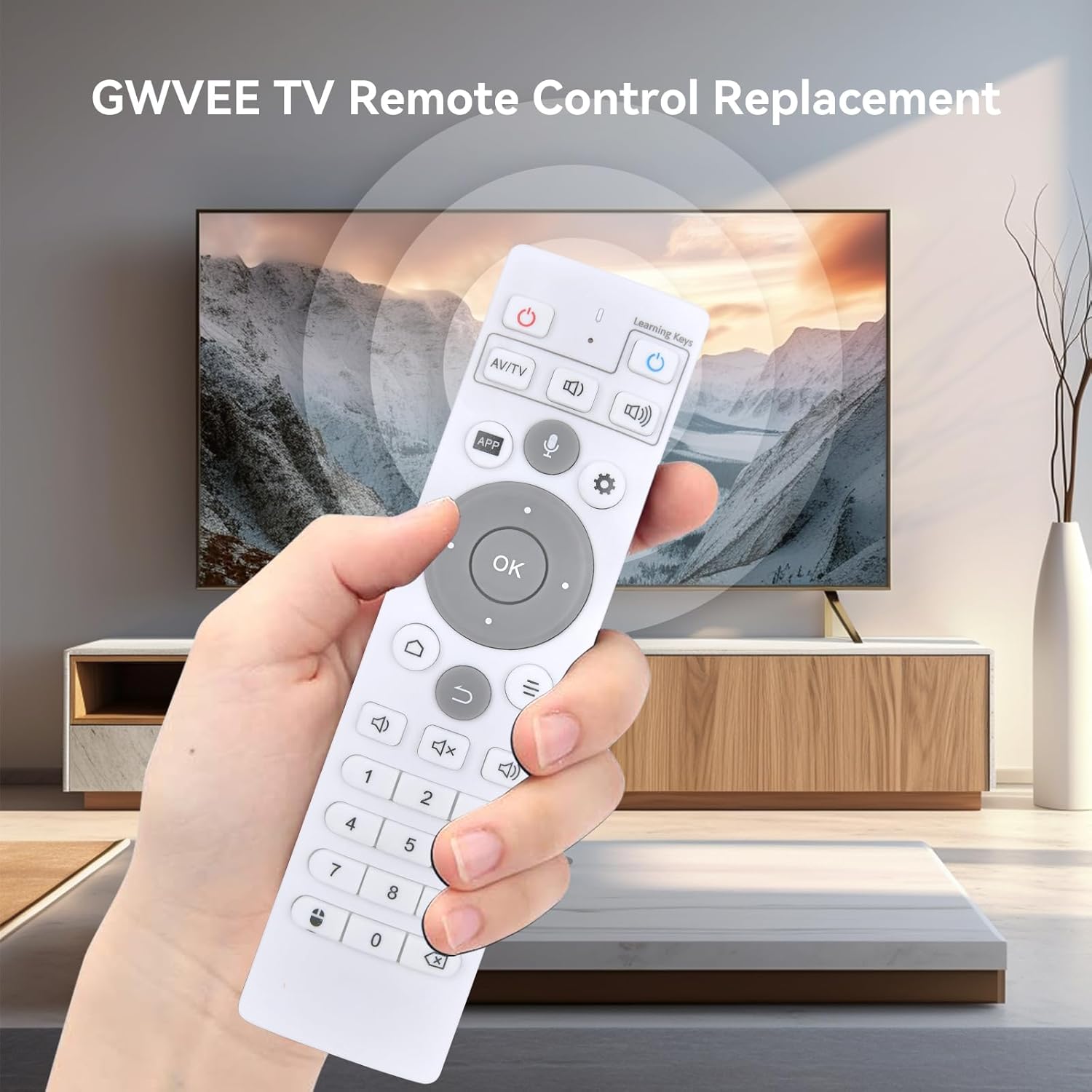
Image 4: Remote control in use, demonstrating interaction with a television.

Image 5: Illustration of the remote's stable signal, long-range, and multi-angle control capabilities.
4.1 Key Functions
- Power Button: Turns the UBOX TV Box on or off.
- Navigation Pad (Up, Down, Left, Right, OK): Used to navigate menus and select items.
- Volume Up/Down: Adjusts the audio volume.
- Mute Button: Mutes or unmutes the audio.
- Home Button: Returns to the main home screen.
- Back Button: Returns to the previous screen or menu.
- APP Button: Accesses the applications menu.
- Settings Button: Opens the device settings.
- Number Pad (0-9): For direct input or channel selection.
- AV/TV Button: Switches input sources.
Note: This remote control does not support voice commands.
5. Compatibility
This GWVEE Replacement Remote Control is fully compatible with the following UBOX TV Box models:
- UBOX10
- UBOX11
- UBOX 12 PRO MAX
6. Maintenance
6.1 Cleaning
To clean the remote control, use a soft, dry cloth. Do not use liquid cleaners or abrasive materials, as these may damage the remote's surface or internal components.
6.2 Battery Replacement
Replace batteries when the remote's response becomes sluggish or stops working. Always replace both batteries at the same time with new AAA batteries. Dispose of used batteries responsibly according to local regulations.
7. Troubleshooting
- Remote not responding:
- Check if the batteries are inserted correctly with the correct polarity.
- Replace old batteries with new ones.
- Ensure there are no obstructions between the remote control and the UBOX TV Box.
- Make sure you are pointing the remote directly at the UBOX TV Box.
- Buttons are unresponsive:
- Ensure the remote is within operational range (up to 26 feet).
- Clean the remote's surface, especially around the buttons, to remove any dirt or debris that might be interfering with button presses.
8. Specifications
- Brand: GWVEE
- Compatible Devices: UBOX10, UBOX11, UBOX 12 PRO MAX TV Boxes
- Color: Black
- Special Feature: Ergonomic design
- Max Number of Supported Devices: 1
- Item Weight: 1.6 ounces
- Package Dimensions: 6.14 x 1.57 x 0.75 inches
- Power Source: 2 x AAA Batteries (not included)
9. Warranty and Support
For any queries or assistance regarding your GWVEE Replacement Remote Control, please contact the seller or manufacturer directly. Refer to your purchase documentation for specific warranty details.


