
1. Introduction
This manual provides detailed instructions for the installation, operation, and maintenance of your ANCARLA ZC-IPC216 Dual Lens Indoor Security Camera. Please read this manual thoroughly before using the product to ensure proper functionality and safety.
What's in the Box
- ANCARLA ZC-IPC216 Dual Lens Indoor Security Camera
- Instruction Manual
- Mounting Screws
- Power Adapter
- Stand
2. Product Overview
The ANCARLA ZC-IPC216 is an indoor security camera featuring dual lenses for enhanced monitoring. It offers 2K resolution, smart detection, auto-tracking, two-way audio, and dual-band Wi-Fi connectivity (2.4G & 5G) for comprehensive home surveillance.
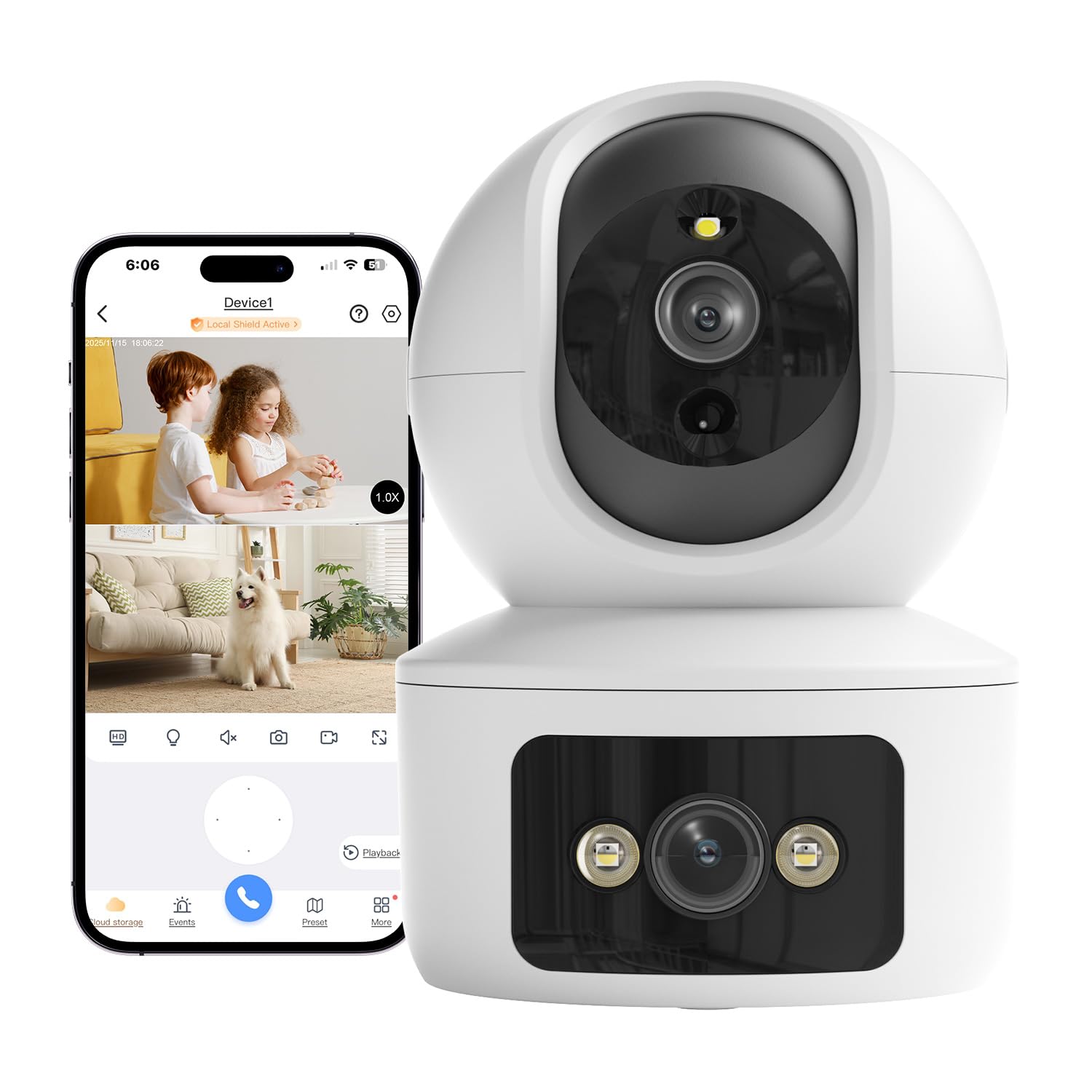
Figure 2.1: ANCARLA ZC-IPC216 Dual Lens Indoor Security Camera.
Key Features
- Dual Lenses: Combines a fixed lens and a rotating lens for simultaneous monitoring of two directions.
- 2K Resolution: Delivers clear video quality.
- Smart Detection & Auto-Tracking: Detects motion and automatically tracks moving objects.
- Dual-Band Wi-Fi: Supports both 2.4G and 5G networks for stable connectivity.
- Two-Way Audio: Built-in speaker and microphone for real-time communication.
- Night Vision: Features full-color infrared night vision.
- Flexible Storage: Supports microSD card (up to 256GB, not included) and cloud storage.
3. Setup
3.1 Powering On the Camera
- Connect the provided power adapter to the camera's power input port.
- Plug the power adapter into a standard electrical outlet.
- The camera will power on, and an indicator light will show its status.
3.2 App Download and Account Creation
- Download the O-KAM Pro app from your device's app store (iOS App Store or Google Play Store).
- Open the app and follow the on-screen instructions to create a new account or log in if you already have one.
3.3 Connecting to Wi-Fi
- In the O-KAM Pro app, tap the "Add Device" or "+" icon.
- Select your camera model from the list.
- Follow the app's instructions to connect the camera to your Wi-Fi network. The camera supports both 2.4G and 5G Wi-Fi bands. Ensure your phone is connected to the same Wi-Fi network during setup.
- If prompted, scan the QR code displayed on your phone with the camera lens.
- Wait for the camera to connect and confirm successful pairing in the app.

Figure 3.1: The camera supports both 2.4GHz and 5GHz Wi-Fi for stable connection.
3.4 Mounting the Camera
The camera can be placed on a flat surface or mounted to a wall or ceiling using the included stand and mounting screws. Ensure the camera is positioned to cover the desired monitoring area.
4. Operating Instructions
4.1 Live View and Dual Lens Control
Once connected, open the O-KAM Pro app to access the live feed. The dual-lens design allows for simultaneous viewing of two areas. You can switch between views or control the pan and tilt of the rotating lens (PTZ Camera) to adjust the viewing angle.

Figure 4.1: Dual lens functionality allows monitoring of two directions simultaneously (PTZ and Fixed Camera views).
4.2 Smart Detection and Auto-Tracking
The camera is equipped with smart detection capabilities. When motion is detected, the camera can automatically track the moving object within its field of view and send instant notifications to your phone.

Figure 4.2: The camera automatically tracks moving objects, such as a child, ensuring continuous monitoring.

Figure 4.3: Motion detection triggers phone alerts, notifying you of activity in the monitored area.
4.3 Two-Way Audio
Use the two-way audio feature to communicate with individuals near the camera. Tap the microphone icon in the app to speak, and the sound will be transmitted through the camera's speaker. You can also hear audio from the camera's environment through your phone.

Figure 4.4: Real-time two-way communication allows interaction with family or pets through the camera.
4.4 Night Vision
The camera provides clear visibility even in low-light conditions. It supports both standard infrared night vision and full-color night vision, allowing you to see details in the dark.

Figure 4.5: The camera offers both color night vision and standard night vision for clear images in darkness.
4.5 Recording and Storage
The camera supports continuous recording and event-triggered recording. Recordings can be stored locally on a microSD card (up to 256GB, not included) or securely in the cloud (subscription may be required).
Figure 4.6: The camera supports 24/7 loop recording with options for SD card or cloud storage, and easy playback.
4.6 Family Sharing
You can share access to your camera's live feed and recordings with family members or trusted individuals through the O-KAM Pro app. This allows multiple users to monitor the same location.
5. Maintenance
5.1 Cleaning the Camera
To maintain optimal performance, periodically clean the camera lenses and exterior. Use a soft, dry cloth to gently wipe away dust and smudges. Avoid using harsh chemicals or abrasive materials that could damage the camera.
5.2 Firmware Updates
Regularly check the O-KAM Pro app for available firmware updates. Keeping your camera's firmware up-to-date ensures you have the latest features, security enhancements, and bug fixes. Follow the in-app instructions for updating the firmware.
6. Troubleshooting
- Camera will not power on:
Ensure the power adapter is securely connected to both the camera and a working electrical outlet. Verify the outlet has power. - Camera fails to connect to Wi-Fi:
- Ensure your Wi-Fi password is entered correctly.
- Verify that your router is broadcasting a 2.4GHz or 5GHz network, and your phone is connected to the same network during setup.
- Move the camera closer to your Wi-Fi router to improve signal strength.
- Restart your Wi-Fi router and the camera, then attempt the connection process again.
- If using a dual-band router, try connecting to the other band (2.4GHz or 5GHz).
- Poor video quality:
Check your Wi-Fi signal strength in the app. A weak signal can affect video quality. Ensure the camera lens is clean and free from obstructions. - No motion detection alerts:
Verify that motion detection is enabled in the O-KAM Pro app settings. Check the sensitivity settings and ensure notifications are allowed for the app on your phone. - Two-way audio not working:
Ensure your phone's microphone and speaker are enabled for the O-KAM Pro app. Check the volume settings on both your phone and within the app.
7. Specifications
| Feature | Specification |
|---|---|
| Model Name | ZC-IPC216 |
| Video Capture Resolution | 2K (Effective Still Resolution: 2 MP) |
| Connectivity Technology | 2.4G/5G Wi-Fi Connectivity, Wireless |
| Viewing Angle | 360 Degrees (Pan/Tilt) |
| Night Vision Range | 50 Feet (Infrared, LED, Color Night Vision) |
| Frame Rate | 20 frames per second |
| Digital Zoom | 4X |
| Storage Options | MicroSD card (up to 256GB), Cloud Storage |
| Control Method | App (iOS/Android phone and pad) |
| Power Source | Plug-in Power Adaptor (5V, 5W) |
| Material | Acrylonitrile Butadiene Styrene (ABS) |
| Item Weight | 381 g (0.38 Kilograms) |
| Indoor/Outdoor Usage | Indoor |
| Water Resistance Level | Not Water Resistant |
8. Warranty Information
ANCARLA products are designed for reliability and performance. For specific warranty terms and conditions, please refer to the warranty card included with your product or visit the official ANCARLA website. Keep your purchase receipt as proof of purchase for any warranty claims.
9. Customer Support
If you encounter any issues or have questions regarding your ANCARLA ZC-IPC216 camera, please contact ANCARLA customer support. Contact details can typically be found on the product packaging, the official ANCARLA website, or within the O-KAM Pro app's help section. Please have your model number (ZC-IPC216) and purchase information ready when contacting support.