
1. Introduction
This user manual provides essential information for the safe and efficient operation of your new Hyundai 60-inch 4K QLED Smart TV (Model HYLED6007QR). Please read this manual thoroughly before using the television and retain it for future reference. This television combines advanced QLED display technology with the intuitive Roku OS, offering a superior entertainment experience.
2. Product Features
- 60-inch 4K UHD QLED Display: Experience vibrant colors and deep blacks with a resolution of 3840 x 2160 pixels.
- Borderless Design: Maximizes screen space for an immersive viewing experience.
- Roku OS: Access a vast library of streaming channels, apps, and live TV.
- Dolby Audio: Delivers rich, clear, and immersive sound.
- Dual Band WiFi: Ensures stable and fast wireless connectivity for seamless streaming.
- Smart Home Compatibility: Works with Alexa, Apple AirPlay, and Google Home for voice control and smart integration.
- HDR10 Support: Enhances contrast and color accuracy for a more dynamic picture.
- Wide Viewing Angle: 178-degree viewing angle ensures consistent picture quality from various positions.

This image shows the Hyundai 60-inch 4K QLED Smart TV from the front, highlighting its borderless design and the intuitive Roku TV interface. The screen displays popular streaming applications like Netflix, Disney+, and YouTube, indicating its smart TV capabilities.

An illustrative graphic detailing the Quantum Dot Technology (QLED) used in the TV. It explains how liquid crystal displays with LED lights and small Quantum Dot nanoparticles contribute to brighter images, enhanced contrast, and deeper, more authentic black levels.
3. What's in the Box
Please check the contents of your package carefully. If any items are missing or damaged, contact your retailer.
- Hyundai 60-inch 4K QLED Smart TV Display
- Remote Control
- Power Cable
- User Manual (this document)
- Table Stand Legs (2) and Screws
4. Setup
4.1 Unpacking
Carefully remove the TV from its packaging. It is recommended to have two people for this process due to the size and weight of the television. Keep all packaging materials for potential future transport or returns.
4.2 Attaching the Stand
If you plan to place the TV on a table or cabinet, attach the included stand legs. Place the TV face down on a soft, clean surface to prevent screen damage. Align each stand leg with the corresponding slots on the bottom of the TV and secure them with the provided screws.

A detailed shot of one of the TV's stand legs, highlighting its modern, curved design which provides stable support for the television on a flat surface.
4.3 Wall Mounting (Optional)
If you prefer to wall mount your TV, ensure you use a VESA-compatible wall mount (not included) that supports the TV's weight and VESA pattern. Refer to the wall mount's instructions for proper installation. The TV's VESA pattern is typically 300x200mm, but always verify with the product specifications.
4.4 Connecting Power
Once the TV is securely placed or mounted, connect the power cable to the TV's power input and then to a wall outlet. Do not plug in the TV until all other connections are made.
4.5 Connecting External Devices
Your TV is equipped with multiple ports for connecting external devices.
- HDMI Ports (4): Connect Blu-ray players, game consoles, cable/satellite boxes, etc.
- USB Ports (2): Connect USB drives for media playback.
- RF Input: Connect an antenna for over-the-air broadcasts.

The back of the TV is displayed, revealing the arrangement of various input/output ports and the pattern for VESA wall mounting, crucial for connectivity and installation.
5. Operating Instructions
5.1 First-Time Setup (Roku OS)
Upon first power-on, the TV will guide you through the initial setup process. This includes:
- Language Selection: Choose your preferred language.
- Network Connection: Connect to your home Wi-Fi network using the Dual Band WiFi.
- Roku Account Setup: Create or sign in to your Roku account. This is required to access streaming channels.
- Channel Installation: Select and install your favorite streaming channels.
- Antenna/Cable Scan: If connecting an antenna or cable, the TV will scan for available channels.
5.2 Remote Control Overview
The included remote control provides easy navigation of the Roku OS. Key buttons include:
- Power: Turns the TV on/off.
- Home: Returns to the Roku home screen.
- Directional Pad: Navigates menus and selects items.
- OK/Enter: Confirms selections.
- Back: Returns to the previous screen.
- Volume Up/Down: Adjusts audio volume.
- Mute: Mutes/unmutes sound.
- Channel Shortcuts: Dedicated buttons for popular streaming services.
5.3 Using Voice Assistants
Your TV is compatible with Alexa and Google Home. To enable voice control:
- Ensure your TV is connected to the internet.
- Open the Alexa or Google Home app on your smartphone or tablet.
- Follow the in-app instructions to link your Roku account and discover your TV.
- You can then use voice commands to launch channels, search for content, control playback, and more.
5.4 Adjusting Picture and Sound Settings
Access the TV's settings menu via the Roku home screen to customize picture and sound. You can adjust brightness, contrast, color, and select different picture modes (e.g., Movie, Sport, Vivid). For audio, choose from various sound modes or adjust equalizer settings.
6. Connectivity
The Hyundai 60-inch 4K QLED Smart TV offers robust connectivity options:
- HDMI (4 ports): For high-definition audio and video input.
- USB (2 ports): For connecting USB storage devices to play media files.
- Wi-Fi (Dual Band): Supports 2.4GHz and 5GHz networks for reliable wireless internet access.
- Apple AirPlay: Stream content directly from your Apple devices.
- Google Home: Integrate with your Google Home ecosystem for voice control and smart features.
7. Specifications
| Feature | Specification |
|---|---|
| Model Number | HYLED6007QR |
| Screen Size | 60 Inches |
| Display Technology | QLED |
| Resolution | 4K Ultra HD (3840 x 2160) |
| Operating System | Roku OS |
| Refresh Rate | 60 Hz |
| Audio Output | 2 x 10W Speakers, Dolby Digital |
| Connectivity | 4 HDMI, 2 USB, RF Input, Dual Band Wi-Fi |
| Smart Features | Alexa, Apple AirPlay, Google Home, HDR10 |
| Viewing Angle | 178 Degrees |
| Dimensions (with stand) | 134.5 cm (W) x 84.1 cm (H) x 29.9 cm (D) |
| Weight | 13.1 kg |
| Model Year | 2025 |
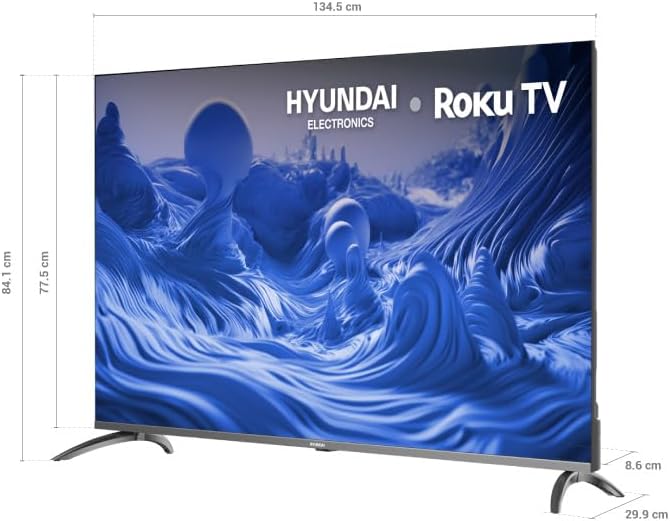
This diagram provides precise measurements of the TV, including its width (134.5 cm), height (84.1 cm with stand, 77.5 cm without), and depth (29.9 cm with stand, 8.6 cm without), essential for planning installation and placement.
8. Maintenance
8.1 Cleaning the Screen
To clean the screen, gently wipe it with a soft, lint-free cloth. For stubborn marks, slightly dampen the cloth with water or a specialized screen cleaner. Never spray liquid directly onto the screen.
8.2 Cleaning the Cabinet
Wipe the TV cabinet with a soft, dry cloth. Avoid using abrasive cleaners or solvents, as they may damage the finish.
8.3 Software Updates
Your Roku TV will automatically check for and install software updates when connected to the internet. Ensure your TV remains connected to Wi-Fi for optimal performance and access to the latest features.
9. Troubleshooting
If you encounter issues with your TV, refer to the following common problems and solutions:
- No Power:
- Ensure the power cable is securely connected to both the TV and the wall outlet.
- Check if the wall outlet is functioning by plugging in another device.
- Press the power button on the remote or the TV itself.
- No Picture, But Sound:
- Check the input source. Press the 'Input' or 'Source' button on your remote to cycle through inputs.
- Ensure all HDMI cables are securely connected.
- Try a different HDMI cable or port.
- No Sound, But Picture:
- Check the volume level and ensure the TV is not muted.
- Verify audio settings in the TV menu.
- If using external audio devices, ensure they are properly connected and powered on.
- Wi-Fi Connection Issues:
- Restart your router and modem.
- Go to the TV's network settings and try reconnecting to your Wi-Fi network.
- Ensure the TV is within range of your Wi-Fi router.
- Remote Control Not Working:
- Replace the batteries in the remote control.
- Ensure there are no obstructions between the remote and the TV's IR sensor.
For more detailed troubleshooting, refer to the online support resources for Roku TV or contact Hyundai Electronics customer support.
10. Warranty and Support
Your Hyundai 60-inch 4K QLED Smart TV comes with a standard manufacturer's warranty. Please refer to the warranty card included with your product for specific terms and conditions, including coverage duration and claim procedures.
For technical support, service inquiries, or to obtain additional information, please visit the official Hyundai Electronics website or contact their customer service department. Keep your purchase receipt and model number (HYLED6007QR) handy when contacting support.