
1. Introduction
This manual provides essential information for setting up, operating, maintaining, and troubleshooting your HP 2025 Omnidesk M02 AI Copilot Business Tower Desktop. Please read these instructions carefully to ensure proper use and longevity of your device.
2. What's in the Box
Verify that all components are present before proceeding with setup.
- HP Omnidesk M02-0881 Tower Desktop
- Wired Keyboard
- Wired Mouse
- ADATA SD620 512GB External SSD
- Power Cable
- Documentation (this manual)

Image: The HP Omnidesk M02 desktop tower, accompanied by a wired keyboard, wired mouse, and an ADATA 512GB external SSD, all packaged together.
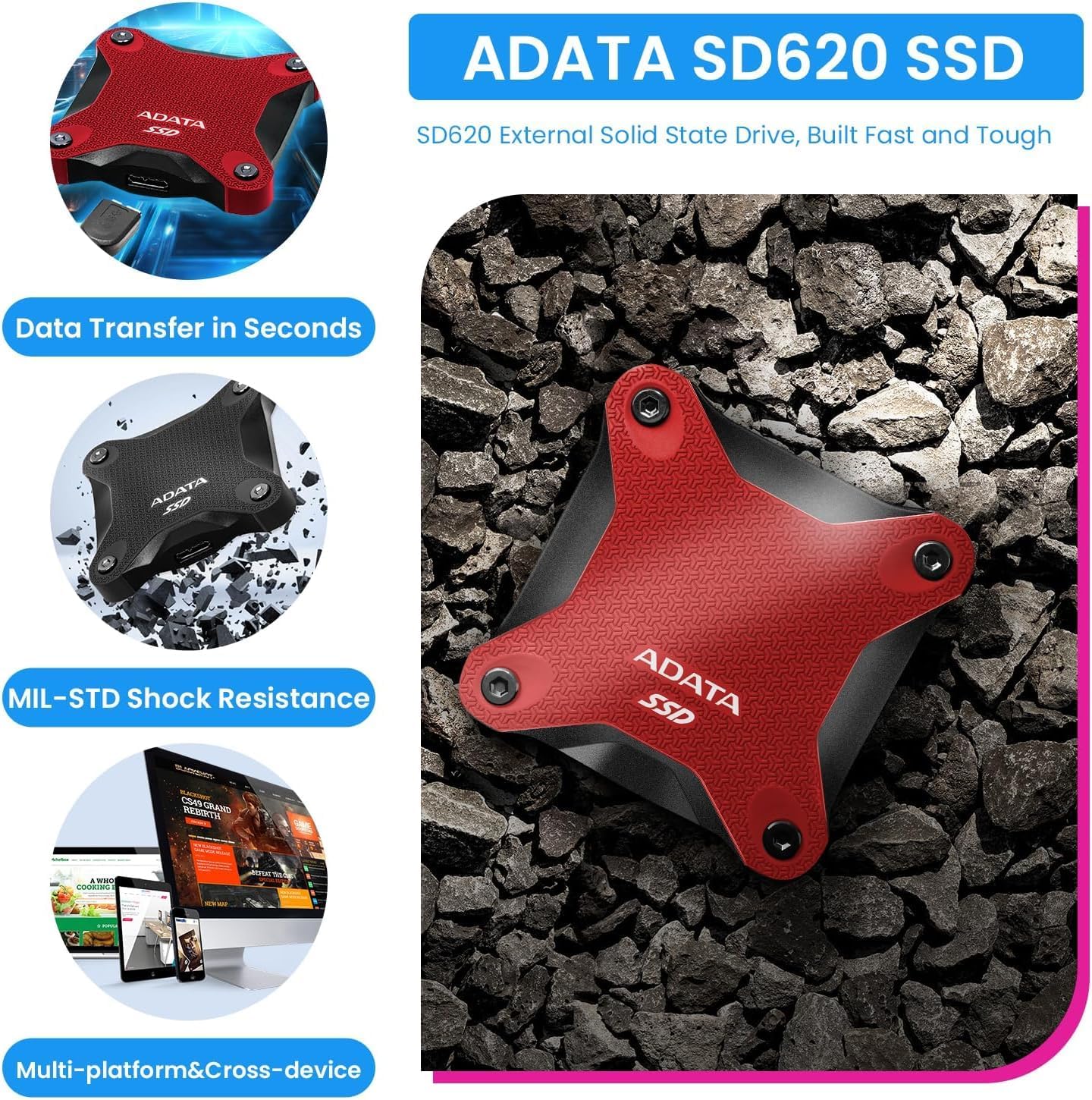
Image: A visual representation of the ADATA SD620 external SSD, highlighting its features such as fast data transfer, MIL-STD shock resistance, and multi-platform compatibility.
3. Setup
3.1 Unpacking and Placement
- Carefully remove all components from the packaging.
- Place the desktop tower on a stable, flat surface with adequate ventilation. Ensure no vents are obstructed.
3.2 Connecting Peripherals
Refer to the port diagram for proper connections.
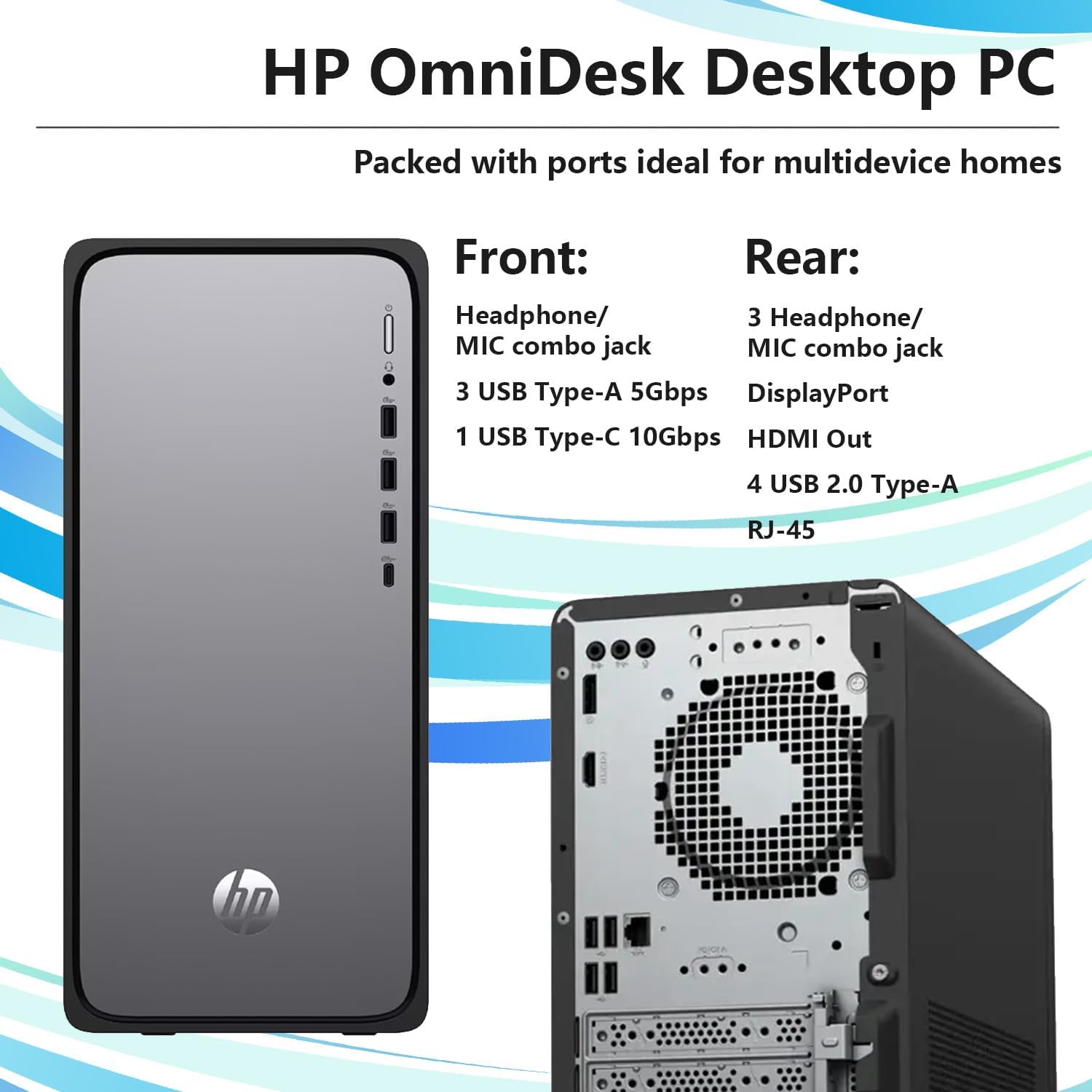
Image: A diagram illustrating the front and rear ports of the HP Omnidesk M02 desktop. Front ports include USB Type-C, USB Type-A, and a headphone/microphone combo jack. Rear ports include USB 2.0 Type-A, HDMI, RJ-45 Ethernet, Audio Out, and DisplayPort.
- Monitor: Connect your monitor to the HDMI or DisplayPort on the rear of the desktop.
- Keyboard and Mouse: Connect the wired keyboard and mouse to any available USB Type-A ports on the front or rear.
- External SSD: Connect the ADATA 512GB External SSD to a USB port. For optimal performance, use a USB 10Gbps Type-C or USB 5Gbps Type-A port.
- Power: Connect the power cable to the desktop's power input and then to a wall outlet.
3.3 Initial Power-On and Operating System Setup
- Press the power button on the front of the desktop.
- Follow the on-screen instructions to complete the Windows 11 Pro setup. This includes selecting your region, language, creating a user account, and connecting to a network.
- For network connectivity, you can use Wi-Fi 6 or connect an Ethernet cable to the RJ-45 port on the rear.
4. Operating Your Desktop
4.1 Power Management
- Power On: Press the power button.
- Shut Down: Click the Start button, then Power > Shut down.
- Restart: Click the Start button, then Power > Restart.
- Sleep: Click the Start button, then Power > Sleep.
4.2 Using Windows 11 Pro
Your desktop comes pre-installed with Windows 11 Pro, offering advanced features for business productivity, security, and device management. Explore the Start menu, taskbar, and settings to customize your experience.

Image: A person seated at a desk, actively using the HP Omnidesk M02 desktop computer with a monitor, keyboard, and mouse.
4.3 AI Copilot Functionality
The integrated AI Copilot functionality enhances productivity by assisting with various tasks, content creation, and system optimization. Access Copilot through the dedicated icon on your taskbar or via voice commands.
4.4 Graphics Performance
The Intel UHD Graphics integrated into the system supports smooth visuals for everyday tasks, streaming 4K content, and casual gaming at 720p resolution.
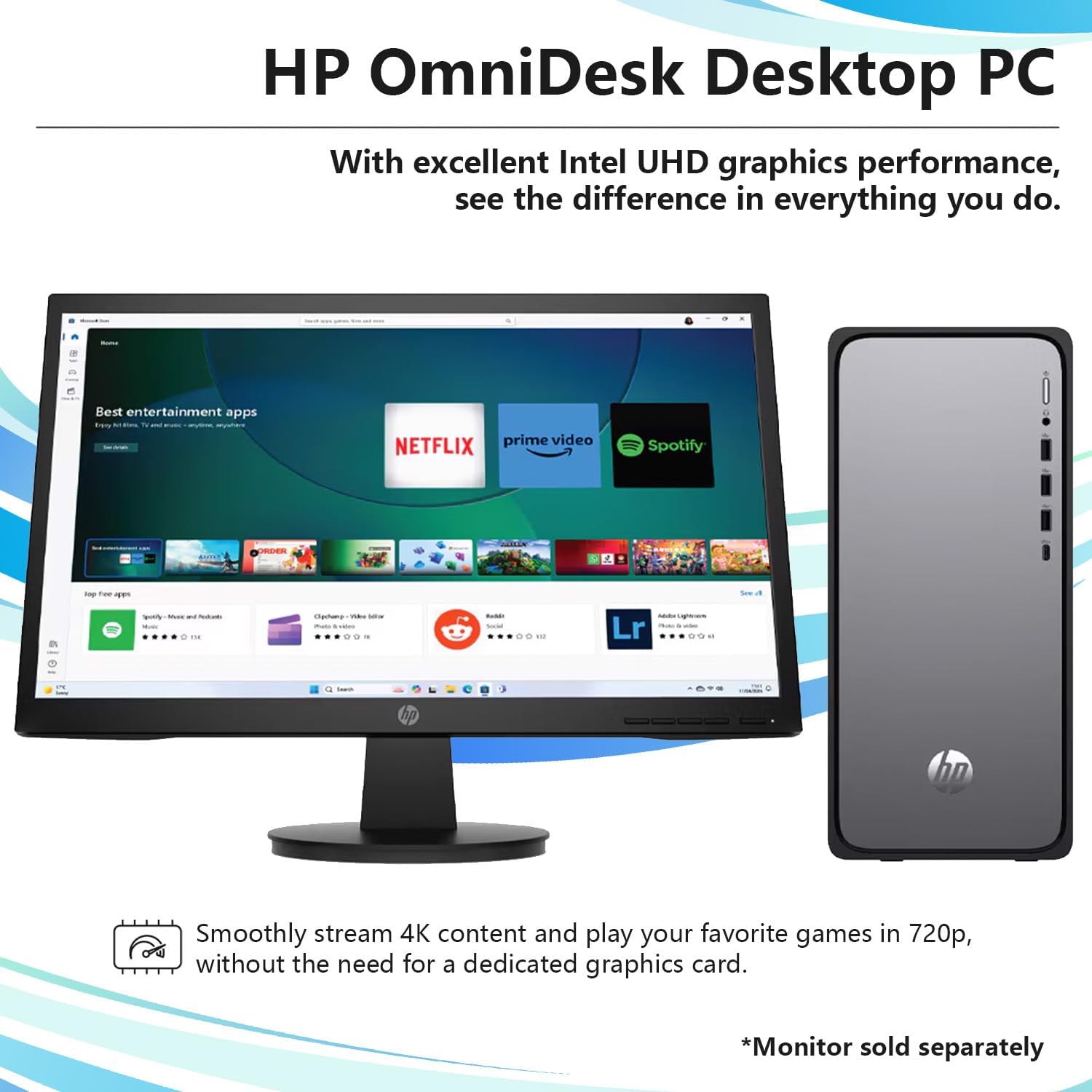
Image: The HP Omnidesk M02 desktop tower positioned next to a monitor displaying various entertainment applications like Netflix, Prime Video, and Spotify. A note indicates that the monitor is sold separately.
5. Maintenance
5.1 Cleaning
- Use a soft, dry cloth to clean the exterior of the desktop.
- For stubborn marks, slightly dampen the cloth with water. Avoid harsh chemicals.
- Periodically clean dust from vents using compressed air to maintain optimal airflow.
5.2 Software Updates
Regularly check for and install Windows updates to ensure system stability, security, and performance. Go to Settings > Windows Update.
5.3 Data Backup
It is recommended to regularly back up important data to the included ADATA 512GB External SSD or another external storage device to prevent data loss.
5.4 Environmental Considerations
The HP Omnidesk M02 is designed with sustainability in mind, incorporating 20% recycled metal and 50% post-consumer recycled plastics. It is EPEAT Gold with Climate+ Certified and ENERGY STAR certified.

Image: The HP Omnidesk M02 desktop tower alongside icons indicating its environmental certifications, including 20% recycled metal, 50% post-consumer recycled plastics, EPEAT Gold with Climate+ Certified, and ENERGY STAR certified.
6. Troubleshooting
6.1 No Power
- Ensure the power cable is securely connected to both the desktop and the wall outlet.
- Verify the wall outlet is functional by plugging in another device.
6.2 No Display
- Check that the monitor is powered on and its video cable is securely connected to the desktop.
- Ensure the correct input source is selected on your monitor.
6.3 Network Connectivity Issues
- For Wi-Fi, ensure the Wi-Fi adapter is enabled and you are connected to the correct network with the correct password.
- For wired connection, check the Ethernet cable connection and verify your router/modem is working correctly.
6.4 Slow Performance
- Close unnecessary applications running in the background.
- Ensure Windows is up to date.
- Run a disk cleanup and defragmentation (for HDD, not necessary for SSD).
- Check for malware or viruses.
7. Specifications
Detailed technical specifications for the HP Omnidesk M02-0881 Desktop.
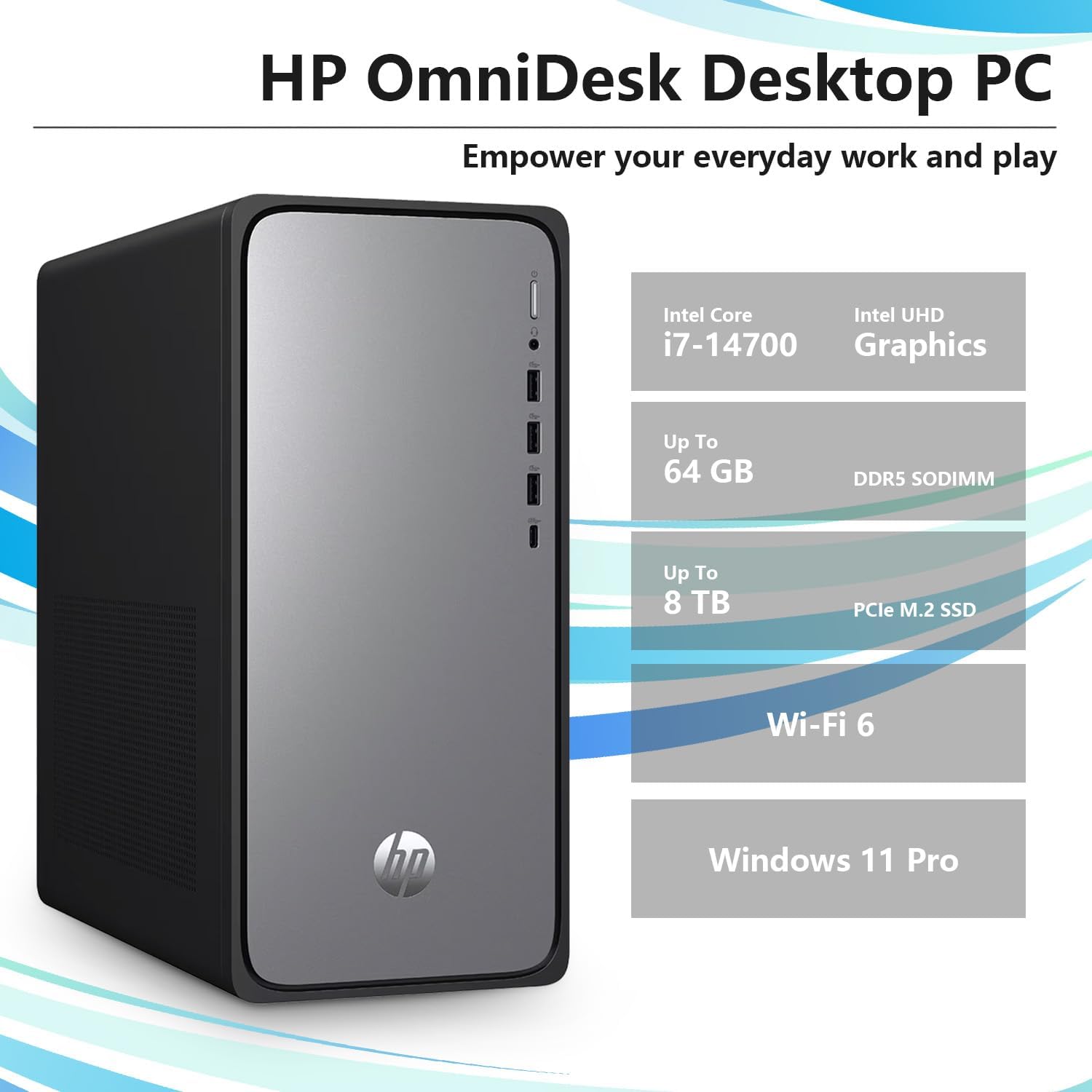
Image: A graphic highlighting key features of the HP Omnidesk M02 Desktop PC, including Intel Core i7-14700 processor, Intel UHD Graphics, up to 64GB DDR5 SODIMM RAM, up to 8TB PCIe M.2 SSD, Wi-Fi 6, and Windows 11 Pro.
| Feature | Description |
|---|---|
| Processor | Intel Core i7-14700 (20 Cores, 28 Threads, up to 5.4 GHz) |
| Graphics | Intel UHD Graphics (Integrated) |
| RAM | 64GB DDR5-5600MHz |
| Storage | 4TB PCIe NVMe M.2 SSD (Internal) + 512GB ADATA External SSD |
| Operating System | Windows 11 Pro |
| Wireless Connectivity | Wi-Fi 6 (802.11ax), Bluetooth |
| Front Ports | 1x USB Type-C (10Gbps), 3x USB Type-A (5Gbps), 1x Headphone/Microphone Combo Jack |
| Rear Ports | 4x USB Type-A 2.0, 1x HDMI, 1x RJ-45 (Ethernet), 1x Audio Out, 1x DisplayPort |
| Dimensions (LxWxH) | 13.27 x 6.10 x 12.40 inches |
| Weight | 12.72 lbs |
| Color | Black |
| Power Source | AC |
8. Warranty and Support
8.1 Warranty Information
Your HP Omnidesk M02-0881 Desktop includes a 1-year manufacturer's warranty on original components. For upgraded RAM and SSD components, a separate 1-year warranty is provided by PCOnline US. Please retain your proof of purchase for warranty claims.
8.2 Technical Support
For general product support and issues related to original components, please visit the official HP Support website. For issues specifically related to the upgraded RAM or SSD, contact PCOnline US support.