
1. Introduction
Welcome to the itel A90 4G Smartphone user manual. This guide provides essential information on how to set up, operate, maintain, and troubleshoot your new device. Please read this manual carefully to ensure proper usage and to maximize your smartphone's performance.
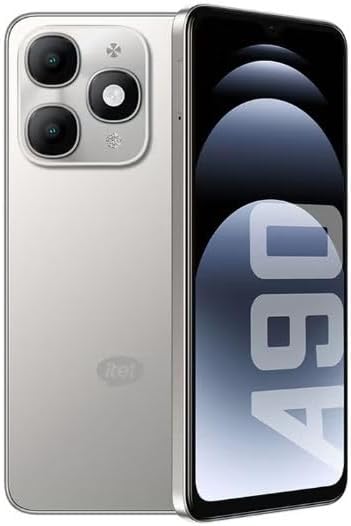
Figure 1: itel A90 4G Smartphone, showcasing its design from front and back.
2. Product Overview
The itel A90 is a 4G smartphone designed for reliable performance and user convenience. Key features include:
- Display: Immersive HD+ screen for vibrant visuals.
- Camera: Ultra-clear front and rear cameras to capture life's best moments.
- Battery: Long-lasting battery to keep you going all day.
- Connectivity: 4G LTE for fast browsing and streaming.
- Security: Side fingerprint and face sensor for quick access.
- AI Assistant: "Hi Aivana" GPT AI Assistant for smart interactions.
- Smart Link+: Enhanced signal stability and network repair.
- Always-On Display: Stay updated with time and notifications.

Figure 2: Overview of key features including Smart Link+, Find My Phone, Side Fingerprint & Face Sensor, and Always-On Display.
3. Setup
3.1 Unboxing and Package Contents
Upon opening your itel A90 package, ensure all items are present:
- itel A90 Smartphone
- Charger Adapter
- USB Cable
- SIM Ejector Tool
- Protective Case (may vary by region)
- Quick Start Guide / Warranty Card

Figure 3: itel A90 smartphone and its standard accessories.
3.2 SIM Card and SD Card Installation
- Locate the SIM card tray on the side of your phone.
- Insert the SIM ejector tool into the small hole next to the tray and press gently until the tray pops out.
- Place your Nano-SIM card(s) and/or microSD card into the designated slots on the tray, ensuring the gold contacts face down.
- Carefully push the tray back into the phone until it clicks into place.
3.3 Initial Power On and Setup
- Press and hold the Power button until the itel logo appears.
- Follow the on-screen instructions to select your language, connect to a Wi-Fi network, and set up your Google account.
- You may also be prompted to set up security features like fingerprint or face unlock during this process.
3.4 Charging the Device
Before first use, fully charge your itel A90. Use only the provided charger and USB cable.
- Connect the USB cable to the charger adapter.
- Plug the charger adapter into a power outlet.
- Connect the USB-C end of the cable to the charging port on your phone.
- The charging indicator will appear on the screen.
4. Operating the Device
4.1 Basic Navigation
- Touch: Tap an icon to open an app or select an item.
- Swipe: Drag your finger across the screen to scroll or navigate between screens.
- Pinch: Use two fingers to zoom in or out on photos and web pages.
- Power Button: Press to wake/sleep the screen. Press and hold to power off or restart.
- Volume Buttons: Adjust media volume, call volume, or ringtone volume.
4.2 Making Calls and Sending Messages
- Calls: Open the Phone app, enter the number, and tap the call icon.
- Messages: Open the Messages app, tap the new message icon, enter the recipient and your message, then send.
4.3 Camera Usage
The itel A90 features ultra-clear front and rear cameras.
- Open the Camera app.
- Select photo or video mode.
- Tap the shutter button to take a photo or start/stop recording a video.
- Use the on-screen controls to switch between front/rear cameras, adjust zoom, or apply filters.
4.4 Connectivity
- Wi-Fi: Go to Settings > Network & internet > Wi-Fi to connect to available networks.
- Bluetooth: Go to Settings > Connected devices > Bluetooth to pair with other Bluetooth devices.
- Mobile Data (4G LTE): Ensure your SIM card is active and mobile data is enabled in Settings > Network & internet > Mobile network.
4.5 Security Features
- Fingerprint Sensor: Register your fingerprints in Settings > Security > Fingerprint. Use it to unlock your phone or authorize purchases.
- Face Unlock: Set up face recognition in Settings > Security > Face Unlock.
4.6 AI Assistant
The "Hi Aivana" GPT AI Assistant provides intelligent support. Activate it by following the on-screen prompts or through dedicated gestures/buttons (if available) to ask questions, set reminders, or control device functions.
4.7 Smart Link+
Smart Link+ technology enhances signal stability, provides automatic network repair, and reduces latency for a smoother online experience.
4.8 Always-On Display
The Always-On Display feature allows you to view the time, date, and notifications without fully waking up your phone. Configure this feature in Settings > Display > Always-On Display.
5. Maintenance
5.1 Cleaning Your Device
To clean your itel A90, use a soft, lint-free cloth. Avoid using harsh chemicals or abrasive materials that could damage the screen or finish.
5.2 Software Updates
Regularly check for software updates to ensure your device has the latest features and security patches. Go to Settings > System > System update.
5.3 Battery Care
To prolong battery life:
- Avoid extreme temperatures.
- Do not let the battery drain completely before recharging.
- Use the original charger and cable.
- Close unused apps running in the background.
6. Troubleshooting
This section addresses common issues you might encounter with your itel A90.
6.1 Device Not Powering On
- Ensure the battery is charged. Connect the charger and wait a few minutes before attempting to power on.
- Press and hold the Power button for at least 10-15 seconds to force a restart.
6.2 Connectivity Issues (Wi-Fi/Mobile Data)
- Wi-Fi: Restart your router. Forget the network in phone settings and reconnect.
- Mobile Data: Ensure mobile data is enabled. Check your SIM card is properly inserted and active. Contact your carrier if issues persist.
6.3 Apps Crashing or Freezing
- Close the app and reopen it.
- Clear the app's cache and data in Settings > Apps > [App Name] > Storage.
- Ensure the app is updated to its latest version.
- Restart your phone.
7. Specifications
Detailed technical specifications for the itel A90 smartphone:
| Feature | Specification |
|---|---|
| Brand Name | itel |
| Operating System | Android 6.0 |
| Installed RAM Memory | 4 GB |
| CPU Speed | 1.8 GHz |
| Memory Storage Capacity | 256 GB |
| Screen Size | 6.6 inches |
| Resolution | 1280 x 720 |
| Refresh Rate | 90 Hz |
| Model Name | A90 |
| Wireless Carrier | All Carriers |
8. Safety Information
Please observe the following safety guidelines:
- Do not expose the device to extreme temperatures, direct sunlight, or excessive moisture.
- Avoid dropping or subjecting the device to severe impact.
- Use only manufacturer-approved accessories.
- Do not attempt to disassemble or repair the device yourself. Refer to qualified service personnel.
- Keep the device away from medical devices, as it may interfere with their operation.
- Dispose of the device and its battery responsibly according to local regulations.
9. Warranty and Support
Your itel A90 smartphone comes with a limited warranty. Please refer to the warranty card included in your package for detailed terms and conditions.
For technical support, service, or further inquiries, please visit the official itel website or contact their customer service. You can find more information at the itel Brand Store.


