
1. Introduction
This manual provides essential information for operating your FLATIC Digital Camera WD08-black. Please read it thoroughly to ensure proper use and to maximize your camera's features, including 5K video recording, 75MP photo capture, WiFi connectivity, and a 180° flip screen.
2. Package Contents
Verify that all items listed below are included in your package:
- 1 x FLATIC Digital Camera (Pink)
- 1 x Rechargeable Battery
- 1 x Type-C USB Cable
- 1 x 64GB TF Memory Card
- 1 x Wrist Strap
- 1 x Cleaning Cloth
- 1 x User Manual

Image: The FLATIC Digital Camera in pink, along with its included accessories: a 64GB TF card, a rechargeable battery, and a Type-C USB cable.
3. Camera Overview
Familiarize yourself with the camera's physical components and controls.
3.1 Key Features
- 5K Ultra HD Video: Records high-resolution video.
- 75MP Photo Resolution: Captures detailed still images.
- 180° Flip Screen: Ideal for selfies and vlogging.
- Built-in WiFi: For instant sharing and remote control.
- Autofocus: Ensures sharp images.
- 18X Digital Zoom: Magnifies subjects for closer shots.
- Webcam Functionality: Connects to a computer for live streaming or video calls.

Image: Visual representation of key features including self-timer, 5K video, 75MP photo, 8+ filters, 64GB card, beauty function, WiFi, and webcam mode.
3.2 Physical Components
The camera features a compact design with intuitive controls.

Image: An exploded diagram illustrating the internal CMOS sensor and lens components of the FLATIC Digital Camera, highlighting its 75MP capability.
4. Setup
4.1 Inserting Battery and TF Card
- Open the battery compartment cover on the side of the camera.
- Insert the rechargeable battery, ensuring correct polarity.
- Insert the 64GB TF card into the designated slot until it clicks into place.
- Close the battery compartment cover securely.
4.2 Charging the Camera
- Connect the Type-C USB cable to the camera's USB port.
- Connect the other end of the cable to a USB power adapter (not included) or a computer.
- The charging indicator light will illuminate. It will turn off or change color when charging is complete.
5. Operating the Camera
5.1 Power On/Off
Press and hold the power button located on the top of the camera to turn it on or off.
5.2 Navigating Menus and Modes
Use the mode dial on the top of the camera to select different shooting modes. The directional buttons and 'OK' button on the back are used for menu navigation and selection.
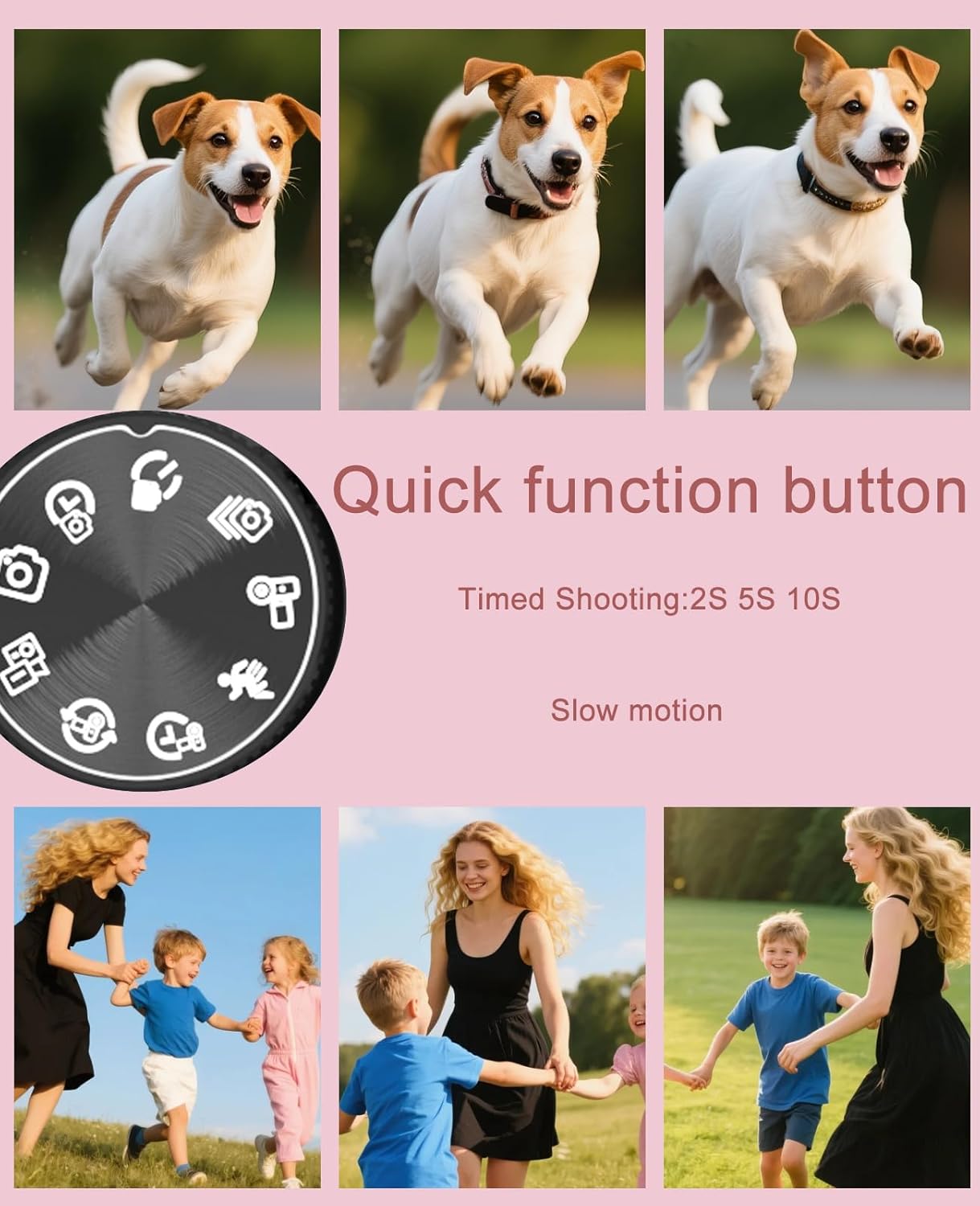
Image: A close-up of the camera's mode dial, showing icons for timed shooting (2s, 5s, 10s) and slow motion video, alongside example photos of dogs and people.
5.3 Shooting Modes
The camera offers various modes to suit different photography and videography needs:
- Photo Mode: Standard still image capture.
- Auto Photo: Automatically adjusts settings for optimal photos.
- Continuous Shooting: Captures multiple photos in quick succession.
- Timed Shooting (Self-Timer): Options for 3s, 5s, or 10s delay before capture.
- Normal Recording: Standard video recording.
- Slow Motion: Records video at a high frame rate for slow-motion playback.
- Time Lapse: Captures images at set intervals to create a time-lapse video.
- Loop Recording: Continuously records video, overwriting older footage.
- Video + Photo: Captures still images while recording video.
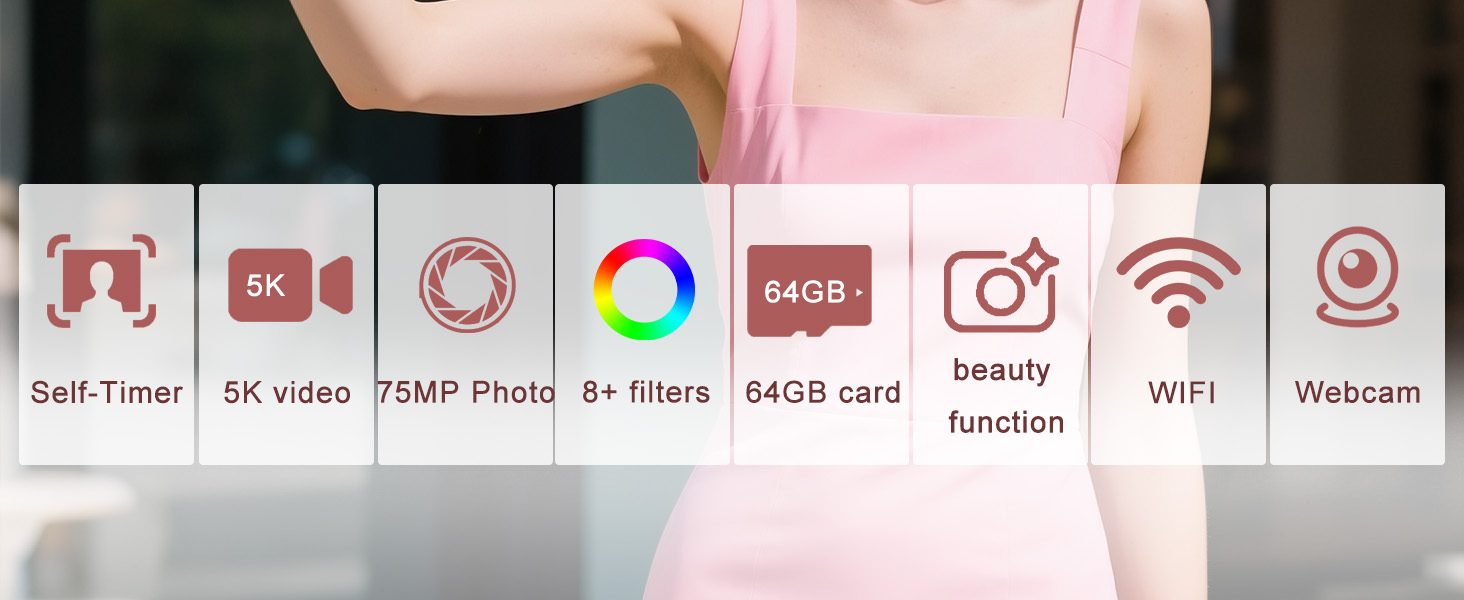
Image: A collage demonstrating different photo modes including Photo mode, Auto photo, Continuous shooting, and Timed shooting with examples.

Image: A collage showcasing different video recording modes such as Normal Recording, Slow Motion, Time Lapse, Loop Recording, and Video+Photo.
5.4 Zoom Function
The camera supports 18X digital zoom. Use the zoom controls (W/T buttons) on the back of the camera to adjust the zoom level.

Image: A pink sports car on a road, with inset images showing the effect of 4X, 8X, and 18X digital zoom.
5.5 Flash Settings
The camera features an automatic flash. To activate or adjust flash settings, navigate through the menu options.
5.6 White Balance
Adjust white balance settings (Auto, Sunny, Cloudy, Fluorescent, Tungsten) via the menu to ensure accurate color reproduction under different lighting conditions.
5.7 Filters
Apply various filters (e.g., Black & White, Negative, Retro) to your photos and videos for creative effects. Access these options through the camera's menu.

Image: A colorful gradient showing 8+ different filter options available on the camera.
5.8 Beauty Function
Enhance portraits with the built-in beauty function, available for both photos and videos.

Image: Two young women smiling, with a comparison showing the effect of the 'Beauty function' turned ON versus OFF.
5.9 Smile Snap
The camera can automatically detect and capture photos when a smile is detected.

Image: A young woman with curly hair smiling, with a white focus box around her face, illustrating the 'Smile Snap' feature.
5.10 180° Flip Screen
The camera features a 180° rotatable screen, allowing you to easily frame yourself for selfies and vlogs.
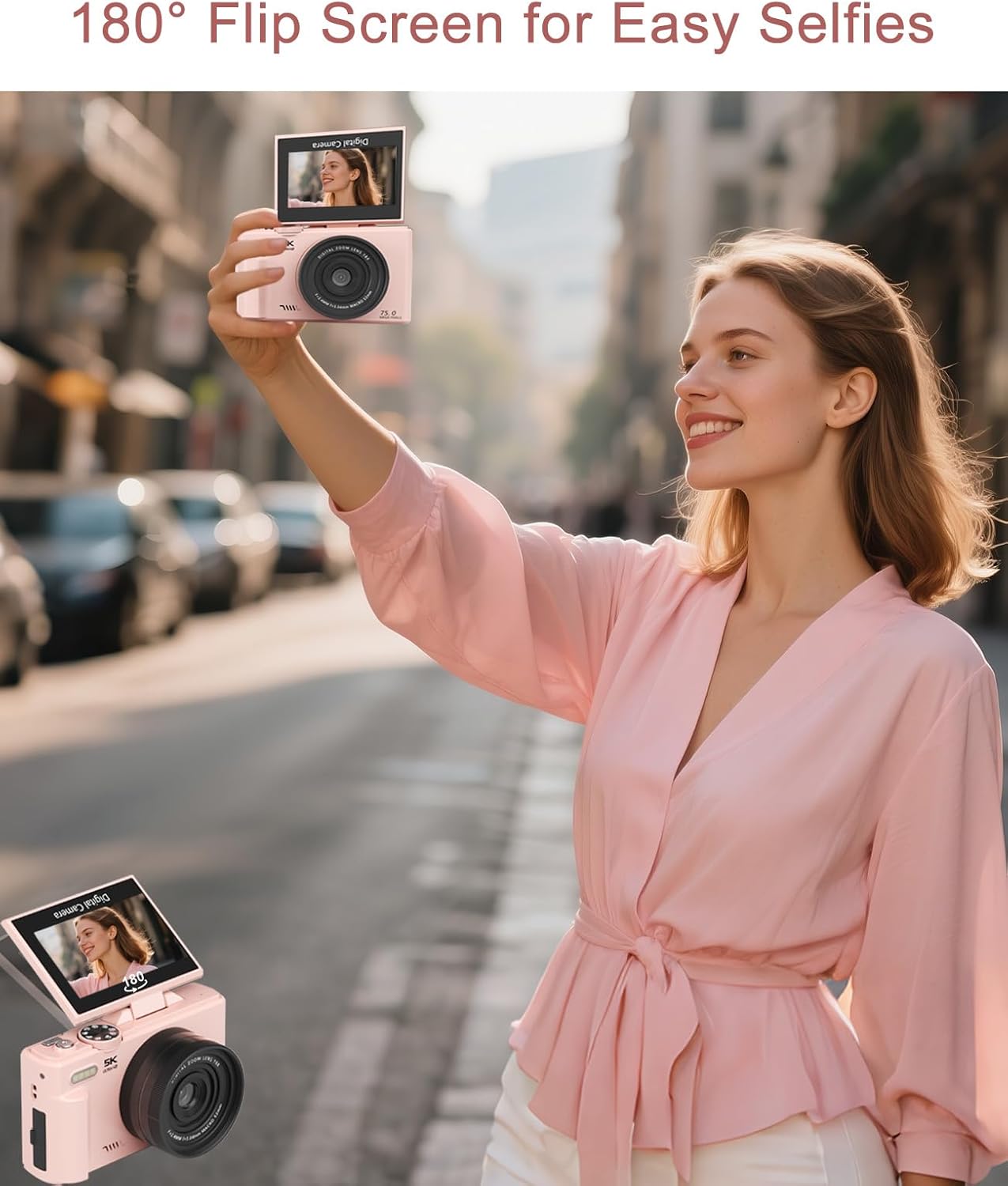
Image: A woman holding the pink digital camera, using its 180° flip screen to take a selfie, with an inset showing the screen flipped up.
6. WiFi Connectivity
The camera's built-in WiFi allows for seamless connection to your smartphone for file transfer and remote control.
- Find the WiFi function in the camera menu and enable it.
- Download the companion app by scanning the QR code displayed on the camera screen or in the user manual.
- Scan the WiFi QR code on the camera screen with your phone to connect.
- Once connected, you can control the camera and transfer files quickly via your phone.

Image: A woman running on a beach, with a smartphone displaying a live view from the camera and a WiFi signal icon, illustrating the camera's built-in WiFi connectivity.
Video: Demonstrates how to connect the FLATIC Digital Camera to a smartphone via WiFi, download the app, and control the camera remotely.
7. Webcam Functionality
Transform your FLATIC Digital Camera into a high-quality webcam for live streaming, online classes, or video calls.
- Connect the camera to your computer using the provided Type-C USB cable.
- Select 'Webcam Mode' on the camera's screen when prompted.
- Your computer should recognize the camera as a webcam. Select it in your preferred video conferencing or streaming software.

Image: A woman using the FLATIC Digital Camera mounted on a tripod and connected to a laptop, demonstrating its use as a webcam for video calls.
8. Maintenance
8.1 Cleaning
- Use the provided cleaning cloth to gently wipe the camera body and screen.
- For the lens, use a specialized lens cleaning solution and cloth to avoid scratches.
- Do not use harsh chemicals or abrasive materials.
8.2 Battery Care
- Charge the battery fully before first use.
- Store the camera and battery in a cool, dry place when not in use.
- Avoid exposing the battery to extreme temperatures.
9. Troubleshooting
If you encounter any issues, refer to the following common solutions:
| Problem | Possible Cause | Solution |
|---|---|---|
| Camera does not power on | Low battery or incorrect battery insertion | Charge the battery fully; ensure battery is inserted correctly. |
| Cannot connect to WiFi | Incorrect app or WiFi settings | Ensure the correct app is installed and WiFi is enabled on both camera and phone. Re-scan QR code. |
| Images are blurry | Autofocus issue or dirty lens | Ensure autofocus is enabled; clean the lens with the provided cloth. |
| Memory card error | Card not inserted correctly or corrupted | Reinsert the TF card; try formatting the card (this will erase all data). |
10. Specifications
Detailed technical specifications for the FLATIC Digital Camera WD08-black:
- Brand: FLATIC
- Model Name: Digital Zoom
- Model Number: WD08-black
- Photo Sensor Resolution: 75 MP
- Video Resolution: 5K (2160p) at 24, 30, 60 FPS
- Image Stabilization: Sensor-shift
- Zoom: 18X Digital Zoom
- Screen Size: 3 Inches (AMOLED Display)
- Connectivity: USB, Wi-Fi
- Memory Storage: 64 GB (TF Card included)
- Battery Type: Lithium Ion (2 A batteries included)
- Material: Plastic
- Item Weight: 0.46 Kilograms
- Special Feature: 180° Flip Screen, Autofocus, Macro Lens

Image: A visual comparison highlighting the benefit of 64GB large storage capacity over 32GB, showing more photos and videos can be stored.
11. Warranty and Support
Your FLATIC Digital Camera WD08-black comes with a 1-Year Manufacturer Warranty.
For technical support, warranty claims, or further assistance, please contact FLATIC customer service through the official brand store or the contact information provided in your product packaging.
FLATIC is committed to providing high-quality digital photography and video solutions, with 24-hour online after-sales service and support for over 30 million users worldwide.

Image: An icon representing 24 Hours Online After-sales Service from FLATIC.