
1. Introduction
Thank you for choosing the Safe Doorbell Camera Wireless. This device is designed to enhance your home security with its advanced features, including Full HD video, AI motion detection, night vision, and two-way audio communication. This manual will guide you through the installation, operation, and maintenance of your new doorbell camera to ensure optimal performance and protection for your home.
Please read this manual carefully before using the product and keep it for future reference.
2. What's in the Box
Verify that all components are present in your package:
- 1 x Safe Doorbell Camera (P50-Purple)
- 1 x Door Chime (Indoor Unit)
- 1 x Charging Cable
- 1 Set x Installation Tools (screws, wall anchors)
- 1 x User Manual (this document)

Image: All components included in the Safe Doorbell Camera Wireless package.
3. Features
- Full HD 1080p Video: Provides clear and detailed video footage of your doorstep.
- 120° Wide-Angle Lens: Captures a broad view of the area in front of your door.
- AI Human Detection: Intelligently identifies human figures, reducing false alarms from pets or vehicles.
- Night Vision: Equipped with infrared sensors for clear black and white images in low-light conditions or complete darkness.
- Two-Way Audio: Built-in microphone and speaker allow for real-time communication with visitors via your smartphone.
- Local Storage (No Monthly Fee): Supports local storage of video data, eliminating the need for cloud storage subscriptions.
- Wireless Wi-Fi Connection: Easy setup and connection to your home Wi-Fi network (2.4GHz only).
- Weatherproof Design: Suitable for outdoor installation, designed to withstand various weather conditions.

Image: Overview of the doorbell's main features.

Image: Demonstration of the two-way audio communication.
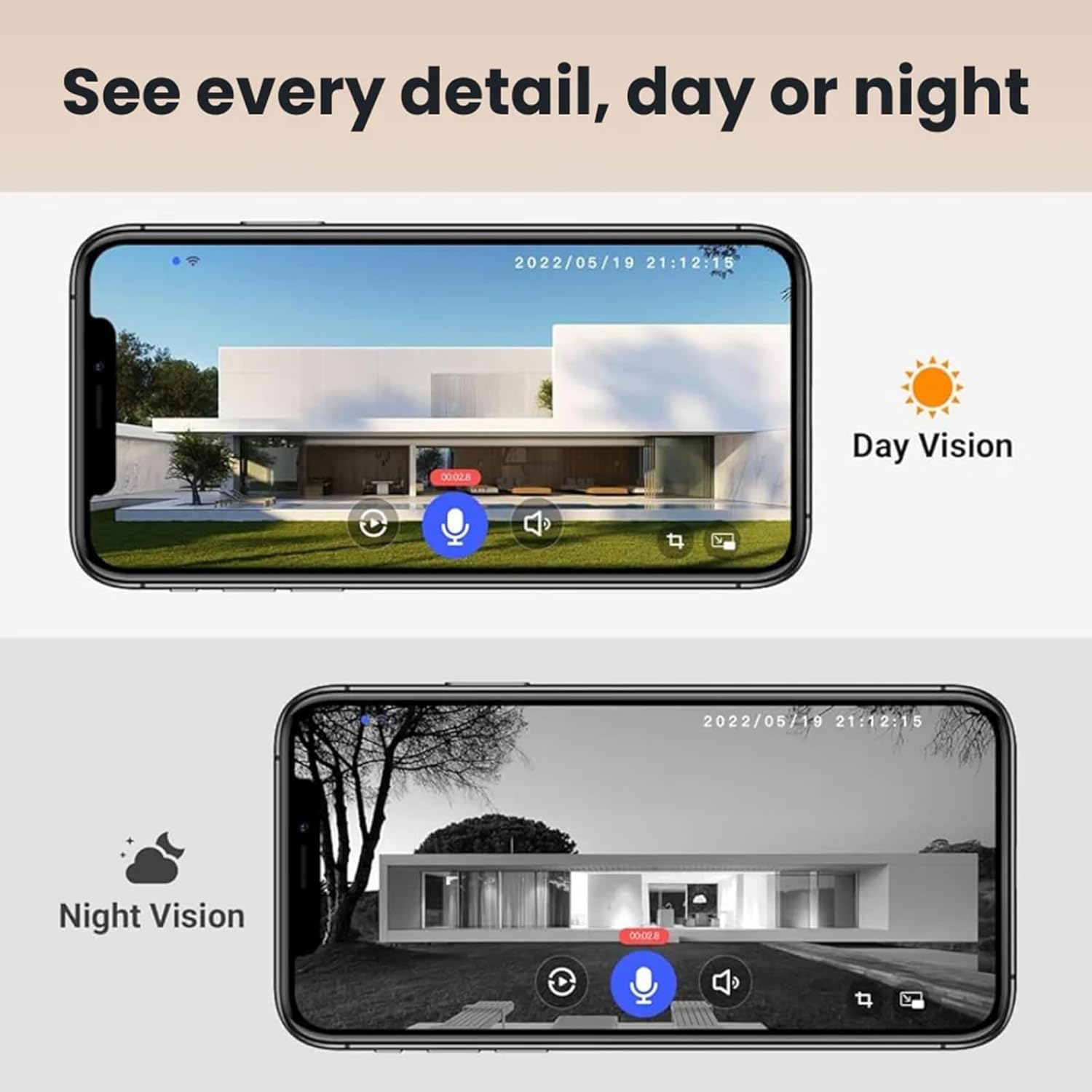
Image: Day and Night Vision capabilities.
4. Specifications
| Specification | Detail |
|---|---|
| Model Name | SD7314 |
| Color | P50-Purple |
| Indoor/Outdoor Usage | Outdoor |
| Connectivity Technology | Wireless (Wi-Fi) |
| Connectivity Protocol | Wi-Fi (2.4GHz only, 5GHz not supported) |
| Power Source | Battery Powered |
| Video Capture Resolution | 1080p |
| Video Capture Format | MP4 |
| Mounting Type | Wall Mount |
| Water Resistance Level | Waterproof |
| Item Dimensions (L x W x H) | 2.6 x 1.7 x 6.5 inches |
| Included Components | Safe Doorbell, Manual, Charging Cable, Installation Tool Set |
5. Setup
5.1 Charging the Doorbell
Before installation, fully charge the doorbell using the provided charging cable. Connect the cable to the doorbell's charging port and a standard USB power adapter (not included). The indicator light will show charging status and turn off when fully charged.
5.2 App Installation and Account Creation
- Scan the QR code in the manual or search for the designated app (e.g., 'Smart Life' or 'Tuya Smart' - common for generic smart devices) in your smartphone's app store (App Store for iOS, Google Play Store for Android).
- Download and install the app.
- Open the app and register a new account or log in if you already have one.
5.3 Connecting to Wi-Fi
- Ensure your smartphone is connected to a 2.4GHz Wi-Fi network. Note: 5GHz Wi-Fi is not supported.
- Open the app and tap 'Add Device' or the '+' icon.
- Select 'Video Surveillance' > 'Smart Doorbell' or similar category.
- Follow the on-screen instructions to put the doorbell into pairing mode (usually by pressing and holding a button until an indicator light flashes).
- Enter your 2.4GHz Wi-Fi network name (SSID) and password in the app.
- The app will generate a QR code. Hold your doorbell camera in front of your phone's screen, allowing the camera to scan the QR code.
- Once connected, the doorbell will confirm with a voice prompt, and its indicator light will turn solid.
5.4 Installing the Doorbell
- Choose a suitable location near your front door, ensuring a clear view and good Wi-Fi signal.
- Mark the drilling points on the wall using the mounting bracket as a template.
- Drill holes and insert the wall anchors.
- Secure the mounting bracket to the wall with the provided screws.
- Attach the doorbell camera to the mounting bracket, ensuring it clicks securely into place.
5.5 Pairing the Door Chime
Plug the indoor door chime into a standard wall outlet within range of the doorbell camera. Follow the chime's specific pairing instructions (usually involves pressing a pairing button on the chime and then pressing the doorbell button) to link it with your doorbell.

Image: Doorbell mounted and connected to the app.
6. Operating
6.1 Live View and Two-Way Audio
- Open the app on your smartphone.
- Tap on your doorbell device to access the live video feed.
- To speak to a visitor, tap the microphone icon in the app. Hold the icon to speak and release to listen.
6.2 Motion Detection and Alerts
- The doorbell will automatically detect motion and human figures.
- When motion is detected, you will receive a push notification on your smartphone.
- Tap the notification to view the live feed or recorded event.
- Adjust motion detection sensitivity and detection zones in the app settings.
6.3 Night Vision
The doorbell automatically switches to night vision mode in low-light conditions, providing clear black and white video. No manual intervention is required.
6.4 Video Recording and Playback
The doorbell records video clips when motion is detected or the doorbell button is pressed. These recordings are stored locally (e.g., on an SD card, if supported, or internal memory). Access recorded events through the 'Playback' or 'Events' section in the app.

Image: App interface showing live view and recorded events.
7. Maintenance
7.1 Cleaning the Lens and Body
Regularly clean the doorbell's camera lens and outer casing with a soft, damp cloth to remove dust, dirt, or smudges. Do not use harsh chemicals or abrasive cleaners.
7.2 Battery Management
The doorbell is battery-powered. Monitor the battery level through the app. Recharge the doorbell when the battery is low to ensure continuous operation. The battery life varies depending on usage and environmental factors.
7.3 Firmware Updates
Check the app periodically for available firmware updates. Keeping your doorbell's firmware updated ensures optimal performance, security, and access to new features.
8. Troubleshooting
- Doorbell not connecting to Wi-Fi:
- Ensure your Wi-Fi network is 2.4GHz. 5GHz networks are not supported.
- Check Wi-Fi signal strength at the installation location.
- Verify the Wi-Fi password entered is correct.
- Restart your router and the doorbell, then try pairing again.
- No video feed or blurry image:
- Check your internet connection.
- Clean the camera lens.
- Ensure the doorbell has sufficient battery power.
- False motion detection alerts:
- Adjust the motion detection sensitivity in the app settings.
- Define specific motion detection zones to exclude busy areas.
- Two-way audio not working:
- Ensure your phone's microphone is enabled for the app.
- Check the volume settings on your phone and in the app.
- Verify network stability.
- Door chime not ringing:
- Ensure the chime is plugged into a working power outlet.
- Re-pair the chime with the doorbell according to the pairing instructions.
- Check if the chime's volume is turned up.
9. Warranty and Support
This product comes with a standard manufacturer's warranty. For specific warranty terms and conditions, please refer to the warranty card included in your package or contact the seller/manufacturer directly. If you encounter any issues not covered in this manual or require further assistance, please reach out to customer support through the contact information provided with your purchase.
Please retain your proof of purchase for warranty claims.