
1. Introduction
The PERESAL USB 3.0 HDMI KVM Switch (Model k1-1) allows two computers to share a single HDMI monitor, a set of USB keyboard and mouse, and other USB 3.0 peripherals. This device streamlines your workspace by eliminating the need for multiple monitors and peripheral sets for different computers. It supports high-resolution video up to 4K@60Hz and offers fast data transfer rates for connected USB 3.0 devices.
2. Key Features
- 2-in-1-Out KVM Functionality: Control two computers from a single monitor, keyboard, and mouse setup.
- Ultra HD 4K@60Hz Support: Delivers high-resolution video output. Ensure all connected devices and cables support 4K@60Hz for optimal performance. Backward compatible with 1080P, 720P, and 480P resolutions.
- High-Speed USB 3.0 Ports: Four USB 3.0 ports provide data transfer speeds up to 5Gbps for peripherals like keyboards, mice, printers, webcams, and USB drives.
- Wide Compatibility: Supports Windows (11/10/8.1/8/7/Vista/XP), Mac OS, and Linux systems. Compatible with various HDMI source devices including PCs, Laptops, PS5/4/3, Xbox One, Nintendo Switch, and TV Boxes.
- Plug and Play: Driver-free installation for immediate use.
- Multiple Switching Methods: Switch between computers using the button on the device or the included IR remote control.

Image: Overview of the KVM switch's key features, including USB 3.0, 4K@60Hz resolution, IR remote control, EDID support, Plug & Play functionality, and HDCP 2.2 compliance.
3. Package Contents
Please verify that all items are present in your package:
- 1x PERESAL HDMI KVM Switch (Model k1-1)
- 2x USB 3.0 Type-C to USB-B Cables
- 1x IR Remote Control
- 1x User Guide
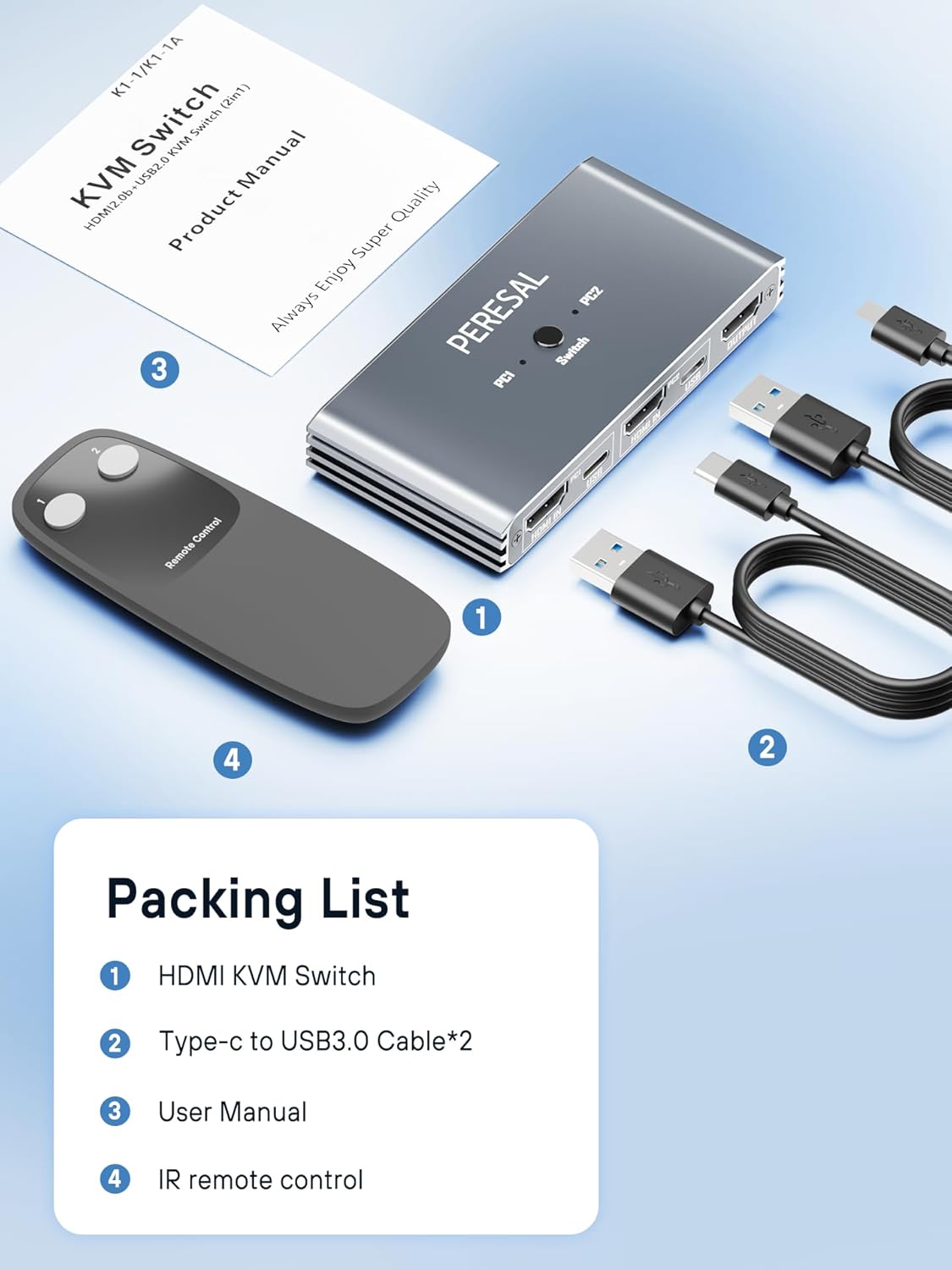
Image: The PERESAL KVM Switch package contents, including the main switch unit, two USB 3.0 cables, an IR remote control, and the user manual.
4. Product Overview
The PERESAL KVM Switch features a compact design with clearly labeled ports for easy connection. Below is a visual representation of the device and its connection points.

Image: A comprehensive view of the PERESAL KVM Switch, illustrating its various ports and how cables connect to computers, a monitor, and USB devices. An IR remote control is also shown.
4.1 Port Layout

Image: A detailed diagram showing the front and rear panels of the KVM switch, highlighting all input and output ports for HDMI, USB, and peripherals. It also illustrates the connection flow from two PCs to one monitor and shared peripherals.
- HDMI IN (PC1/PC2): Connects to the HDMI output of your computers.
- USB IN (PC1/PC2): Connects to a USB port on your computers using the provided USB 3.0 cables. This enables USB peripheral sharing.
- HDMI OUT: Connects to your monitor's HDMI input.
- USB 3.0 Ports (Front Panel): Connect your keyboard, mouse, printer, USB drive, or other USB 3.0 devices.
- IR Receiver: For receiving signals from the remote control.
- Switch Button: Manually switch between PC1 and PC2.
5. Setup Instructions
Follow these steps to connect your PERESAL KVM Switch:
- Power Off Devices: Ensure both computers and your monitor are powered off before making any connections.
- Connect Monitor: Connect your HDMI monitor to the HDMI OUT port on the KVM switch.
- Connect Computers (PC1):
- Connect an HDMI cable from your first computer's HDMI output to the HDMI IN (PC1) port on the KVM switch.
- Connect one of the provided USB 3.0 Type-C to USB-B cables from a USB port on your first computer to the USB IN (PC1) port on the KVM switch. This is crucial for keyboard, mouse, and other USB peripheral functionality.
- Connect Computers (PC2):
- Connect an HDMI cable from your second computer's HDMI output to the HDMI IN (PC2) port on the KVM switch.
- Connect the second provided USB 3.0 Type-C to USB-B cable from a USB port on your second computer to the USB IN (PC2) port on the KVM switch.
- Connect Peripherals: Connect your USB keyboard, mouse, printer, or other USB 3.0 devices to the USB 3.0 Ports on the front panel of the KVM switch.
- Power On: Power on your monitor, then your computers. The KVM switch does not require external power in most cases as it draws power from the connected USB devices.

Image: The PERESAL KVM Switch integrated into a workspace, showing connections to two laptops and a single monitor, with a keyboard and mouse connected to the KVM.
6. Operating Instructions
The PERESAL KVM Switch offers two convenient methods for switching between connected computers:
6.1 Manual Button Switching
Press the "Switch" button located on the top panel of the KVM device. Each press will toggle between PC1 and PC2, transferring control of the monitor and USB peripherals to the selected computer.
6.2 IR Remote Control Switching
Use the included IR remote control to switch between computers. Point the remote control towards the IR receiver on the KVM switch and press the desired PC selection button (e.g., "PC1" or "PC2" if labeled, or a single toggle button). This allows for switching from a distance or when the KVM unit is out of reach.

Image: Illustration of the two switching methods: directly pressing the button on the KVM switch and using the IR remote control.
7. Compatibility
The PERESAL KVM Switch is designed for broad compatibility:
- Operating Systems: Windows 11/10/8.1/8/7/Vista/XP, Mac OS, Linux.
- HDMI Source Devices: PCs, Laptops, PS5/4/3, Xbox One, Nintendo Switch/Switch 2, TV Box, and other HDMI-enabled devices.
- USB Peripherals: Compatible with most USB keyboards, mice (wired and wireless), printers, scanners, webcams, and USB storage devices.
Image: The KVM switch demonstrating its plug-and-play compatibility with various operating systems including Windows, Mac OS, Chrome OS, and Linux.
8. Troubleshooting
If you encounter issues, please refer to the following common solutions:
- No Display on Monitor:
- Ensure all HDMI cables are securely connected to both the KVM switch and your devices (computers and monitor).
- Verify that your monitor is set to the correct HDMI input source.
- Check if the selected computer (PC1 or PC2) is powered on and outputting a signal.
- Try connecting the monitor directly to a computer to confirm the monitor and cable are functional.
- Keyboard/Mouse Not Working:
- Crucial Step: Ensure the USB 3.0 Type-C to USB-B cables are connected from each computer's USB port to the corresponding USB IN (PC1/PC2) port on the KVM switch. Without these connections, USB peripherals will not function.
- Verify that your keyboard and mouse are connected to the USB 3.0 ports on the KVM switch.
- Try connecting the keyboard/mouse directly to the computer to confirm they are functional.
- For wireless keyboard/mouse, ensure the receiver dongle is plugged into a USB 3.0 port on the KVM switch.
- Remote Control Not Responding:
- Ensure there are no obstructions between the remote control and the KVM switch's IR receiver.
- Check the battery in the remote control and replace if necessary.
- Ensure you are within the effective range of the remote control.
- Intermittent Signal/Flickering:
- Use high-quality HDMI cables, especially for 4K@60Hz resolutions. Shorter cables are generally more reliable for high bandwidth.
- Ensure your graphics card drivers are up to date.
- Reduce the resolution or refresh rate to see if the issue persists.
9. Specifications
| Feature | Detail |
|---|---|
| Model Number | k1-1 |
| Brand | PERESAL |
| HDMI Version | HDMI 2.0 (implied by 4K@60Hz support) |
| USB Version | USB 3.0 |
| Video Resolution | Up to 4K@60Hz (backward compatible) |
| Data Transfer Rate | Up to 5Gbps (USB 3.0) |
| Input Ports | 2x HDMI IN, 2x USB IN (Type-C to USB-B) |
| Output Ports | 1x HDMI OUT, 4x USB 3.0 (for peripherals) |
| Switching Methods | Button on device, IR Remote Control |
| Operating Voltage | 5 Volts |
| Product Dimensions | 10.59 x 5.21 x 1.5 cm |
| Product Weight | 222 g |
| Material | Zinc |
10. Warranty and Support
The PERESAL KVM Switch comes with a 12-month after-sales service. For technical assistance or any product-related inquiries, please contact our customer support. We offer 24-hour online technical support to ensure your satisfaction.
Please refer to your purchase documentation or the PERESAL official website for specific contact information.