
Introduction
This manual provides comprehensive instructions for setting up, operating, maintaining, and troubleshooting your Dell UltraSharp 32 inch 4K UHD 120Hz Monitor (Model: E99DELU3225QE). Please read this manual thoroughly before using your monitor to ensure proper functionality and to prevent damage.
Setup Instructions
1. Unpacking the Monitor
Carefully remove all components from the packaging. Ensure the following items are present:
- Dell UltraSharp 32" 4K UHD 120Hz 16:9 IPS Black Monitor
- Monitor Stand
- Power Cable
- 1 x DisplayPort-DisplayPort Cable (1.80 m)
- 1 x USB Type-A to Type-C Upstream Cable (1.00 m)
- 1 x Thunderbolt 4 Passive Cable (1.00 m)
- Drivers and Documentation Media
- QR Card
- Safety Information

Image: The Dell UltraSharp 32 inch 4K UHD 120Hz Monitor, shown with its stand and an optional protection pack.
2. Assembling the Monitor Stand
- Place the monitor panel face down on a soft, clean cloth to prevent scratches.
- Attach the stand riser to the base, ensuring it clicks securely into place.
- Align the stand assembly with the mounting slots on the back of the monitor panel.
- Gently push the stand into the slots until it locks.
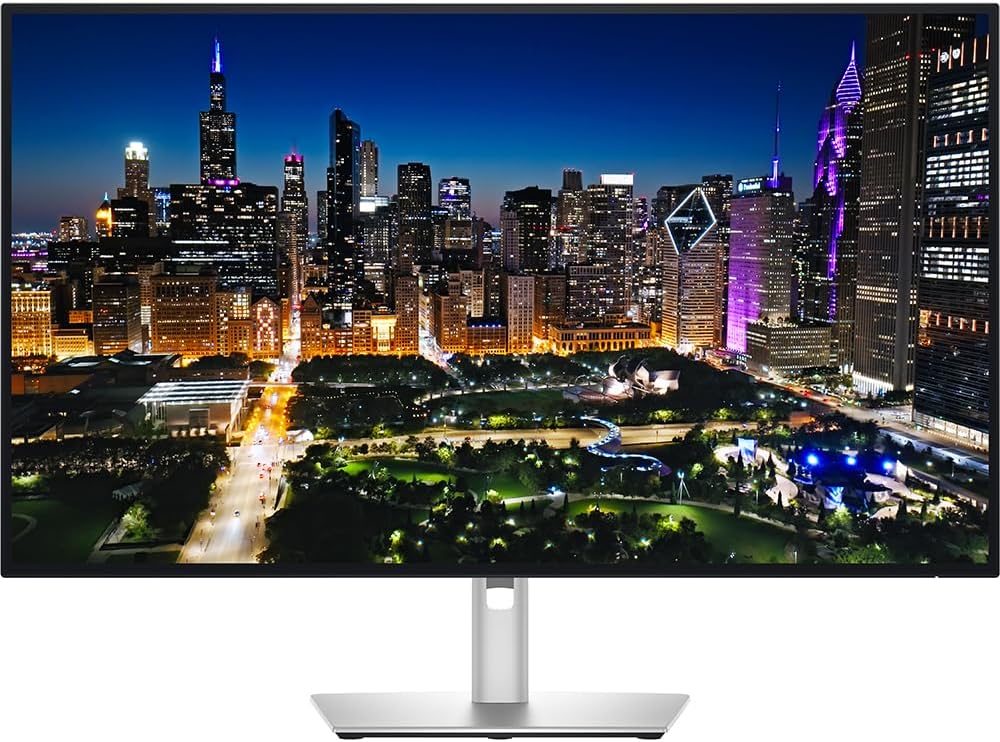
Image: Front view of the Dell UltraSharp 32 inch 4K UHD 120Hz Monitor, showcasing its display and slim bezels.
3. Connecting Cables
Connect the necessary cables to the monitor and your computer or other devices. Refer to the image below for port locations.
- Power Cable: Connect the power cable to the monitor's power input and then to a power outlet.
- Video Input:
- DisplayPort: Use the DisplayPort cable for optimal resolution and refresh rate. Connect one end to the monitor's DisplayPort 1.4 input and the other to your computer's DisplayPort output.
- HDMI: Use an HDMI cable for compatible devices. Connect one end to the monitor's HDMI port and the other to your device's HDMI output.
- Thunderbolt 4: Connect the Thunderbolt 4 upstream port to a compatible device for video, data, and power delivery (up to 140W EPR).
- USB Upstream: Connect the USB Type-A to Type-C upstream cable or the Thunderbolt 4 cable to enable the monitor's USB ports and KVM functionality.
- Ethernet: Connect an Ethernet cable to the RJ45 port for network connectivity.
- Audio Line Out: Connect external speakers or headphones to the 3.5 mm audio line out port.

Image: Rear view of the Dell UltraSharp 32 inch 4K UHD 120Hz Monitor, highlighting the various input and output ports for connectivity.

Image: A close-up view of cables properly connected to the rear ports of the Dell monitor, demonstrating correct cable management.
4. Initial Power On
Press the power button on the monitor. The monitor will automatically detect the active input source. If no signal is detected, ensure all cables are securely connected and your computer is powered on.
Operating Instructions
1. Adjusting the Monitor
The monitor stand allows for various adjustments to optimize your viewing experience:
- Height Adjustment: Raise or lower the monitor to your preferred viewing height (up to 5.91 inches).
- Tilt: Tilt the screen forward or backward (-5° to 21°) to reduce glare and improve comfort.
- Swivel: Swivel the monitor left or right (-30° to 30°) to share your screen or adjust your viewing angle.
- Pivot: Rotate the monitor 90 degrees (-90° to 90°) for portrait mode viewing.

Image: Side view of the Dell UltraSharp 32 inch 4K UHD 120Hz Monitor, illustrating its adjustable stand and thin profile.
2. On-Screen Display (OSD) Menu
Use the buttons on the monitor to navigate and adjust settings via the OSD menu. Common adjustments include:
- Brightness/Contrast: Adjust the display's luminance.
- Input Source: Manually select the video input (DisplayPort, HDMI, Thunderbolt).
- Color Settings: Fine-tune color temperature, gamma, and color space.
- Display Settings: Adjust aspect ratio, sharpness, and response time.
- Menu Language: Select your preferred language for the OSD.
3. Key Features
- 120Hz Refresh Rate: Provides a smoother visual experience with reduced flicker and motion blur.
- ComfortView Plus: Reduces harmful blue light emissions for improved eye comfort during extended use, without compromising color accuracy.
- Ambient Light Sensor: Automatically optimizes brightness and color temperature based on your surrounding environment.
- Picture by Picture (PbP) / Picture in Picture (PiP): Display content from two different sources simultaneously on the screen.
- KVM Functionality: Use a single keyboard and mouse to control two different computers connected to the monitor.
- Thunderbolt 4 Connectivity: Offers video, data transfer, and power delivery (up to 140W) through a single cable.
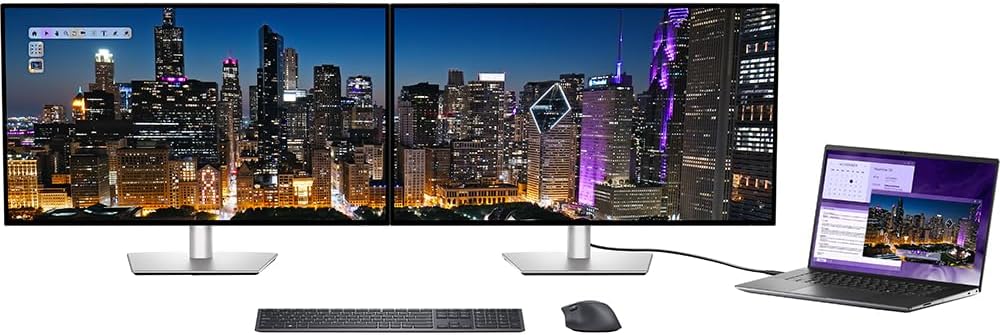
Image: A dual monitor setup featuring two Dell UltraSharp 32 inch 4K UHD 120Hz Monitors connected to a laptop, demonstrating multi-display capabilities.
Maintenance
1. Cleaning the Monitor
- Always unplug the monitor from the power outlet before cleaning.
- Use a soft, lint-free cloth lightly dampened with water or a non-abrasive screen cleaner.
- Do not use benzene, thinner, ammonia-based cleaners, or abrasive cleaners, as these can damage the screen or casing.
- Wipe the screen gently to remove dust and smudges.
- Clean the monitor casing with a soft, dry cloth.
2. Environmental Conditions
Ensure the monitor is operated and stored within the specified environmental ranges:
- Operating Temperature: 32°F (0°C) to 104°F (40°C)
- Non-operating Temperature: -4°F (-20°C) to 140°F (60°C)
- Operating Humidity: 10% to 80% (Non-condensing)
- Non-operating Humidity: 5% to 90% (Non-condensing)
- Maximum Operating Altitude: 16400 ft
- Maximum Non-operating Altitude: 40000 ft
Troubleshooting
If you encounter issues with your monitor, refer to the following common troubleshooting steps:
No Image on Screen
- Ensure the power cable is securely connected to both the monitor and the power outlet.
- Verify that the video cable (DisplayPort, HDMI, Thunderbolt) is firmly connected to both the monitor and your computer.
- Check if the computer is powered on and not in sleep mode.
- Press the monitor's input select button to ensure the correct input source is selected.
Flickering or Unstable Image
- Ensure the video cable is securely connected.
- Adjust the refresh rate in your computer's display settings to 120Hz or a compatible lower setting.
- Update your graphics card drivers.
Color Inaccuracies
- Reset the monitor's color settings to factory defaults via the OSD menu.
- Ensure the correct color profile is selected in your operating system's display settings.
- Consider performing a color calibration if precise color accuracy is required.
For further assistance, please refer to the Dell support website or contact customer service.
Specifications
| Model Number | E99DELU3225QE |
| Screen Size | 31.5 inches (32" class) |
| Panel Technology | In-plane Switching (IPS) Black Technology |
| Maximum Resolution | 3840 x 2160 (4K UHD) |
| Standard Refresh Rate | 120 Hz |
| Aspect Ratio | 16:9 |
| Response Time | 5ms GTG (Fast), 8ms GTG |
| Brightness | 450 cd/m² (typical), 600 cd/m² (peak) |
| Native Contrast Ratio | 3,000:1 |
| Color Supported | 1.07 Billion Colors |
| Color Gamut | DCI-P3 99%, Display P3 99%, sRGB 100%, BT.709 100% |
| Viewing Angle | 178° Horizontal / 178° Vertical |
| Connectivity |
|
| Power Consumption | Operating: 30.50 W, Standby: 0.5 W, Off-Mode: 0.3 W |
| Dimensions (with stand) | 2.26 x 28.08 x 16.16 inches (approximate) |
| Weight (Item) | 29.9 pounds |
| Features | VESA DisplayHDR 600, Eye Comfort Technology, Narrow Bezel, Ambient Light Sensor, Color Calibration, Picture by Picture, Picture in Picture, KVM, Adjustable Stand (Height, Tilt, Swivel, Pivot) |
Warranty and Support
Your Dell UltraSharp 32 inch 4K UHD 120Hz Monitor comes with a 2-Year Premium Extended Service Protection Plan. For detailed information regarding your warranty coverage, terms, and conditions, please refer to the documentation included with your product or visit the official Dell support website.
For technical support, driver downloads, and additional resources, please visit the Dell Support website. Have your monitor's service tag or model number (E99DELU3225QE) ready when contacting support.