
1. Introduction
This manual provides comprehensive instructions for the setup, operation, and maintenance of your LOMEDRETME Tuya Smart Wi-Fi Temperature and Humidity Sensor. Please read this manual carefully before using the device to ensure proper function and longevity.
2. Product Overview
The LOMEDRETME Tuya Smart Wi-Fi Temperature and Humidity Sensor is designed to monitor ambient temperature and humidity levels. It features an LCD digital display for real-time readings and Wi-Fi connectivity for smart home integration via the Tuya Smart app.
Key Features:
- Real-time temperature and humidity monitoring.
- Clear LCD digital display.
- Wi-Fi connectivity for remote monitoring and smart home automation (Tuya Smart app required).
- Compact and user-friendly design.
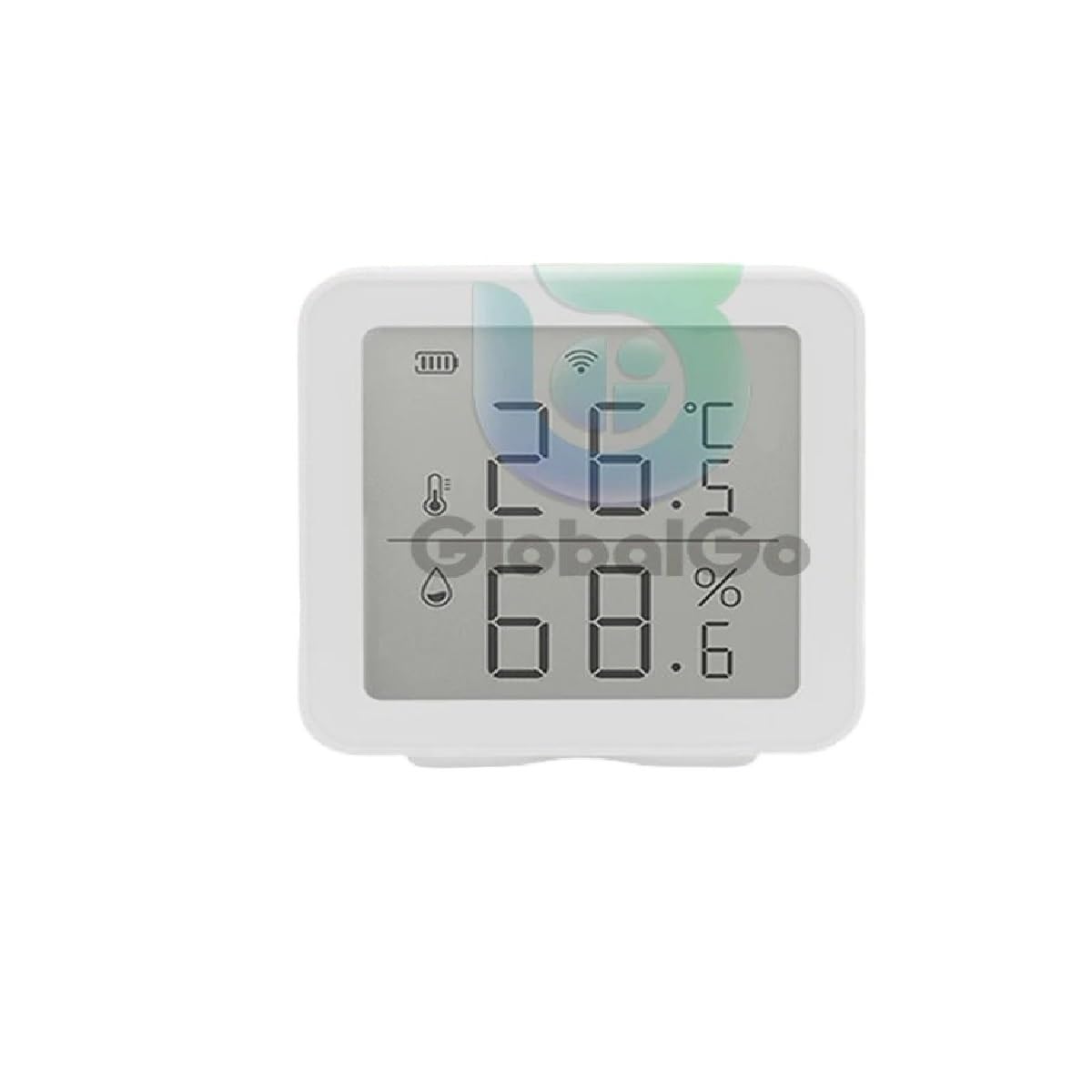
Figure 2.1: Front view of the LOMEDRETME Tuya Smart Wi-Fi Temperature and Humidity Sensor, showing the LCD screen displaying temperature and humidity values, along with battery and Wi-Fi indicators.
3. Setup Instructions
- Power On: Insert the required batteries (not specified in product details, assuming standard AAA or AA) into the battery compartment, ensuring correct polarity. The device should power on and display readings.
- Download Tuya Smart App: Scan the QR code provided in the product packaging (if available) or search for "Tuya Smart" in your mobile device's app store (iOS or Android). Download and install the app.
- Register/Log In: Open the Tuya Smart app and register a new account or log in with an existing one.
- Add Device: In the Tuya Smart app, tap the "+" icon in the top right corner to add a new device. Select "Sensor" or "Temperature and Humidity Sensor" from the device list.
- Connect to Wi-Fi: Follow the on-screen instructions in the app to connect the sensor to your 2.4GHz Wi-Fi network. This typically involves putting the sensor into pairing mode (often by pressing and holding a button on the device) and entering your Wi-Fi password in the app.
- Placement: Place the sensor in the desired location, ensuring it is not exposed to direct sunlight, drafts, or extreme temperatures, which could affect reading accuracy.
4. Operating Instructions
4.1 Reading the Display
The LCD screen displays the current temperature (in Celsius or Fahrenheit, depending on settings) and relative humidity percentage. It may also show battery status and Wi-Fi connection indicators.
4.2 Using the Tuya Smart App
- Remote Monitoring: View real-time temperature and humidity data from anywhere via the app.
- History Data: Access historical data to track environmental changes over time.
- Alerts: Set up custom alerts for temperature or humidity thresholds. You will receive notifications on your mobile device if these thresholds are exceeded.
- Automation: Integrate the sensor with other Tuya-compatible smart devices to create automated scenarios (e.g., turn on a humidifier if humidity drops below a certain level).
5. Maintenance
5.1 Battery Replacement
When the battery indicator on the LCD screen or in the app shows low power, replace the batteries promptly. Open the battery compartment cover, remove old batteries, and insert new ones, observing correct polarity. Dispose of used batteries responsibly.
5.2 Cleaning
Wipe the device with a soft, dry cloth. Do not use abrasive cleaners, solvents, or immerse the device in water. Ensure the sensor openings are free from dust or debris to maintain accuracy.
6. Troubleshooting
- Device Not Powering On: Check battery installation and ensure batteries are new or fully charged.
- No Wi-Fi Connection:
- Ensure your Wi-Fi network is 2.4GHz. The sensor may not support 5GHz networks.
- Verify the Wi-Fi password entered in the app is correct.
- Move the sensor closer to your Wi-Fi router.
- Restart your Wi-Fi router and try pairing again.
- Inaccurate Readings:
- Ensure the sensor is not placed near heat sources, direct sunlight, air conditioning vents, or in areas with high airflow.
- Allow the sensor to stabilize for 15-30 minutes after initial placement or power-on.
- App Not Responding: Close and reopen the Tuya Smart app. Check your mobile device's internet connection.
7. Specifications
| Manufacturer | LOMEDRETME |
| Model | Tuya Smart Wi-Fi Temperature and Humidity Sensor |
| ASIN | B0FGG4KGL5 |
| Connectivity | Wi-Fi (2.4GHz) |
| Display | LCD Digital Display |
| Date First Available | July 2, 2025 |
8. Warranty and Support
For warranty information and technical support, please refer to the documentation included with your purchase or contact LOMEDRETME customer service. Details for contacting support are typically available on the manufacturer's official website or through your retailer.
The manufacturer is LOMEDRETME. For any issues not covered in this manual, please reach out to their support channels.