1. Setup
1.1 What's in the Box
Your Suicoey T901 tablet package includes the following items:
- 10-inch tablet
- Bluetooth keyboard
- Wireless mouse
- Charger
- Type-C cable

Image: The Suicoey T901 tablet with its full set of accessories, including the tablet itself, a Bluetooth keyboard, a wireless mouse, a charger, and a Type-C cable.
1.2 Initial Charging
Before first use, ensure your tablet is fully charged. Connect the provided Type-C cable to the tablet's charging port and the charger to a power outlet. The battery indicator will show charging status. A full charge is recommended for optimal battery life.
1.3 Power On/Off
- To Power On: Press and hold the power button (located on the side) for 2-3 seconds until the screen lights up.
- To Power Off: Press and hold the power button for 2 seconds, then release. A power off menu will appear on the screen. Tap "Power Off" to shut down the tablet.
- To Force Shutdown: If the tablet becomes unresponsive, press and hold the power button for 5 seconds to force a shutdown.
1.4 Connecting Accessories (Keyboard, Mouse)
The Suicoey T901 tablet supports Bluetooth 5.0 for seamless connection with the included keyboard and mouse.
- Enable Bluetooth: On your tablet, swipe down from the top of the screen to access Quick Settings, then tap the Bluetooth icon to turn it on. Alternatively, go to Settings > Connected devices > Bluetooth.
- Pair Keyboard: Turn on the Bluetooth keyboard. Press the "Connect" button on the keyboard. On your tablet, select "Pair new device" and choose the keyboard from the list of available devices.
- Pair Mouse: Turn on the wireless mouse. On your tablet, select "Pair new device" and choose the mouse from the list of available devices.
Video: This video demonstrates the process of connecting the Bluetooth keyboard and mouse to the tablet, showing the steps from enabling Bluetooth to pairing the devices for seamless use.
2. Operating Instructions
2.1 Basic Navigation
The Suicoey T901 runs on Android 15, offering an intuitive user interface. Navigate using touch gestures: tap to select, swipe to scroll, pinch to zoom. The included mouse and keyboard provide additional navigation options, allowing for a laptop-like experience.
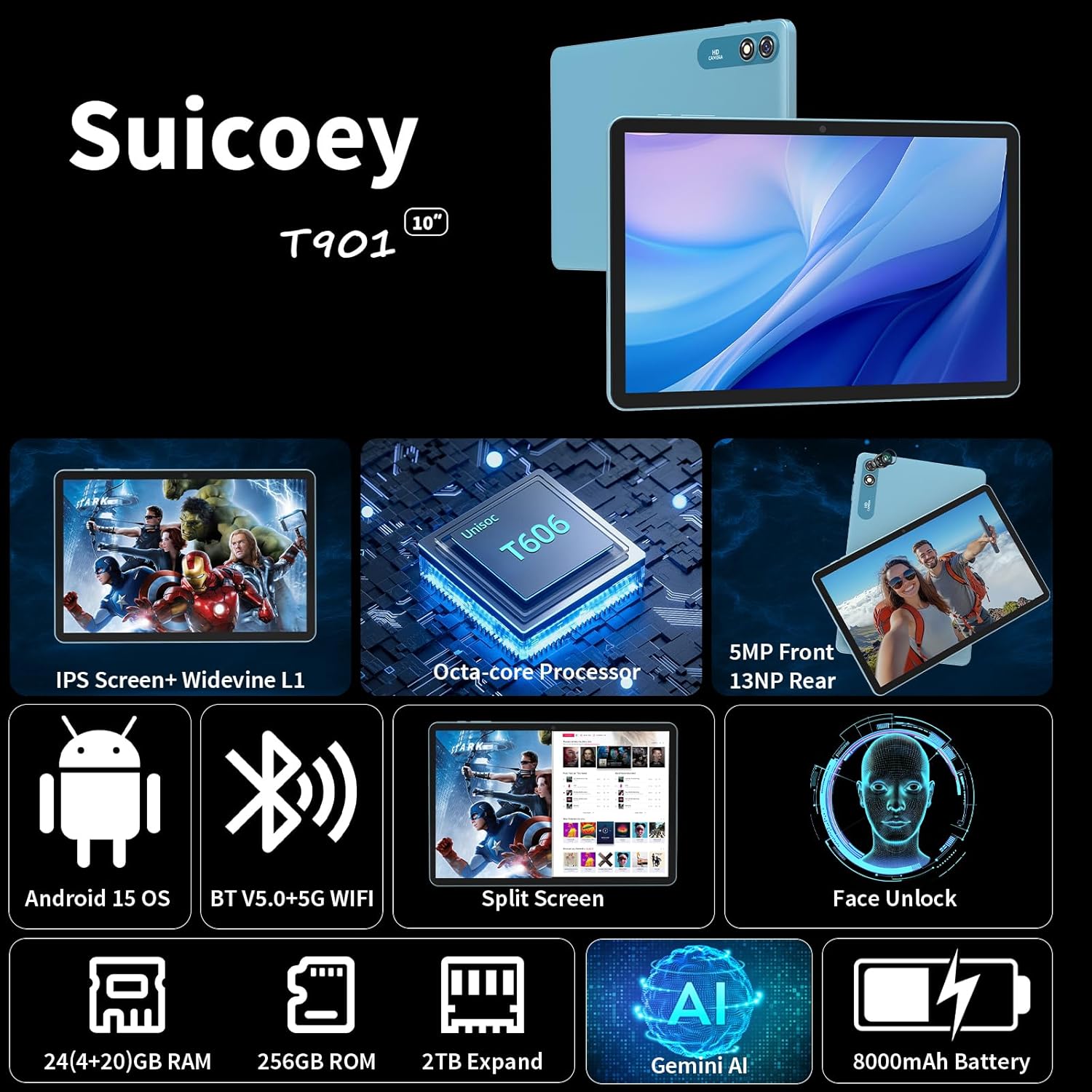
Image: The tablet's home screen, showcasing the Android 15 operating system with a clean layout of application icons.
2.2 Display and Visual Settings
The 10-inch IPS touchscreen features a 1280x800 resolution, providing clear and vibrant visuals. It supports Widevine L1, enabling high-definition streaming from platforms like Netflix, Hulu, and Prime Video. Adjust brightness, font size, and display modes (e.g., Dark theme, Night Light) via the Settings menu for personalized viewing comfort.

Image: The tablet screen showcasing high-definition video playback, emphasizing the Widevine L1 support for premium streaming quality.
2.3 Memory and Storage Management
The tablet comes with 24GB RAM (6GB physical + 18GB virtual) and 256GB of internal storage. This ample memory ensures smooth multitasking and sufficient space for apps and files. Storage can be expanded up to 2TB using a TF (microSD) card (not included). Regularly manage your storage by deleting unnecessary files and apps to maintain optimal performance.

Image: A visual representation of the tablet's memory specifications, detailing 24GB RAM, 256GB ROM, and the option for 2TB expandable storage.
2.4 Connectivity (Wi-Fi, Bluetooth)
The tablet supports 5G/2.4G Wi-Fi for fast internet access and Bluetooth 5.0 for stable connections with peripherals. To connect to Wi-Fi, go to Settings > Network & internet > Wi-Fi and select your desired network. For Bluetooth, refer to section 1.4.
2.5 Camera Usage
Capture moments with the tablet's dual cameras: a 13MP rear camera and a 5MP front camera. Open the Camera app to switch between modes (photo, video, panorama) and adjust settings. The cameras are suitable for video calls, scanning documents, and casual photography.

Image: A graphic highlighting the tablet's 13MP rear and 5MP front cameras, illustrating their use for various functions including real-time object identification and language translation.
2.6 AI Features (Gemini AI, Face Unlock, Translation)
Leverage the power of Gemini AI for enhanced productivity and smart assistance. The tablet also features Face Unlock for convenient and secure access. Utilize AI-powered tools for real-time identification, language translation, and more, integrated within the Android 15 system.
Video: An overview of the S10 Android 15 Tablet, demonstrating its features including AI capabilities and user interface elements.
2.7 Audio Features (Dual Speakers, FM Radio)
Enjoy clear audio with the tablet's dual speakers, perfect for multimedia consumption. The built-in FM radio allows you to listen to your favorite stations on the go. Connect headphones via the 3.5mm auxiliary slot for private listening.
3. Maintenance
- Battery Care: To prolong battery life, avoid extreme temperatures and fully discharge the battery once a month if you only use your tablet occasionally. Do not dispose of the tablet in fire.
- Cleaning: Use a soft, lint-free cloth to clean the screen and body of the tablet. Avoid abrasive cleaners or solvents.
- Software Updates: Regularly check for system updates via Settings > System > System updates to ensure optimal performance and security.
- Storage Management: Periodically clear cache, delete unused apps, and transfer large files to external storage to free up internal memory.
4. Troubleshooting
- Tablet not turning on: Ensure the tablet is fully charged. If unresponsive, perform a forced shutdown (hold power button for 5 seconds) and then attempt to power on again.
- Wi-Fi connection issues: Check if Wi-Fi is enabled in settings. Restart your router and the tablet. Forget the network and reconnect.
- Bluetooth device not pairing: Ensure Bluetooth is enabled on both the tablet and the accessory. Make sure the accessory is in pairing mode. Restart both devices and try again.
- Slow performance: Close unused apps, clear cache, and check available storage. Consider a factory reset if issues persist (back up data first).
- Screen unresponsive: Restart the tablet. If the issue continues, ensure the screen is clean and free from physical damage.
5. Specifications
| Feature | Detail |
|---|---|
| Brand | Suicoey |
| Model Name | T901 |
| Operating System | Android 15 |
| Screen Size | 10 Inches |
| Screen Resolution | 1280 x 800 pixels |
| Processor | Octa-Core T606 (Unisoc) |
| RAM | 24GB (6GB physical + 18GB virtual) |
| Internal Storage (ROM) | 256 GB |
| Expandable Storage | Up to 2TB via TF card |
| Battery Capacity | 8000 mAh |
| Wireless Connectivity | 5G/2.4G Wi-Fi, Bluetooth 5.0 |
| Front Camera | 5MP |
| Rear Camera | 13MP |
| Dimensions (LxWxH) | 10.7 x 7.5 x 2.5 inches |
| Item Weight | 3.14 pounds |
6. Warranty and Support
For warranty information and customer support, please refer to the warranty card included in your product packaging or visit the official Suicoey website. If you encounter any issues not covered in this manual, please contact our customer service team for assistance.
You can also find additional support and FAQs on the Suicoey Store on Amazon.