
Introduction
This manual provides detailed instructions for the installation, operation, and maintenance of your MAHVEC Car Radio Stereo. This unit is designed for Ford Edge models from 2016 to 2020, featuring a 9-inch IPS touchscreen, Android 15 operating system, 4GB RAM, and 64GB ROM. It includes Wireless CarPlay, Android Auto, DSP 32 EQ, GPS navigation, WiFi, Bluetooth 5.0, FM/RDS radio, Steering Wheel Control (SWC) compatibility, and an AHD backup camera.
Please read this manual thoroughly before installation and use to ensure proper function and to maximize your experience with the product.

Image: MAHVEC Car Radio Stereo installed in a Ford Edge dashboard, showing the CarPlay interface. This illustrates the unit's appearance when integrated into the vehicle's console.
Package Contents
Before beginning installation, verify that all components are present in the package:
- Car Radio Stereo Unit
- AHD Backup Camera
- External Microphone
- Power Cable
- RCA Cable
- USB Cable
- GPS Antenna
- Radio Antenna
- Rear Camera Input Cable
- Installation Tool
- Canbus Decoder (if applicable for your vehicle)
- Mounting Bracket
- User Manual (this document)
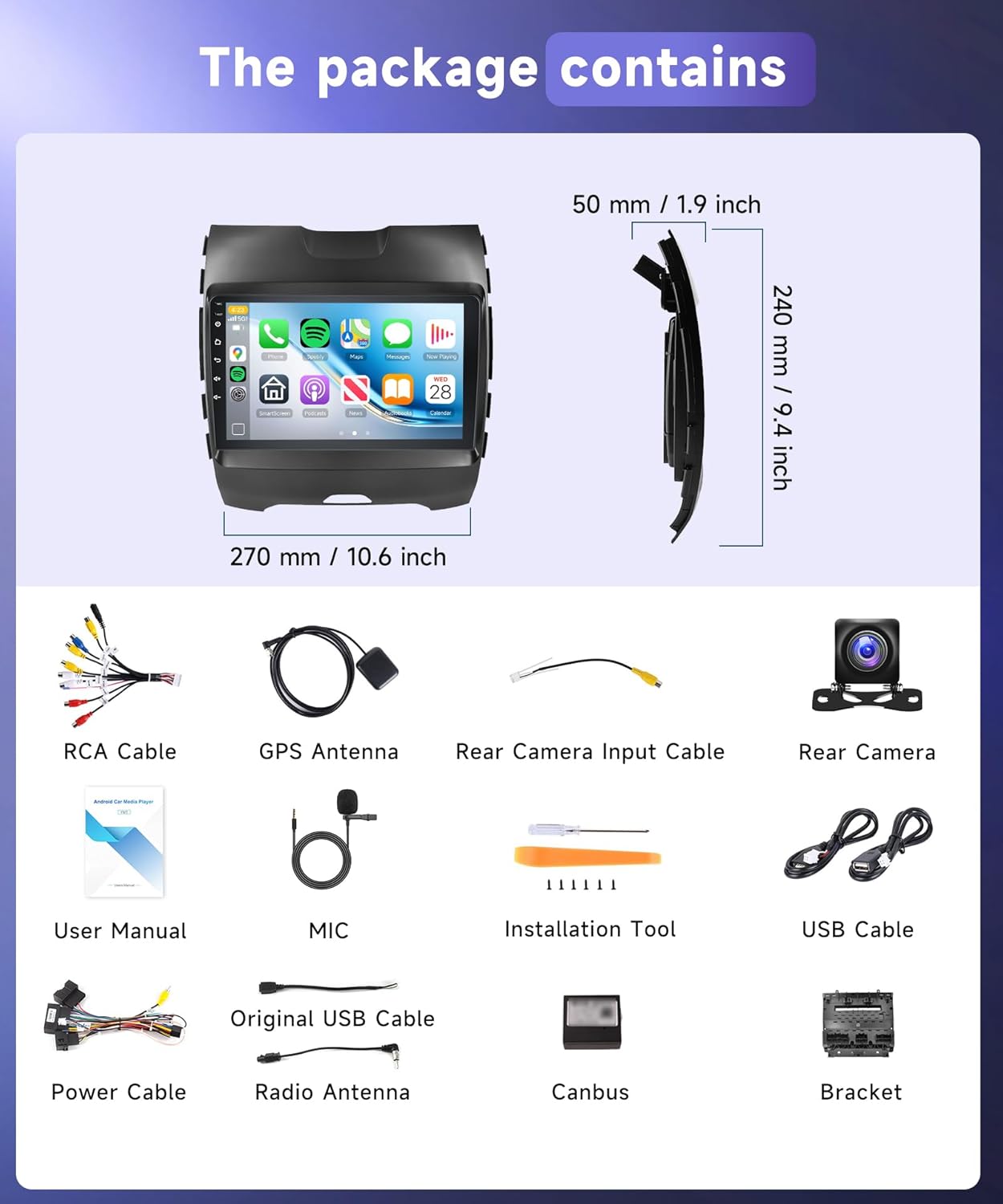
Image: A visual representation of all items included in the product package, including the head unit, various cables, GPS antenna, microphone, backup camera, and installation tools.
Setup and Installation
General Installation Steps
- Preparation: Disconnect the vehicle's battery before starting any electrical work.
- Remove Old Unit: Carefully remove the factory car radio and trim panels. Refer to your vehicle's specific service manual for detailed instructions on panel removal.
- Connect Wiring Harness: Connect the provided plug-and-play wiring harness to the vehicle's existing harness. Ensure all connections are secure.
- Connect Peripherals: Attach the GPS antenna, radio antenna, USB cables, and external microphone to the new head unit.
- Backup Camera Installation: Install the AHD backup camera at the rear of the vehicle. Route the camera cable to the head unit.
- Test Connections: Before fully reassembling, reconnect the battery and perform a basic test of the unit's functions (power on, radio, sound, camera).
- Secure Unit: Mount the new car radio stereo into the dashboard using the provided brackets.
- Reassemble: Reinstall all trim panels and secure them properly.
Wiring Instructions
Refer to the following diagrams for detailed wiring connections:

Image: Detailed wiring diagram for the reversing camera. It shows the connection points for the reverse trigger cable, video input, and power connections to the backup light and ground.

Image: General wiring instructions for the car stereo, illustrating connections for power, RCA cables, USB, radio antenna, and the 8-pin Canbus plug. It also details the pinout for various functions like ACC, GND, B+, and steering wheel controls.
Operating Instructions
Wireless CarPlay & Android Auto
The unit supports wireless CarPlay and Android Auto for seamless smartphone integration.
- Pair Bluetooth: On your phone, enable Bluetooth and pair it with the car stereo.
- Launch App: Open the 'AppleCarplay' app (for iOS) or 'Android Auto' app (for Android) on the car stereo.
- Connect: Wait for the connection to establish. Once connected, you can access your phone's apps, navigation, music, and calls directly from the stereo screen.

Image: Visual guide detailing the three steps for connecting both Wireless Apple CarPlay and Wireless Android Auto via Bluetooth to the car stereo.
GPS Navigation (Online & Offline)
The unit features a built-in GPS chip supporting both online and offline navigation.
- Offline Maps: Pre-downloaded maps are available for navigation without an internet connection.
- Online Maps: Connect to WiFi for real-time traffic updates and to download additional online navigation software.

Image: Illustration of the GPS navigation system, highlighting the ability to use both online maps with real-time traffic and pre-downloaded offline maps for areas without internet access.
Bluetooth 5.0
Bluetooth 5.0 provides faster pairing and stable connectivity for hands-free calls and music streaming.
- Hands-Free Calling: Make and receive calls directly from the stereo.
- Bluetooth Music: Stream audio from your paired smartphone.

Image: Display of the Bluetooth 5.0 interface for phone calls and music playback, alongside FM/RDS radio controls and the 32-band equalizer settings.
DSP 32-Band EQ
The built-in Digital Sound Processor (DSP) with a 32-band equalizer allows for personalized audio tuning.
- Access the EQ settings from the main menu to adjust frequency bands.
- Choose from preset sound modes (e.g., Rock, Pop, Classical, Live) or customize your own.

Image: The DSP 32-band equalizer interface, demonstrating the detailed audio adjustment options available for customizing sound output.
FM/RDS Radio
Tune into your favorite radio stations with the integrated FM/RDS tuner.
- Automatic Scanning: Use the auto-scan function to find and save available stations.
- RDS Functionality: Radio Data System (RDS) displays station information, song titles, and traffic announcements where available.
Steering Wheel Controls (SWC)
The car stereo is compatible with your vehicle's existing steering wheel controls, allowing you to operate functions like volume, track skipping, and mode switching without taking your hands off the wheel.
- Ensure the SWC wires are correctly connected during installation.
- Access the SWC learning function in the stereo's settings menu to map your vehicle's buttons.
AHD Backup Camera
The included AHD backup camera provides a clear view of the area behind your vehicle when reversing.
- Automatic Display: The camera view automatically appears on the screen when the vehicle is shifted into reverse.
- Features: 170° wide-angle lens, IP69 waterproof rating, and night vision capability.
- Reversing Assist Lines: Dynamic or static guidelines assist with parking maneuvers.
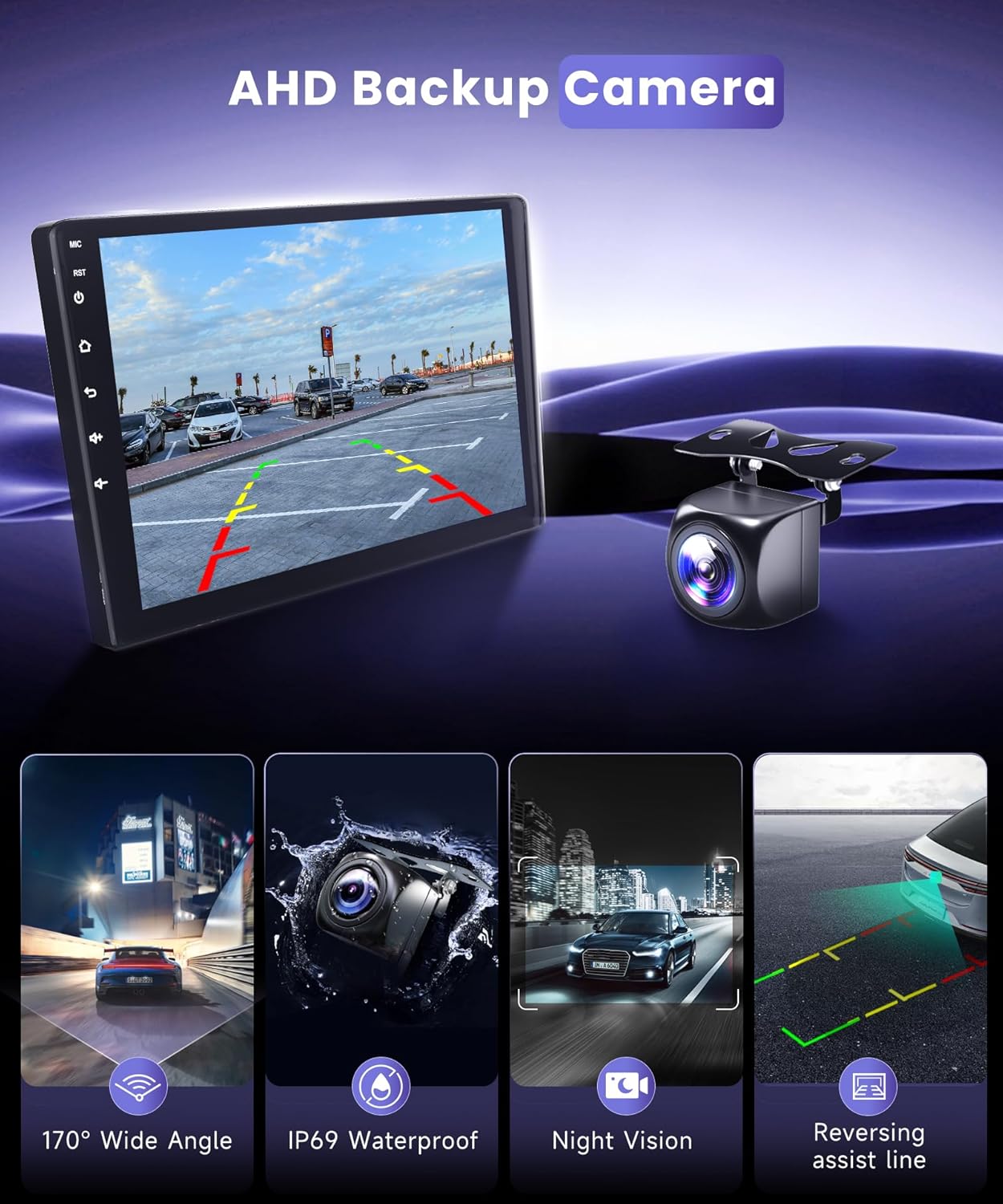
Image: Visual representation of the AHD backup camera's key features: 170° wide-angle view, IP69 waterproof rating, night vision, and dynamic reversing assist lines.
Touchscreen Operation
The 9-inch IPS HD touchscreen with 2.5D tempered glass offers intuitive control.
- Tap: Select items or activate functions.
- Swipe: Navigate through menus or screens.
- Pinch-to-Zoom: Adjust map views or images.

Image: A comprehensive overview of the car stereo's core features, including its Android 15 operating system, 4GB RAM, 64GB ROM, Bluetooth 5.0, 32-band EQ, 1280x720P IPS touchscreen, and general touch functionality.
Maintenance
- Screen Cleaning: Use a soft, lint-free cloth to gently wipe the touchscreen. For stubborn smudges, slightly dampen the cloth with water or a screen-safe cleaner. Avoid harsh chemicals or abrasive materials.
- Software Updates: Periodically check for software updates via the system settings to ensure optimal performance and access to new features. Connect to a stable Wi-Fi network for updates.
- Cable Connections: Ensure all cables remain securely connected to prevent intermittent issues.
- Environmental Care: Avoid exposing the unit to extreme temperatures or direct sunlight for prolonged periods when the vehicle is parked.
Troubleshooting
| Problem | Possible Cause | Solution |
|---|---|---|
| Unit does not power on. | Loose power connection, blown fuse, incorrect wiring. | Check power cable connections. Inspect vehicle's fuse box and the unit's fuse. Verify wiring against the diagram. |
| No sound. | Volume too low, mute activated, speaker wiring issues, incorrect audio output settings. | Increase volume. Check if mute is active. Verify speaker wiring. Adjust audio output settings in the system menu. |
| GPS signal lost or inaccurate. | GPS antenna obstructed or improperly installed, outdated maps. | Ensure GPS antenna has a clear view of the sky. Check antenna connection. Update maps if necessary. |
| Bluetooth connection issues. | Phone not discoverable, incorrect pairing process, interference. | Ensure phone's Bluetooth is on and discoverable. Re-attempt pairing. Clear previous Bluetooth connections on both devices. |
| Backup camera not displaying. | Camera wiring incorrect, reverse trigger not connected, faulty camera. | Check camera power and video input connections. Ensure the reverse trigger wire is correctly connected to the vehicle's reverse light circuit. |
| Touchscreen unresponsive. | Software glitch, screen damage. | Restart the unit. If issue persists, perform a factory reset (refer to system settings). If still unresponsive, contact support. |
System Reset
If the unit experiences persistent issues or freezes, a system reset may resolve the problem. Locate the small reset button (often recessed) on the front panel or within the settings menu. Use a thin object (like a paperclip) to press and hold the reset button for a few seconds. This will restart the system without erasing user data in most cases.
Specifications
| Feature | Detail |
|---|---|
| Operating System | Android 15 |
| RAM | 4GB |
| Internal Storage | 64GB |
| Display Size | 9 Inches |
| Display Resolution | 1280x720P IPS HD |
| Touchscreen Type | 2.5D Tempered Glass |
| Connectivity | Bluetooth 5.0, Wi-Fi, USB |
| Special Features | Wireless CarPlay, Android Auto, 32-Band DSP, GPS Navigation |
| Included Components | AHD Backup Camera, External Microphone |
| Audio Output Mode | Stereo |
| Item Weight | 1.76 pounds |
| Package Dimensions | 10.63 x 10.24 x 5.12 inches |
Warranty and Support
Warranty Information
This product comes with a 2-Year Warranty. For detailed terms and conditions regarding your warranty, please refer to the documentation provided at the time of purchase or contact MAHVEC customer support.
Customer Support
For any questions, technical assistance, or warranty claims, please contact MAHVEC customer support. You can typically reach support by:
- Visiting the MAHVEC store on Amazon: MAHVEC Store
- Clicking "Ask a question" on the product page under "Sold by MAHVEC".
MAHVEC is committed to providing comprehensive customer service and support.
Product Video Overview
Video: An official product overview demonstrating the features and functionality of the MAHVEC Car Radio Stereo. This video provides a visual guide to the unit's interface and capabilities.