
Introduction
This manual provides detailed instructions for the installation, operation, and maintenance of your MAHVEC 4G+64G Android Car Radio Stereo. This unit is designed for Toyota Prius models from 2010 to 2014, offering advanced features such as wireless CarPlay, Android Auto, GPS navigation, and a high-resolution IPS touchscreen.
Compatibility
This car radio is compatible with Toyota Prius models manufactured between 2010 and 2014. It features a plug-and-play wiring harness for straightforward installation.
Important Compatibility Notes:
- This radio is not compatible with original car systems that feature large screens or J-B-L audio systems.
- If your vehicle has an original large screen or J-B-L system, an additional wiring harness (T2 or T1) may be required for installation. Please verify your car's existing system before installation.
- To confirm compatibility, you may send a photo of your car radio's rear panel to customer support.

This image illustrates compatible and incompatible original car radio systems. The top section shows compatible systems with standard connectors (green checkmark). The bottom sections show incompatible systems (red cross) that may require additional harnesses.

The MAHVEC car radio seamlessly integrated into a Toyota Prius dashboard, displaying the user interface.
Installation Guide
1. Package Contents Verification
Before beginning installation, ensure all components listed in the "Package Contents" section are present.

This image displays all items included in the product package, such as the main unit, cables, camera, and tools.
2. General Installation Steps
- Carefully remove the original car radio unit from your Toyota Prius dashboard.
- Connect the provided plug-and-play wiring harness to the vehicle's existing wiring.
- Connect the other end of the harness to the MAHVEC car radio unit.
- Install the GPS antenna in a location with a clear view of the sky.
- Connect the external microphone for optimal hands-free calling.
- If installing the AHD backup camera, proceed to the "Reversing Camera Wiring" section.
- Secure the MAHVEC car radio unit into the dashboard opening.
- Test all functions before fully reassembling the dashboard.
3. Wiring Harness for Specific Systems (T1/T2)
If your original car system features a large screen or J-B-L audio, you may need a specific wiring harness. Refer to the images below to identify if your vehicle requires harness T1 or T2.

If your original car system's back panel has two 20-pin connectors, wiring harness T2 is required.

If your original car system's back panel matches one of these configurations, wiring harness T1 is required.
4. Reversing Camera Wiring
Follow these steps to connect the AHD backup camera:
- Connect the video output cable from the camera to the "Rear Camera Input" on the car radio.
- Identify the reverse trigger cable (often labeled "back" or "reverse") from the car radio's wiring harness.
- Connect the black cable (4) from the camera to a ground (GND) point.
- Connect the red cable (5) from the camera to the backup light's positive (+) wire.
- Ensure the WiFi antenna and Bluetooth antenna are connected to their respective ports on the unit.

This diagram shows the correct wiring for the AHD backup camera, including connections for power, ground, and the reverse trigger.
Key Features

An overview of the car stereo's main features, highlighting its Android operating system, memory, display, and audio capabilities.
Wireless CarPlay & Android Auto
Enjoy seamless integration with your smartphone. Wireless CarPlay and Android Auto provide access to navigation, music, calls, and messages directly from the car stereo's display.
Android Operating System (4GB RAM + 64GB ROM)
The upgraded Android operating system, combined with 4GB RAM and 64GB ROM, ensures smooth performance and ample storage for applications and media.
GPS Navigation (Online + Offline)
The built-in GPS chip supports offline navigation with pre-downloaded maps. WiFi connectivity allows for online map updates and access to various navigation applications.

This image demonstrates the unit's ability to use both online and offline GPS maps, along with WiFi connectivity for updates and app downloads.
DSP 32-Band EQ & Bluetooth 5.0
The integrated Digital Sound Processor (DSP) with a 32-band equalizer allows for precise audio customization. Bluetooth 5.0 provides faster pairing, stable connectivity, and clear hands-free calls and music streaming.

This image highlights the FM/RDS radio, Bluetooth 5.0 functionality for calls and streaming, and the detailed 32-band equalizer for audio tuning.
1280x720P IPS Touchscreen & 2.5D Tempered Glass
The 9-inch IPS HD touchscreen offers vibrant colors and a wide viewing angle. The 2.5D tempered glass provides scratch resistance and durability.
Steering Wheel Control (SWC) & AHD Backup Camera
The unit supports existing steering wheel controls for convenient operation. An included AHD backup camera features a 170° wide-angle lens, IP69 waterproof rating, and night vision for enhanced safety.
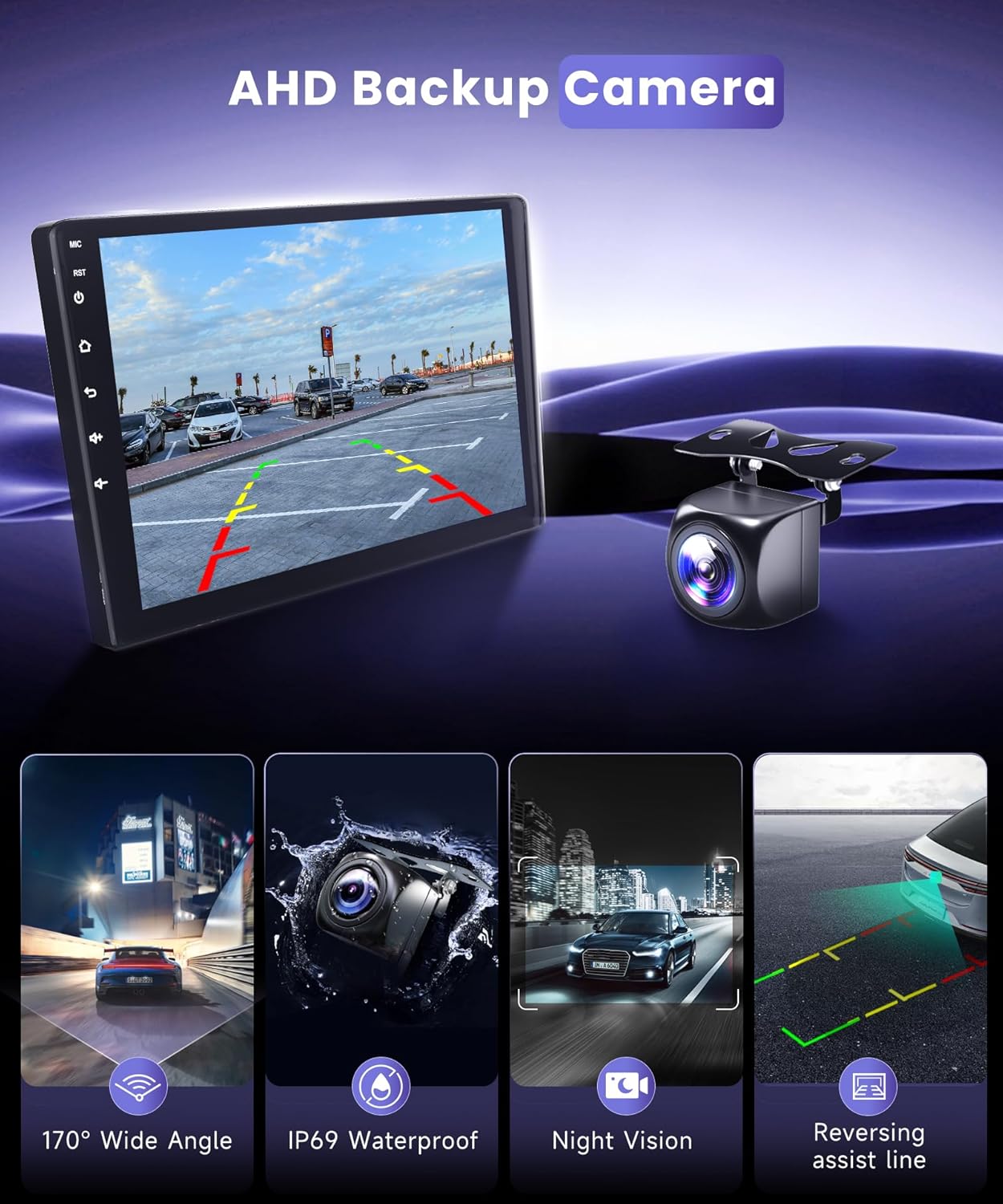
This image illustrates the AHD backup camera's view on the screen, detailing its wide-angle, waterproof, and night vision capabilities.
Operation Guide
1. Power On/Off
The unit powers on automatically with the vehicle's ignition. To manually power off or restart, press and hold the power button on the unit or use the software option in the settings menu.
2. Wireless CarPlay / Android Auto Connection
To connect your smartphone wirelessly:
- Pair your phone's Bluetooth with the car stereo.
- Open the "AppleCarplay" app (for iOS) or "Android Auto" app (for Android) on the car stereo.
- Wait for the connection to establish.

This image illustrates the simple steps to connect your smartphone via Wireless CarPlay or Android Auto.
3. GPS Navigation
Access navigation applications from the main menu. For offline maps, ensure they are pre-downloaded. For online navigation, connect to a WiFi hotspot.
4. Radio (FM/RDS)
Select the "Radio" application to access FM stations. RDS (Radio Data System) provides station information where available. Use the touchscreen to scan for stations or manually tune.
5. Bluetooth Functions
- Hands-Free Calling: Once paired, use the dialer on the screen or voice commands to make and receive calls.
- Music Streaming: Play audio from your paired phone through the car stereo.
6. DSP and Equalizer Settings
Navigate to the "EQ" or "DSP" application in the settings. Adjust the 32-band equalizer to customize sound output. Presets for various music genres (Rock, Pop, Classical, Live) are available.
7. Split Screen and Multi-tasking
The Android operating system supports split-screen functionality, allowing you to run two applications simultaneously (e.g., navigation and music player). Refer to the system settings for enabling and managing split-screen mode.

This image showcases the high-resolution display, the ability to use split-screen mode for multiple apps, and a customizable homepage layout.
Maintenance
- Screen Cleaning: Use a soft, lint-free cloth to clean the touchscreen. Avoid abrasive cleaners or solvents.
- Software Updates: Periodically check for system updates via the settings menu to ensure optimal performance and access to new features.
- General Care: Avoid exposing the unit to extreme temperatures or direct sunlight for prolonged periods. Ensure all connections remain secure.
Troubleshooting
| Problem | Possible Cause | Solution |
|---|---|---|
| Unit does not power on. | Incorrect wiring; Blown fuse; Vehicle power issue. | Check power connections and vehicle fuses. Ensure the wiring harness is correctly installed. |
| No sound output. | Volume too low; Mute activated; Speaker wiring issue. | Increase volume. Check if mute is active. Verify speaker wiring connections. |
| GPS signal lost or inaccurate. | GPS antenna obstructed or improperly installed. | Ensure GPS antenna has a clear view of the sky and is securely connected. |
| Bluetooth connection issues. | Phone not in pairing mode; Interference; Incorrect pairing steps. | Ensure phone's Bluetooth is on and discoverable. Restart both devices. Follow pairing instructions carefully. |
| Backup camera not displaying. | Camera wiring incorrect; Reverse trigger not connected. | Check camera power, video, and reverse trigger connections as per the wiring diagram. |
| Wireless CarPlay/Android Auto not connecting. | Bluetooth not paired; App not launched; Phone settings. | Ensure Bluetooth is paired. Open the respective app on the stereo. Check phone settings for CarPlay/Android Auto permissions. |
Product Specifications
- Model Name: MAHVEC 4G+64G Car Radio
- Operating System: Android
- RAM: 4GB
- ROM: 64GB
- Display Size: 9 Inches
- Screen Resolution: 1280x720P IPS HD Touchscreen
- Connectivity: Bluetooth 5.0, USB, Wi-Fi
- Special Features: Wireless CarPlay/Android Auto, DSP 32-Band EQ, GPS Navigation (Online/Offline), FM/RDS Radio, Steering Wheel Control (SWC)
- Included Components: AHD Backup Camera, External Microphone
- Audio Output Mode: Stereo
- Item Weight: 1.76 pounds
- Package Dimensions: 11.93 x 6.81 x 4.53 inches
Warranty and Support
This MAHVEC car radio comes with a 2-year warranty from the date of purchase, covering manufacturing defects. For technical support, troubleshooting assistance, or warranty claims, please contact MAHVEC customer service.
You can typically find contact information on the MAHVEC brand store page or through your purchase platform. When contacting support, please have your product model number (4Core 4G+64G) and purchase details ready.