1. Introduction
This manual provides detailed instructions for the Generic BWHS25L Wireless Barcode Scanner. This device offers 1D, 2D, and QR code scanning capabilities with versatile connectivity options including 2.4G wireless, wired USB, and Bluetooth (tri-mode). Designed for efficiency, it features fast scanning speeds and a large storage capacity for offline use, making it suitable for various applications such as retail, warehousing, and inventory management.
2. Product Overview
The BWHS25L barcode scanner is equipped with a 32-bit CPU for advanced decoding and a scanning speed of up to 300 scans per second. It supports both instant upload and offline storage modes.

Figure 2.1: Front view of the BWHS25L barcode scanner, showing the scanning window, trigger button, and the included 2.4G USB receiver.
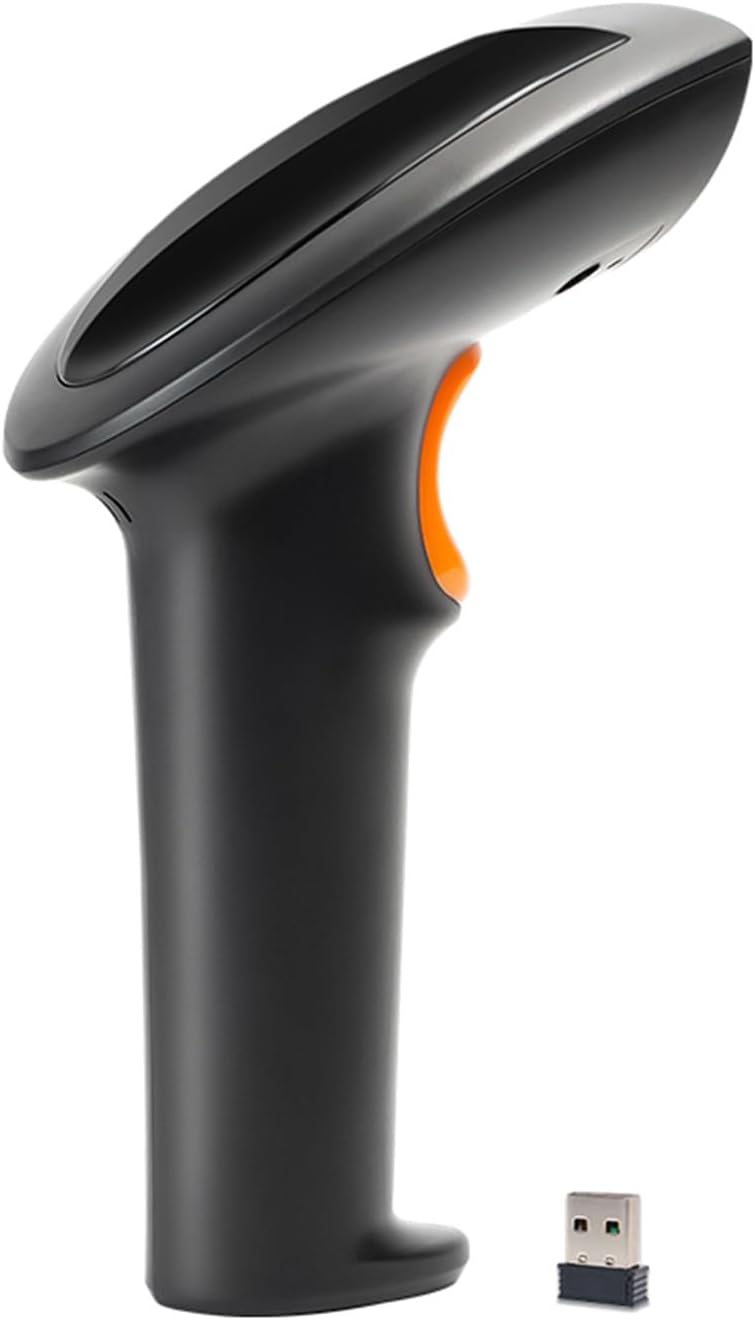
Figure 2.2: Side profile of the BWHS25L barcode scanner, illustrating its ergonomic design and the orange trigger button.
Key Features:
- Fast Scanning: Achieve lightning-fast scanning with a speed of up to 300 scans per second, powered by a 32-bit CPU and advanced decoding capabilities.
- Versatile Connectivity: Enjoy triple-mode connectivity (2.4G wireless, wired USB, and Bluetooth) for seamless integration with smartphones, tablets, and PCs.
- Hands-Free Operation: Experience convenience with the included foldable stand, ideal for efficient and ergonomic scanning.
- Large Storage Capacity: Store up to 100,000 barcodes in offline storage mode, perfect for remote scanning and data synchronization.
- Durable Design: Designed for durability, it withstands drops from 1 meter and operates in a wide temperature range from 0°C to 50°C.
3. Setup
3.1 Charging the Scanner
Connect the scanner to a USB power source (e.g., computer USB port, USB wall adapter) using the provided USB cable. The indicator light on the scanner will illuminate to show charging status. A full charge typically takes approximately 6 hours.
3.2 Connecting via 2.4G Wireless
For 2.4G wireless connection, insert the small 2.4G USB receiver into an available USB port on your computer or host device. The scanner will automatically pair with the receiver. No driver installation is typically required (Plug & Play functionality).

Figure 3.1: Diagram illustrating the 2.4G wireless transmission distance of up to 80 meters between the scanner and the USB receiver.
3.3 Connecting via Wired USB
To use the scanner in wired mode, connect the scanner directly to your computer or host device using the provided USB cable. The scanner will function as a wired device, and data will be transmitted instantly.
3.4 Connecting via Bluetooth
To connect via Bluetooth, ensure your host device's Bluetooth is enabled. Scan the Bluetooth pairing barcode (if provided in a physical manual or on the device itself). The scanner will appear as 'BWHS25L' (or similar) in your device's Bluetooth settings. Select it to pair.

Figure 3.2: Image demonstrating the barcode scanner's compatibility with multiple operating systems and devices (smartphone, tablet, PC) via 2.4G and Bluetooth dual-mode wireless technology.
4. Operating Instructions
4.1 Basic Scanning
Point the scanner's window at the barcode you wish to scan and press the trigger button. A successful scan will typically be indicated by a short beep and/or a green light from the intelligent indicator.
4.2 Operating Modes
- Instant Upload Mode: In this mode, all scanned barcodes are immediately transmitted to the connected device. This is the default mode when connected wirelessly or via USB.
- Storage Mode (Offline): When out of range or not connected to a host device, the scanner can store up to 100,000 barcodes internally. To upload stored data, connect the scanner to your device and initiate the batch upload function (refer to specific configuration barcodes in the full manual for detailed instructions on switching modes and uploading data).
4.3 Hands-Free Scanning with Foldable Stand
The included foldable stand allows for convenient hands-free scanning. Place the scanner securely on the stand. When a barcode is presented within the scanner's field of view, it will automatically detect and scan it.

Figure 4.1: Illustrations detailing the recessed design for scanner stability, U-shaped narrowing for a secure fit, and the dimensions of the foldable stand (150.5*80.5*34.6mm).

Figure 4.2: The BWHS25L 2D barcode scanner positioned on its foldable stand, demonstrating its readiness for hands-free operation.
5. Maintenance
To ensure optimal performance and longevity of your barcode scanner, follow these maintenance guidelines:
- Cleaning: Regularly clean the scanning window with a soft, dry, lint-free cloth. Avoid using abrasive cleaners, solvents, or harsh chemicals, as these can damage the optical components.
- Storage: Store the scanner in a cool, dry place away from direct sunlight and extreme temperatures.
- Battery Care: For long-term storage, ensure the battery is partially charged (around 50%). Avoid fully discharging the battery for extended periods.
- Physical Protection: While designed to be durable, avoid unnecessary drops or impacts.
6. Troubleshooting
If you encounter issues with your BWHS25L barcode scanner, refer to the following common troubleshooting steps:
- Scanner Not Connecting:
- Ensure the scanner is fully charged.
- For 2.4G wireless, verify the USB receiver is securely plugged into the host device.
- For Bluetooth, confirm Bluetooth is enabled on your host device and the scanner is properly paired.
- For wired connection, check the USB cable connection at both ends.
- No Scan Output:
- Ensure the barcode is not damaged or poorly printed.
- Verify the scanner is in the correct operating mode (e.g., instant upload if you expect immediate data).
- Check if the barcode type is supported by the scanner (refer to specifications).
- Clean the scanning window if it is dirty.
- Slow Scanning or Unresponsive:
- Recharge the scanner's battery.
- Ensure there are no obstructions or strong electromagnetic interference in wireless modes.
- Restart the scanner and the host device.
7. Specifications
| Feature | Specification |
|---|---|
| Model | BWHS25L |
| Material | ABS |
| Color | Black |
| Connection Method | Wired + 2.4G + Bluetooth (Tri-mode) |
| Image Sensor | CMOS 640x480 |
| Light Source | White LED (illumination), Red LED (focusing) |
| Decoding Capability | 1D (EAN-8, EAN-13, UPC-A, UPC-E, Code 39, Code 93, Code 128, EAN128, Codebar, Industrial 2 of 5, Interleave 2 of 5, Matrix 2 of 5, MSI, Postcode, etc.), 2D (PDF417, QR Code, Data Matrix, etc.) |
| Reading Accuracy | ≥5mil |
| Symbol Contrast | ≥20% |
| Communication Interface | USB |
| Charging Voltage | 5 VDC ±5% |
| Battery Capacity | 2,000 mAh |
| Battery Charging Time | ≤6 hours |
| Continuous Operating Time | ≥18 hours |
| Operating Temperature | 0°C to 50°C |
| Storage Temperature | -20°C to 60°C |
| Drop Resistance | Withstands 1-meter drops |
| Storage Capacity | ≥5,000 entries (up to 100,000 barcodes) |
| Wireless Transmission Distance | 0-80 meters (2.4G) |
8. Safety Information
Please observe the following safety precautions:
- Do not look directly into the scanning light, as it may cause eye strain or damage.
- Keep the device out of reach of children.
- Do not attempt to disassemble or modify the scanner. This will void the warranty and may cause damage or injury.
- Dispose of batteries and electronic components responsibly according to local regulations.
9. Warranty and Support
For warranty information, technical support, or service inquiries, please contact your retailer or the manufacturer directly. Refer to the product packaging or the manufacturer's official website for specific contact details and warranty terms.