
KONNWEI KW818-US
KONNWEI KW818 Bluetooth OBD2 Scanner User Manual
Model: KW818-US | Brand: KONNWEI
1. Product Overview
The KONNWEI KW818 OBD2 diagnostic scanner is a comprehensive tool designed for professional mechanics and DIY enthusiasts. It provides extensive vehicle health monitoring capabilities, including OBDII code reading and clearing, ABS/SRS airbag diagnostics, powertrain analysis, and advanced battery/charging system evaluation. The device features an enhanced ELM327 chipset, ensuring fast communication across all OBDII protocols (ISO9141, KWP2000, CAN, J1850).
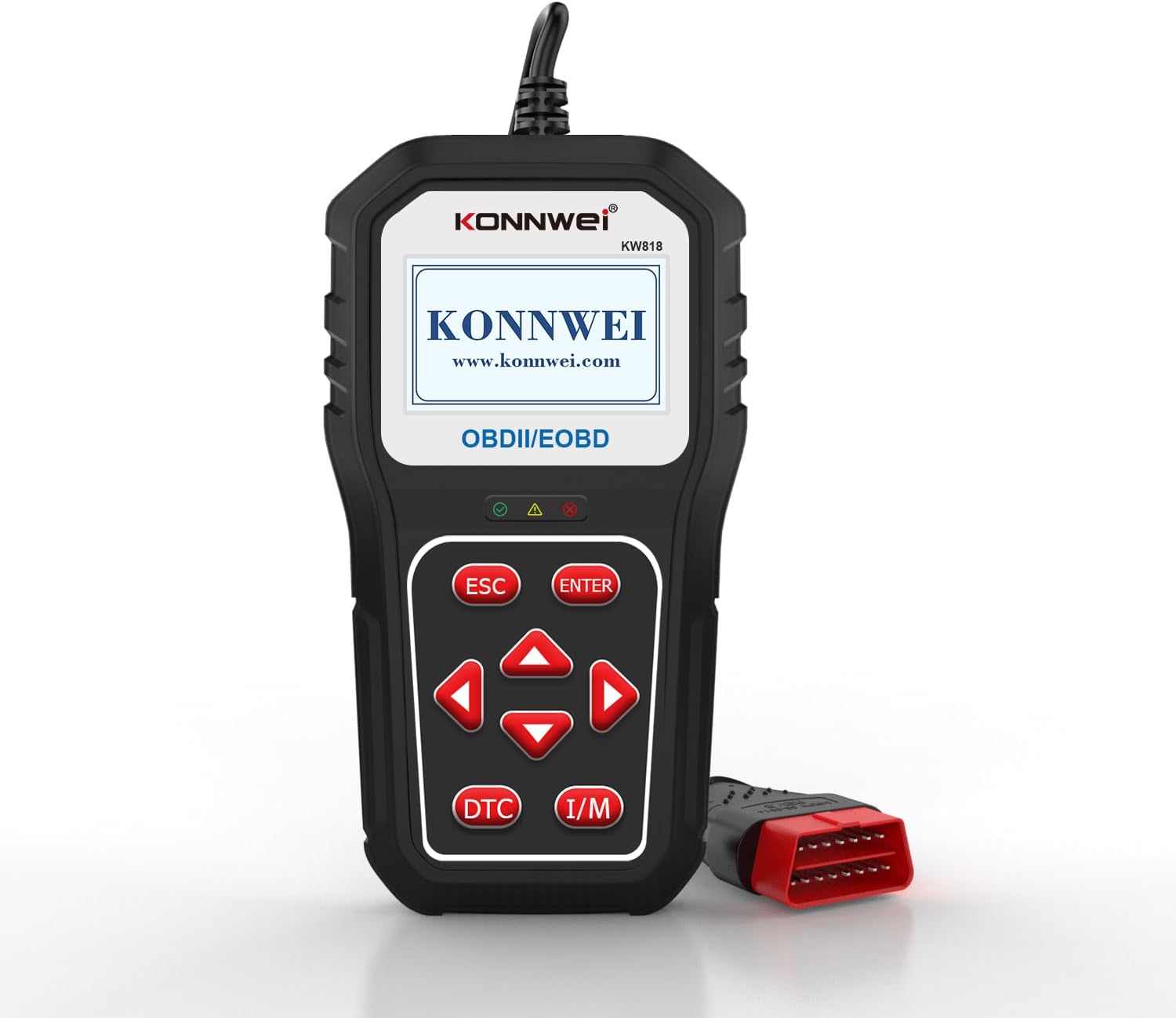
Figure 1: Front view of the KONNWEI KW818 OBD2 Scanner, showing the display screen and control buttons.
Key Features:
- All-round Diagnostic Tool: Integrates OBDII code reading/clearing, ABS/SRS airbag diagnostics, powertrain analysis, and advanced battery/charging system evaluation.
- Universal OBDII Scan: Supports turning off Malfunction Indicator Light (MIL), reading/erasing fault codes, resetting monitors, graphing live data streams, viewing freeze frame data, on-board monitoring, and displaying vehicle information (VIN).
- 12V/24V Battery System Analysis: Accurately measures CCA, voltage stability, SOC, and SOH for 12V-24V systems, compatible with various battery types.
- Multi-language Support: Supports 7 languages (English, French, German, Spanish, Portuguese, Dutch, Russian) for offline DTC fault code definitions.
- Durable and Portable Design: Ergonomic, shockproof, and dustproof body with a 2.8-inch LCD screen for clear display.
2. Setup and Connection
Before using the KONNWEI KW818, ensure your vehicle is OBDII compliant (most vehicles manufactured after 1996 are). The device connects directly to your vehicle's OBDII port, typically located under the dashboard on the driver's side.
- Locate the OBDII Port: Identify the 16-pin OBDII diagnostic port in your vehicle.
- Connect the Scanner: Plug the KW818's diagnostic cable firmly into the vehicle's OBDII port. The scanner will power on automatically.
- Vehicle Ignition: Turn the vehicle's ignition to the "ON" position (engine can be off or running, depending on the test).
- App Installation (Optional for Bluetooth Features): For full functionality including report sharing and advanced features, download the KONNWEI app on your iOS or Android device.

Figure 2: Scan QR codes to download the KONNWEI app for Android and iOS devices. The iOS app can also be found at https://apps.apple.com/cn/app/upgrade-tool-general-bluetooth/id1631285020.
- Bluetooth Pairing: Follow the app's instructions to pair your mobile device with the KW818 via Bluetooth.
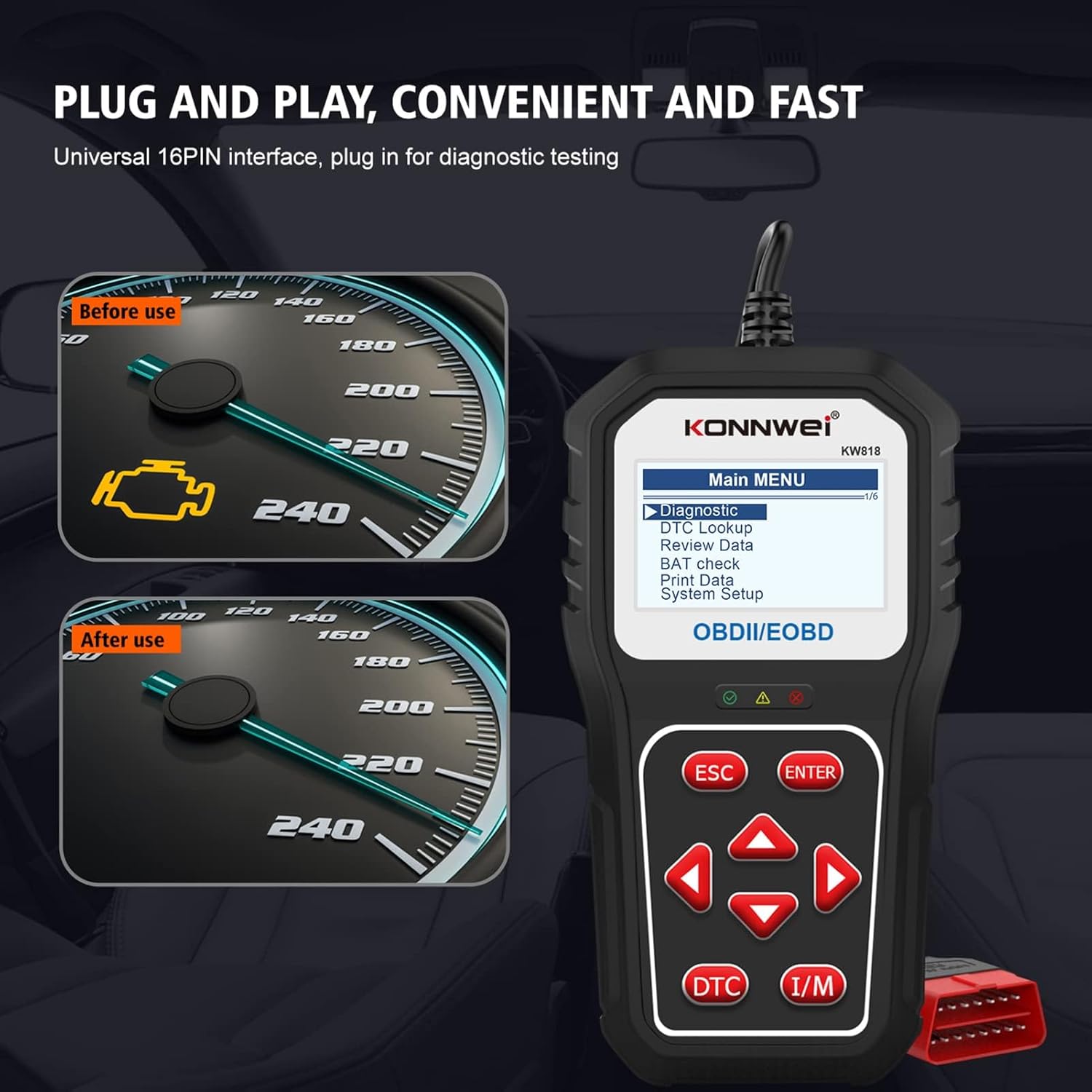
Figure 3: The KW818 is designed for plug-and-play operation, connecting to the universal 16-pin OBDII interface for diagnostic testing. This image illustrates the effect of clearing a check engine light.
3. Operating Instructions
The KW818 offers a range of diagnostic functions accessible through its intuitive menu system. Use the ESC, ENTER, and arrow keys to navigate.
3.1. Diagnostic Functions
- Read and Erase Fault Codes: Access the "Diagnostic" menu to read current, pending, and permanent Diagnostic Trouble Codes (DTCs). Select "Erase Codes" to clear the codes and turn off the Check Engine Light (MIL).
- Live Data Stream: View real-time sensor readings and vehicle parameters. This data can be displayed graphically for easier analysis.
- Freeze Frame Data: Capture a snapshot of vehicle operating conditions at the moment a fault code was set, aiding in diagnosis.
- I/M Readiness Status: Check the status of emission-related monitors to determine if the vehicle is ready for an emissions test.
- O2 Sensor Test: Retrieve and view O2 sensor monitoring test results for the most recently completed tests.
- On-Board Monitoring Test: Access results of on-board diagnostic monitoring tests for specific components/systems.
- EVAP System Test: Initiate a leak test for the vehicle's EVAP system to identify issues related to fuel efficiency and emissions.
- Vehicle Information (VIN, CIN, CVN): Retrieve the Vehicle Identification Number, Calibration ID, and Calibration Verification Number.

Figure 4: The KW818 provides comprehensive OBDII data, including engine diagnostics, O2 sensor test results, and vehicle information.
3.2. Battery Test Function
The KW818 includes a dedicated battery health diagnostic function for 12V-24V systems.
- CCA Measurement: Measures Cold Cranking Amps.
- Voltage Stability: Checks the stability of the battery voltage.
- SOC/SOH: Determines the State of Charge and State of Health of the battery.
- Load Test: Verifies the battery's reserve capacity.
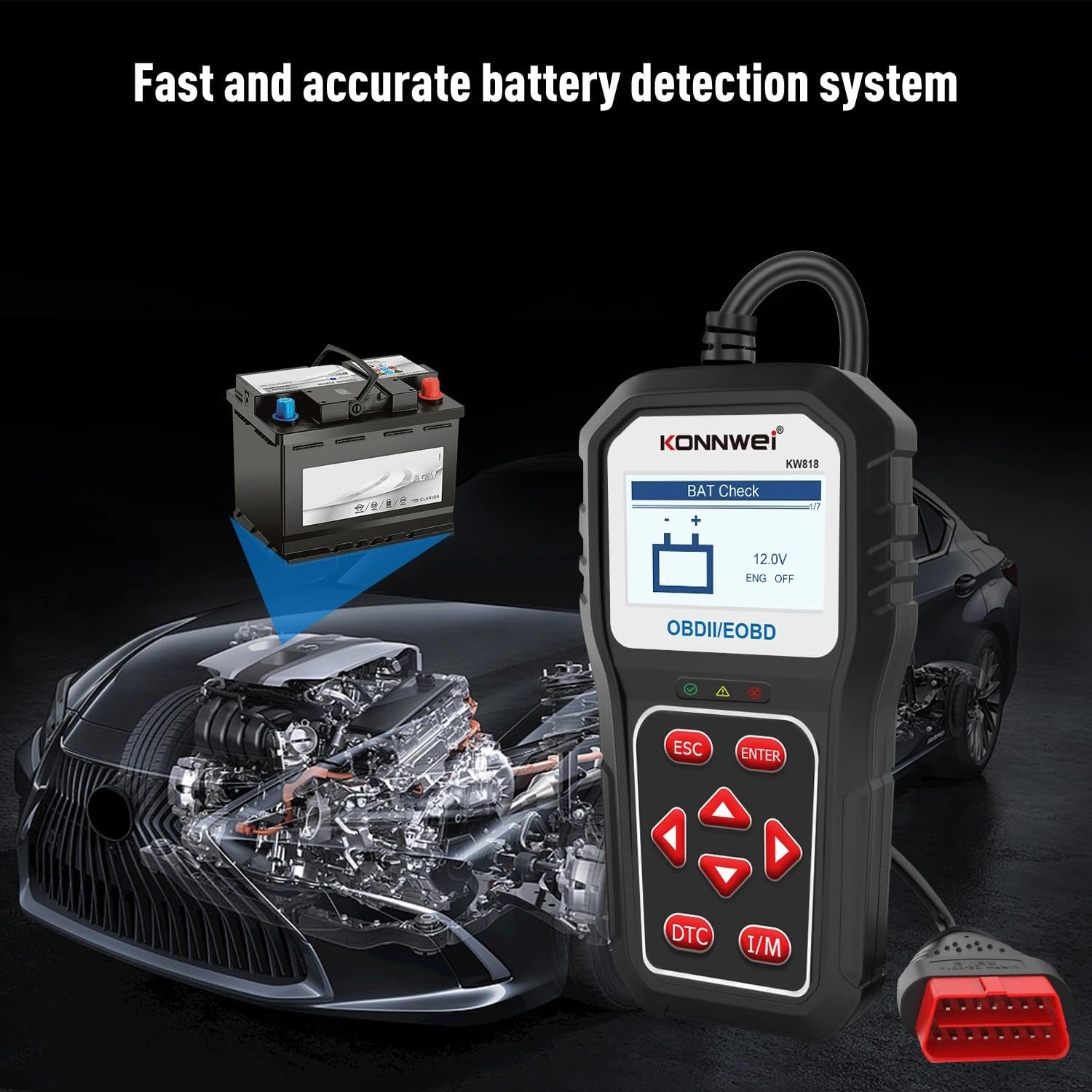
Figure 5: The KW818 provides fast and accurate battery detection, analyzing 12V/24V systems.
3.3. Status Indicators
The KW818 features LED indicators to quickly display the vehicle's health status:
- Green LED: Indicates that engine systems are running normally.
- Yellow LED: Indicates there is a possible problem, often a pending code or a minor issue.
- Red LED: Indicates there is a possible problem in one or more of the vehicle's systems, typically an active DTC.

Figure 6: The KW818 uses color-coded LEDs to quickly display the vehicle's health status.
4. Maintenance
To ensure optimal performance and longevity of your KONNWEI KW818 scanner, follow these maintenance guidelines:
- Cleaning: Wipe the device with a soft, dry cloth. Do not use abrasive cleaners or solvents.
- Storage: Store the scanner in a cool, dry place away from direct sunlight and extreme temperatures.
- Software Updates: KONNWEI provides lifetime free software updates. Regularly check the official KONNWEI website or the companion app for available updates to ensure compatibility with new vehicle models and improved functionality.
- Cable Care: Inspect the OBDII cable regularly for any signs of damage. Do not bend or crimp the cable excessively.
5. Troubleshooting
If you encounter issues with your KW818 scanner, refer to the following common troubleshooting steps:
- Scanner Does Not Power On:
- Ensure the OBDII cable is securely connected to both the scanner and the vehicle's OBDII port.
- Verify the vehicle's ignition is in the "ON" position.
- Check the vehicle's fuse for the OBDII port (consult your vehicle's manual).
- Communication Error:
- Confirm the vehicle is OBDII compliant.
- Ensure the ignition is "ON" and the engine is off or running as required by the test.
- Try connecting to a different OBDII compliant vehicle to rule out a vehicle-specific issue.
- Update the scanner's software to the latest version.
- Incorrect Readings/Inaccurate Data:
- Ensure the vehicle's VIN is correctly recognized by the scanner.
- Verify that the scanner's software is up to date.
- Consult the vehicle's service manual for expected sensor values if comparing live data.
- Bluetooth Connection Issues:
- Ensure Bluetooth is enabled on your mobile device.
- Restart both the scanner and your mobile device.
- Forget the device in your phone's Bluetooth settings and re-pair.
- Ensure the KONNWEI app has necessary Bluetooth permissions.
The KW818 also provides "Troubleshooter code tips" which guide you to find the root cause of a trouble code faster, saving diagnosis and repair time.
6. Specifications
| Attribute | Value |
|---|---|
| Brand | KONNWEI |
| Model | KW818-US |
| Product Dimensions | 7.8"L x 4"W x 1.6"H |
| Item Weight | 1.06 pounds |
| Operating System | Linux |
| Language Support | English, German, French, Spanish, Portuguese, Dutch, Russian |
| Display Resolution | 320x240 |
| Automotive Fit Type | Universal Fit |
7. Warranty and Support
7.1. Software Updates
The KONNWEI KW818 comes with lifetime free software updates. This ensures your scanner remains compatible with the latest vehicle models and diagnostic protocols, and benefits from ongoing feature enhancements.
7.2. Customer Support
For technical assistance, troubleshooting beyond this manual, or inquiries regarding your KONNWEI KW818 scanner, please refer to the contact information provided with your product packaging or visit the official KONNWEI website for support resources.
Ask a question about this manual
Ask about setup, troubleshooting, compatibility, parts, safety, or missing instructions. Manuals+ will review the question and use this page’s manual context to help answer it.