
1. Introduction
The Aixiqee A80 is a lightweight and compact wireless thermal printer designed for convenience and efficiency. It utilizes inkless thermal technology, eliminating the need for ink cartridges and reducing maintenance. This printer supports various paper sizes, including US Letter, Legal, A4, A5, and narrow rolls, making it versatile for different printing needs. With its built-in battery and wireless connectivity, the A80 is ideal for printing on the go from mobile devices or laptops.
Key features include:
- Ultra-Portable Design: Weighing approximately 2 lbs, its compact size allows for easy transport in bags, suitable for travel, home, or office use.
- Multi-Size Paper Compatibility: Supports roll and folded thermal paper in popular sizes such as US Letter (8.5"x11"), Legal, A4, A5, and narrow rolls (2"/3"/4" widths).
- Thermal Inkless Technology: Operates without ink cartridges, offering an eco-friendly and low-maintenance printing solution for documents, labels, and receipts.
- Wireless & Bluetooth Connectivity: Connects to iOS/Android devices via the SharpFox app and to laptops via driver installation, providing flexible printing options.
- Long-Lasting Battery: Equipped with a 4200mAh battery, capable of printing over 600 pages on a single charge.
2. What's in the Box
Upon unboxing your Aixiqee A80 printer, ensure all components are present:
- Aixiqee A80 Wireless Thermal Printer
- USB Type-C Charging Cable
- User Manual
- Thermal Paper Roll (pre-installed or included separately)
- Phone Holder (integrated or included separately)
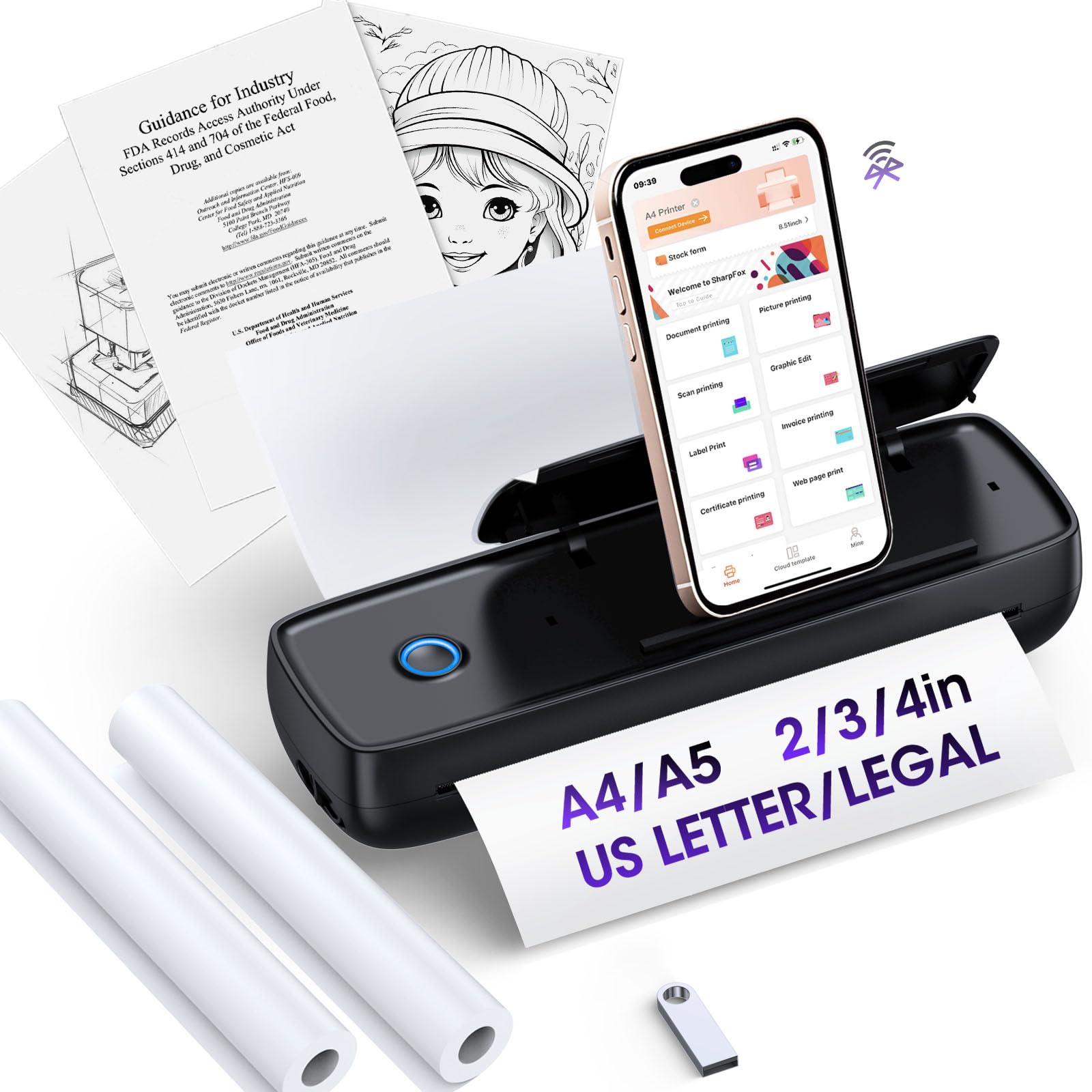
Image: Aixiqee A80 printer with included accessories, including a USB cable and paper roll.
3. Setup Instructions
3.1. Charging the Printer
Before initial use, fully charge the printer using the provided USB Type-C cable. Connect the cable to the printer's USB interface and a compatible power source (e.g., wall adapter, power bank, or computer USB port).

Image: The Aixiqee A80 printer highlighting its 4200mAh battery and USB-C fast charge capability.
3.2. Loading Thermal Paper
- Locate the two release buttons on the sides of the printer. Press them simultaneously to open the printer cover.
- Insert the thermal paper roll into the designated compartment. Ensure the printing side of the paper is facing upwards and extends slightly out of the printer's output slot.
- Close the printer cover until it clicks securely into place.

Image: Diagram illustrating how to load roll paper and use folded paper with the Aixiqee A80 printer.
3.3. Powering On/Off
Press and hold the power key for 3 seconds to turn the printer on or off. The indicator light will illuminate when the printer is active.
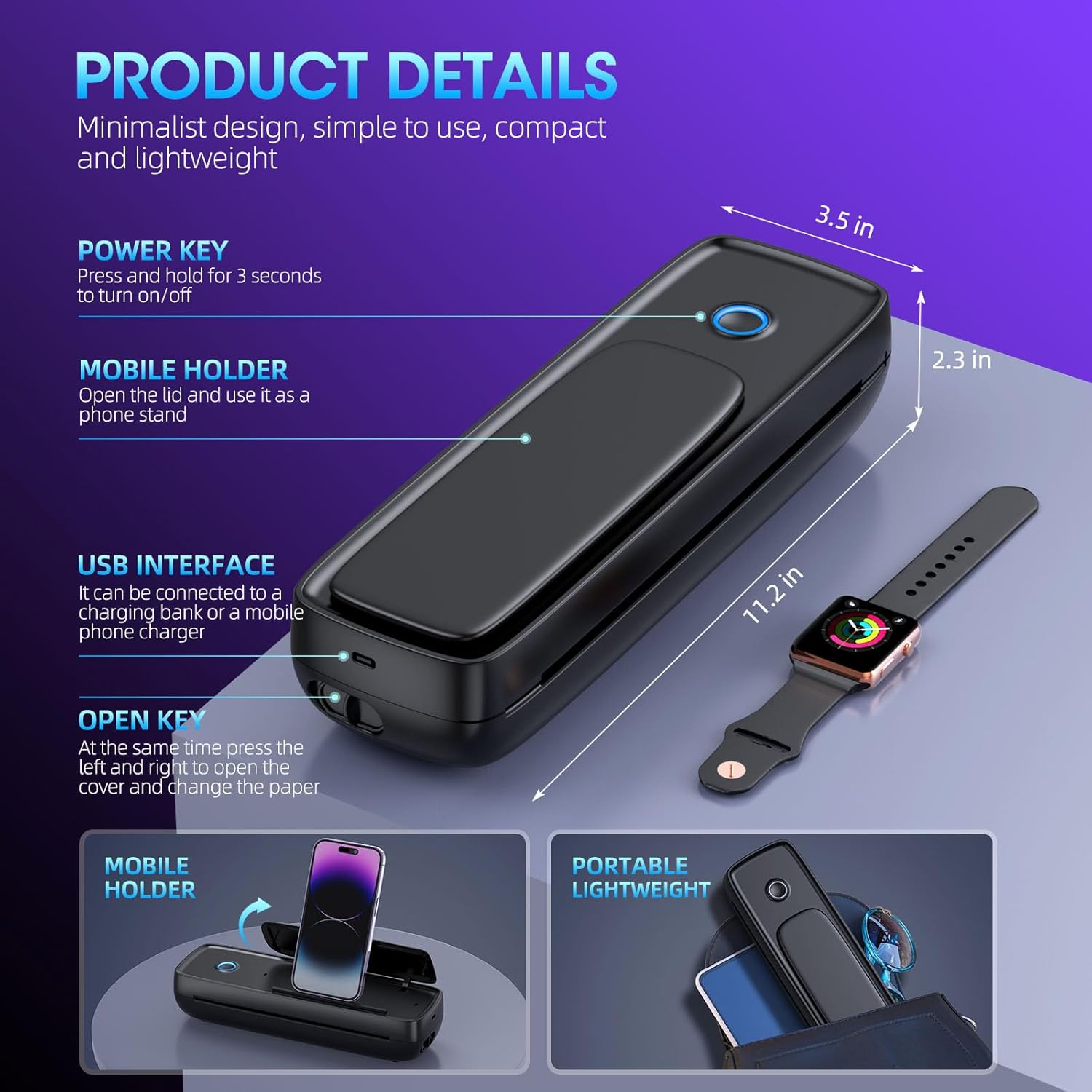
Image: Close-up of the Aixiqee A80 printer detailing the power key, mobile holder, USB interface, and open key.
3.4. App Installation (for Mobile Devices)
For printing from iOS or Android devices, download the "SharpFox" app from your device's app store. Follow the in-app instructions to connect your printer via Bluetooth.

Image: Illustration of mobile printing via Bluetooth and the SharpFox app, and computer printing via USB cable.
3.5. Driver Installation (for Laptops)
For printing from Windows or Mac laptops, a driver download is required. Refer to the included user manual or the manufacturer's website for specific driver download and installation instructions.
4. Operating Instructions
4.1. Mobile Printing
- Ensure your Aixiqee A80 printer is powered on and Bluetooth is enabled on your mobile device.
- Open the "SharpFox" app and follow the prompts to connect to your printer.
- Select the document or image you wish to print from within the app.
- Adjust print settings (e.g., paper size, density) as needed and initiate printing.
Video: Official seller video demonstrating the portable wireless printer in use, including mobile connectivity and printing.
4.2. Computer Printing
- Connect the Aixiqee A80 printer to your computer using the USB Type-C cable.
- Ensure the printer drivers are correctly installed on your computer.
- Open the document or file you wish to print.
- Select the Aixiqee A80 from your printer options and adjust print settings as required.
- Initiate the print job from your computer.
4.3. Using the Phone Holder
The printer features an integrated phone holder. Open the lid and place your smartphone in the holder for hands-free viewing while printing or for general use.
5. Maintenance
The Aixiqee A80 thermal printer requires minimal maintenance due to its inkless technology. Regularly check the paper compartment for any debris and ensure the paper path is clear. Replace thermal paper rolls as needed. No ink cartridges or ribbons are required.
6. Troubleshooting
- Printer Not Turning On: Ensure the printer is fully charged. Connect it to a power source and allow it to charge for at least 30 minutes before attempting to power on again.
- Connectivity Issues:
- For Bluetooth: Verify Bluetooth is enabled on your mobile device and the printer is discoverable. Restart both the printer and your device.
- For USB: Ensure the USB cable is securely connected to both the printer and the computer. Confirm that the correct printer drivers are installed.
- Poor Print Quality:
- Check that the thermal paper is loaded correctly with the printing side facing up.
- Ensure you are using compatible thermal paper.
- Clean the print head gently with a soft, lint-free cloth if smudges occur.
- Paper Jams: Open the printer cover, carefully remove any jammed paper, and re-load the paper roll correctly.
- App Not Detecting Printer: Ensure the SharpFox app has Bluetooth permissions enabled on your mobile device.
7. Specifications
| Feature | Detail |
|---|---|
| Model Name | A80 |
| Brand | Aixiqee |
| Printing Technology | Thermal |
| Printer Ink Type | Inkless |
| Connectivity Technology | USB, Bluetooth |
| Supported Media Sizes | US Letter (8.5"x11"), Legal, A4, A5, 2"/3"/4" widths |
| Max Input Sheet Capacity | 50 |
| Maximum Black and White Print Resolution | 600 dots_per_inch |
| Item Weight | 3.03 pounds (approx. 1.38 kg) |
| Product Dimensions | 2.17 x 12 x 1.57 inches |
| Battery Capacity | 4200mAh (prints 600+ pages per charge) |
8. Warranty and Support
For warranty information and technical support, please refer to the official Aixiqee website or contact their customer service. Details can typically be found in the product packaging or on the manufacturer's support pages.


